OEDQ can execute the following types of task, either interactively from the GUI (by right-clicking on an object in the Project Browser, and selecting Run), or as part of a scheduled Job.
The tasks have different execution options. Click on the task below for more information:
In addition, when setting up a Job it is possible to set Triggers to run before or after Phase execution.
When setting up a Job, tasks may be divided into several Phases in order to control the order of processing, and to use conditional execution if you want to vary the execution of a job according to the success or failure of tasks within it.
When a Snapshot is configured to run as part of a job, there is a single Enabled? option, which is set by default.
Disabling the option allows you to retain a job definition but to disable the refresh of the snapshot temporarily - for example because the snapshot has already been run and you want to re-run later tasks in the job only.
There are a variety of different options available when running a process, either as part of a job, or using the Quick Run option and the Process Execution Preferences:
For each Reader in a process, the following option is available:
The Sample option allows you to specify job-specific sampling options. For example, you might have a process that normally runs on millions of records, but you might want to set up a specific job where it will only process some specific records that you want to check, such as for testing purposes.
Specify the required sampling using the option under Sampling, and enable it using the Sample option.
The sampling options available will depend on how the Reader is connected.
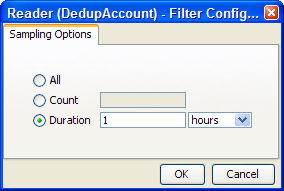
For Readers that are connected to real time providers, you can limit the process so that it will finish after a specified number of records using the Count option, or you can run the process for a limited period of time using the Duration option. For example, to run a real time monitoring process for a period of 1 hour only:
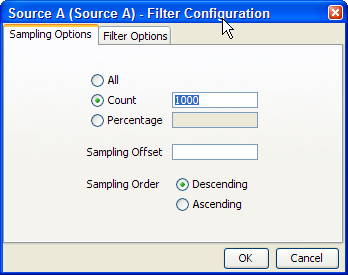
For Readers that are connected to staged data configurations, you can limit the process so that it runs only on a sample of the defined record set, using the same sampling and filtering options that are available when configuring a Snapshot. For example, to run a process so that it only processes the first 1000 records from a data source:
The following options are available when running a process, either as part of the Process Execution Preferences, or when running the process as part of a job.
Intelligent Execution means that any processors in the process which have up-to-date results based on the current configuration of the process will not re-generate their results. Processors that do not have up-to-date results are marked with the rerun marker - see Processor States. Intelligent Execution is selected by default. Note that if you choose to sample or filter records in the Reader in a process, all processors will re-execute regardless of the Intelligent Execution setting, as the process will be running on a different set of records.
This option means that the specified Sort/Filter enablement settings on any match processors in the process (accessed via the Advanced Options on each match processor) will be performed as part of the process execution. The option is selected by default. When matching large volumes of data, running the Sort/Filter enablement task to allow match results to be reviewed may take a long time, so you may wish to defer it by de-selecting this option. For example, if you are exporting matching results externally, you may wish to begin exporting the data as soon as the matching process is finished, rather than waiting until the Enable Sort/Filter process has run. You may even wish to over-ride the setting altogether if you know that the results of the matching process will not need to be reviewed.
This option allows you to choose the level of Results Drill Down that you require.
All means that drilldowns will be available for all records that are read in to the process. This is only recommended when you are processing small volumes of data (up to a few thousand records), when you want to ensure that you can find and check the processing of any of the records read into the process.
Sample is the default option. This is recommended for most normal runs of a process. With this option selected, a sample of records will be made available for every drilldown generated by the process. This ensures that you can explore results as you will always see some records when drilling down, but ensures that excessive amounts of data are not written out by the process.
None means that the process will still produce metrics, but drilldowns to the data will be unavailable. This is recommended if you want the process to run as quickly as possible from source to target, for example, when running data cleansing processes that have already been designed and tested.
This option sets whether or not to publish results to the Dashboard. Note that in order to publish results, you first have to enable dashboard publication on one or more audit processors in the process.
To support the required Execution Types, OEDQ provides three different run modes.
If a process has no readers that are connected to real time providers, it always runs in Normal mode (see below).
If a process has at least one reader that is connected to a real time provider, the mode of execution for a process can be selected from one of the following three options:
In Normal mode, a process runs to completion on a batch of records. The batch of records is defined by the Reader configuration, and any further sampling options that have been set in the process execution preferences or job options.
Prepare mode is required when a process needs to provide a real time response, but can only do so where the non real time parts of the process have already run; that is, the process has been prepared.
Prepare mode is most commonly used in real time reference matching. In this case, the same process will be scheduled to run in different modes in different jobs - the first job will prepare the process for real time response execution by running all the non real time parts of the process, such as creating all the cluster keys on the reference data to be matched against. The second job will run the process as a real time response process (probably in Interval mode).
In Interval mode, a process may run for a long period of time, (or even continuously), but will write results from processing in a number of intervals. An interval is completed, and a new one started, when either a record or time threshold is reached. If both a record and a time threshold are specified, then a new interval will be started when either of the thresholds is reached.
As Interval mode processes may run for long periods of time, it is important to be able to configure how many intervals of results to keep. This can be defined either by the number of intervals, or by a period of time.
For example, the following options might be set for a real time response process that runs on a continuous basis, starting a new interval every day:
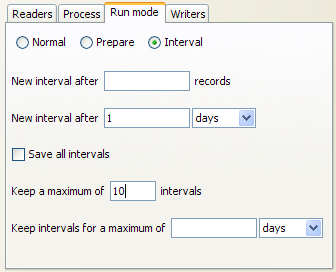
In this case, a maximum of 10 intervals (or 10 days of results) is retained.
Note that processes that run continuously may also publish their results to the Dashboard, so that trend analysis can be plotted across time and record intervals.
When a process is running in Interval mode, you can browse the results of the completed intervals (as long as they are not too old according to the specified options for which intervals to keep).
The Results Browser presents a simple drop-down selection box showing the start and end date and time of each interval. By default, the last completed interval is shown. Select the interval, and browse results:

If you have the process open when a new set of results becomes available, you will be notified in the status bar:

You can then select these new results using the drop-down selection box.
For each Writer in a process, the following options are available:
This option sets whether or not the writer will 'run'; that is, for writers that write to stage data, de-selecting the option will mean that no staged data will be written, and for writers that write to real time consumers, de-selecting the option will mean that no real time response will be written.
This is useful in two cases:
This option sets whether or not to enable sorting and filtering of the data written out by a Staged Data writer. Typically, the staged data written by a writer will only require sorting and filtering to be enabled if it is to be read in by another process where users might want to sort and filter the results, or if you want to be able to sort and filter the results of the writer itself.
The option has no effect on writers that are connected to real time consumers.
Any External Tasks (File Downloads, or External Executables) that are configured in a project can be added to a Job in the same project.
When an External Task is configured to run as part of a job, there is a single Enabled? option.
Enabling or Disabling the Enable export option allows you to retain a job definition but to enable or disable the export of data temporarily.
When an Export is configured to run as part of a job, the export may be enabled or disabled (allowing you to retain a Job definition but to enable or disable the export of data temporarily), and you can specify how you want to write data to the target Data Store, from the following options:
This means that for databases, the target database table will be truncated, with all its data replaced by the export data, and for files, any existing file with the same name in the server landing area will be deleted and recreated with the export data.
This means that records will be appended to the current set of records in a database table or file.
This option only applies for relational databases with a detectable primary key that is present in both the export data and the target table. The export will replace records in the target table with the records in the export data with the same primary key. This allows for delta processing, ensuring that any records that exist in the target table and which do not exist in the export data are unaffected by the export. Note that all columns in the target table must also exist in the export data for the export to be successful.
Note that only exports to Server-side Data Stores (not Client-side Data Stores) can be configured as part of Jobs. This is because Jobs always run entirely on the server, and the server cannot usually access data stores that have been configured to be accessed via a client machine.
When a Results Book Export is configured to run as part of a job, there is a single option to enable or disable the export, allowing you to retain the same configuration but temporarily disable the export if required.
Triggers are specific configured actions that OEDQ can take at certain points in processing. The current points where triggers may be fired are:
Triggers may either be one of the two pre-configured actions, or they may be different actions that are configured on an OEDQ server by an administrator, such as sending a JMS message, or calling a Web Service, etc.
The two pre-configured actions are:
Oracle ® Enterprise Data Quality Help version 9.0
Copyright ©
2006,2011 Oracle and/or its affiliates. All rights reserved.