
 Downloading Citi Bike Data and Storing into Object Store
 Before You Begin
In this 10-minute tutorial, you will use notebook to download the Citi Bike data and to store it into Object Store.
This is the first tutorial in the Storing and Analyzing Data with Big Data Cloud series. Perform the tutorials sequentially.
- Downloading Citi Bike Data and Storing into Object Store
- Working with Hive
- Working with Spark Interpreter
- Adding Weather Data to the Object Store
- Adding Calendar Data to the Object Store
Background
This tutorial uses bike ride data available from the New York
City bike share program known as Citi Bike NYC. Citi Bike
consists of a fleet of bikes and a network of docking stations.
Bikes can be unlocked from one station and returned to any
other.
What Do You Need?
- A running BDC cluster.
- BDC account credentials or Big Data Cloud Console direct URL (for example: https://xxx.xxx.xxx.xxx:1080/).
- The URL to the CSV file that contains the Citi Bikes dataset.
- code_snippet-1.txt
 Navigate
to Big Data Cloud Console - Notebook Page
Navigate
to Big Data Cloud Console - Notebook Page
- Login to your BDC account.
Note: If you have the direct URL to access the Big Data Cloud Console, you can navigate to the link directly and continue from step 3. - In the Services page, click the Manage this
Service
 icon of the cluster
and then click Big Data Cloud Console.
icon of the cluster
and then click Big Data Cloud Console.

Description of the illustration a2.jpg - A window titled Authentication Required appears. Enter your
BDC cluster user name and password and click OK.

Description of the illustration a3.jpg - In the Big Data Cloud Console, click Notebook.
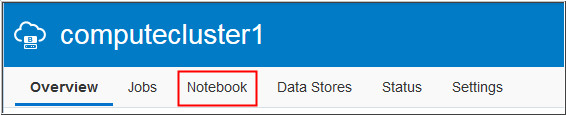
Description of the illustration a4.jpg
 Create
a Note
Create
a Note
- In the Big Data Cloud Console Notebook page, click New
Note.
Enter a Note Name and click OK. In this example, Citi Bike Trip is entered for Note Name.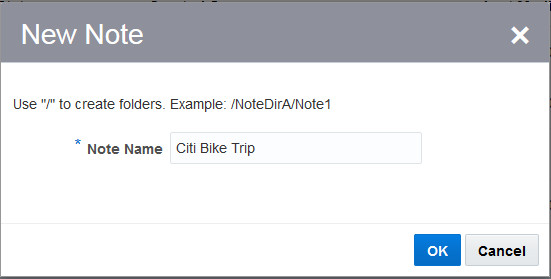
Description of the illustration b1.jpg - The Note opens after it is created successfully. The Note
currently contains an empty paragraph.
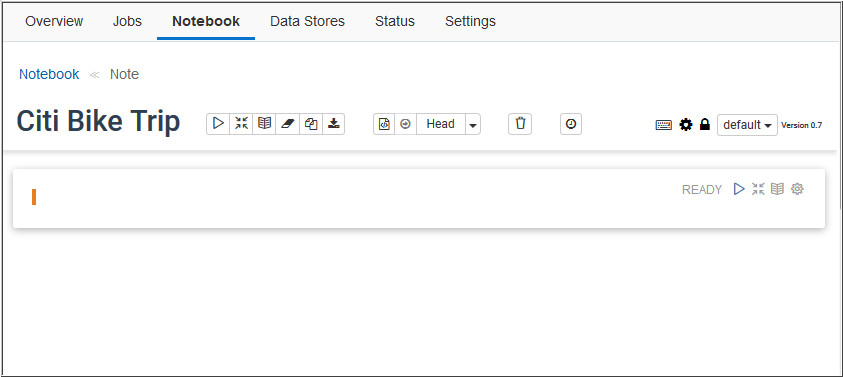
Description of the illustration b2.jpg
 Create
and Run Paragraph
Create
and Run Paragraph
Perform these steps to create a paragraph.
- Copy code-snippet-1.txt and paste it in the empty paragraph.
- Click the Settings icon
 and choose Show title.

Description of the illustration c2.jpg - Click the paragraph title and set it to Download
Data and Copy into Object Storage.
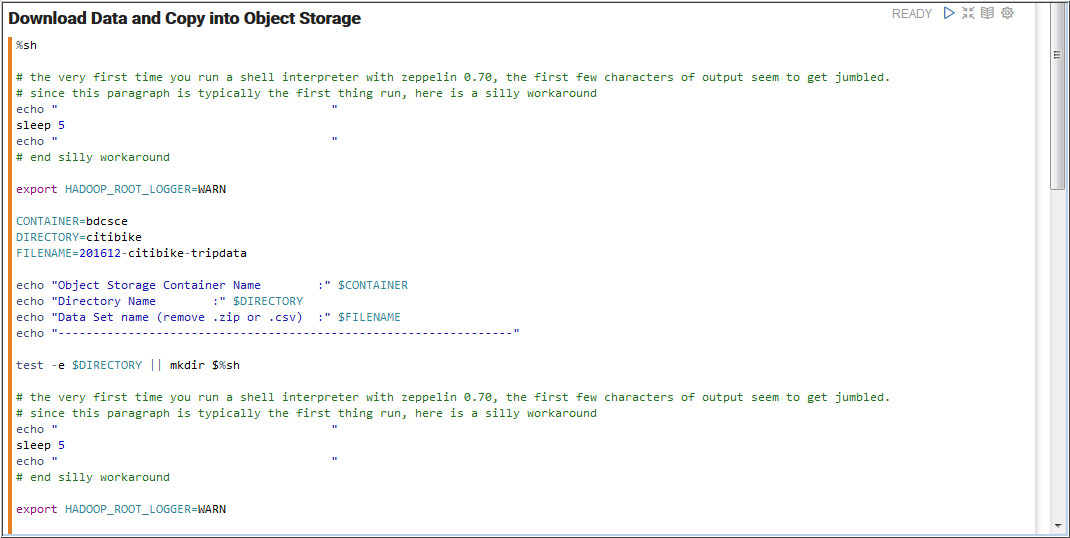
Description of the illustration c3.jpg
Note: This scripts shows how to move files into the
Object Storage. You store the original data file into a
directory within the container called “citibike/raw”. Then, you
create a modified version of the data file (that has the header
row removed) and store that into a directory called
“citibike/modified”. - Run the paragraph by clicking the Run this
paragraph icon
 .
.

Description of the illustration c4.jpg 
Description of the illustration c4_a.jpg
 Next
Tutorial
Next
Tutorial
 Want
to Learn More?
Want
to Learn More?
- Oracle Help Center Page for Oracle Big Data Cloud
- Using Guide for Oracle Big Data Cloud
- Working with Notebook