Apache Hive uses SQL to allow users to structure and query
large datasets residing in Hadoop Distributed File System (HDFS)
and Object Store to obtain useful analytics.
What Do You Need?
A running BDC cluster.
BDC account credentials or Big Data Cluster Console
direct URL (for example: https://xxx.xxx.xxx.xxx:1080/).
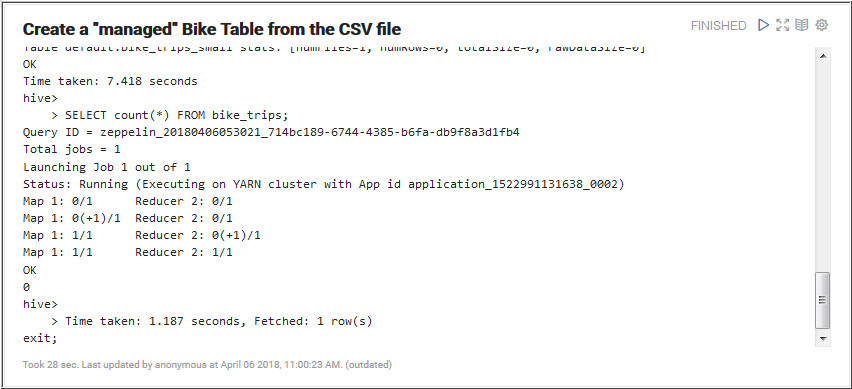
In this section, you create a Hive table on top of the citi
bike CSV file using 2 variations. Perform these steps to
create a “managed” table where Hive manages the storage
details (internally Hive will leverage HDFS storage).
Login to Big Data Cloud Console and click Notebook.
Open Citi Bike Trip
note and click the + icon below the Download Data
and Copy into Object Storage paragraph.
Zeppelin Notebook includes a JDBC interpreter that allows you
to run a query as a paragraph and format the results. In BDC,
the JDBC interpreter has been per-configured to connect to
Hive. Perform the following steps to work with the JDBC
interpreter and connect to Hive:
Click the + icon below the paragraph.
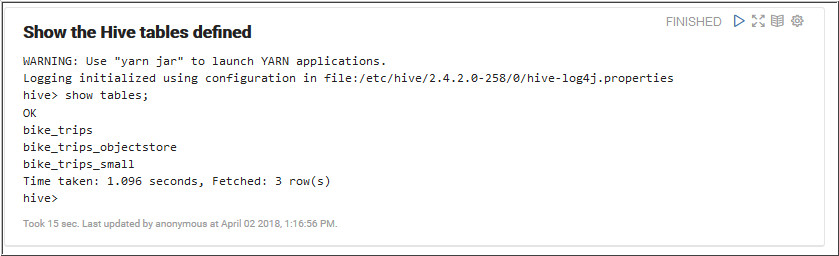
Run the following query to view the Hive table using the
JDBC interpreter.
Run the following query to select bike riders based on
gender from the bike_trips table. Click the Pie
Chart icon to
view the output as Pie Chart.
%jdbc(hive)

select
 case when a.gender=1 then 'Male' when a.gender=2 then
'Female' else 'Unknown' end gender,  a.trip_count
from (select gender, count(*) trip_count from bike_trips
group by gender) a
Run the following query to select bike riders based on
gender and day of the week from the bike_trips
table. Click the Bar Graph icon to view the output as as Chart with
Stacks and Groupings.
%jdbc(hive)

select gender, dayofweek, count(*)
from (    select date_format(`StartTime`,"E") dayofweek,
          case when gender=1 then 'Male' when gender=2 then
'Female' else 'Unknown' end gender
from bike_trips) bike_times
group by gender, dayofweek

 Working
with Hive
Working
with Hive Before You Begin
 Create a Hive Table
 and view the
output.
and view the
output.

 Query Hive Table with JDBC(Hive) Interpreter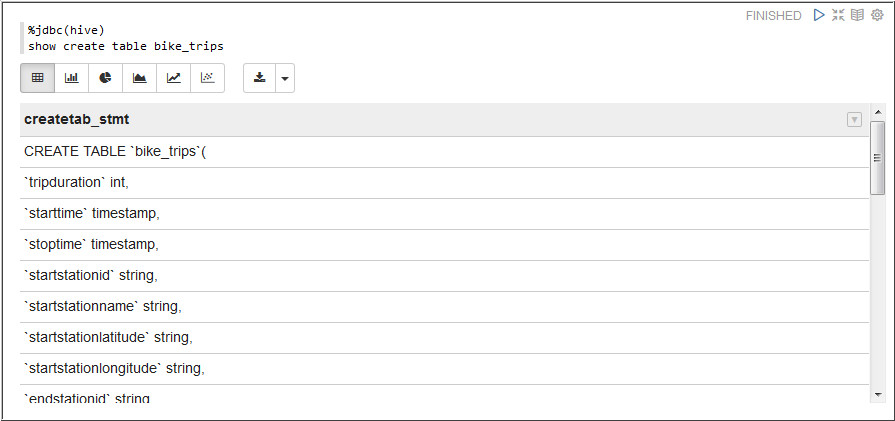
 to
view the output as Pie Chart.
to
view the output as Pie Chart.

 to view the output as as Chart with
Stacks and Groupings.
to view the output as as Chart with
Stacks and Groupings. 
 Next
Tutorial
Next
Tutorial Want to Learn More?