
 Adding
Weather Data to the Object Store
Adding
Weather Data to the Object Store Before You Begin
In this 10-minute tutorial, you add weather data to your data lake and combine with the citi bike trip data.
This is the 4th tutorial in the Storing and Analyzing Data with Big Data Cloud series. Perform the tutorials sequentially.
- Downloading Citi Bike Data and Storing into Object Store
- Working with Hive
- Working with Spark Interpreter
- Adding Weather Data to the Object Store
- Adding Calendar Data to the Object Store
What Do You Need?
- A running BDC cluster.
- BDC account credentials or Big Data Cloud Console direct URL (for example: https://xxx.xxx.xxx.xxx:1080/).
- code_snippet-a2.txt
- code_snippet-b1.txt
 Download
Weather Data and Upload to Object Store
Download
Weather Data and Upload to Object Store
- In the Big Data Cloud Console Notebook page, click Citi Bike Trip note.
- Copy code_snippet-a2.txt
and paste it in the empty paragraph.
- Set the title as Download weather data and upload to Object Store.
- Run the paragraph and view the output.
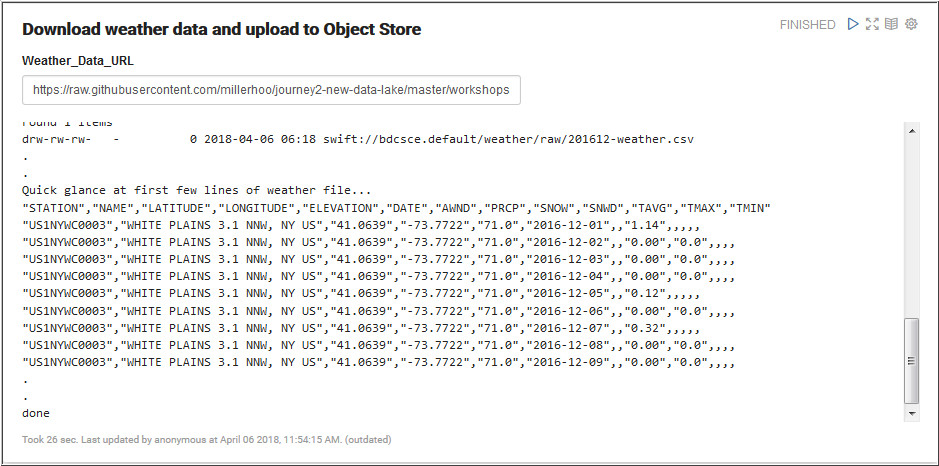
Description of the illustration a4.jpg
 Read
Weather Data and Register as a Spark SQL Table
Read
Weather Data and Register as a Spark SQL Table
In this section, you use Spark to read the weather data CSV file and register the data frame as a Spark SQL temp table.
- Copy code_snippet-b1.txt and paste it in the empty paragraph.
- Set the paragraph title as Spark Scala to read CSV and register as a temp view.
- Run the paragraph to read the weather data CSV file
and register it as a temp view using Spark.
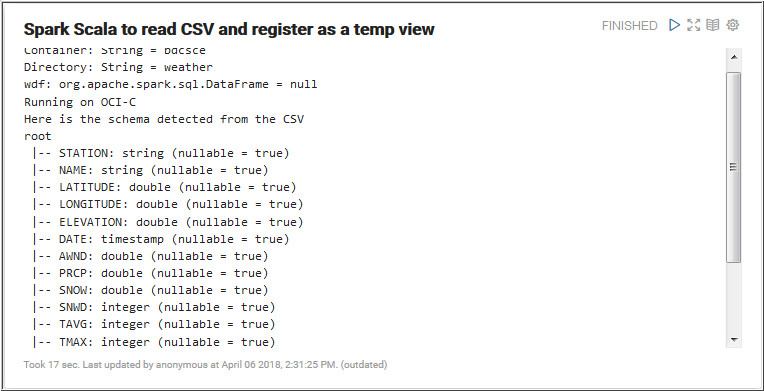
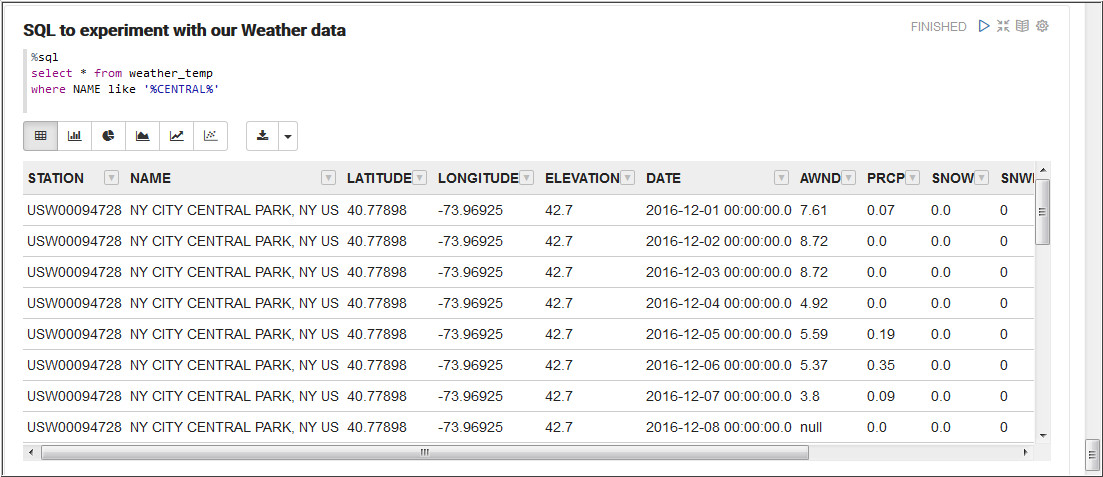
Description of the illustration b3.jpg - Run the following query in the next paragraph to retrieve the weather data.
%sql
select * from weather_temp
where NAME like '%CENTRAL%'
 Next
Tutorial
Next
Tutorial Want
to Learn More?
Want
to Learn More?