
 Connecting
Oracle Data Visualization Desktop to Big Data Cloud
Connecting
Oracle Data Visualization Desktop to Big Data Cloud Before You Begin
This 10-minute tutorial shows you how to connect Oracle Data Visualization Desktop to Big Data Cloud.
This is the 3rd tutorial in the Analyzing and Visualizing Data on Big Data Cloud series. Perform the tutorials sequentially.
- Creating a Trust Store File
- Configuring the Memory Settings for the Spark Thrift Server Process
- Connecting Oracle Data Visualization Desktop to Big Data Cloud
- Creating a Data Visualization Desktop Data Set
- Exploring and Visualizing Data Using Oracle Data Visualization Desktop
Background
Oracle Data Visualization Desktop is the perfect tool for quick exploration of sample data from multiple sources or for rapid analyses and investigation of your own local data sets. Data Visualization Desktop makes it easy to visualize your data so you can focus on exploring interesting data patterns. It also gives you a preview of the self-service visualization capabilities included in Oracle Analytics Cloud, Oracle's industrial-strength cloud analytics platform.
Oracle Data Visualization Desktop(DVD) has a new connection
type called “Oracle Big Data Cloud (beta)”. This connection type
is built for Oracle Big Data Cloud(BDC). Specifically, the
connection type is built to use BDC default configuration of
running the Spark Thrift Server in http transport mode behind
the standard BDC firewall/proxy running on port 1080. This
provides security and load-balancing features.
To use this connection type, you need to setup the DVD client
with a “trust store” that contains the BDC server’s self-signed
certificate.
Note: The DVD
connection type for Oracle Big Data Cloud does not currently
allow you to specify a http proxy. So, please make sure
there is no firewall between where you run DVD and port 1080 on
the BDC instance.
What Do You Need?
- Oracle Data Visualization Desktop
- A running BDC cluster
- Download and import the Citi Bike note to the BDC cluster and run the paragraphs
 Connect
DVD to Big Data Cloud
Connect
DVD to Big Data Cloud
- Open Oracle Data Visualization Desktop on your local
machine.
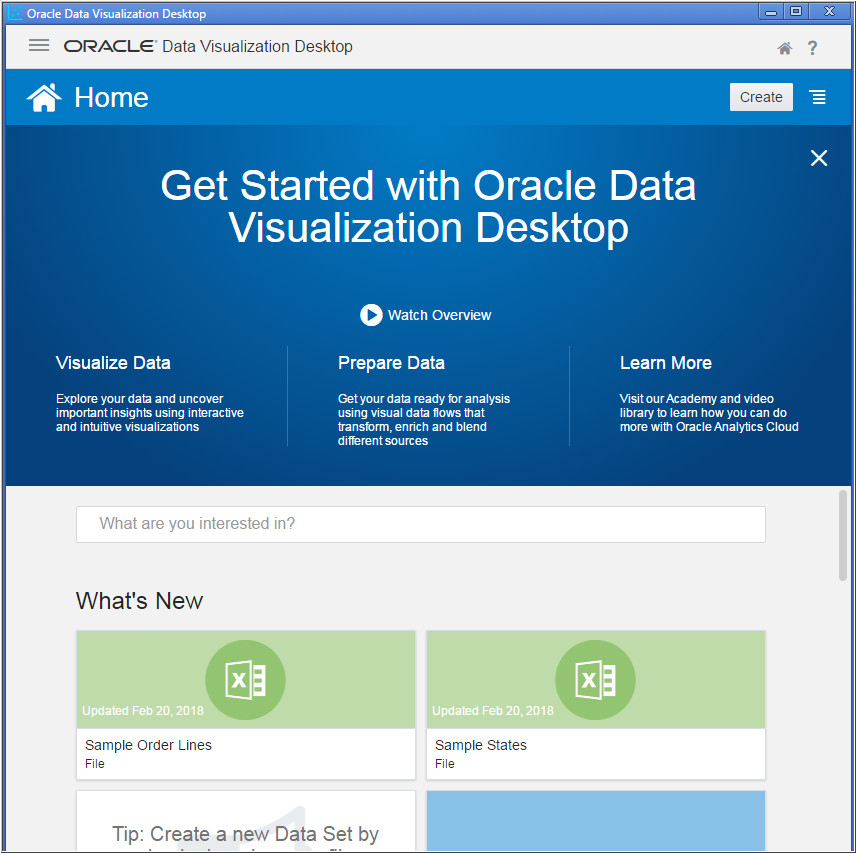
Description of the illustration a1.jpg - Click the Navigator
 icon and choose Data.
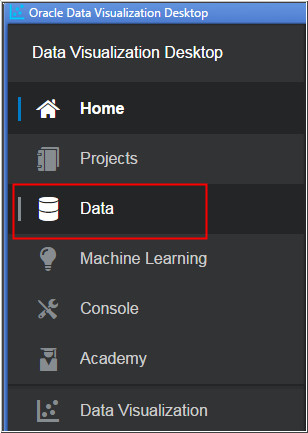
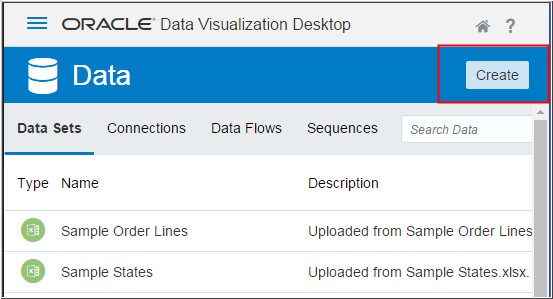
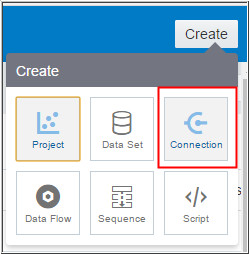
Description of the illustration a2.jpg - Click the Create
button and select Connection.
Description of the illustration a3.jpg
Description of the illustration a3_1.jpg - Select Oracle Big Data
Cloud (Beta) Connection Type.
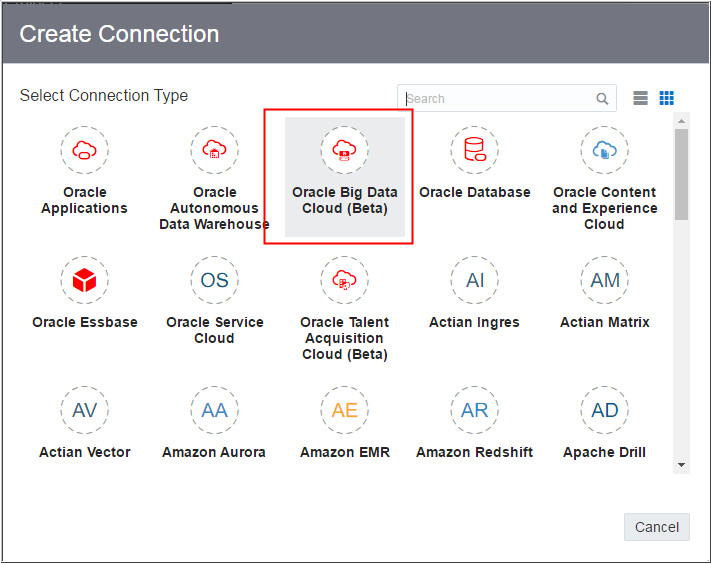
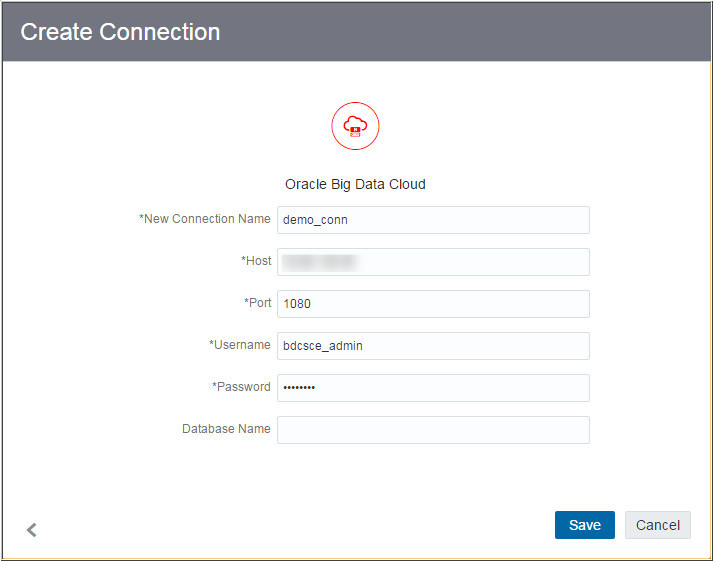
Description of the illustration a4.jpg - In the Create Connection page, enter the values for the
following parameters and click Save.
- Connection Name:
demo_conn
- Host: <Use the public IP address of your bdc master server>
- Port: 1080
- Username: bdcsce_admin
- Password: <password>
- Database Name: <Enter the Database Name or leave it empty>
Description of the illustration a5.jpg - Connection Name:
demo_conn
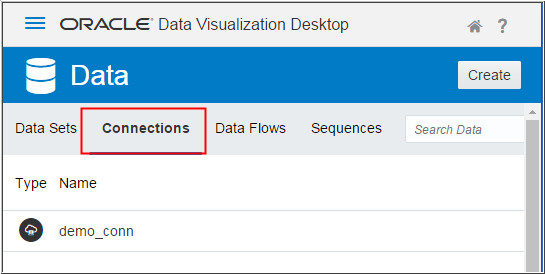
- Click the Connections
tab to view your connection.
Description of the illustration a6.jpg
 Next
Tutorial
Next
Tutorial Want
to Learn More?
Want
to Learn More?