Oracle Primavera Communication Administrator
In this article, you'll learn about the Primavera Communication Administrator role, how to assign it, and FYIs for receiving product communication from Oracle.
Note: This article is applicable for Oracle P6/Unifier single-tenant SaaS customers.
Understand the Communication Administrator role
The Primavera Communication Administrator role allows your organization to receive important information about P6 and/or Unifier, including notifications to schedule P6 and/or Unifier environment updates and maintenance.
It's important to have an up-to-date Primavera Communication Administrator to ensure your organization is receiving these notifications, so you can prepare and/or action accordingly. We recommend having two Primavera Communication Administrators in case one is unavailable, and reviewing the role assignments quarterly to verify the contacts are up to date.
Keep your Communication Administrator up to date
To help ensure you never miss important operational communications:
- Review your Primavera Communication Administrator regularly, especially after personnel or organizational changes.
- Assign the role to an individual (preferred) or shared mailbox that is actively monitored.
- Remove former employees or inactive contacts promptly.
- Periodically verify the email address is current and able to receive Oracle communications.
- Consider reviewing this contact as part of your organization's regular Administrator maintenance activities.
Keeping your Primavera Communication Administrator information current helps ensure your organization receives timely notifications.
Assign the Communication Administrator role
P6 and/or Unifier Cloud Administrators can assign the Primavera Communication Administrator role in Primavera Administration.
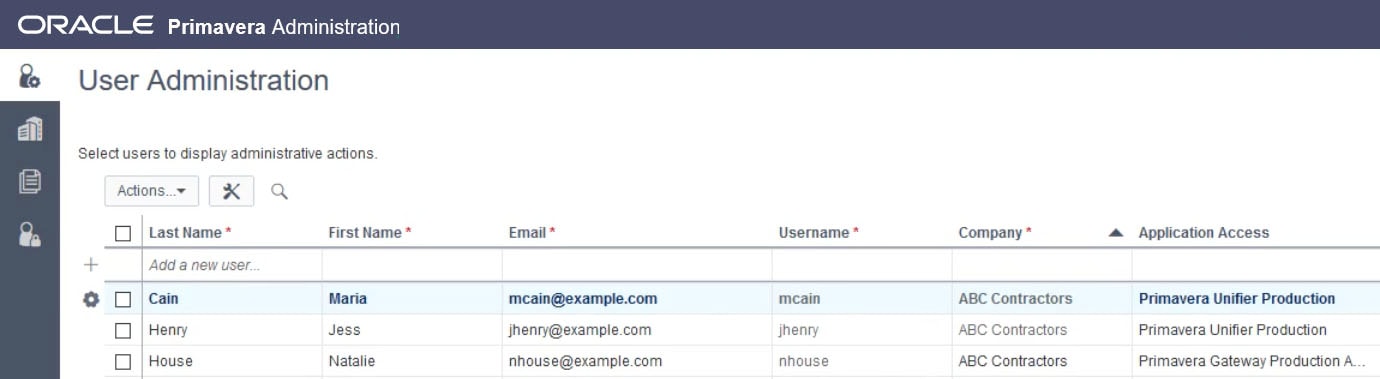
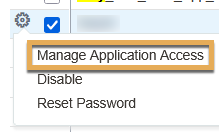
Under User Administration, select the checkbox next to the applicable user, and then click the Settings icon. Choose Manage Application Access.
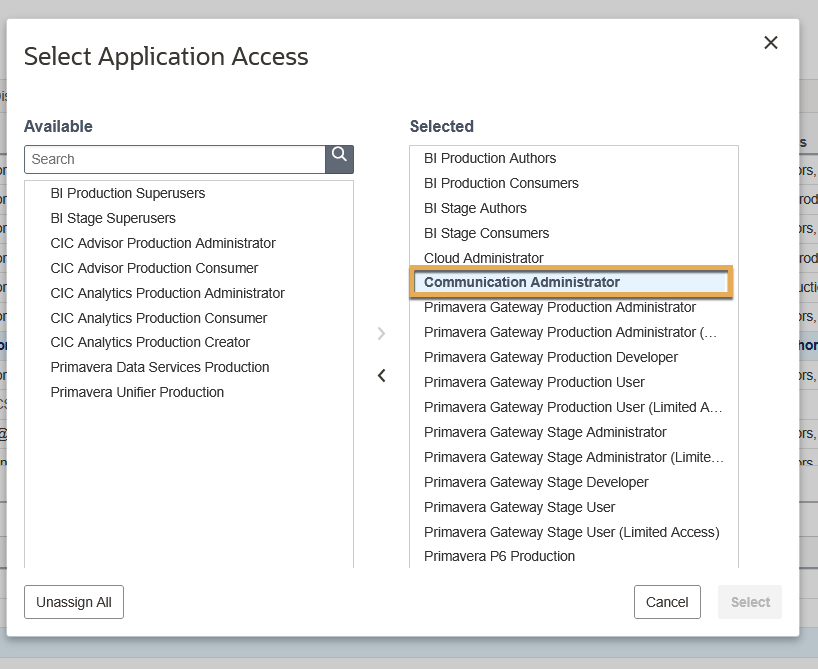
From the Selected column, choose Communication Administrator. Then, click the left arrow to add it to the Available column. Click Select and then Save.
TIP: Save time by assigning the Primavera Communication Administrator role to multiple users at one time.
Ensure Oracle product emails reach your inbox
You'll receive Oracle communications from no-reply@primavera.oraclecloud.com. We recommend adding this domain to your address book or having your IT department allow list it to prevent emails from going to your spam or junk folders.
Beginning in 2027, product communications will transition to email notifications sent to designated Primavera Communication Administrators.
If you are not receiving product communications, please confirm with your P6 and/or Unifier Cloud Administrator that you have been assigned the Primavera Communication Administrator role. We also recommend checking your spam or junk folders for any missed notifications.