Adding Team Members to a Project
Who can add team members?
- Users with the Project Leader role can add any team members to a project.
- Architects without the Project Leader role can only add Architects or Consultants.
- General Contractors without the Project Leader role can only add General Contractors or Subcontractors.
- Subcontractors can only add Subcontractors.
- Consultants can only add Consultants.
All roles are unable to add a user with access/permissions they themselves don't have (except Project Leaders).
How to add team members
Open a project and click on the Project Team tab.
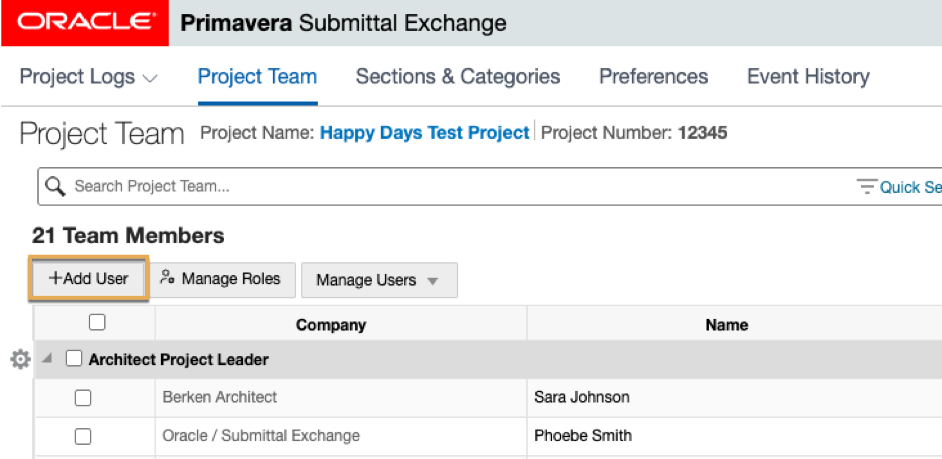
- Click Add User. A new Add Team Member dialog box appears.
- Click Project Role from the drop-down list and enter the new team member's email address.
- Click Next. A new dialog box will appear.
- The company name is auto populated based on the email address domain. If the email address domain is associated with multiple companies, choose a company from the drop-down list. If the email address domain is not associated with a company, use New Company to add a company.
- For a new company, enter the company or organization name in the Company Name field.
- (Optional) Add a Title and Phone Number.
- To add logs, choose Select from list and select logs. To add sections, choose Select from list and select sections. To add categories, choose Select from list and select categories.
- Select applicable email notifications and Save.
The added team member will receive an email notification with their login information and that they have been added to the project.
Tip!
Users can view all sections or categories on a project. Select the logs, sections, and categories that the user should review and receive notifications about.
How to edit team members
To select a team member, check the box to the left of the team members company.
- Select the gear icon
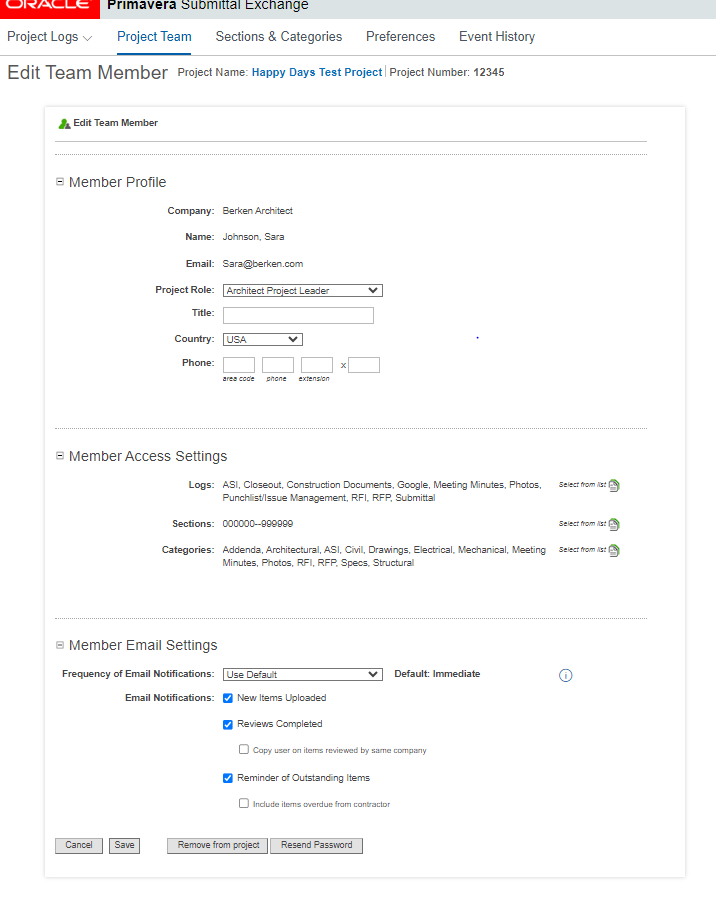
 Settings > Edit. The Edit Team Members page appears.
 - From the Member Access Settings section, you can add or remove logs, sections, categories, and phases.
- Choose Select from list, and select logs, sections, categories, and phases. And select Done when complete.
- From the Member Email Settings section, select the following:
- From the Frequency of Email Notifications drop-down menu, select how frequently you want the user to receive email notifications.
- Select the Email Notifications you want the user to receive.
How to edit multiple team members
- Select team members:
- If you need to edit everyone, choose 'select all'. Doing this will place a checkmark in the box for each user.
- If only a few team members need editing, you can select the applicable people individually.
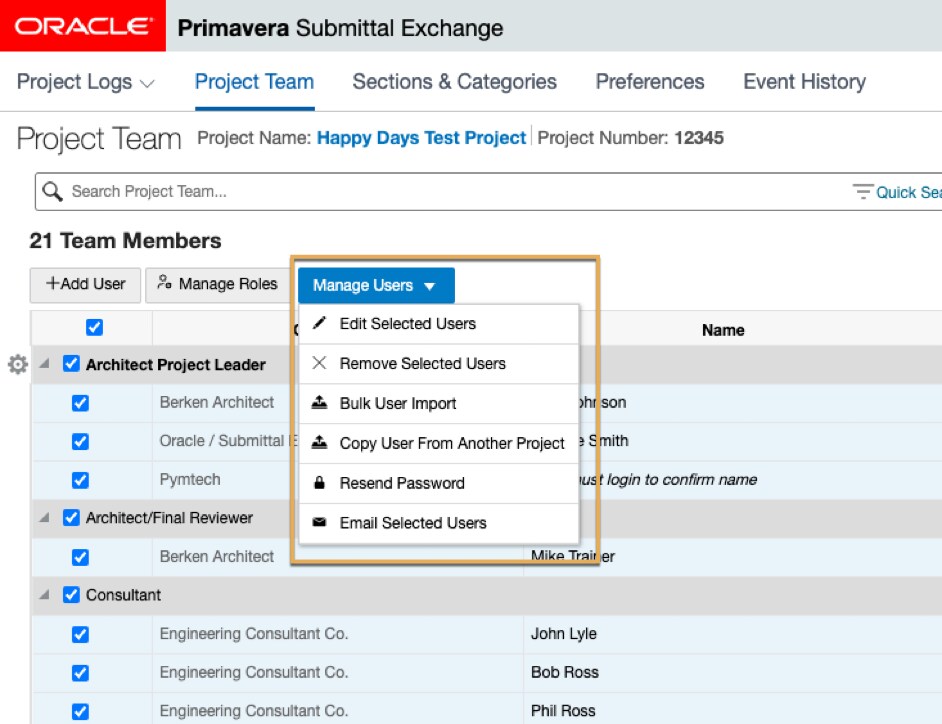
- Select the Manage Users drop-down button and choose Edit Selected Users. The Edit Team Members page appears.
- Select Add or Remove from the drop-down list next to:
- Logs - choose Select from list, and select logs.
- Sections - choose Select from list, and select sections.
- Categories - choose Select from list, and select categories.
- Select Done when complete.
- Select Add or Remove from the drop-down list next to Email Notifications, then select notifications.
- Select Save.