Resources and roles in Oracle Primavera Cloud
In this article, we’ll cover best practices for creating a resource-loaded schedule in Oracle Primavera Cloud.
Resource management tips
If you’re new to resource management, consider the following:
- Resource management can be a big change for organizations. We recommend piloting a resource-loaded schedule with one project first before scaling it across all of your projects.
- If you belong to a larger organization, we recommend having a dedicated Resource Manager. This will ensure consistency when managing resources and avoid duplication across workspaces.
- If your organization doesn’t require full resource management, you can still assign owners to activities so they can provide status updates.
Resources and roles overview
In Primavera Cloud, you’ll staff your projects utilizing resources and/or roles.
Resources are specific items that are needed to complete an activity, such as labor (individual's name or contractor's name), non-labor (equipment), or material (like brick or metal beams).
Roles are job titles or skills that are needed to complete the work, like an Electrical Contractor or Engineer.
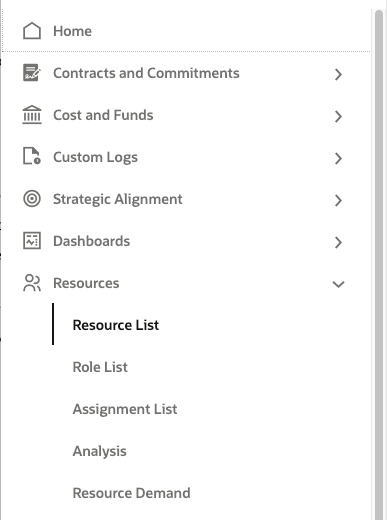
In Primavera Cloud, you’ll create resources and/or roles in the Resources app. Resources and roles have their own lists, respectively.
Resource-loading a project can be accomplished using resources only or roles only. Or you can use both resources and roles. This decision is up to you and your organization's requirements for resource management. Many companies use both, as it’s common to build schedule templates that only include roles, and then determine the resources you need later.
Workspace considerations
Consider where resources and roles are needed in your workspace hierarchy. Unlike many data elements in Primavera Cloud, like codes and fields, resources and roles aren’t automatically inherited by lower workspace levels. You must manually assign them. This allows you to control where resources and/or roles are available in your projects.
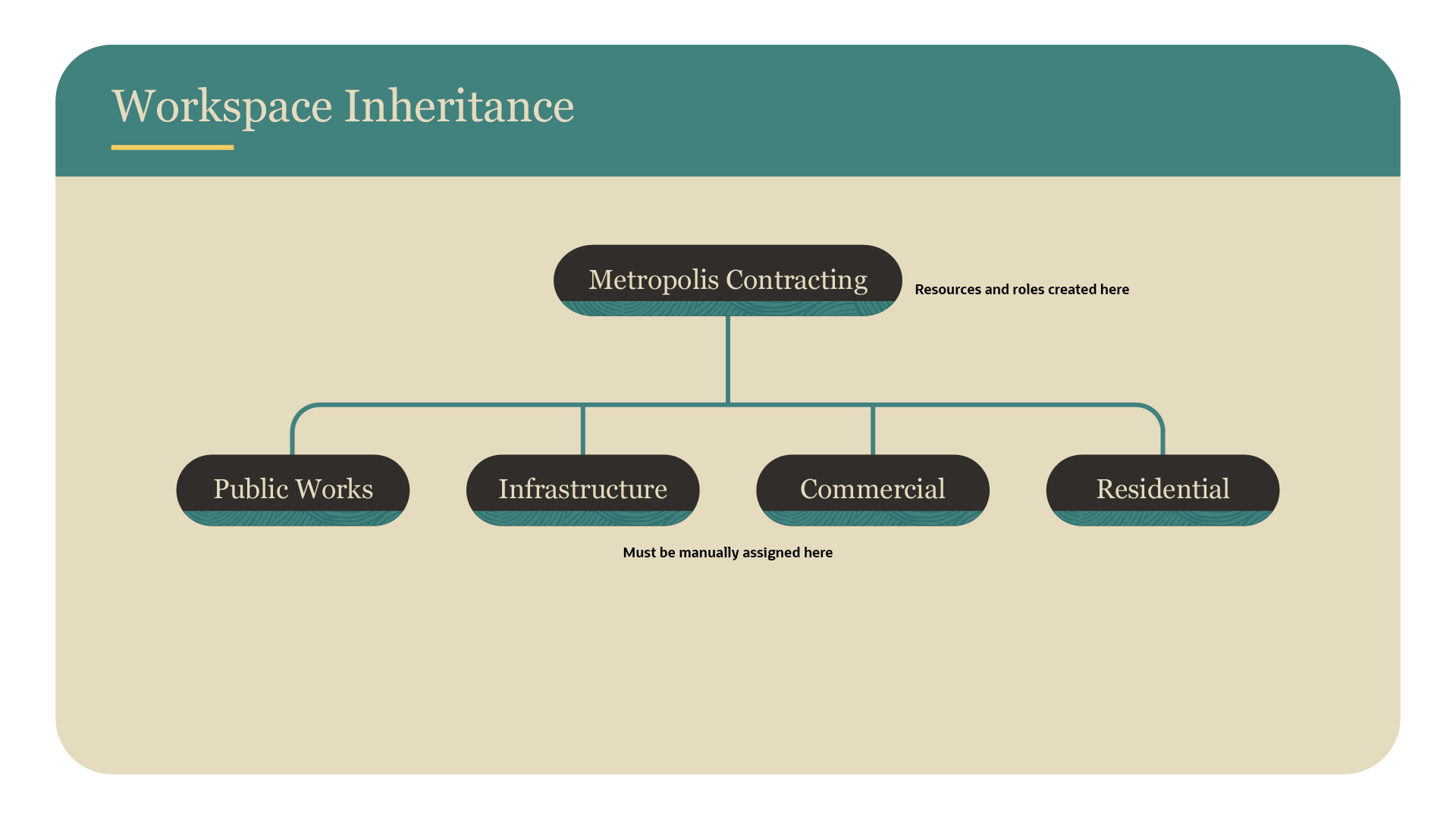
You can create resources and/or roles at the workspace or project level.
- If you need resources and/or roles in multiple workspaces, create them as high as needed in your hierarchy so you can assign them to lower levels.
- Create resources and/or roles in a single workspace or project if they aren’t needed elsewhere.
- Most resource and role information are only editable in the owning workspace. You can only edit availability and rates in lower workspace levels.
- You can promote resources and/or roles up your workspace hierarchy if needed. Before promoting resources or roles, make sure that they don't exist elsewhere in your hierarchy to avoid duplication.
Creating resources and roles
When creating resources and/or roles, we recommend organizing each one hierarchically, such as by industry or job title, for easier management.
Role best practices:
- Consider creating roles prior to creating resources. You’ll likely know the roles required for an activity, such as an Engineer, but you may not know the specific resource that you’ll use to fulfill that role until later.
- Once created, assign roles to applicable activities in your schedule.
Resource best practices:
- Select the applicable calendar for each resource so you know when they’re available to work. Note that the activity type must be set to resource-dependent for the activity to be scheduled based on resource calendars.
- Add accurate availability and rates. This information is essential when deciding which resource to assign based on availability and cost.
- Consider adding codes to help sort and track your resources for reporting purposes. You can also assign codes to roles, if desired.
- Assign resources to relevant roles. Note that you can assign resources to multiple roles, but they must be located in the same workspace level. Assigning resources to roles has multiple benefits:
- You'll see available resources for your roles so you can staff them as desired.
- You’ll also see future role and resource availability and make any needed schedule adjustments.
- Both the resource and role(s) will be available when assigned to lower-level workspaces.
- The role designation will be included when you assign a resource to an activity.
- Staff roles with your resources. If you’re not using roles, you can assign resources to activities in your schedule.
Primavera Cloud Progress
If you're using Progress in Primavera Cloud to help manage your schedule, be sure to configure My Activities settings so users can provide updates on their assigned activities. You can assign resources and/or owners to your activities, depending on your needs. Communicate with users about their assignments using Discussions.
For more information, see the Progress user guide.
Reviewing resources and roles
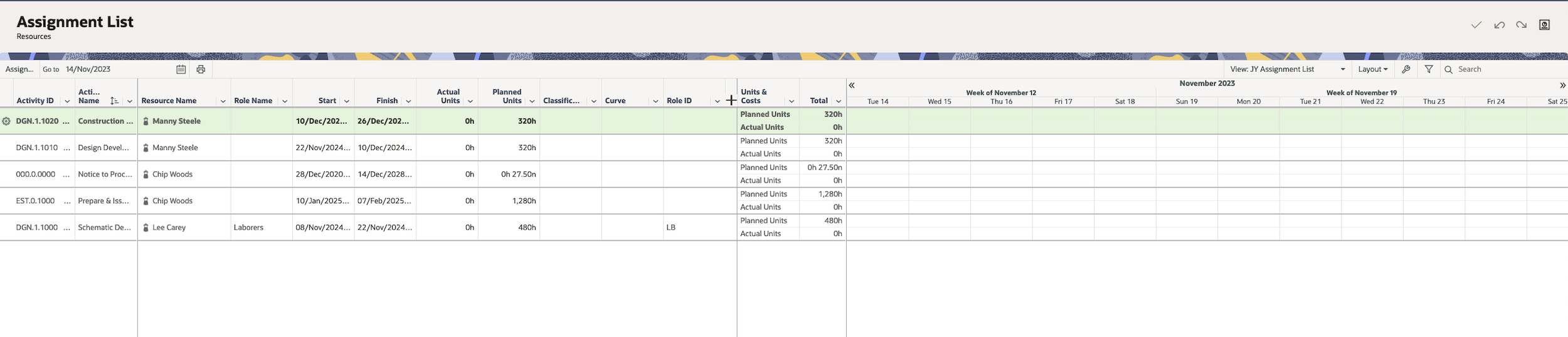
The Assignment List page is a handy tool for Resource Managers to view their resource assignments. Review resource units and costs, track unstaffed roles, monitor costs, and more.