Oracle Primavera Cloud dictionaries
Dictionaries help you organize calendars, codes, costs, locations, and other data across Oracle Primavera Cloud. When set up properly, dictionaries help users categorize and filter project data as needed.
Let’s cover two key dictionary types and best practices for setting them up.
Calendars
Overview
Calendars define available workdays and hours for resources, roles, and projects in Oracle Primavera Cloud. Calendars allow users to effectively manage their schedule, perform risk analyses, and more.
Basics
Each workspace in Primavera Cloud has a default calendar that’s set to a five-day, eight-hour work week. The default calendar is available to projects, resources, and roles, and is automatically assigned to new projects. You can create a new default calendar as needed. Note that you can only have one default calendar per workspace in Primavera Cloud.
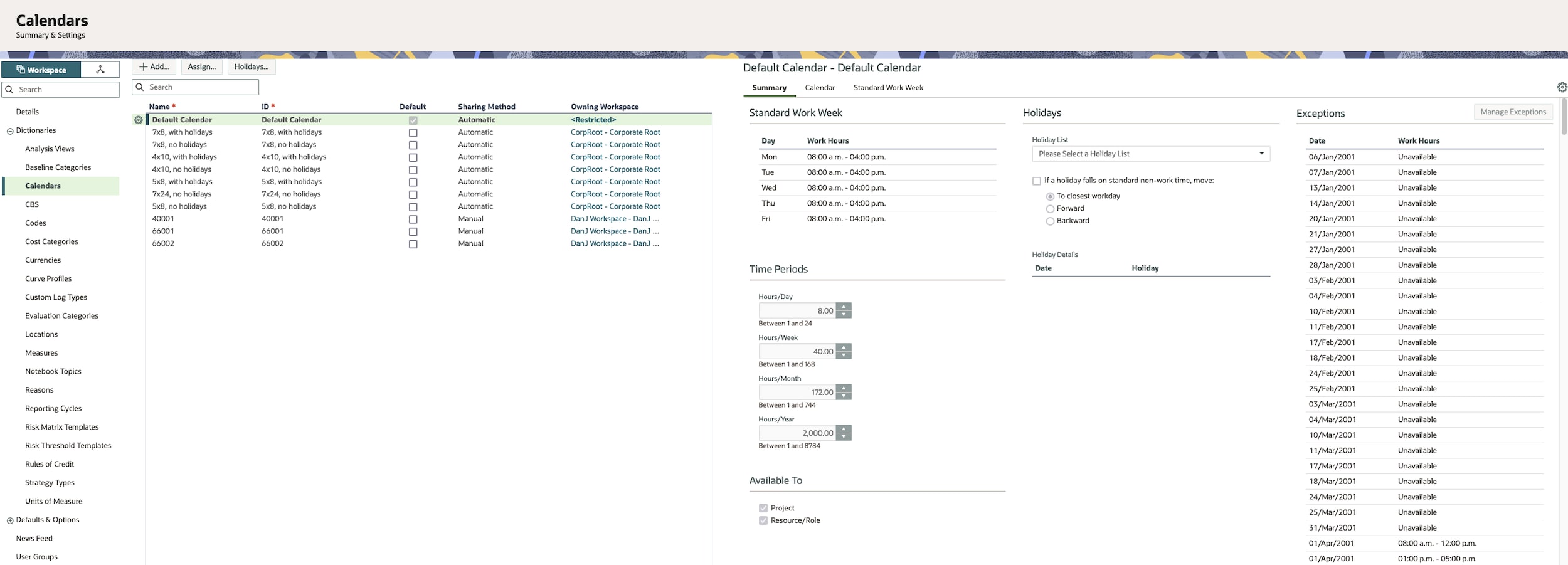
While you can only have one default calendar, you can create as many calendars as needed to accommodate specific work schedules, such as if a resource is part time. Primavera Cloud comes with a set of preinstalled calendars that you can use, edit, or delete as needed to suit the needs of your organization.
Best practices
Consider where calendars should be created:
- If created at the workspace level, calendars will be shared with all child workspaces when data sharing is set to automatic. That way, you'll save time by not having to create the same calendars at lower workspace levels.
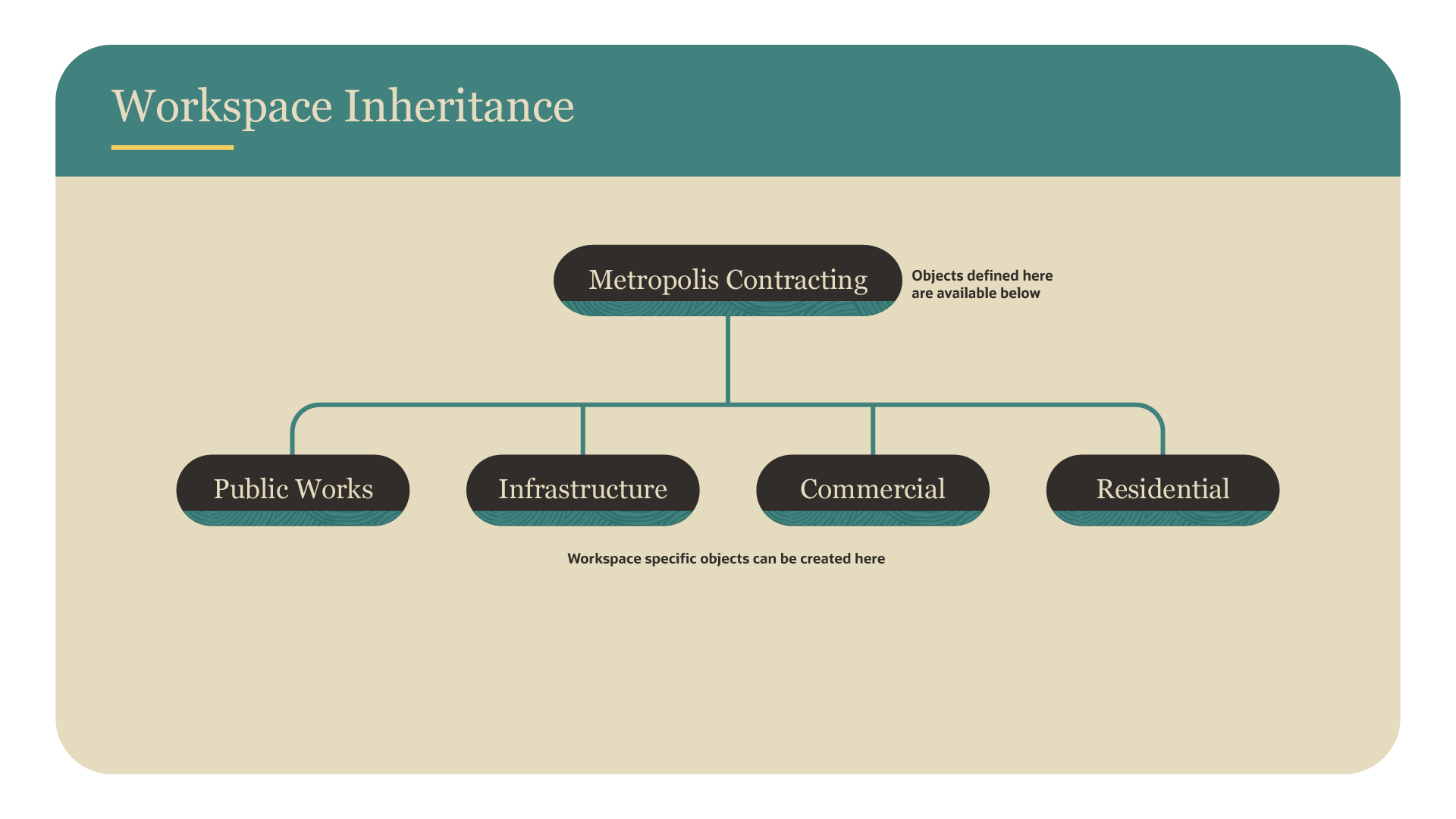
- If a calendar is unique to a project, you can create it at the project level. You can promote calendars up to the workspace hierarchy as needed.
Before creating calendars, set up holiday lists to include any holidays that should be reflected in project and/or resource/role schedules.
When creating calendars, give them meaningful, succinct names so they’re easy for users to identify and select, like 5x8, U.S. Holidays.
Before users can assign a calendar, it has to be available to projects, or resources/roles, or both projects and resources/roles. The both option is selected by default when a calendar is created. Reference this article for more details.
If desired, you can configure calendar time period settings to specify the default number of hours in each work period. You can also configure user preferences to display time units in other increments, such as days or weeks.
Tip!
It requires a lot of work for you and/or Primavera Cloud developers to manually demote data, like codes and calendars, to lower workspace levels. Be certain that data is needed at a higher workspace level prior to promoting it.
Codes
Overview
Codes are picklists that help users categorize and filter data in Primavera Cloud. For example, adding a department code with options for Construction, Engineering, and Purchasing would allow users to filter activities associated with each of these groups.
Basics
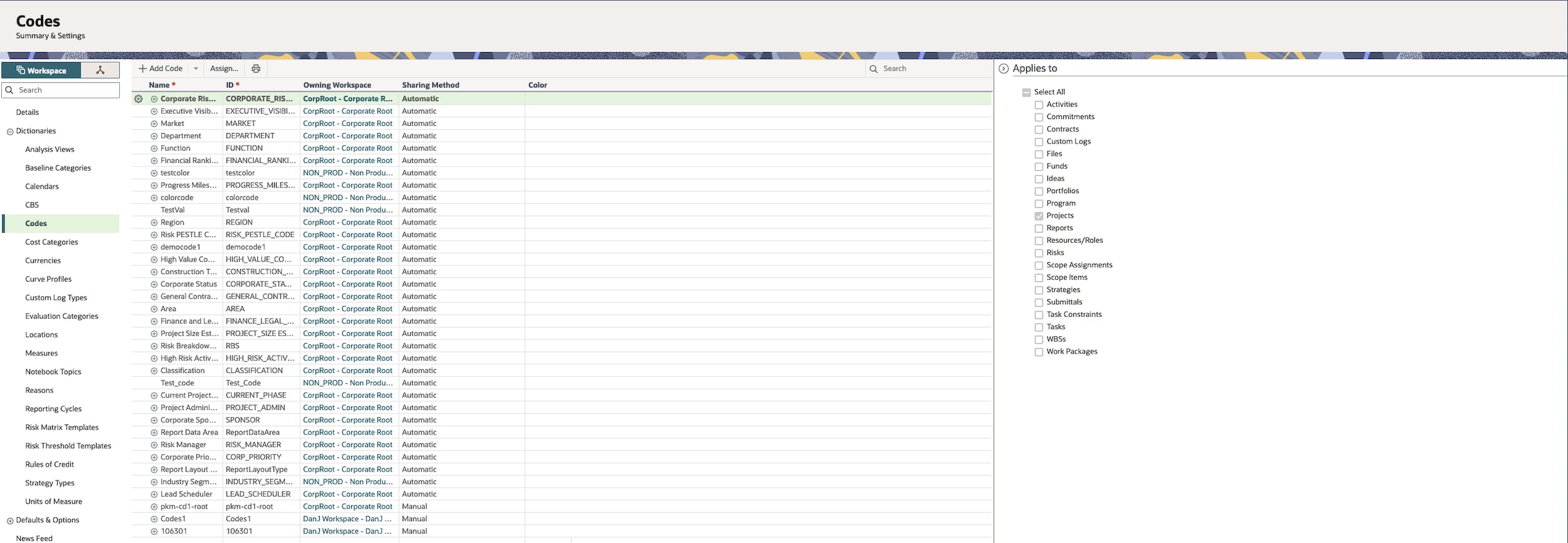
Primavera Cloud comes with a set of preinstalled codes available at the Root workspace. You can view and edit these codes by navigating to Summary & Settings > Dictionaries > Codes.
You can also create new codes if your organization has specific data requirements. Codes can be created in any workspace in Primavera Cloud. However, you must choose the specific data objects that they apply to, like projects, activities, portfolios, etc.
Best practices
Consider where codes will be used. Similar to calendars, child workspaces will inherit codes created in the parent workspace if data sharing is set to automatic.
You can create codes in child workspaces as well. This is common if your workspace hierarchy is set up by business unit and each unit has their own set of requirements. You can update the owning workspace of a code as desired.
You can create as many codes as needed to fulfill the requirements of your organization. It’s recommended to create a list of required codes, and then look for commonalities so codes aren’t duplicated across your workspaces. Note that the code IDs must be unique in the owning workspace and all lower workspace levels.
Determine what you can use from the preinstalled codes. If needed, you can edit those codes to align with your business requirements.
Document where codes are created so you can easily find and update them later as required.
Visit this article for more information.
Codes vs. configured fields
Like codes, configured fields help track and filter data in Primavera Cloud. You can use configured fields to track the following data types: Boolean, costs, dates, integers, lists, numbers, or text.
If the data you need to track is anything but a list, use a configured field. When the data is a list, then you have the option of tracking it with a code or configured field. Review the differences between the two below, so you can make the appropriate selection based on your data requirements.
| Codes | Configured fields | |
|---|---|---|
| Data sharing |
Can be set to automatic or manual sharing. Can remove codes in child workspaces that aren't applicable. |
Automatically shared to all child workspaces. |
| Objects | Can be used across multiple object types, like projects, activities, risks, etc. | Only belongs to the object type for which it was created, such as activities. |
| Picklist |
Can edit or add picklist values. Can have hierarchical organization for large lists. Values appear in a separate window. |
Can't edit picklist values once they're being used. Can't be organized hierarchically; typically used for shorter lists. Values appear in a drop-down (in lieu of opening in another window); easier to select values than codes. |
| Naming requirements |
Code IDs must be unique in the owning workspace and all lower levels. The same code ID can be used in another workspace if it isn't in the same hierarchy as the owning workspace. |
Field name must be unique globally, or throughout, Primavera Cloud. |
| Other languages supported | No | Yes - can update field names and values in another language. |
| Formula-based values supported | No | Yes - the value of a field can be determined using scripting. |
See this article for more information.