Managing your field schedule in Oracle Primavera Cloud
Learn how to customize tasks, update task information, and monitor project performance in Oracle Primavera Cloud.
Customizing tasks
Views
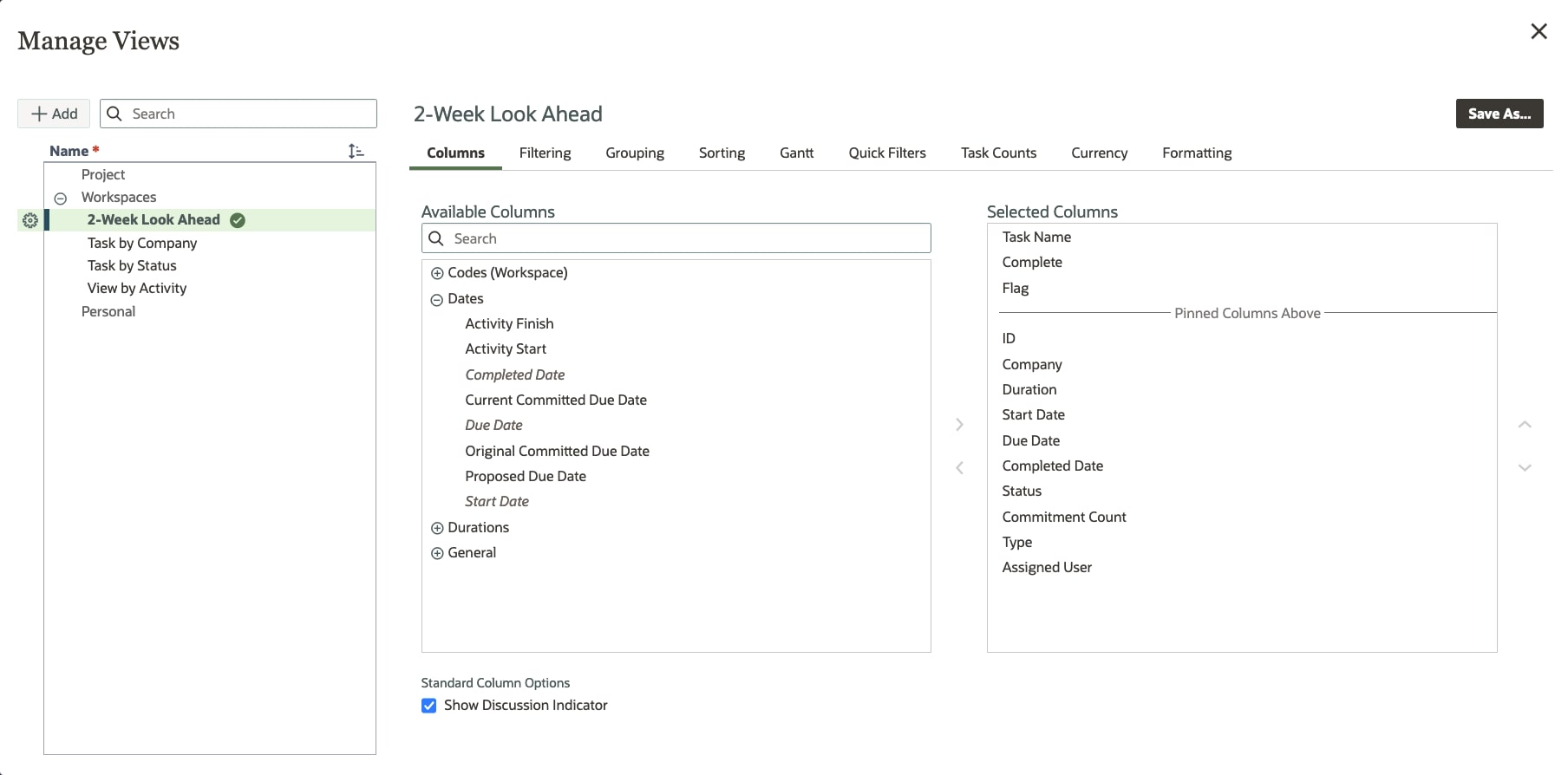
Views allow you to group, filter, and sort information in Primavera Cloud. Select the Settings icon on any page in the Task app to see available options in Manage Views. For example, you can see project information for the desired planning period in the Filtering section. Or, under Columns, you can add the activity start and finish dates to align your tasks with activity due dates.
Configurable tasks cards
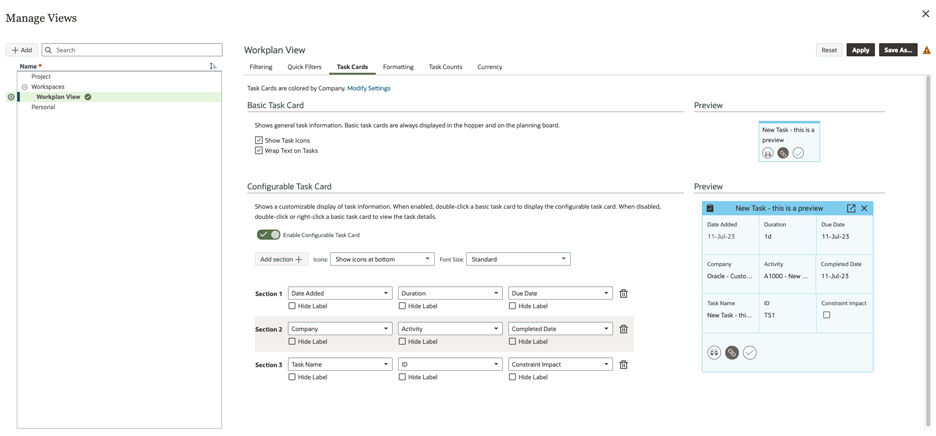
Task cards on the Work Plan and Hand-offs pages display basic information. If desired, you can create configurable task cards to display the information you want to see.
Select Settings, and then Task Cards. Select Enable Configurable Task Card. Then, edit and/or add task fields and icons to include data that’s important to you.
Tip!
On the Work Plan page, you can use swimlanes to organize task cards by the company and/or user assigned to complete the work.
Task notifications
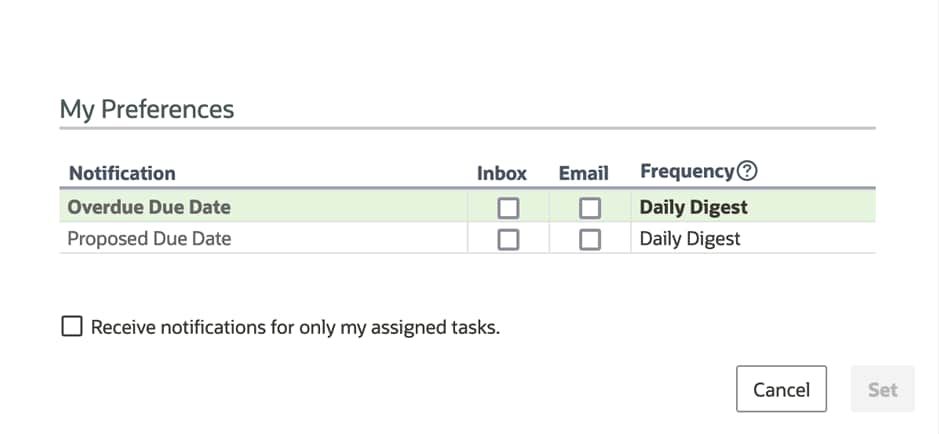
Stay informed of changes by setting up task notifications. These notifications will let you know when a proposed due date is entered and/or when any task becomes overdue. This information will help you stay on top of tasks that may impact the project schedule.
When setting up notifications, you can select to receive them immediately, daily, or weekly. You can also choose to be notified for all tasks or just the tasks you’re assigned.
Mobile app
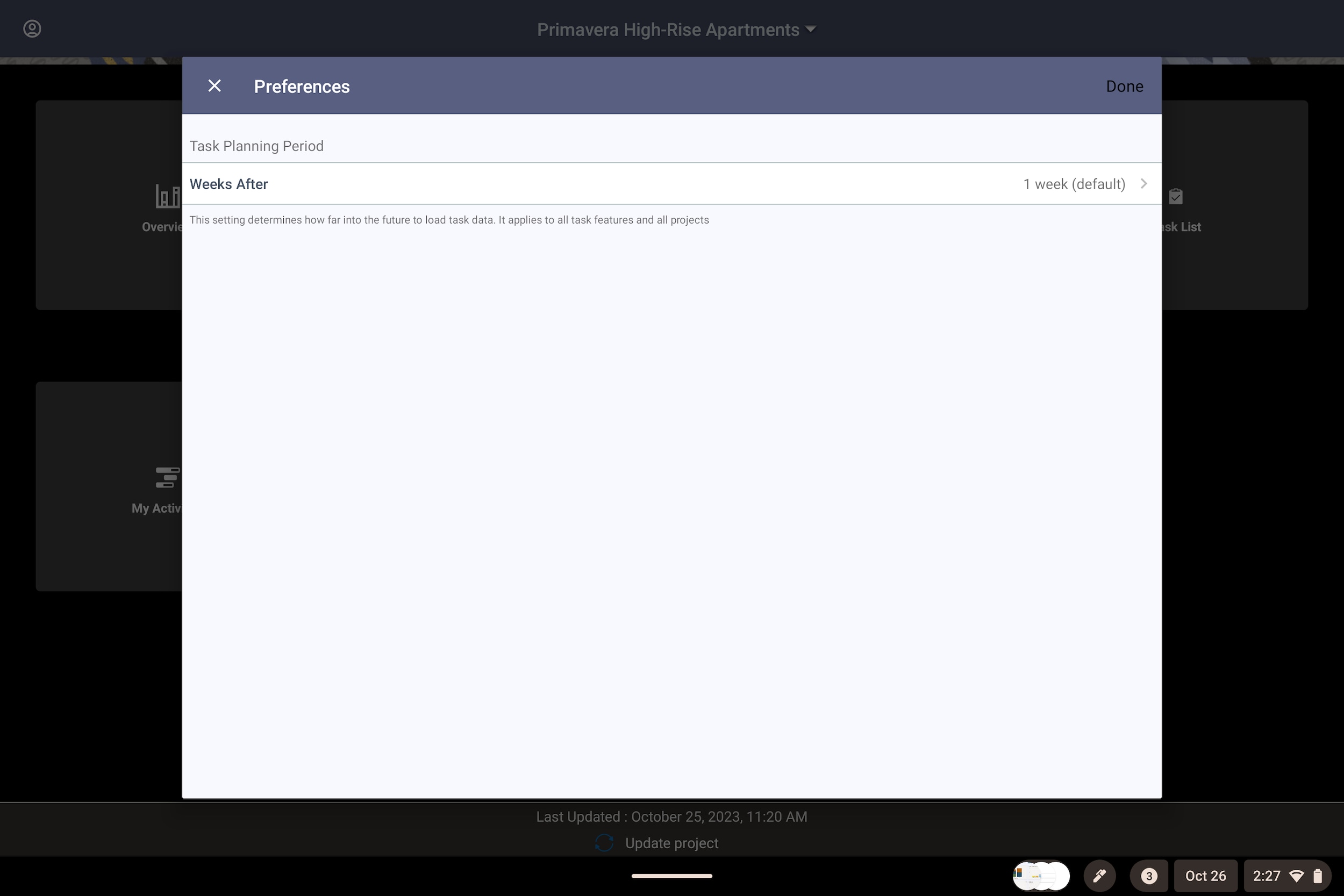
In Preferences, you can set the task planning period to see task data for all projects in a certain time period. You can set this period between 1 to 10 weeks.
Updating tasks
Update task details regularly so the project team stays up to date on the progress of the work plan.
Browser
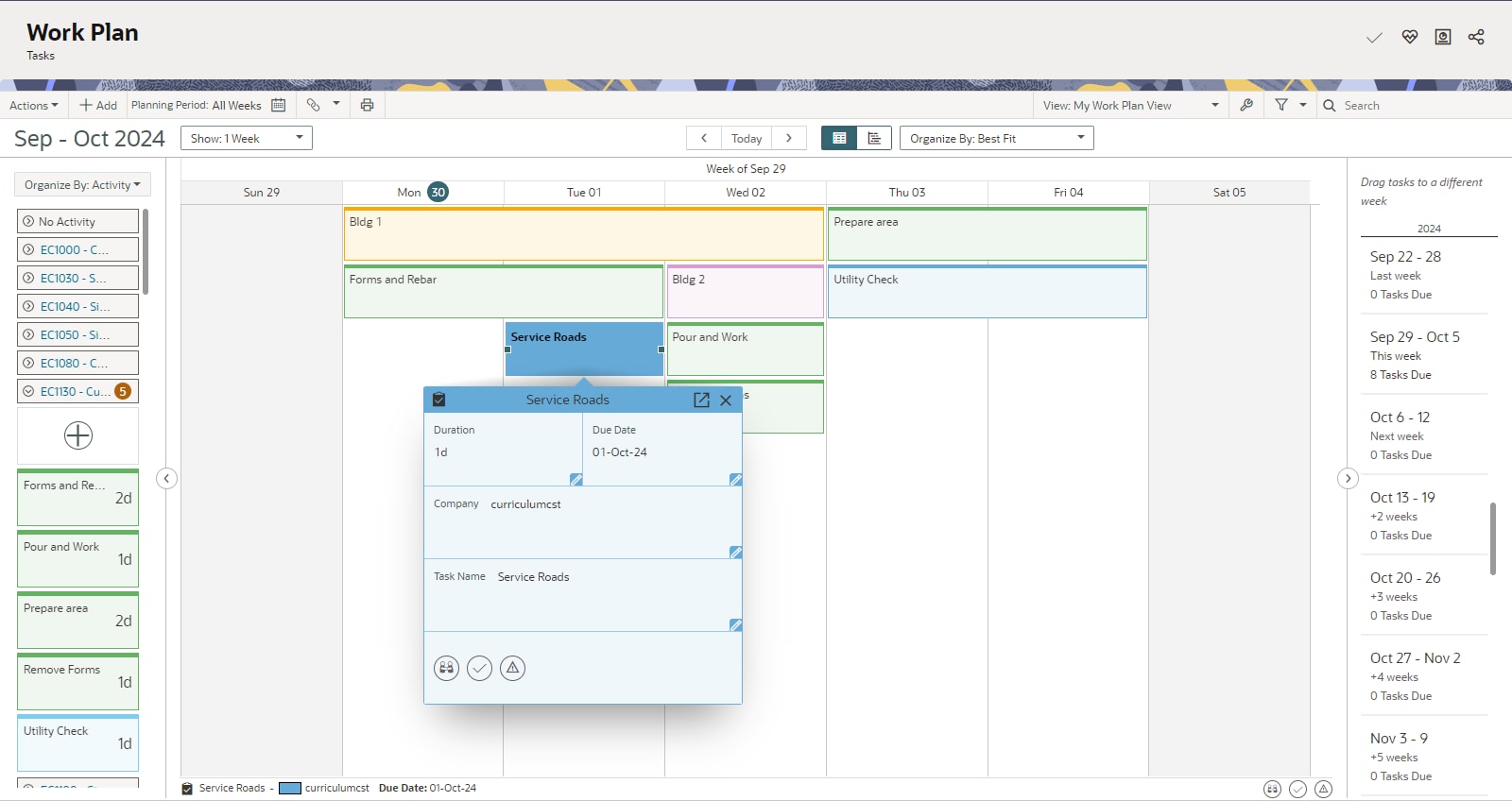
There are a number of ways you can update task information in the browser-based version of Primavera Cloud. Right-click a task, and then select View Task Details. Or, if you have configurable task cards, you can double-click them and edit as required.
Mobile app
You can also update your tasks using the mobile app, which is handy when you're on the worksite. On the project homepage, select the Work Plan tile to see your tasks for the previous week, current week, and look-ahead period. The look-ahead period is based on the task planning period setting you set in Preferences.
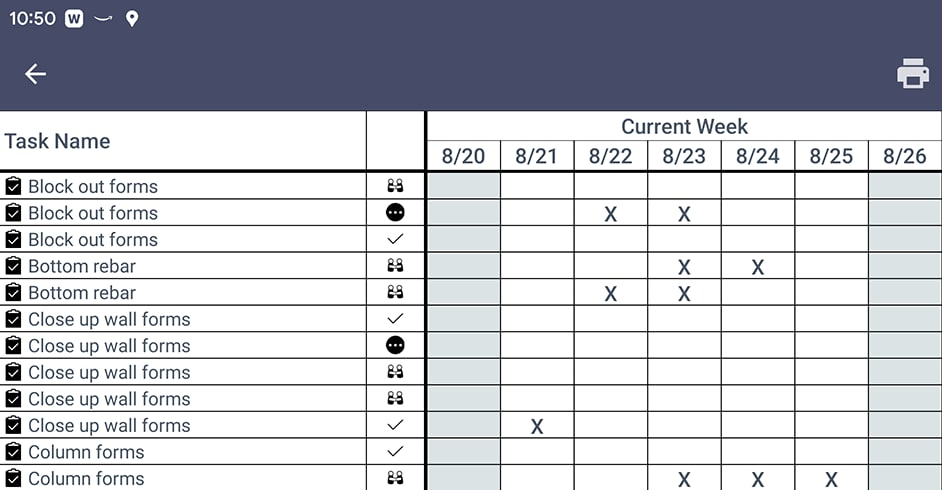
You can also see all of your tasks and their statuses on the Task List page. Select a task on either the Work Plan or Task List page to view and edit its details.
Modifying task information
As your project progresses, it's likely that you won’t be able to make all committed task due dates. When this happens, recommit to work on the task. Select one or more reasons for missing the previous commitment, and then select a new due date.
When modifying task due dates, be mindful if the task is included in a hand-off chain. If so, changing the date could modify the due dates of other tasks in the chain. If the hand-off chain contains tasks from different companies, we recommend proposing a new date. This allows companies to review the changes without affecting their current tasks.
When all work has been performed for a task, mark it complete. Note that after the task is completed, you can’t modify certain fields, including dates, company, and duration.
For more information:
Adding constraints
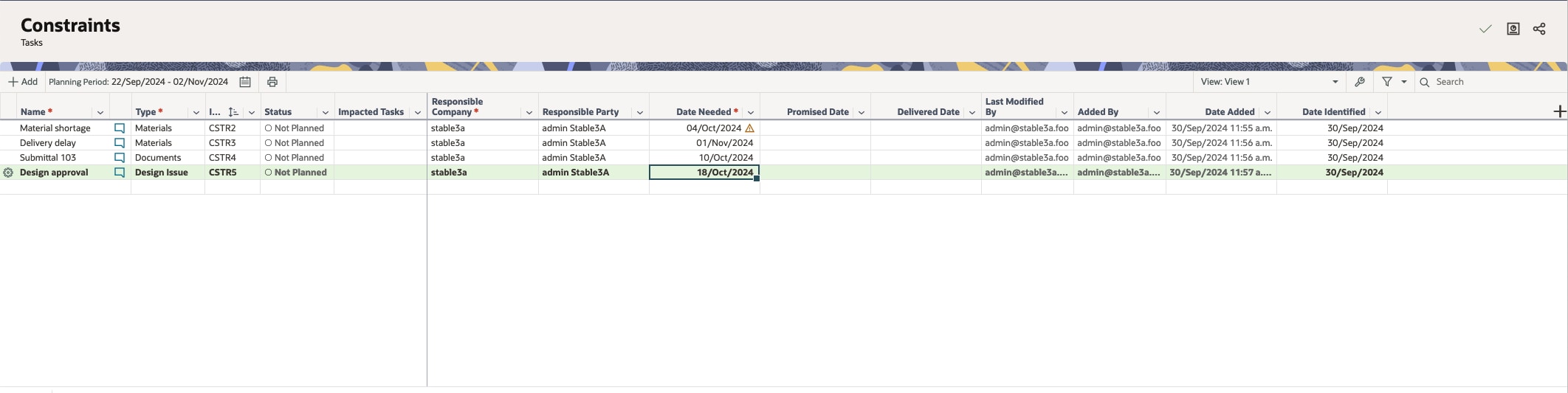
The Constraints page functions as a log to identify anything that may delay starting a task, such as a needed inspection or materials. Use this information during make-ready or look-ahead planning to determine how to remove the constraints to ensure the work can be completed as planned.
When adding a constraint, designate a responsible party, the date the responsible party promises the constraint will be resolved, and the date the constraint is needed by without impacting the project schedule. You can also add notes and files to provide more details. Once the constraint is added, assign it to a task. Deliver the constraint once it's resolved.
Monitoring performance
Task summary
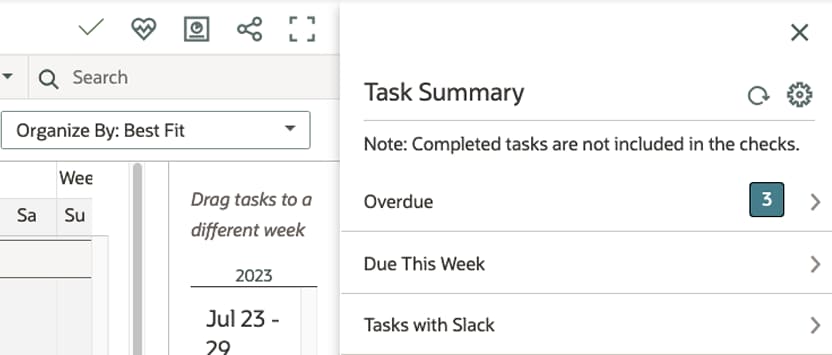
Use the Task Summary panel to view high-level status information for the tasks in your project.
The tool will perform a variety of checks and summarize tasks that are overdue, unplanned, or have slack or commitments. This information can be useful in planning meetings with your project team to go over task statuses. You can configure the Task Summary to only include desired checks in the summary panel.
Tip!
In both the Primavera Cloud web version and mobile app, you can print the planning board on the Work Plan page, which you can also share with your project team during meetings.
Analysis page
Use the Analysis page to monitor project performance. Using lean methods, teams can use the information on the page to learn from their performance and take actions to improve.
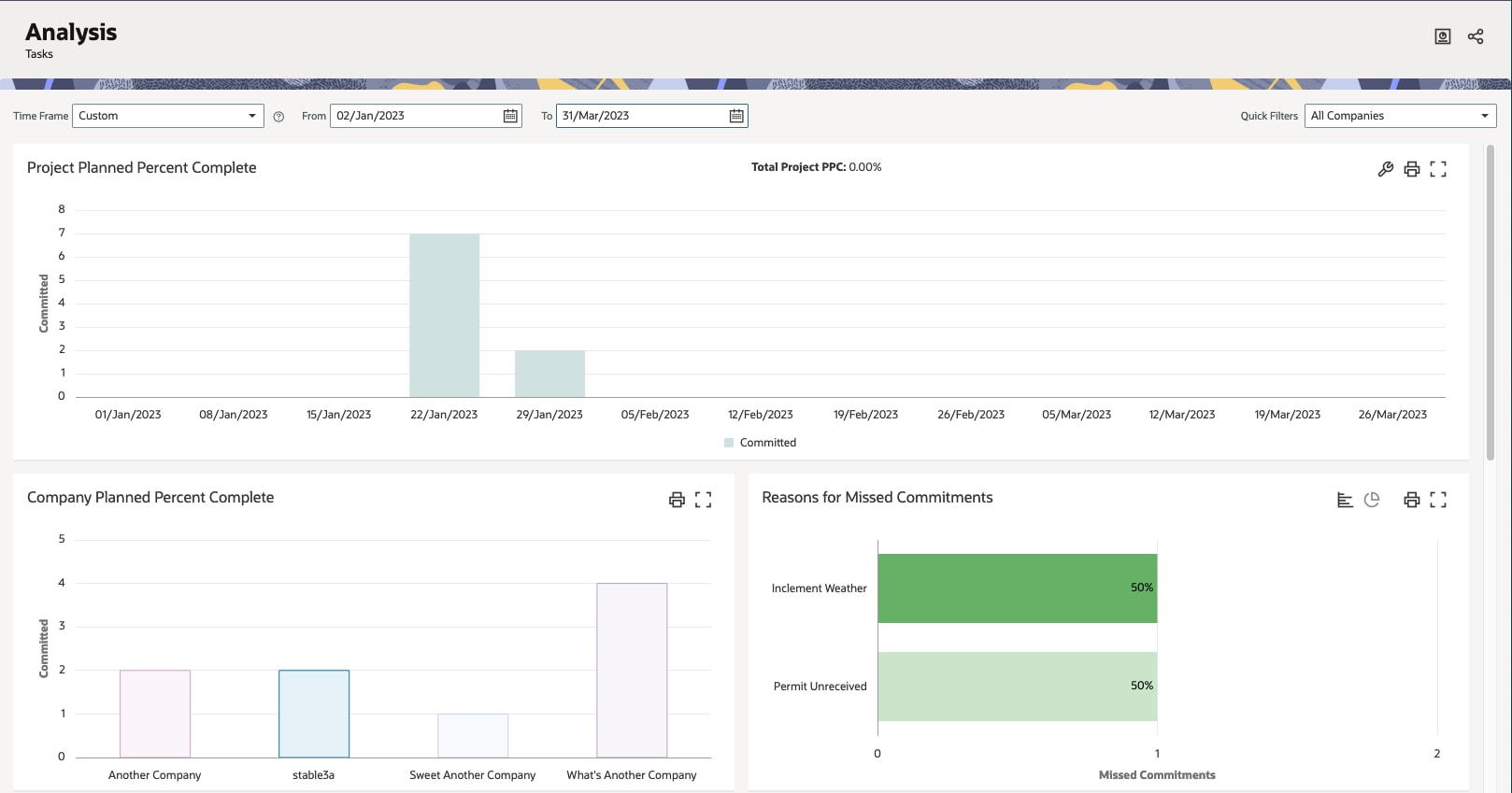
The Analysis page includes charts that track the following metrics:
- Planned percent complete (PPC): Shows the completion performance of committed tasks. It’s calculated by dividing the number of completed tasks by the number of task commitments. It allows you to track the actual work completed against the planned work.
- Company PPC: View each company's task completion performance against what they had planned. You can also see each company’s PPC over time.
- Reasons for missed commitments: Tracks the reasons why tasks are recommitted. This allows you to see reasons with high occurrences so you can take corrective action. You can also see reasons for missed commitments over time.
Note that on the Analysis page, you can:
- Filter the display of data by the current week, across a six-week time period, or across a custom date range.
- Use quick filters to limit the analysis results by one or more companies.
Mobile app
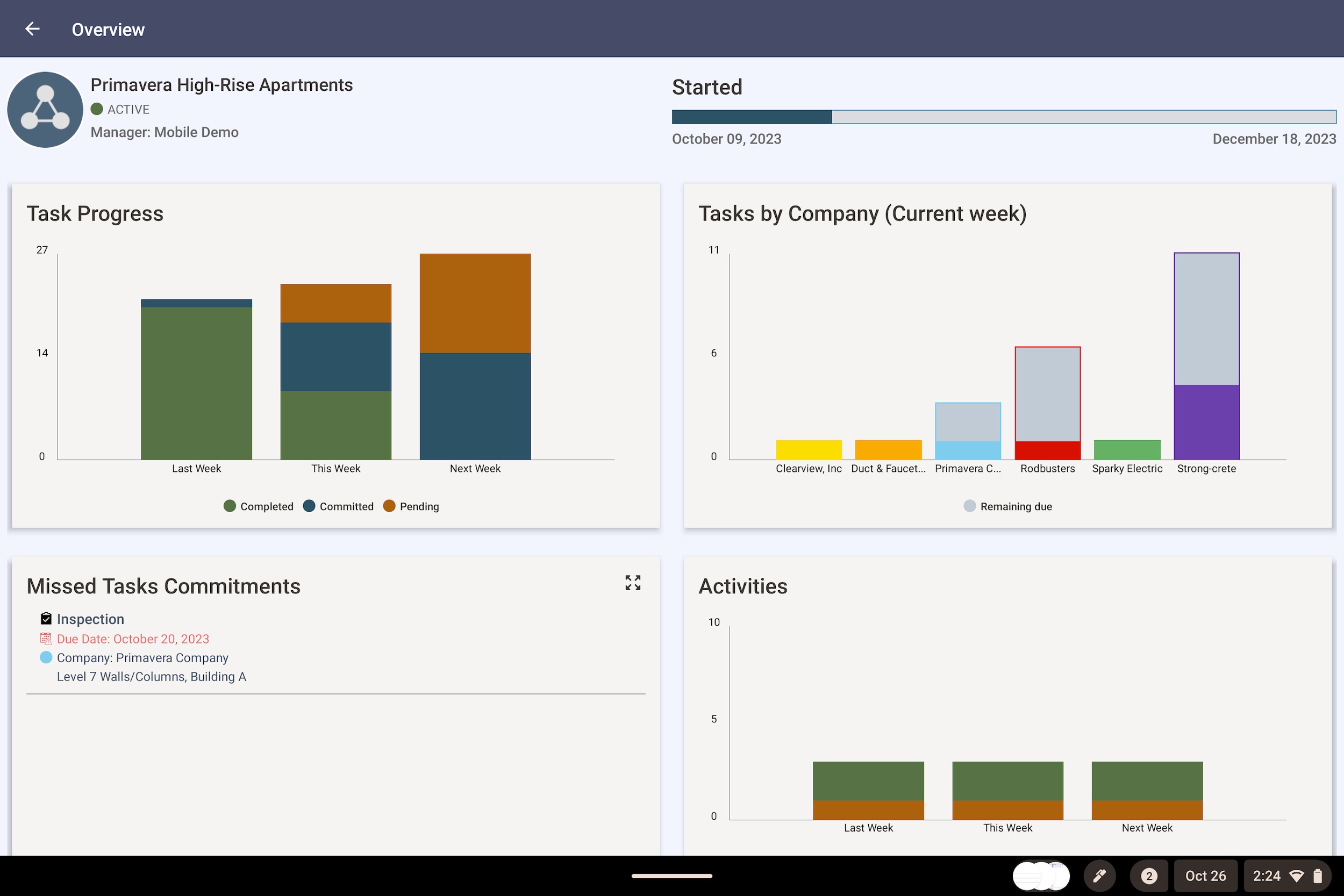
See the status and progress of your tasks in the mobile app. On the homepage, select the Overview tile. Here, you'll see a visual representation of your overall task progress, tasks completed by company, missed commitments, and activity statuses.