Task management in Oracle Primavera Cloud
Oracle Primavera Cloud uses lean construction planning and scheduling principles so you can effectively manage the work for your projects. Primavera Cloud has a browser-based version as well as a mobile app so you can be productive wherever you are. Let's review how task management is supported in both versions below.
Hand-offs page
Browser
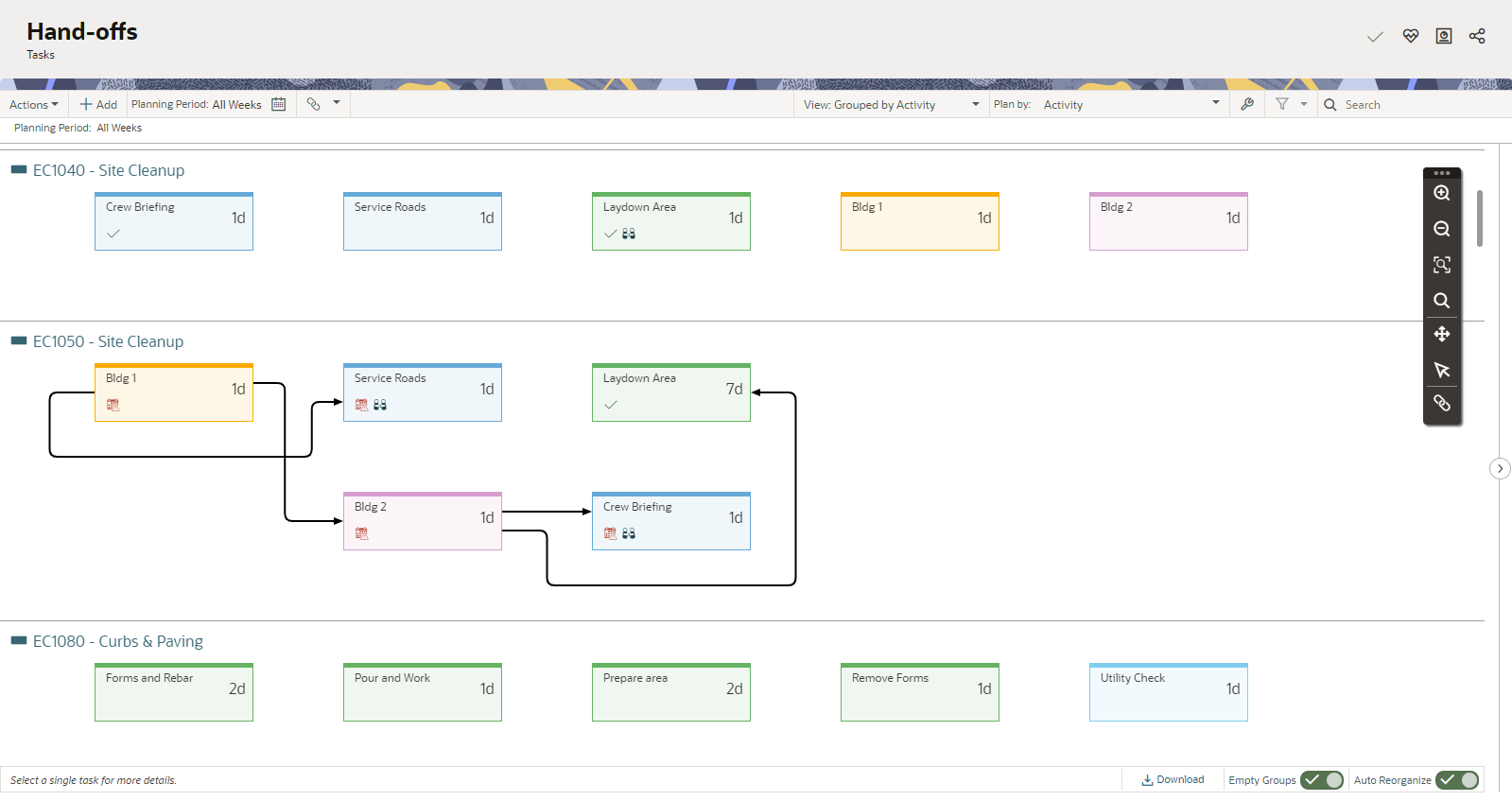
The Hand-offs page is where you can create a visual representation of the tasks in your project and add hand-off relationships between them. You can also add new tasks, commit to tasks, and edit task details on the page.
Mobile app
There isn't a standalone Hand-offs page on mobile, but you can view hand-offs in the app while viewing task details in the Work Plan or Task List pages. Tasks that have hand-offs are denoted by the Associated Tasks link icon. Select an applicable task, and then Hand-offs.
Work Plan page
Browser
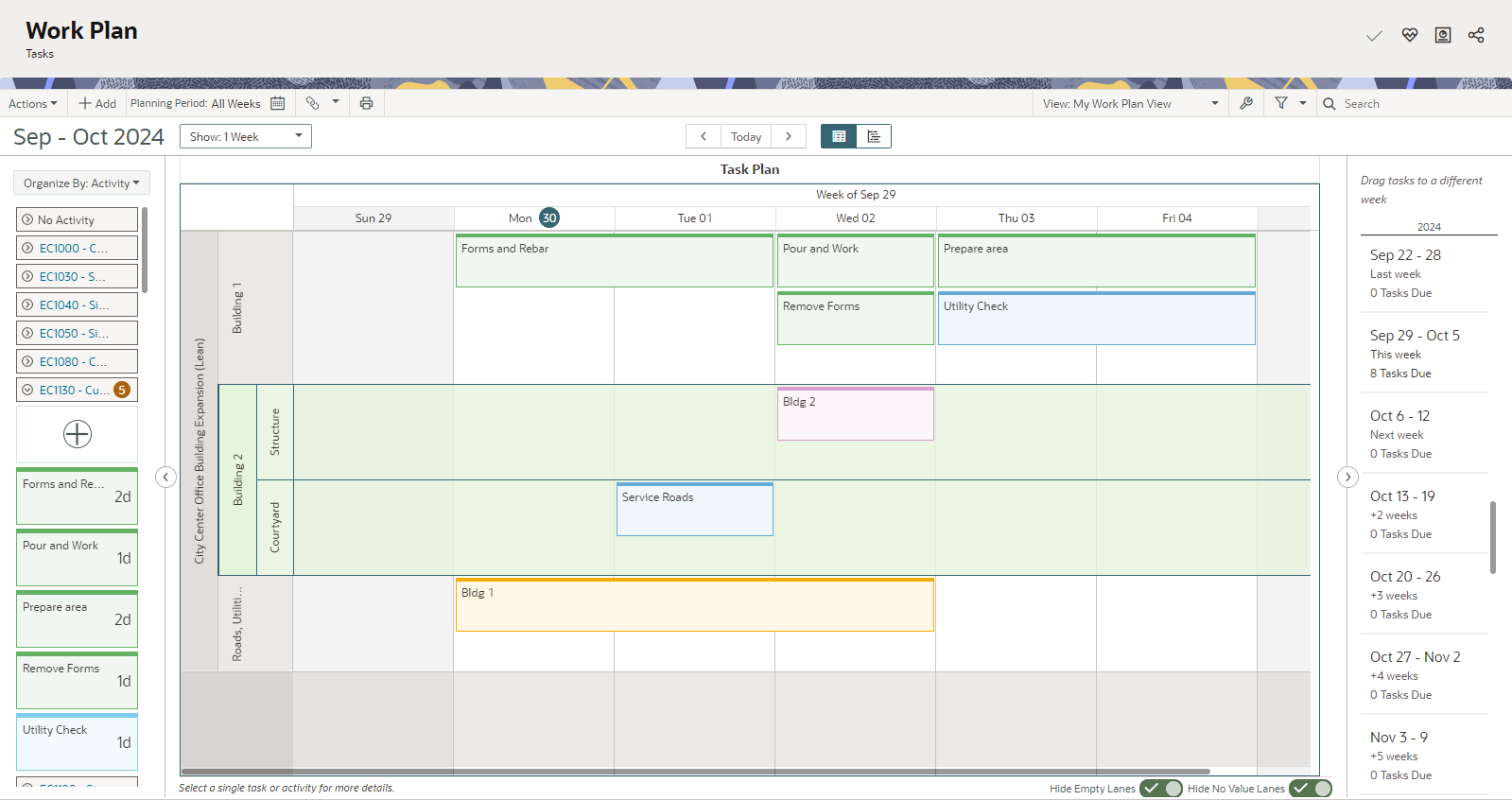
The Work Plan page is your planning board to perform look-ahead planning in Primavera Cloud. It’s where you’ll break down activities from the schedule into smaller tasks and arrange the work that must be completed for a project.
You have the option to plan tasks using swimlanes, which organize tasks by the company and/or user assigned to complete the work. Swimlanes are handy to see workload distribution and to make any needed adjustments during make-ready and weekly work planning. Add a task plan, and then choose to view tasks by user and/or company.
Mobile app
Once you create your tasks in the browser version, use the Work Plan page in the mobile app to track the work while you're on site. You can see tasks for upcoming weeks and manage details, such as commitments and completions.
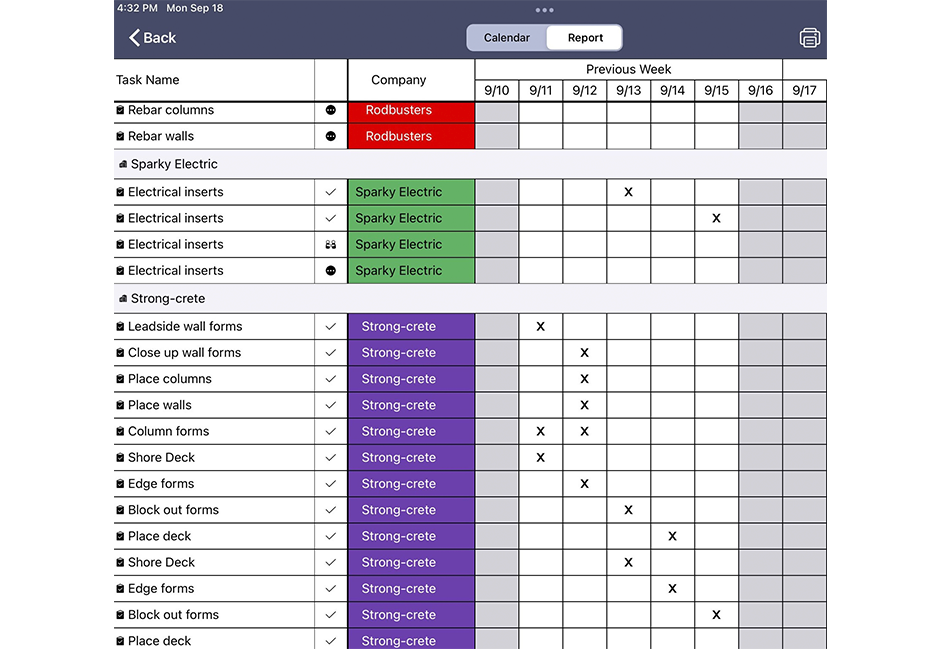
Swimlanes are also available on mobile devices. You can see your tasks in a calendar or report view. The report view is tabular, making it easy to print your work plan.
Constraints page
Browser
The Constraints page is where you'll identify and categorize the issues, materials, and deliverables in the project that may prevent users from beginning work on their tasks. When adding a constraint, you'll assign the company and user responsible for addressing it, the date it's needed by, and additional constraint details.
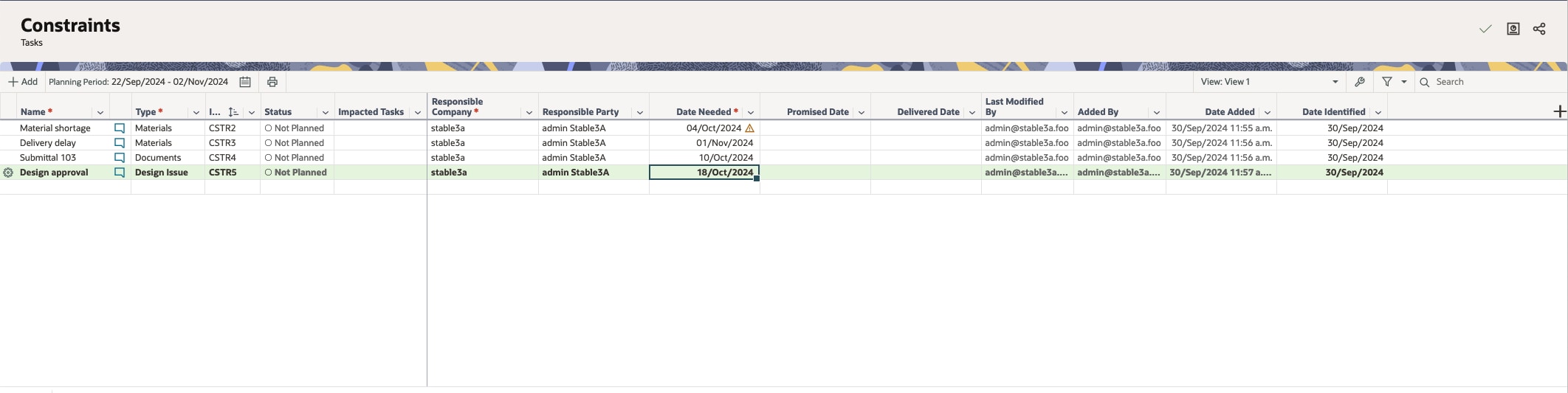
See this article for more details on constraints.
Mobile app
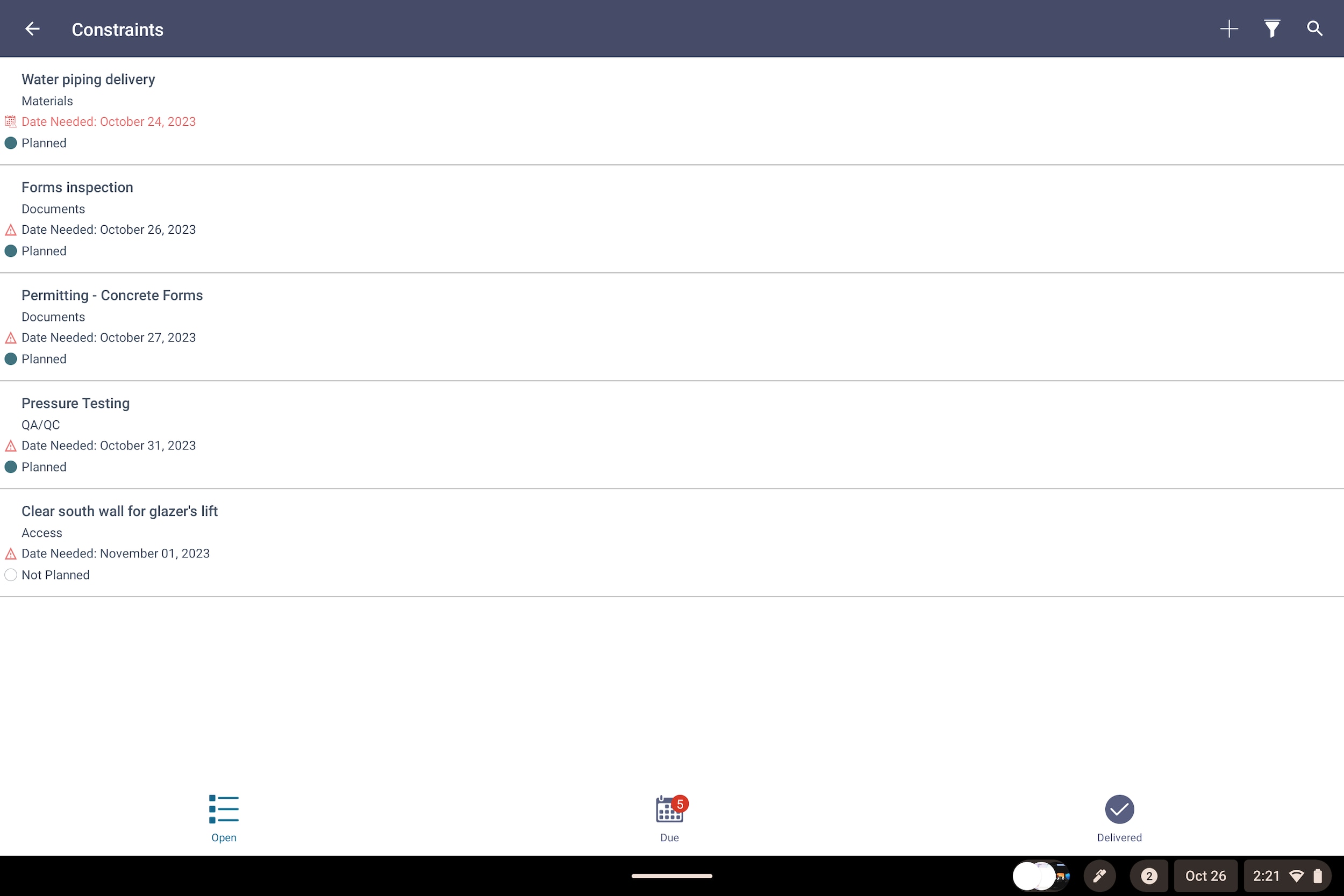
In the mobile app, you can see constraints for a project on the Constraints page. Here, you can add, edit, delete, deliver, or discuss a constraint.
Task List page
Browser
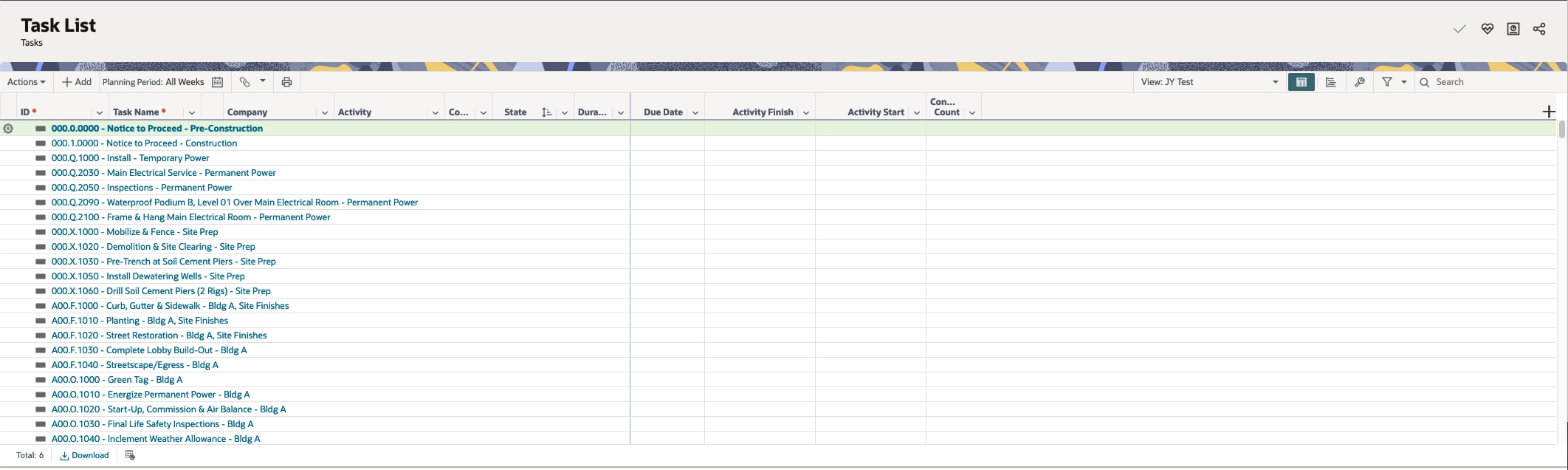
The Task List page is where you can manage tasks in a table format. Use views to customize the display of columns, grouping and sorting options, and task filters. This page supports the ability to create tasks, modify their details, assign users, add hand-offs, and more.
Mobile app
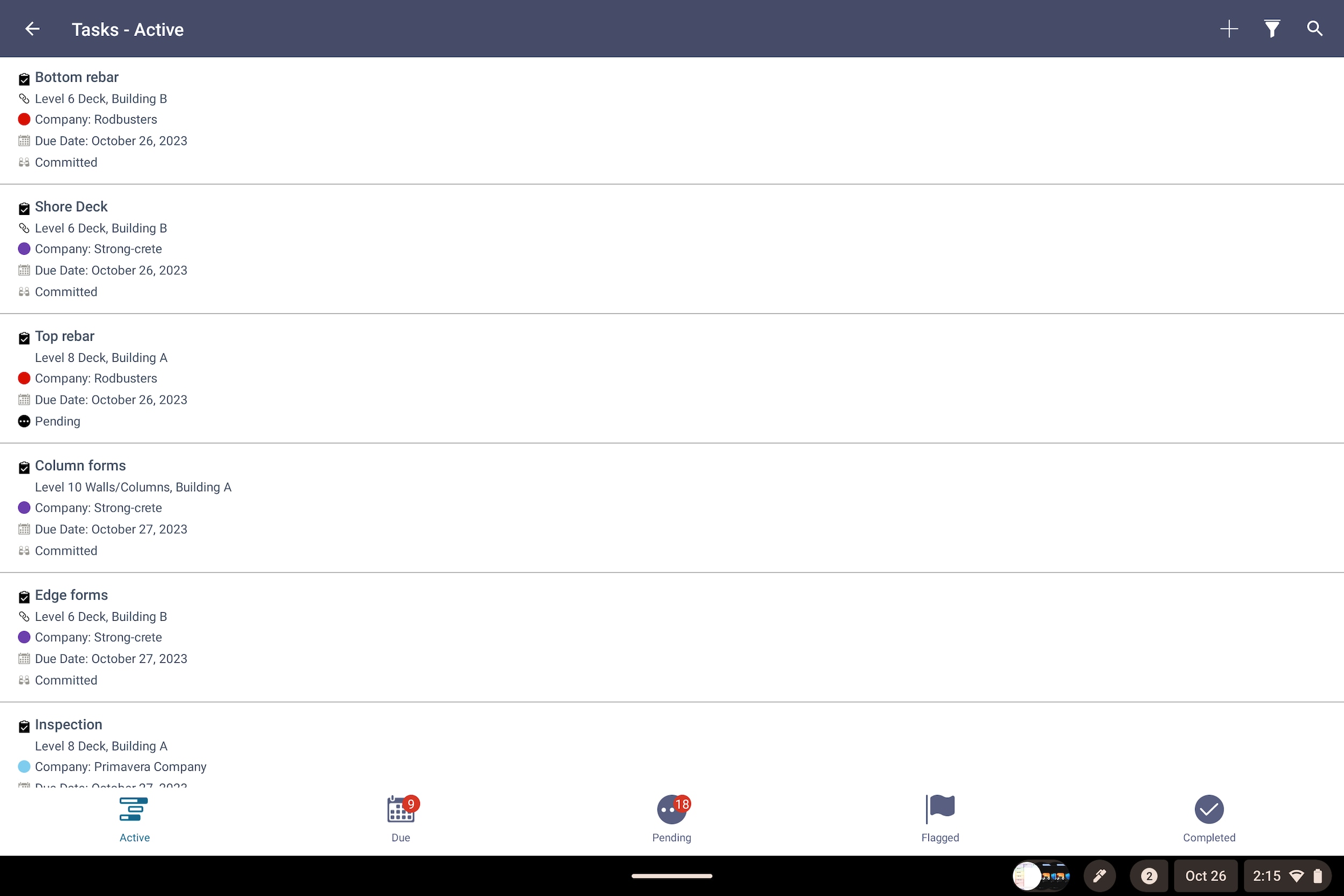
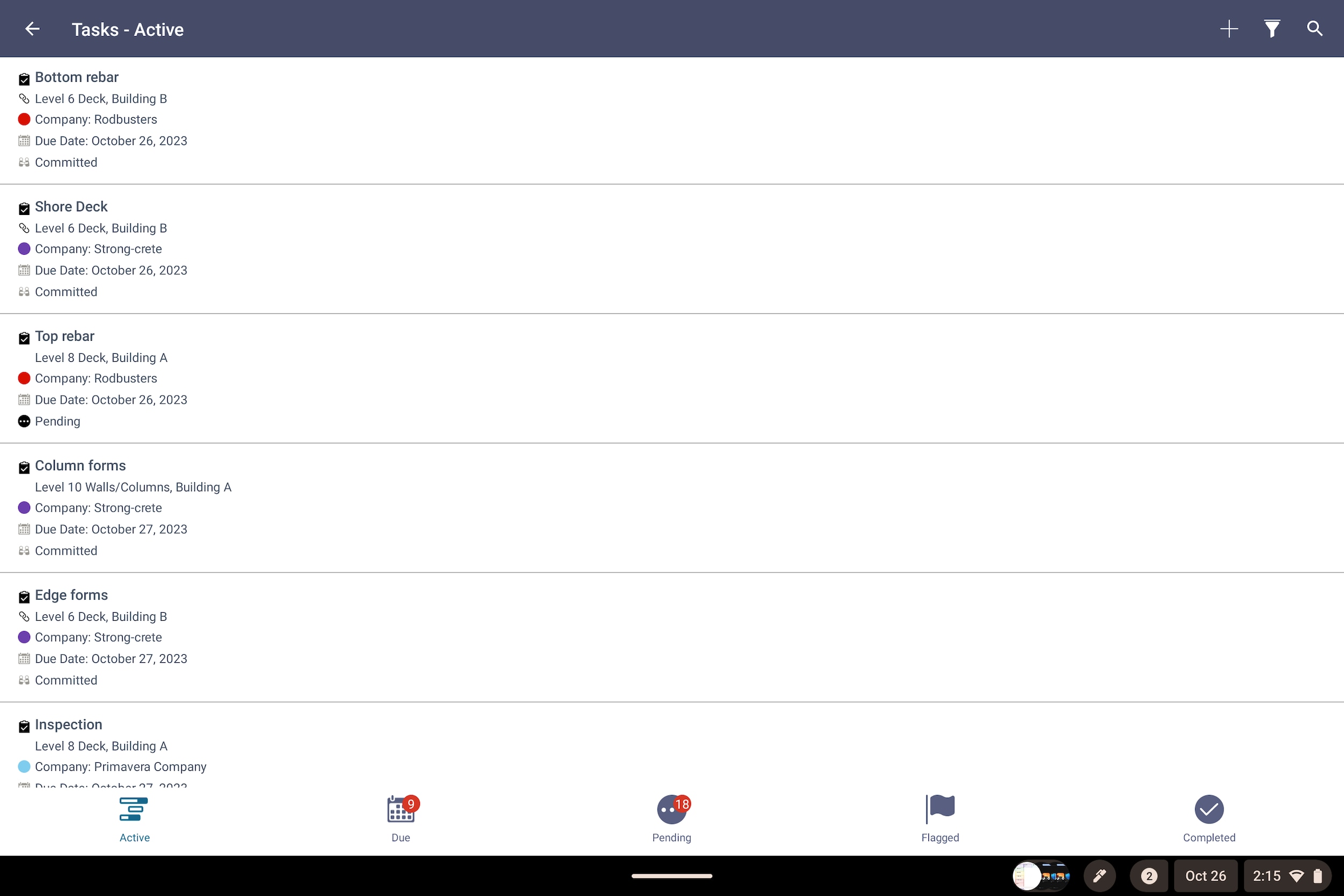
Use the Task List page in the mobile app to see all of your tasks for a project. Easily search for tasks, or select the Refine flashlight icon to group and filter tasks to make them easier to find. Like the Work Plan page, you can select a task to view and edit its details at the worksite.
Performance pages
Browser
The Analysis page displays a variety of charts that are useful for monitoring task performance, including planned percent complete (PPC) and reasons for missed commitments. Using lean methods, teams can learn from their performance and take actions to improve.
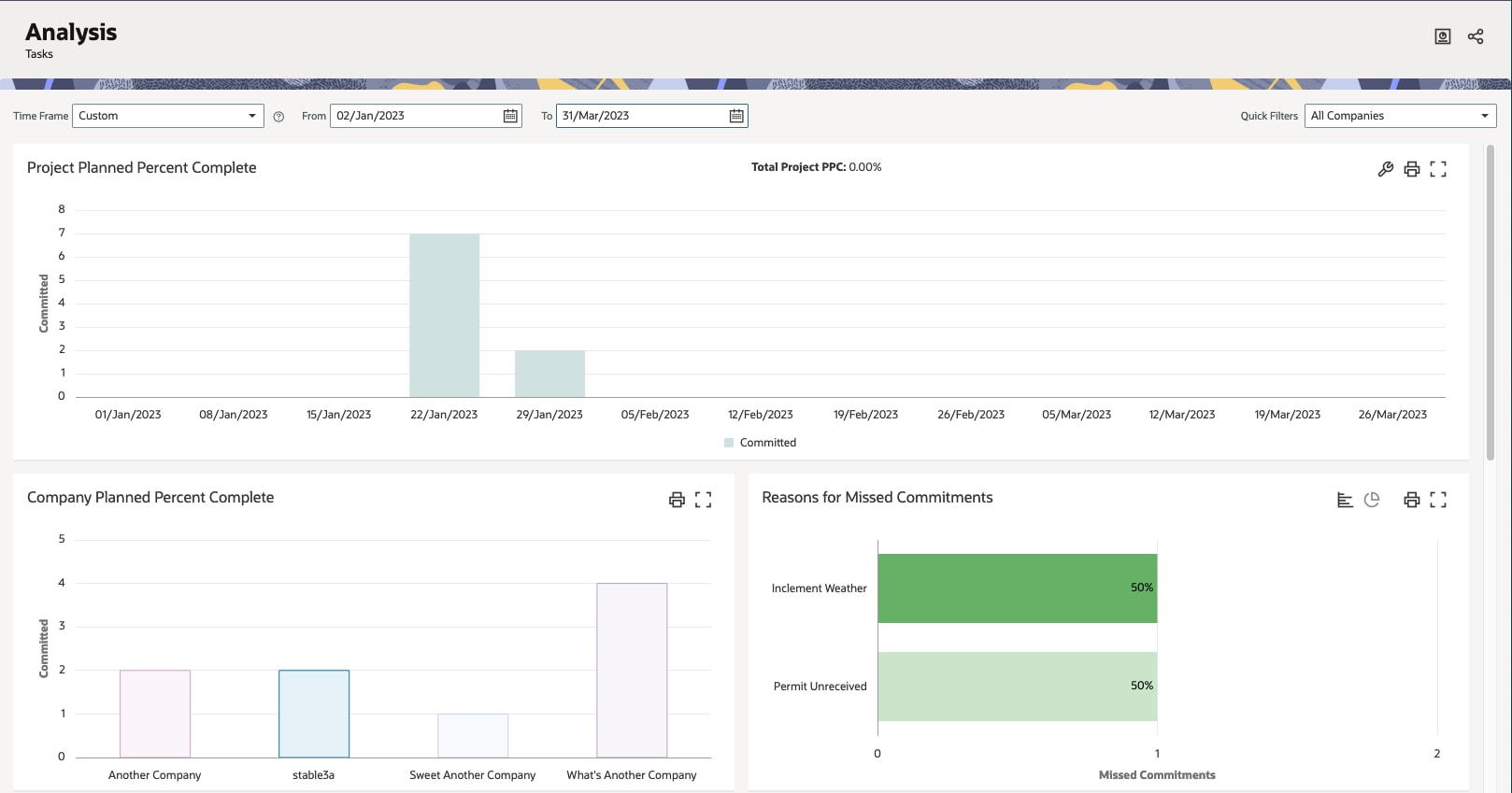
See this article for more on using the Analysis page.
Mobile app
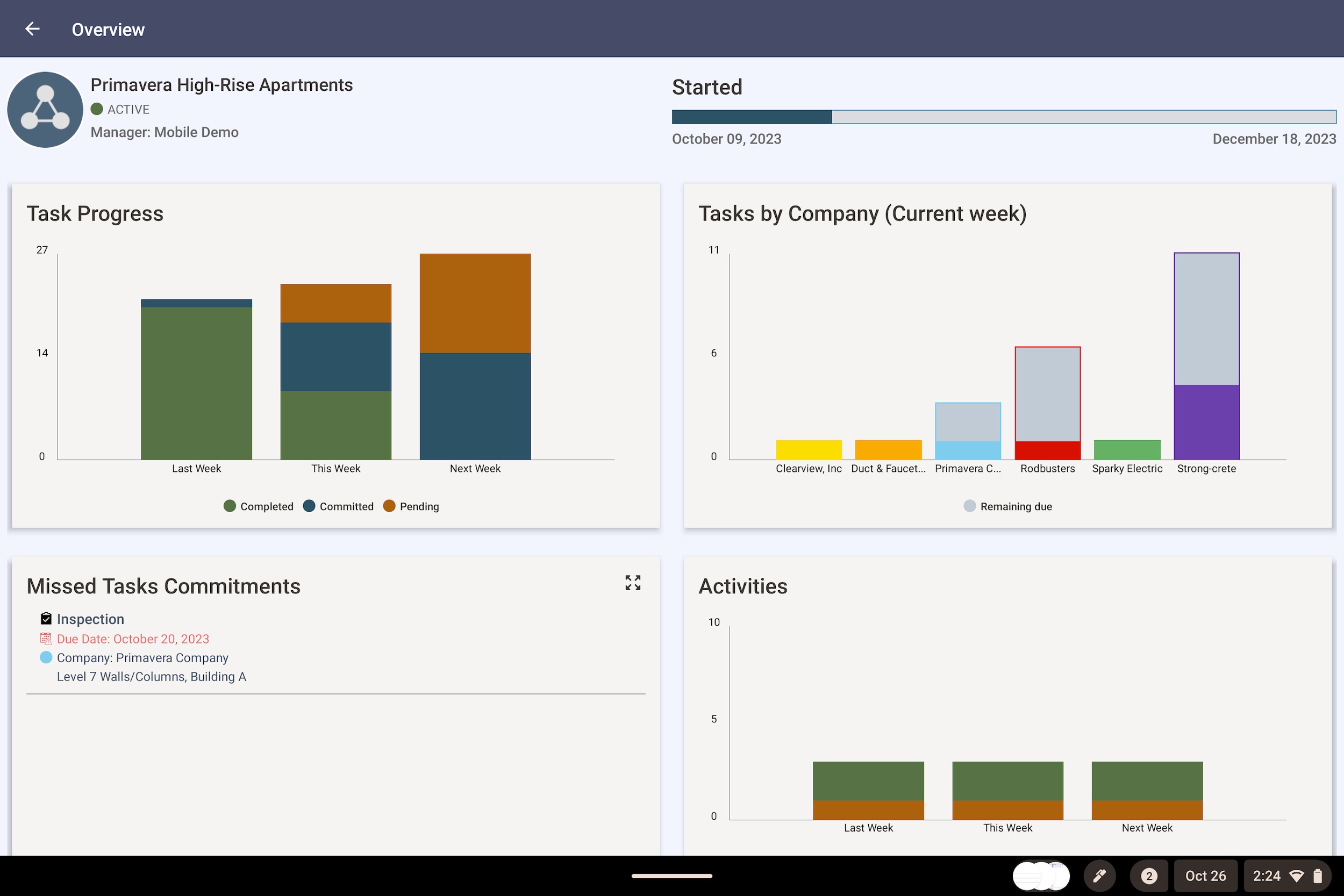
Check out the Overview page to view a high-level summary of the project. See task and activity progress, tasks by company, and missed commitments.