Textura Subcontractor getting started guide
Complete your user profile
If you are your organization's first Textura user, you will automatically be designated as the "Enterprise Administrator," which is the highest level of access, enabling complete control to manage your organization's account. (More information on User Roles for Subcontractors.)
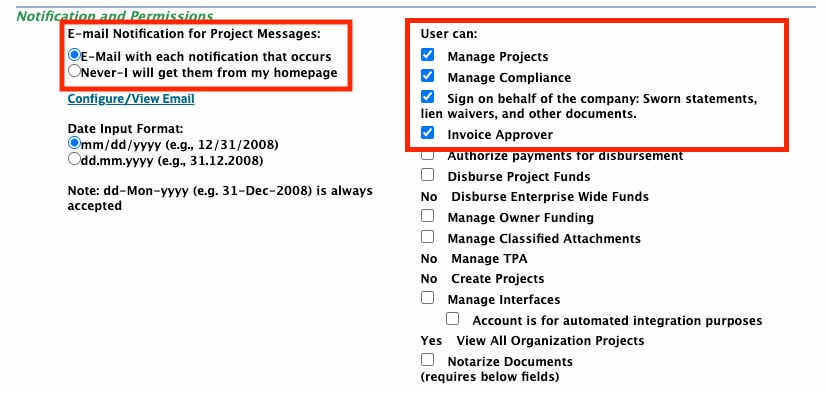
Complete your user and organization information, as well as preferences. Ensure appropriate boxes are checked for the following preferences. (Subcontractors can disregard the rest.) See image below.
- Email notifications (on by default) to ensure you don't miss any time-sensitive project messages.
- Manage Projects (Assign project user roles, create the Schedule of Values (SOV), manage subcontracts, enter invoices, and request change orders.)
- Manage Compliance (Submit compliance documents.)
- Sign on behalf of the company (Sign documents: invoices, lien waivers etc.)
- Invoice approver (only applies to companies that require suppliers to invoice in Textura)
- If you are a Notary, ensure the "Notarize Documents" box is checked, then complete Notary Information. If you don't have an in-house notary, see: Track Offline Notary (North America)
Complete your company profile
Complete the company profile, including contact information, tax ID, and banking information to move to the final registration step.
Oracle Store registration
Once banking information is completed and saved, you will receive an email to complete your Oracle Store registration
1. Click the link in the email to go to the Oracle Store.
2. Select "New User" to create your account and complete the registration form.
3. Once the account is created, select "Textura Payment Management Subcontractor Cloud Service" to add to your cart.
4. Check out.
Tip!
What's next?
Textura will be available for you to sign into and begin using within 24 hours. You'll receive an email when you're able to log in to confirm your contract in Textura.
Ready to get set up to request and receive payment in Textura? Visit this page for a guide on how to complete that.