Managing compliance
In this article, you'll learn how to view the status of compliance documents in Textura, such as insurance certificates, that your General Contractor may require on a project, as well as how to submit the new documents, if necessary.
Getting started with compliance
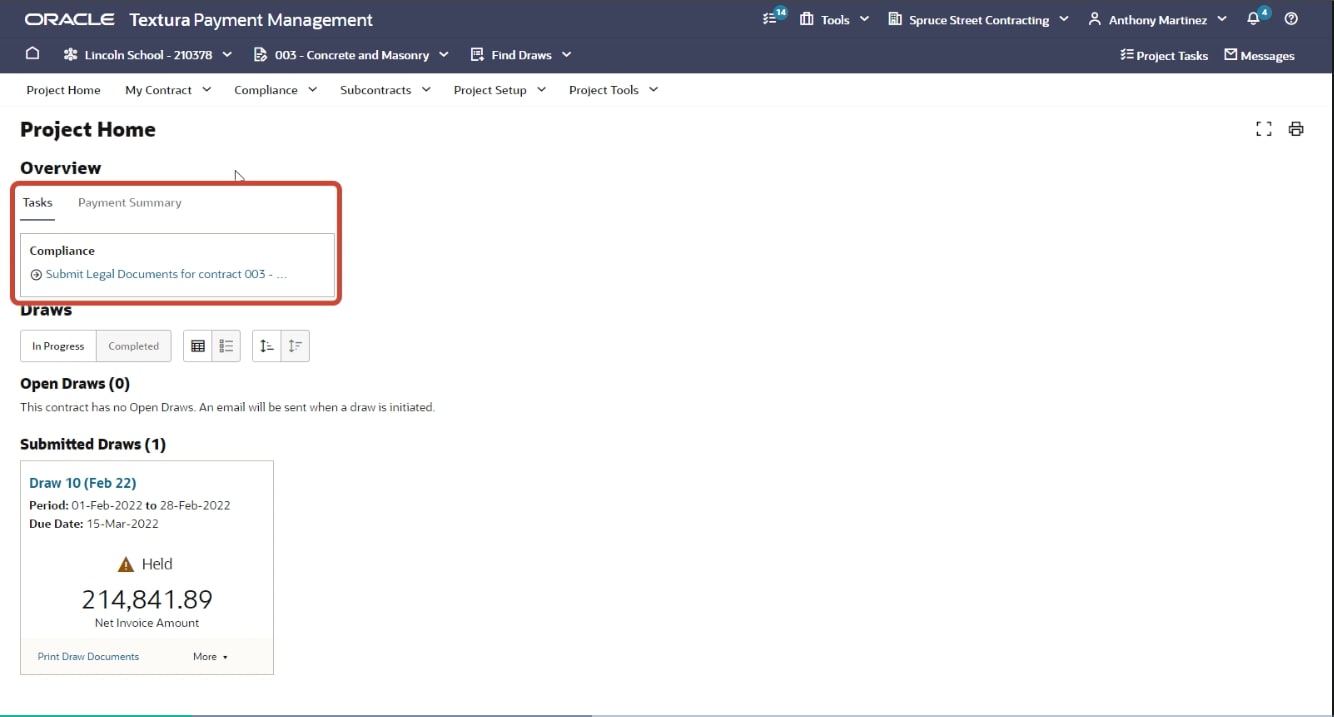
When your General Contractor requires a document, a task is displayed in the Tasks section on your Project Home page.
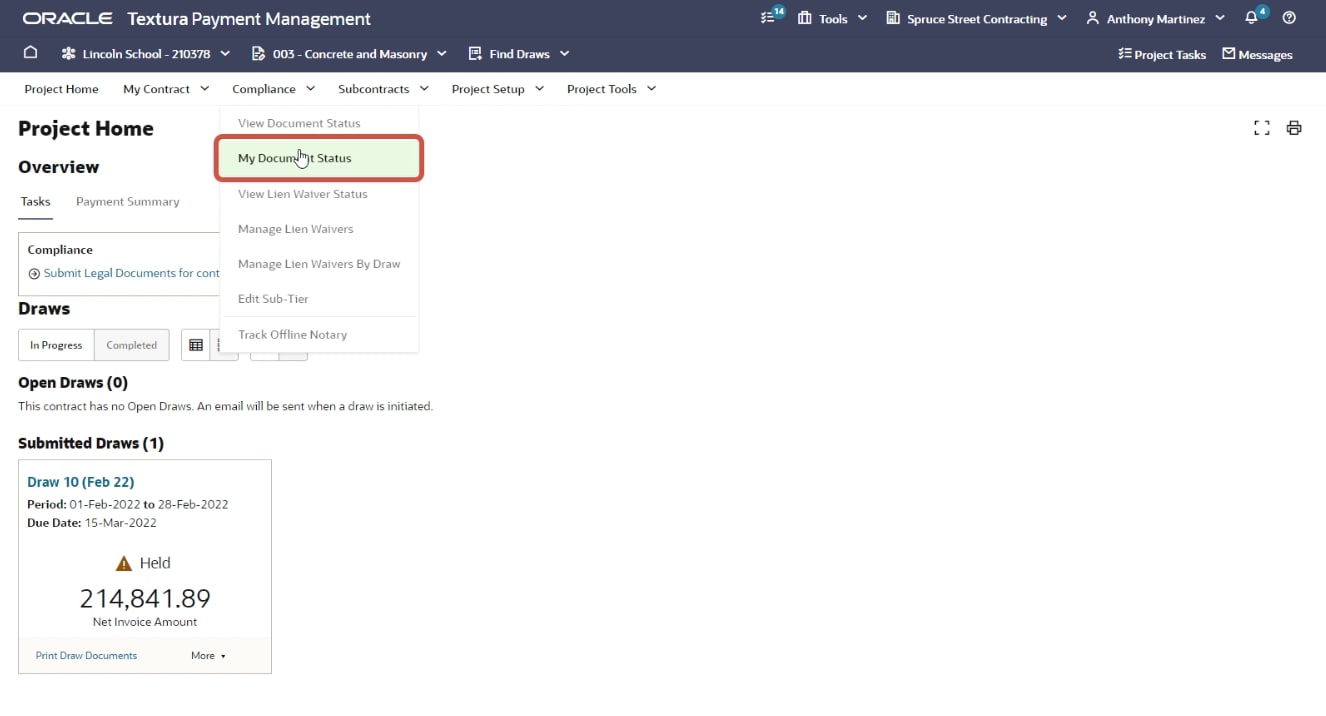
You can also access your compliance status at any time by clicking the Compliance menu and selecting My Document Status.
Note: You'll need the Compliance Manager permission on the project to perform compliance activities.
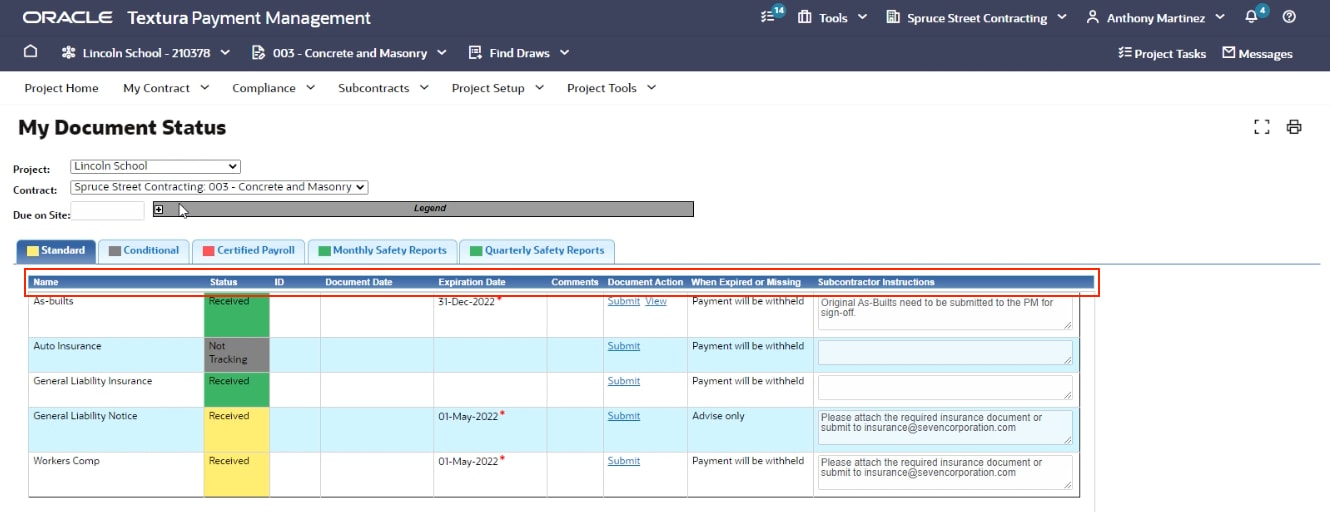
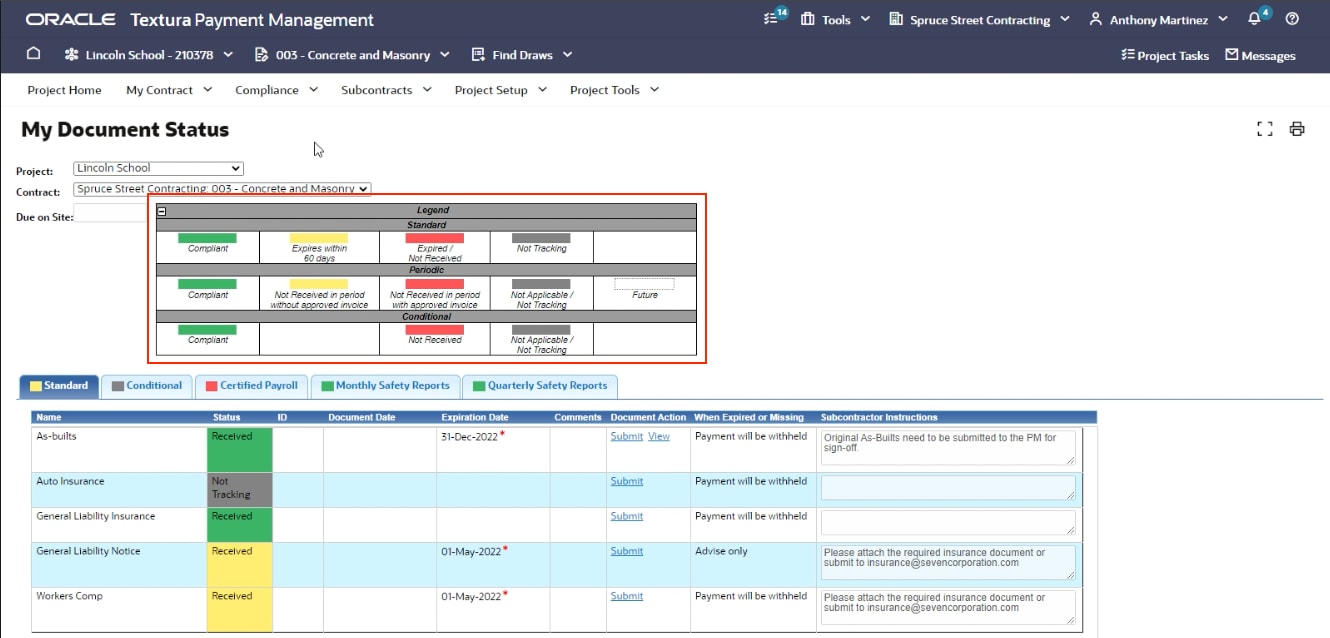
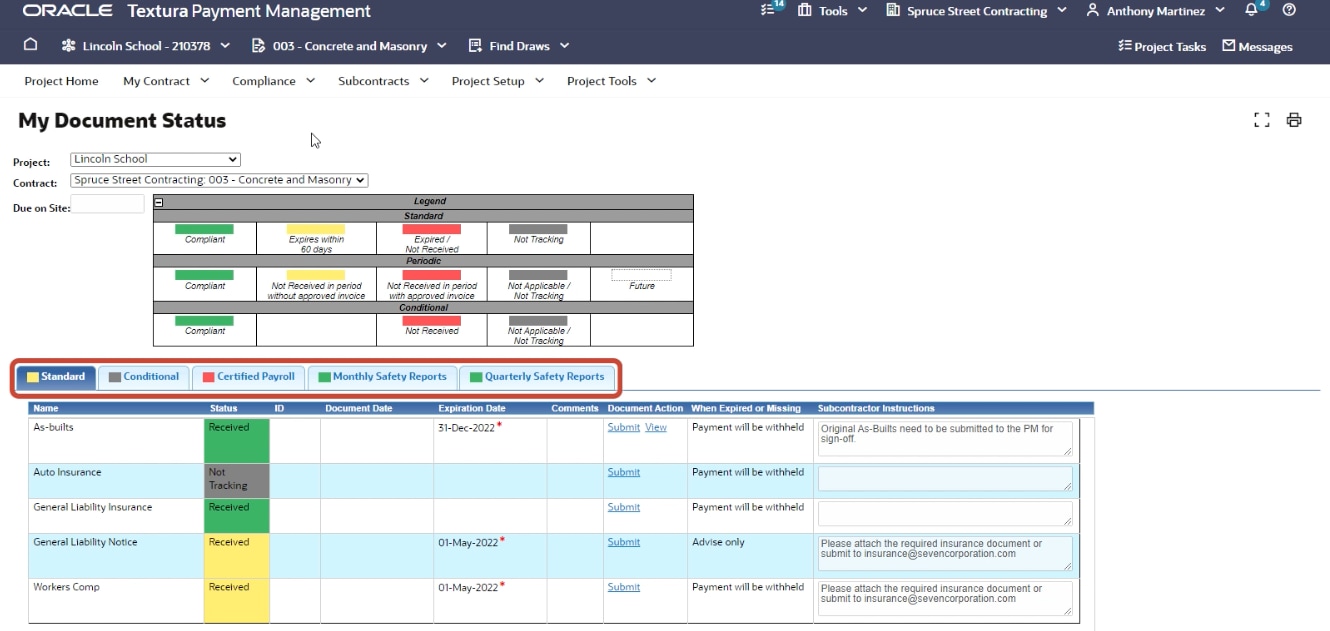
The page displays key information about the compliance requirements defined by your General Contractor, including the name of the document, its status, expiration date, and Subcontractor instructions. The page is color-coded:
- Red - non-compliant or missing
- Yellow - compliant but expiring soon
- Green - compliant
- Gray - not applicable
Types of requirements
The list is organized by different requirement types: standard, conditional, and periodic.
- Standard requirements are those that apply once for the contract (such as insurance). These documents may expire.
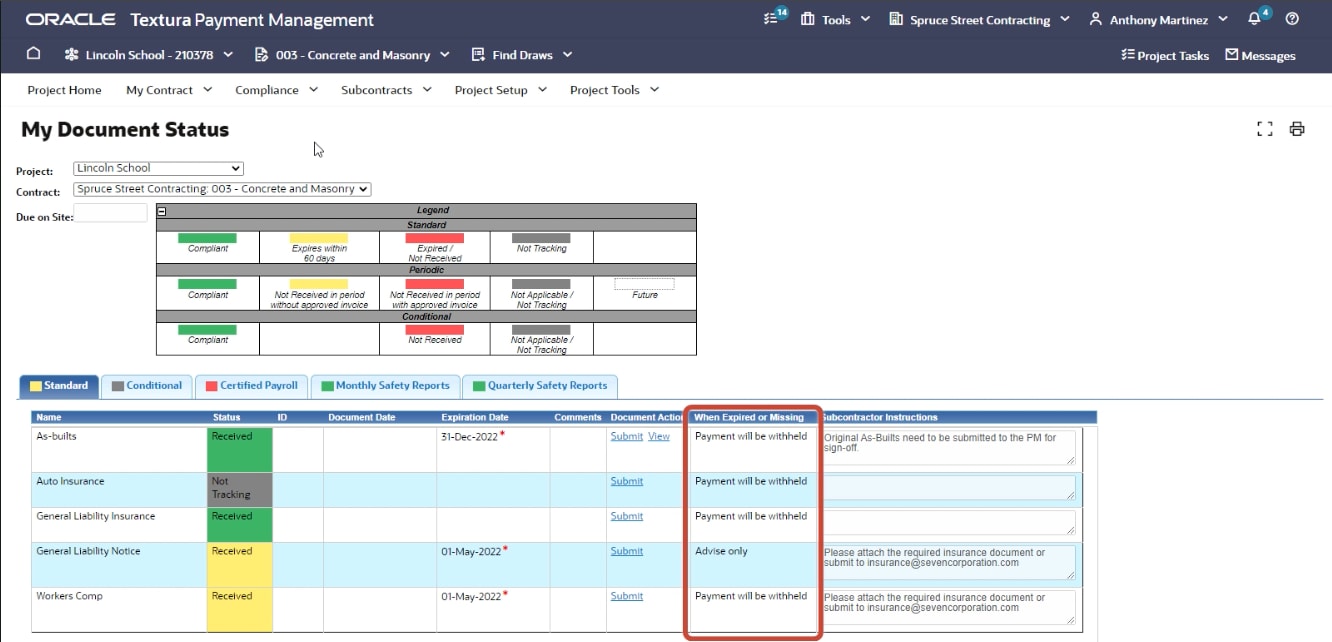
- The When Expired or Missing column indicates whether payment will be withheld if the document is non-compliant.
- Conditional requirements apply when your contract reaches certain thresholds, such as retention release or full and final billing.
- These generally become applicable at the end of the project.
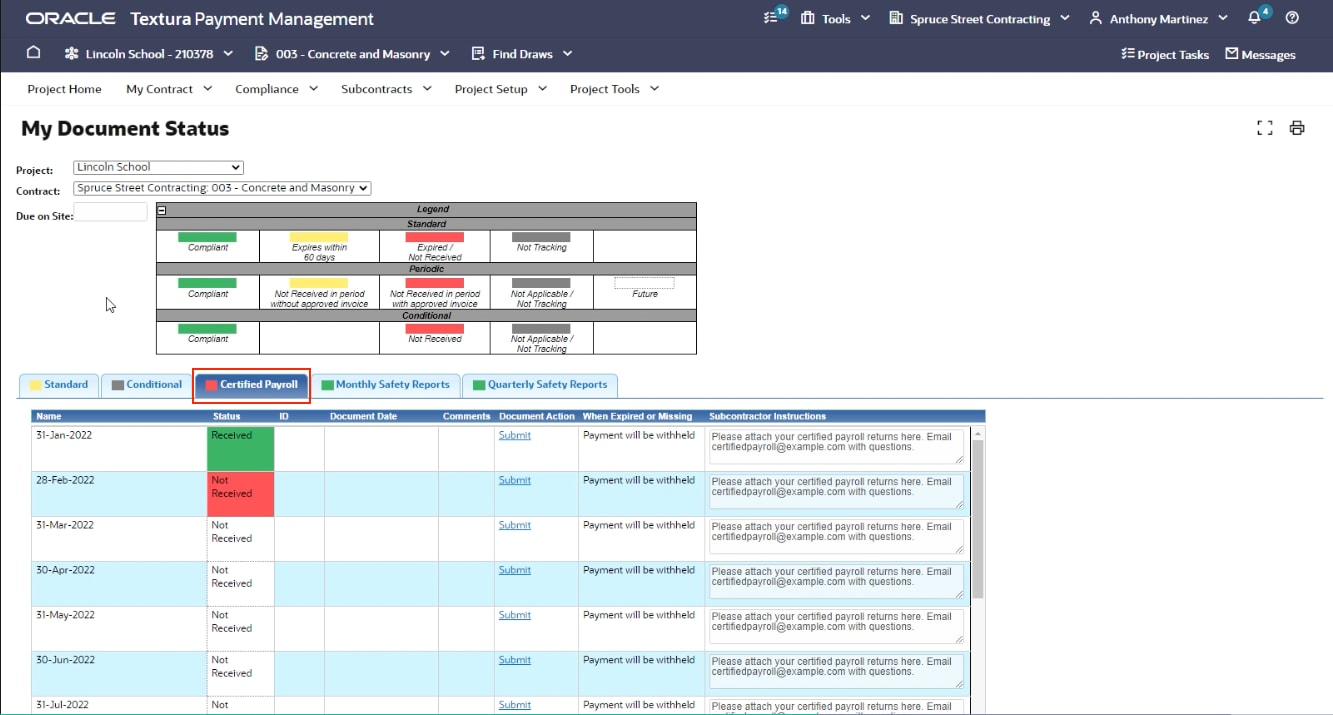
- Periodic requirements repeat regularly, such as weekly or monthly certified payroll.
Review compliance status
If your General Contractor tracks periodic requirements, you may have to submit documents for each billing period.
- Missing documentation will display in red and result in a hold.
- You'll receive an email notifying you of the hold as soon as it's placed.
- In addition, your draw will display as Held in the Submitted Draw section.

Uploading compliance documentation
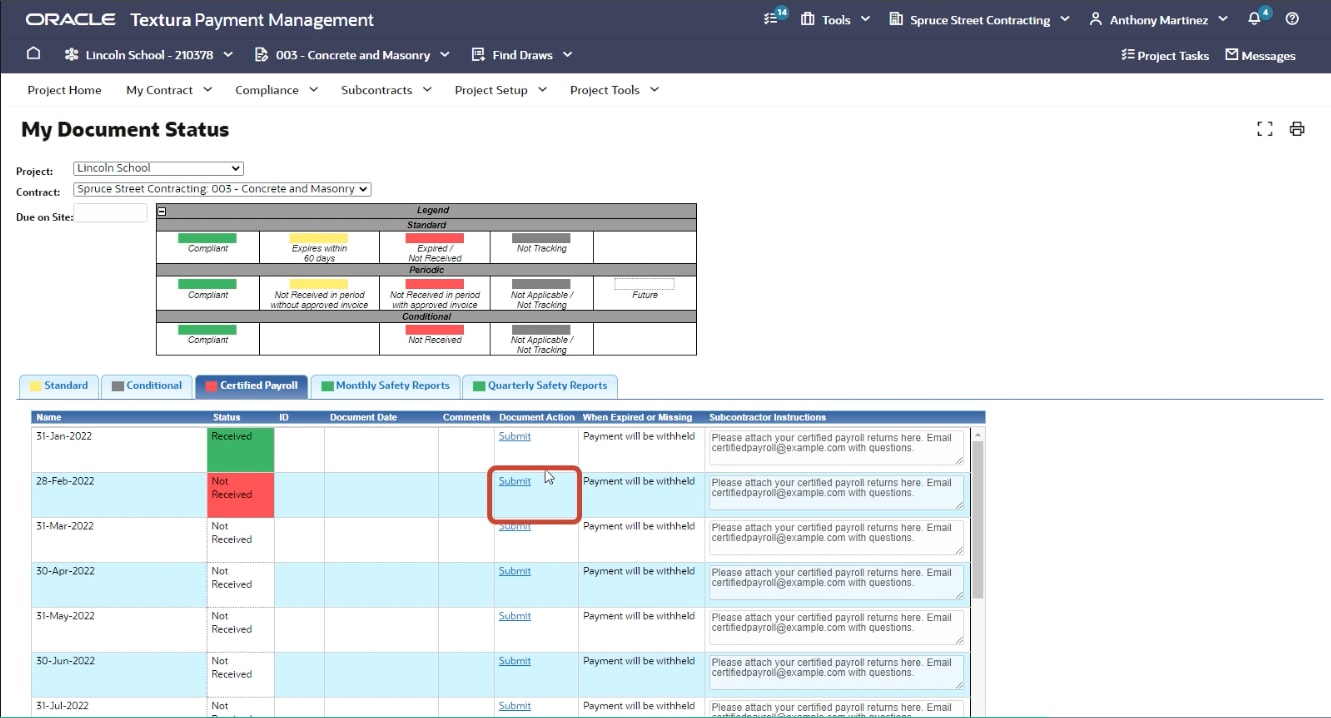
To upload a document, click the Submit link in the Document Action column. Browse your computer, select the document, and click Save. After the document is uploaded, the Document Action column displays a View link that enables you to open and view the document.
Tip!
If you do not see a Submit link, the General Contractor did not allow for electronic submission. You can reach out to your General Contractor for further information.
Your General Contractor will receive a notification as soon as your document is uploaded.
Please note: The General Contractor will need to update the status before any payment holds are cleared.
You'll receive an email when the payment hold is released. Then your draw will show as Submitted on Project Home. Your payment is now ready to be disbursed.