My Oracle Support
Oracle Support provides 24/7 access to a global team of more than 18,000 support and service specialists, digital resources, a customer community, and more. Learn how to register and use My Oracle Support, so you can get the support you need, when you need it. If desired, you can always give us a call.
How to register and sign in
Visit support.oracle.com. Select the option to sign in with your commercial cloud account, and then follow the onscreen instructions to enter your tenancy, domain (if prompted), and Cloud account username and password. If needed, contact your Cloud Administrator (the Administrator on the Oracle order) for account details like the tenancy name.
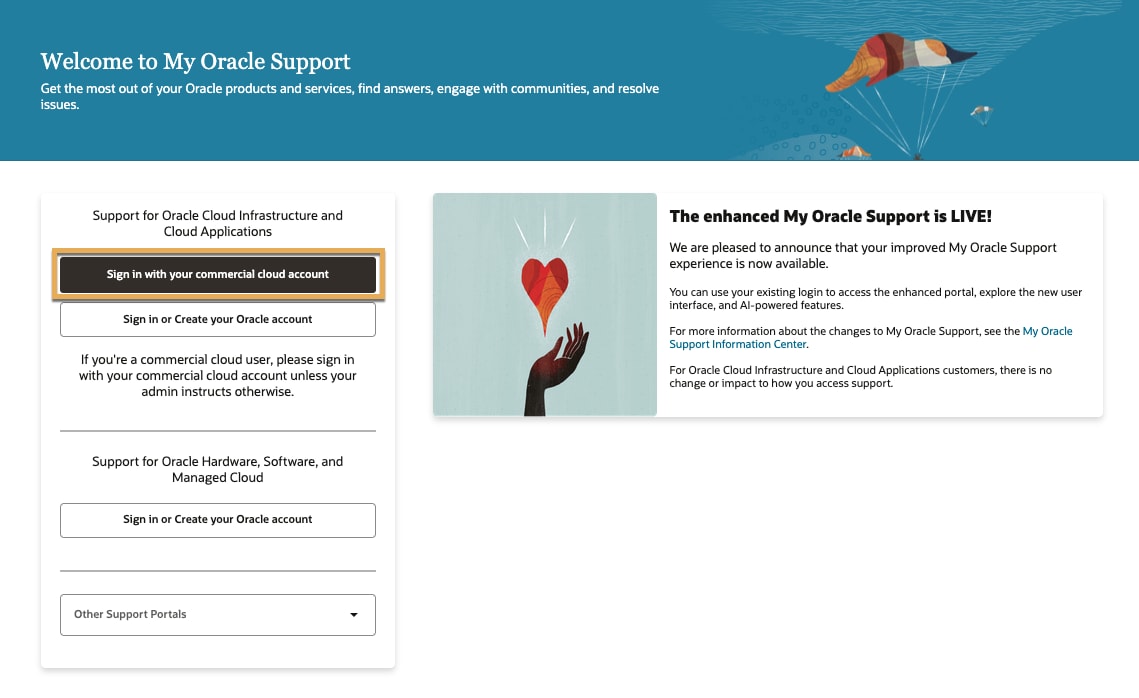
If you don't have a commercial cloud account or if you're unsure of your credentials, you can sign in with or create an Oracle account.
Reference this article for more infomation.
Tip!
Getting help
In the My Oracle Support portal, you can get help in a few ways.
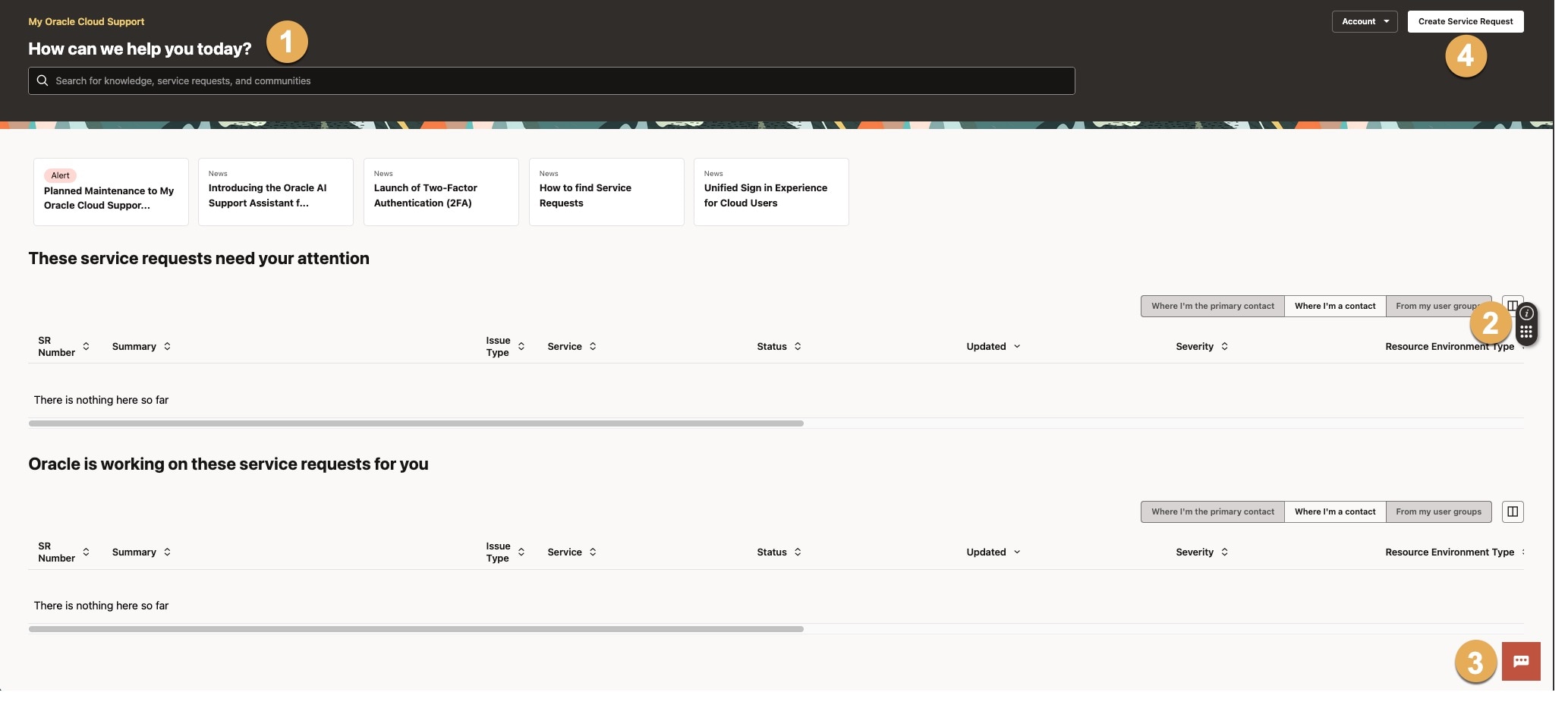
1. Get assistance 24/7 by searching knowledge base articles, Service Requests (SRs), and communities to find answers to your questions. You can also see news and alerts below the search.
2. Oracle Guided Learning is available by clicking the info widget along the right side. Information that displays is contextual, depending on where you are at within My Oracle Support. You can search for a topic to be directed to relevant content.
3. You can also use the ChatBot in the lower-right corner to get information on SRs, the CUA role, account management, and frequently asked questions. If needed, you can also connect with a live agent.
4. Finally, you can submit an SR to contact Support. If you don't have access, ask your CUA to give you permissions.
See this article for more information (you must be signed in to your My Oracle Support account to view this article).
Creating an effective SR
An effective SR is all about providing as much detail about your issue as possible. Support uses the information you provide to assign the SR to the correct engineer. Additionally, if the SR doesn't have adequate information to work on the problem, the assigned engineer will need to ask you follow-up questions. Incorrectly assigning the SR and/or inadequate information will cause delays in getting your issue resolved. Remember, Support only knows what you tell them!
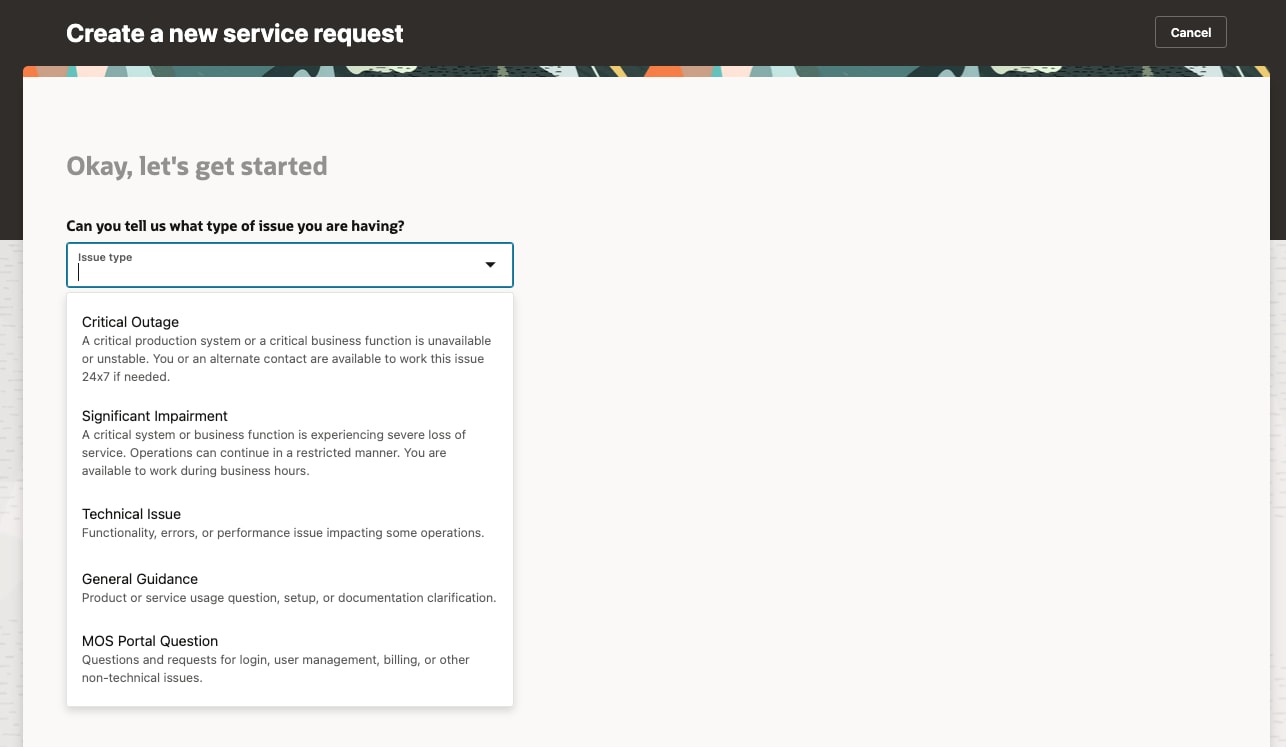
1. You'll begin with the issue type, which can range from general guidance to a critical outage. The issue type you select will determine the severity level of the SR. It's crucial to select the correct type so Support can accurately prioritize the issue. See the Severity Definitions section in the Oracle Cloud Hosting and Delivery Policies or the Technical Support Policies.
Tip!
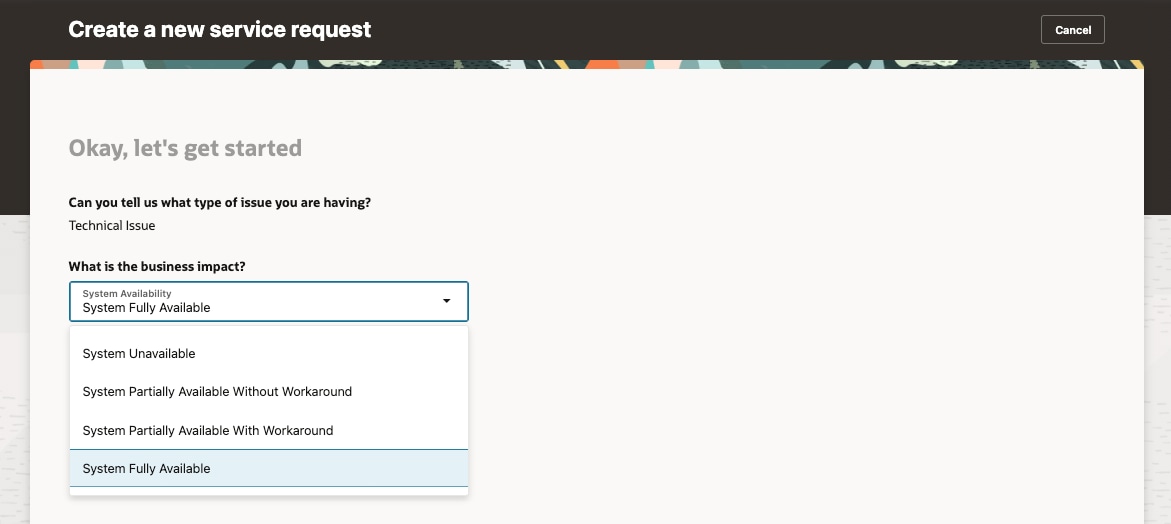
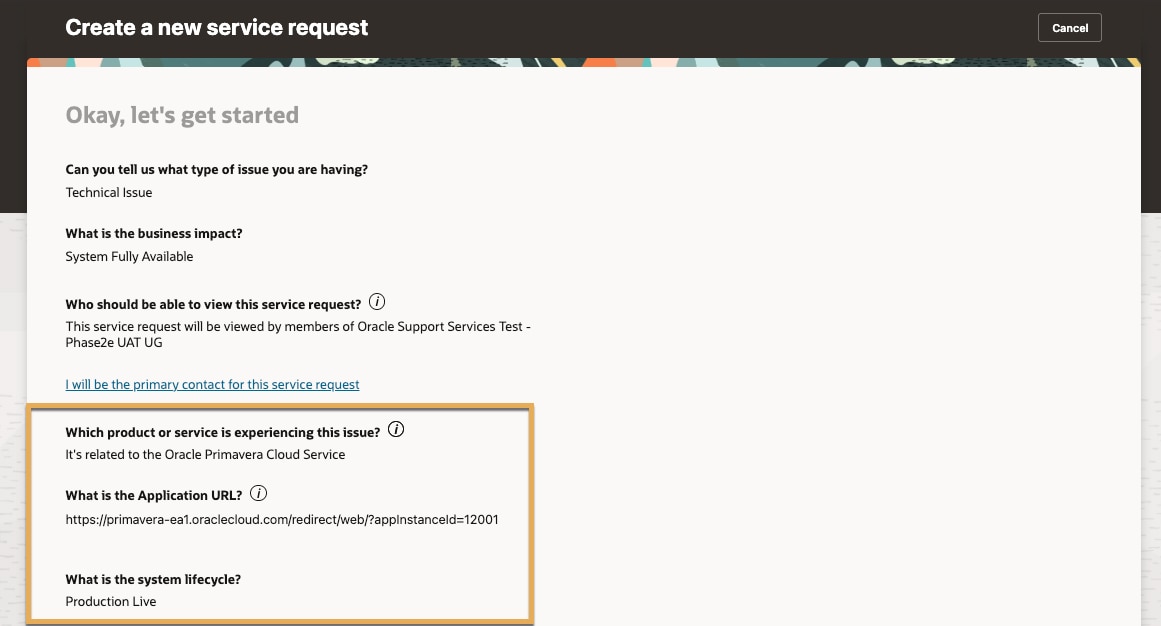
2. Select the business impact by identifying the availability of your service. Click Next to continue.
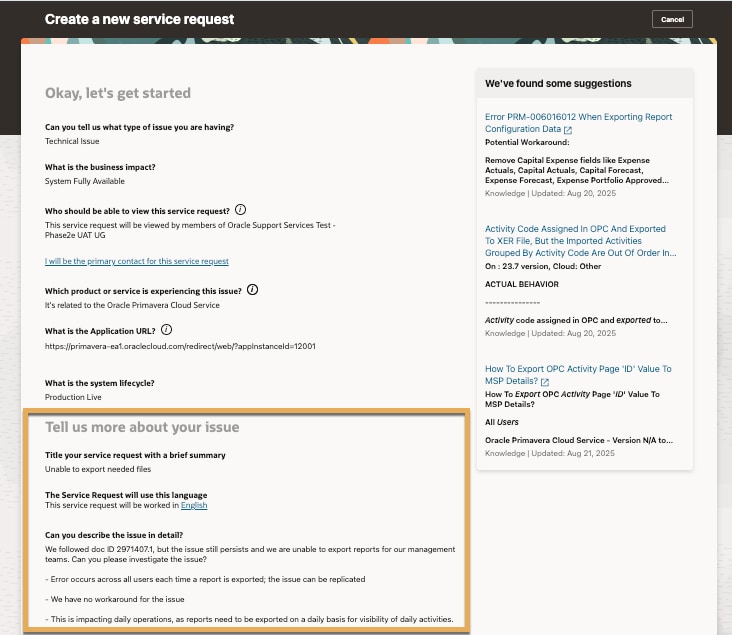
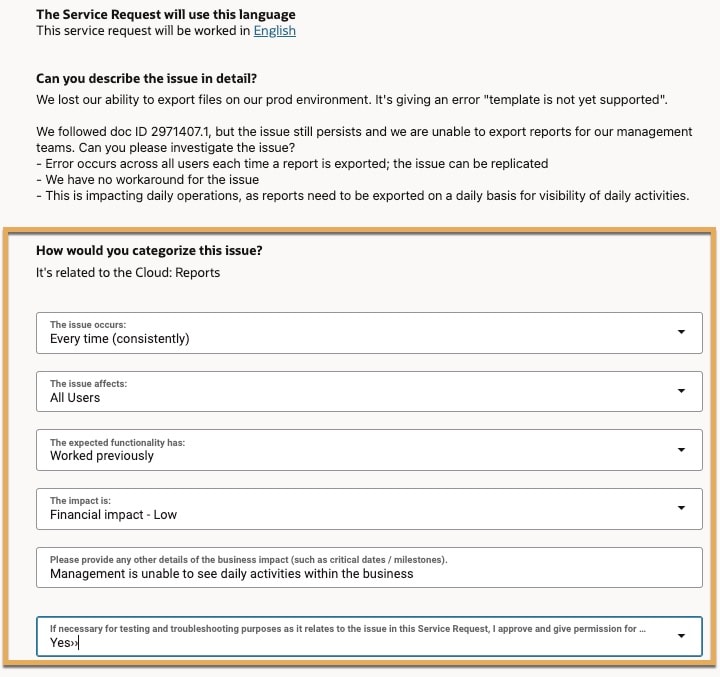
4. Now, you'll tell Support more about your issue. Provide a brief summary. Then, describe the issue in detail, providing the sequence of events that occurred, steps to reproduce the issue, expected results, and any workarounds if applicable. Describe any business impact in quantitative terms. For example, if the loss of functionality is impacting employee performance, quantify the number of productivity hours lost and what it's costing the business. Or if the issue is preventing sales, identify the monetary loss that will occur until the problem is resolved.
Request to speak to a Support manager
If needed, you can involve an Oracle Support Manager when your issue has not been adequately addressed through regular updates on your SR. You should use this process only if:
- Your SR is not progressing in a way that meets your critical project milestones, implementation, or upgrade plans.
- You have an urgent business issue that requires management attention within Oracle Global Customer Support.
- You are dissatisfied with the resolution or response provided through the normal Service Request process.
To submit a manager request, follow the instructions in the My Oracle Support article here. Reference Request Manager Action for a Service Request in the Service Requests section.
Tip!
Customer User Administrator (CUA)
CUAs in the My Oracle Support portal are responsible for approving new users, managing user access, and submitting SRs. Users can submit and manage their own SRs - a CUA just needs to give them permissions. CUAs can also assign, transfer, and remove CUA access as needed.
When new users register, they'll be added to the tenancy’s default User Group in the My Oracle Support portal. User Groups are used to organize and segment users and SR privileges. Approved membership to a User Group drives the ability to create and view technical SRs. You can create as many User Groups as needed to meet your organization's business needs.
Tip!
We recommend having at least two CUAs. This ensures your organization can still get support if a CUA leaves the company or is away from the office.