Oracle Primavera Cloud security
Security in Oracle Primavera Cloud is powerful and flexible, ensuring a secure, useful environment for all users.
Security is comprised of three main categories: users, permissions, and assignment. Let’s cover what you need to know for each one.
Users
When adding users in Primavera Cloud, you’ll choose privileges to ensure they can only access what they need in the application. We’ll discuss these selections throughout the article.
One of the first security selections you’ll make is the user’s type. This denotes general permissions and application access in Primavera Cloud. See this article for a description of each type. Note that most users will fall under the User category. The other user types are less common, but still could be applicable to your organization. You may use only one user type or all of them, and that’s ok!
After assigning a user type, users will be assigned a license, which determines which apps they have access to in Primavera Cloud. For example, users with the Schedule license have access to various apps, including Schedule, Resource, Risk, and more. License assignments will happen automatically if you have a Project or Enterprise license, or you'll need to assign them manually if you have the Named License model. See this article for more details.
Permissions
When adding users, you’ll also be prompted to assign them permission sets. These sets include a variety of privileges that give users access to different objects within Primavera Cloud.
The goal when creating permission sets is to find the right balance of access. You don’t want to make everything accessible, but you also don’t want to be so restrictive that users can’t do their jobs.
The Permissions Sets page in Global Admin is where you can see available user privileges. There are two types of permission sets: global and object. Let’s cover the global permission set first.
Global permission set
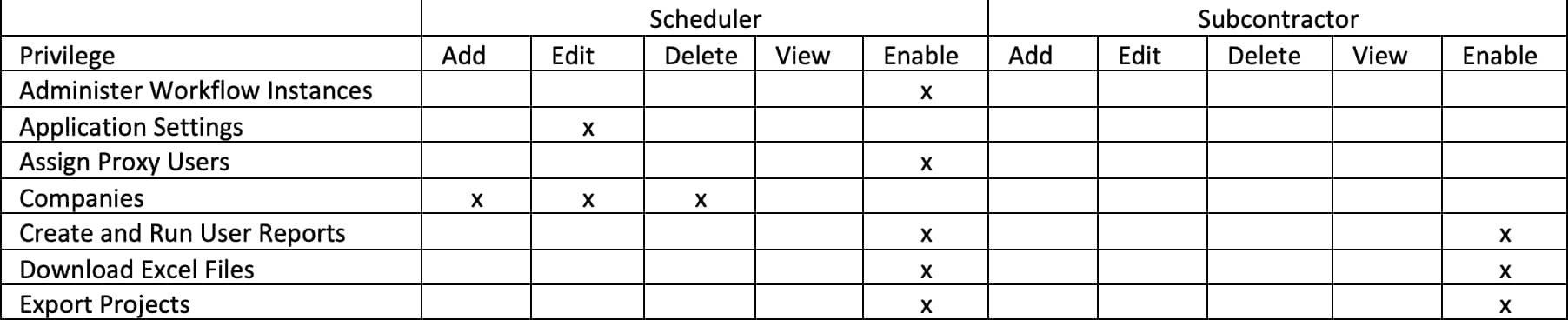
Every user must be assigned a global permission set. The privileges here will apply to users throughout a Primavera Cloud tenancy, regardless of where they are within the application. Global privileges include the ability to edit application settings; add, edit, or delete companies; create and run user reports; and more.
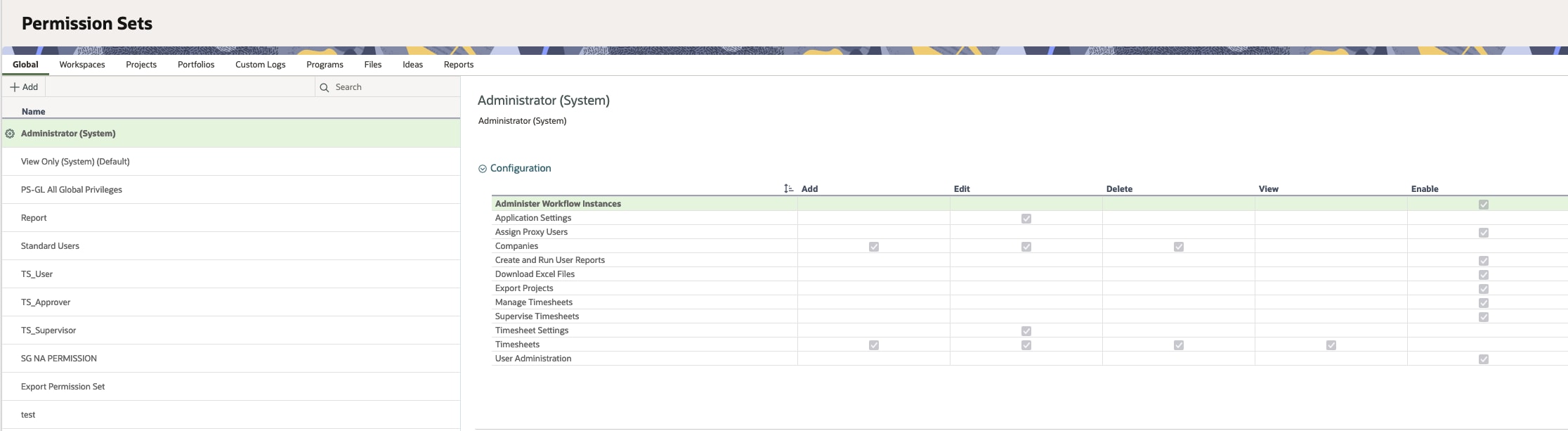
The default permission set is View Only (System), which means that users can’t perform any global privileges. This likely won’t work for most users, as they will probably need to, at a minimum, have the Create and Run User Reports and Download Excel Files privileges.
You can create a new global permission set and select for it to be the default as desired. You can create as many global permission sets as needed to fulfill the needs of your users. If you plan to have several global permission sets, we recommend giving them meaningful names so you can easily identify and assign them to users. For example, Scheduler (Basic) denotes the user type and privilege level.
Object permission sets
Object permission sets have two main functions in Primavera Cloud: They control what users can see and what they can do within the application.
What users can see
When thinking about what users need to see in Primavera Cloud, consider the following:
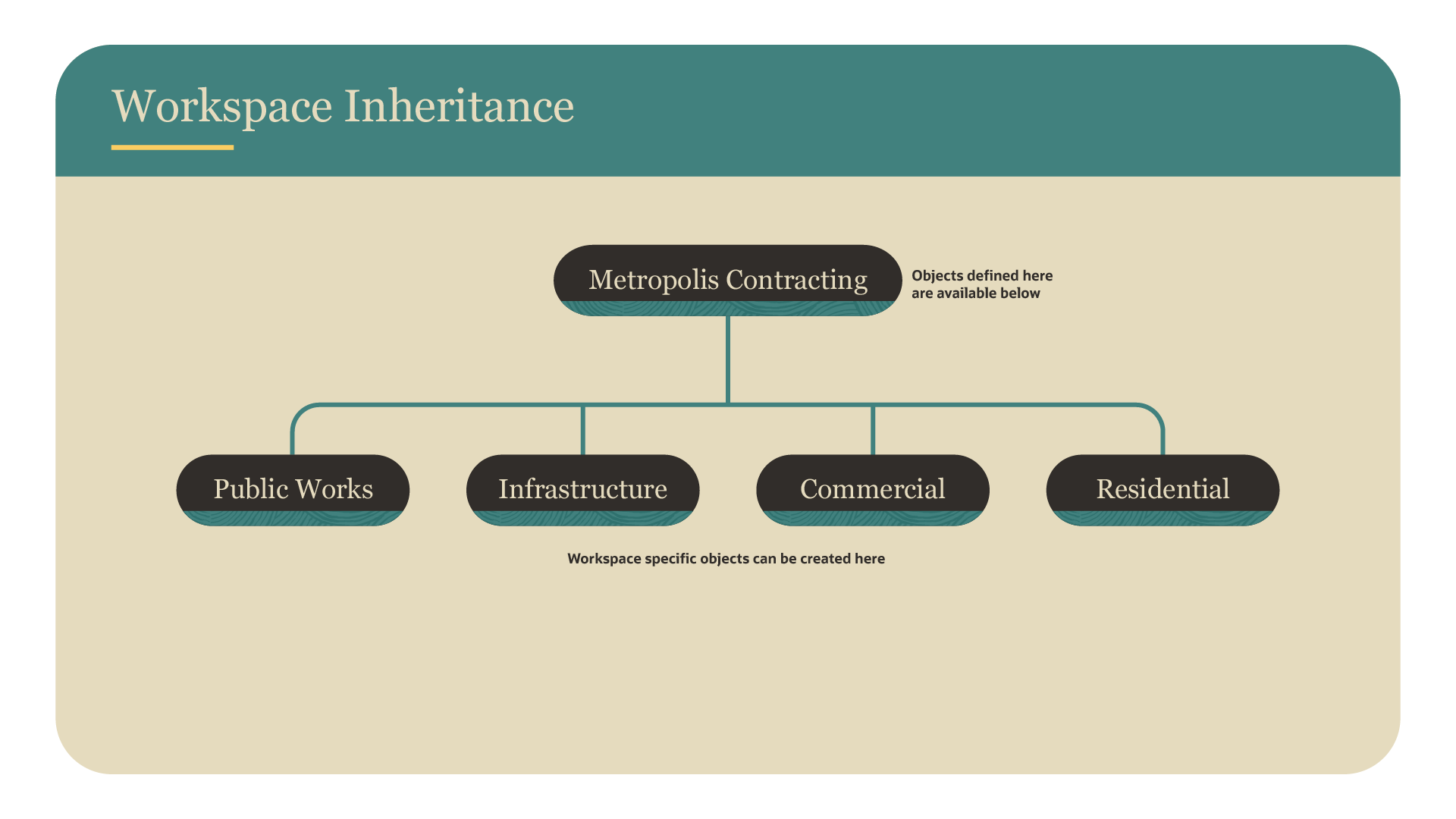
- Where in your organization’s workspace hierarchy does the user need access to do their job? Users will have privileges at the workspace you assign them object permissions sets in and all lower levels. Check out this article for more details.
- What apps does the user need to use? Primavera Cloud contains a variety of apps, such as Cost & Funds, Dashboards, Resources, and Schedule, that appear in the left sidebar.
What Users Can Do
You’ll also need to determine what the user needs to do within Primavera Cloud. The object permissions sets contain privileges across the workspaces, projects, portfolios, etc. that users have access to in your workspace hierarchy.
The privileges in these tabs are contextual, meaning that they’ll apply to users depending on what object they’re working within, such as a workspace, project, portfolio, etc. Each object has their own set of privileges that allow the user to perform a certain function, like add, edit, or delete.
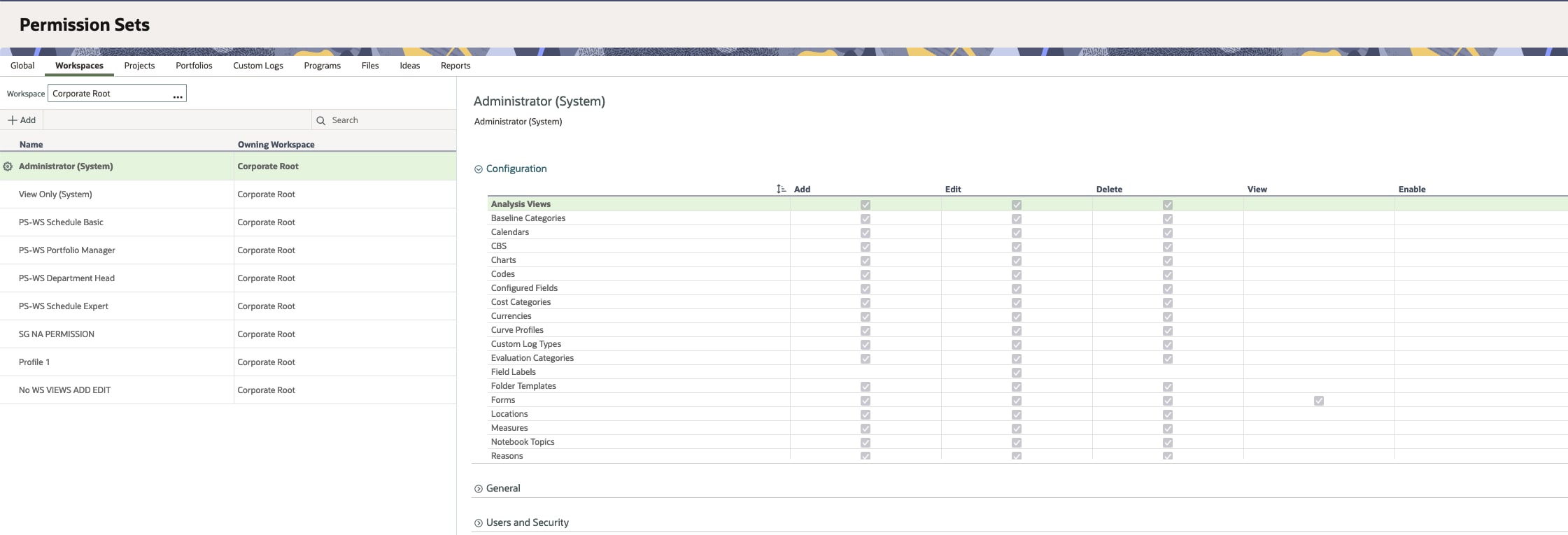
For example, workspace privileges determine the user’s level of access to a workspace, such as being able to edit codes and calendars, add a project or portfolio, or edit users and their permission sets at the workspace level.
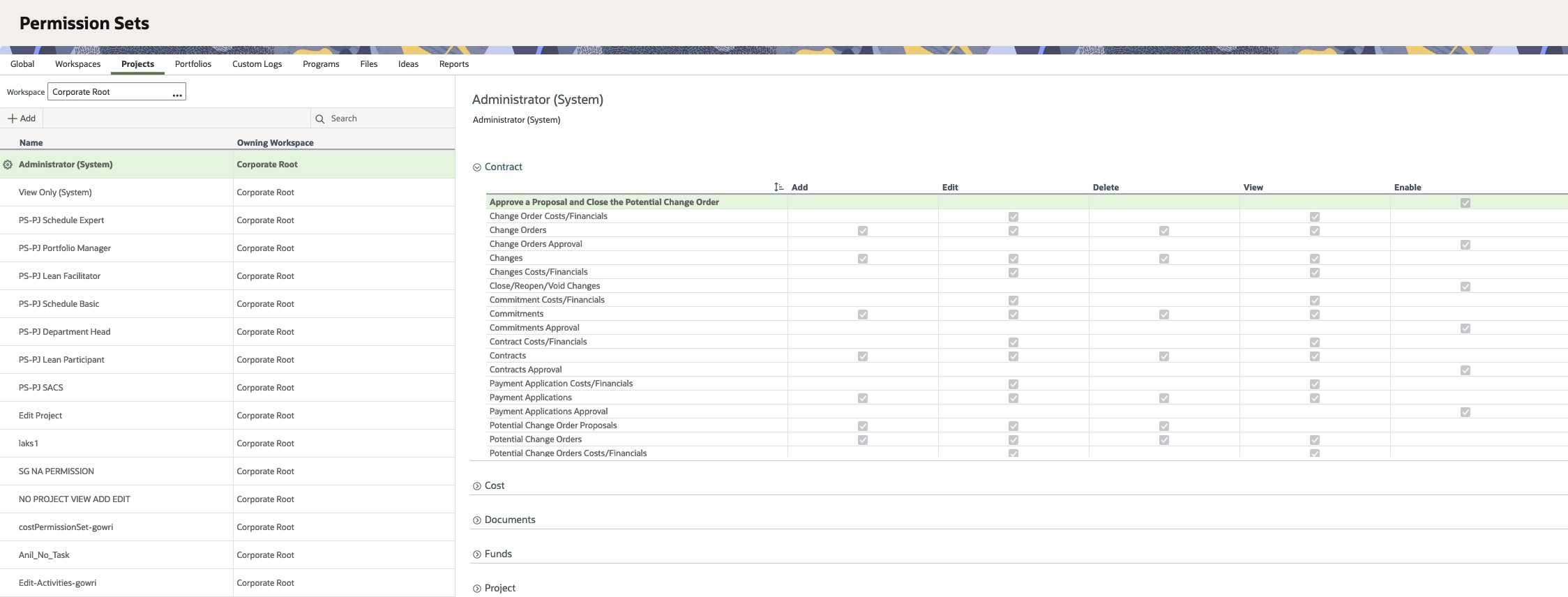
Project privileges include the ability to add, edit, or delete project information, like activities, resources, and risks.
Familiarize yourself with the object permission sets, so you understand the privileges available in each one.
Visit this article for more on global and object permission sets.
Assignment
Permission sets
In Primavera Cloud, you can assign permission sets to users individually or in user groups. When assigning individually, you’ll need to select each permission set manually for every user. While that may be fine if your organization has a few users, it can be cumbersome if your organization has many users. This is when we recommend creating user groups.
User groups allow you define a set of permission sets for a group of users in a workspace or project. We recommend creating a user group for each role at your company, such as for a Scheduler, Portfolio Manager, Subcontractor, etc. For each role, identify the privileges they will need in the global permission set and each object permission set. Additionally, for object permission sets, identify which workspace users will need the privileges in. Remember that the privileges will apply to users in the selected workspace and all lower workspace levels.
Workspace permission set example:
Object permission set example:
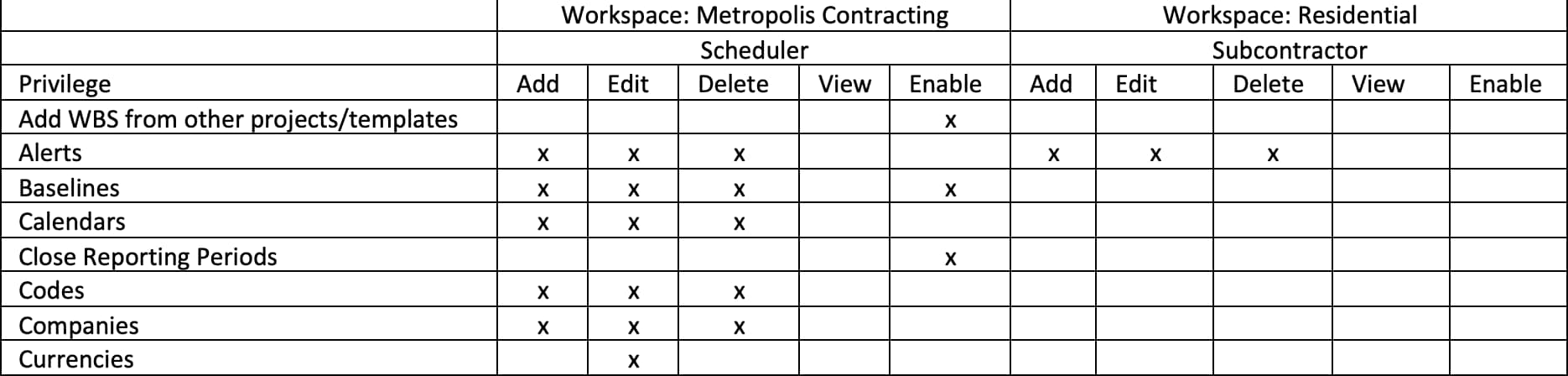
While documenting roles and privileges will take some time, it’s much faster to create user groups rather than assigning each user permission sets individually if you need to manage a large group of users. If desired, you can use the preinstalled permission sets located on the User Groups page in Global Admin. They include the most common workspace, project, and portfolio privileges for different user types. See if any of these permission sets will work for your organization, and then identify any additional sets you’ll need to create.
When you’re ready, create and assign user groups to a workspace or project on the User Groups page. Then, when adding users to Primavera Cloud, assign them to the appropriate user group when prompted.
See this article for more information.
Apps
When adding users to Primavera Cloud, you’ll also assign each user a set of apps that they will be able to access throughout the application. You can select the apps manually for each user or create an app preset to customize the apps available to a user. You can create as many app presets as needed to suit the needs of your organization.
See this article for instructions.