Manage Roles in Project Team
What are roles?
Roles allocate specific functions to users in Submittal Exchange. The most common are:
- Subcontractor
- General Contractor
- General Contractor Project Leader
- Consultant
- Architect/Final Reviewer
- Architect Project Leader
- Owner
- Owner Project Leader
Who can create roles?
You must be a Project Leader to copy roles on your project. Project Leaders can edit custom role labels at the log and project level.
Creating roles
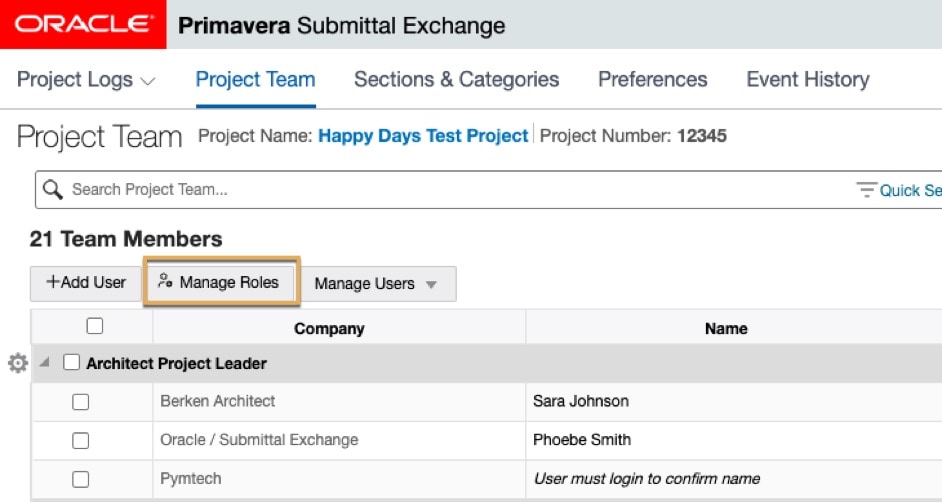
In the Project Index, select a project and click on the Project Team tab.
- Click Manage Roles.
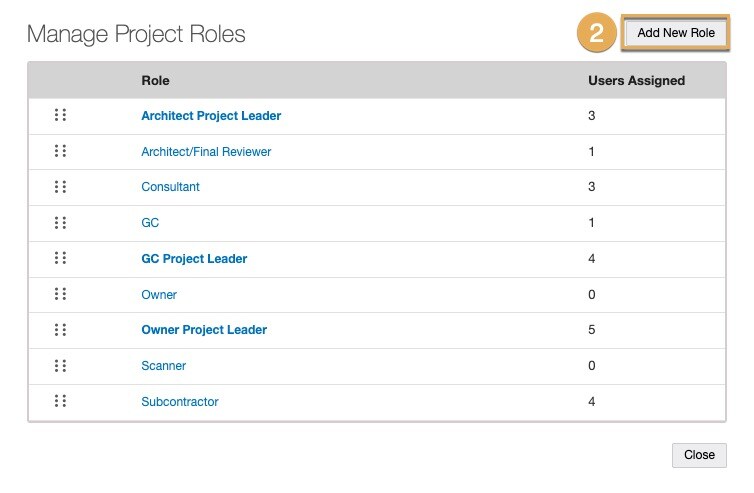
2. A dialog box appears. Click Add New Role.
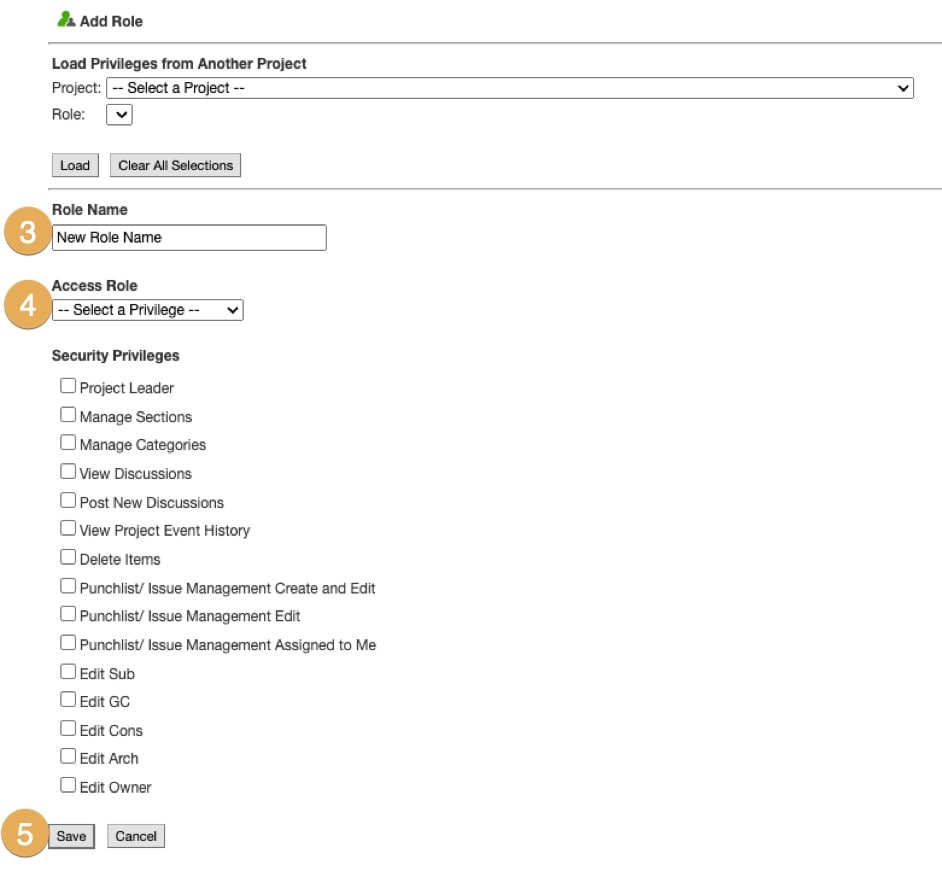
3. Enter the name of the role in the Role Name field.
4. Under Access Role, choose the distinction that best matches the new role from the drop-down list.
5. Click Save.
Tip!
The new role user does not appear in the Project Team tab until you have assigned a user to this role.
Copying existing roles
Only Project Leaders may copy roles on an existing project.
From the Project Index page, select a project and go to the Project Team tab.
- At the top of the page, select Manage Roles.
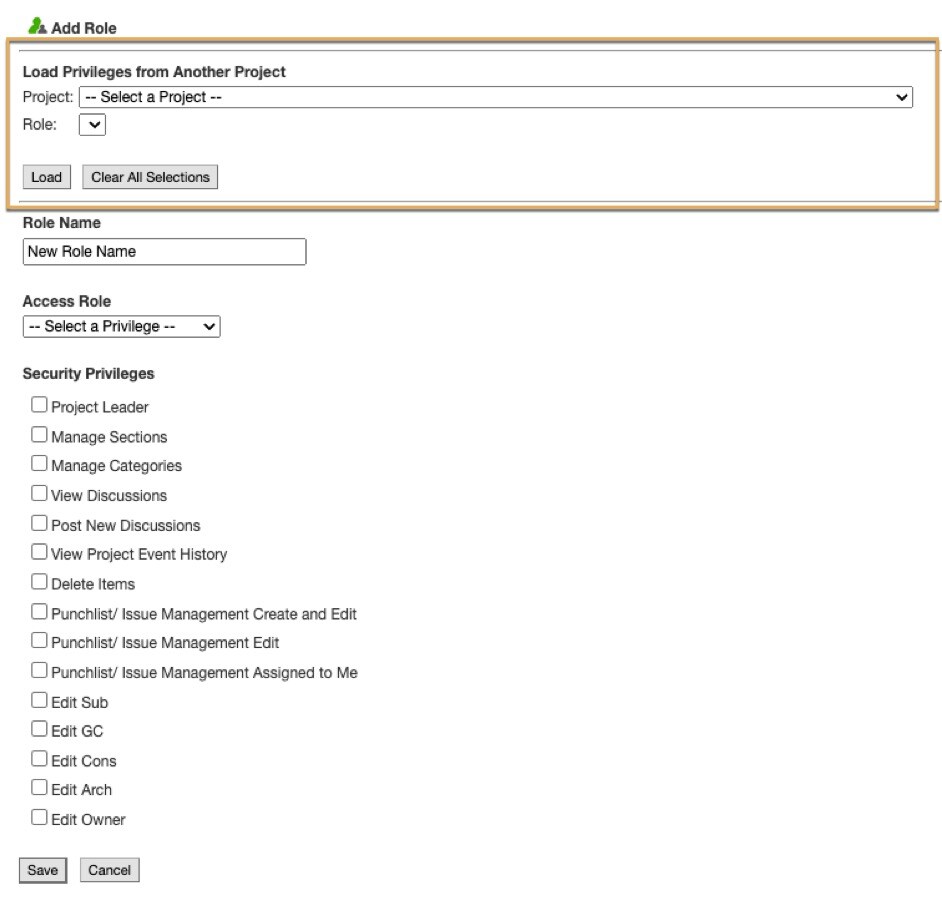
- A dialog box appears. In the upper left corner, select Add New Role.
- To add a role used in one of your other projects, choose Select a Project and select the project name that contains the role from the drop-down list.
- Next, select Role, and choose the role from the drop-down list. Select Load.
- Ensure all settings for the role appear correct.
- Select Save.