My Library
What is My Library?
My Library is available to store documents in a personal library on Submittal Exchange. Use this feature when files exceed the 200MB upload limit (per file upload) for a particular log.
How to access My Library
Click the drop-down next to your name in the top right corner, and choose Manage My Library.
Uploading, editing, renaming, and deleting files in manage my library
Select Manage My Library under your name in the upper-right corner.
The My Library window will appear.
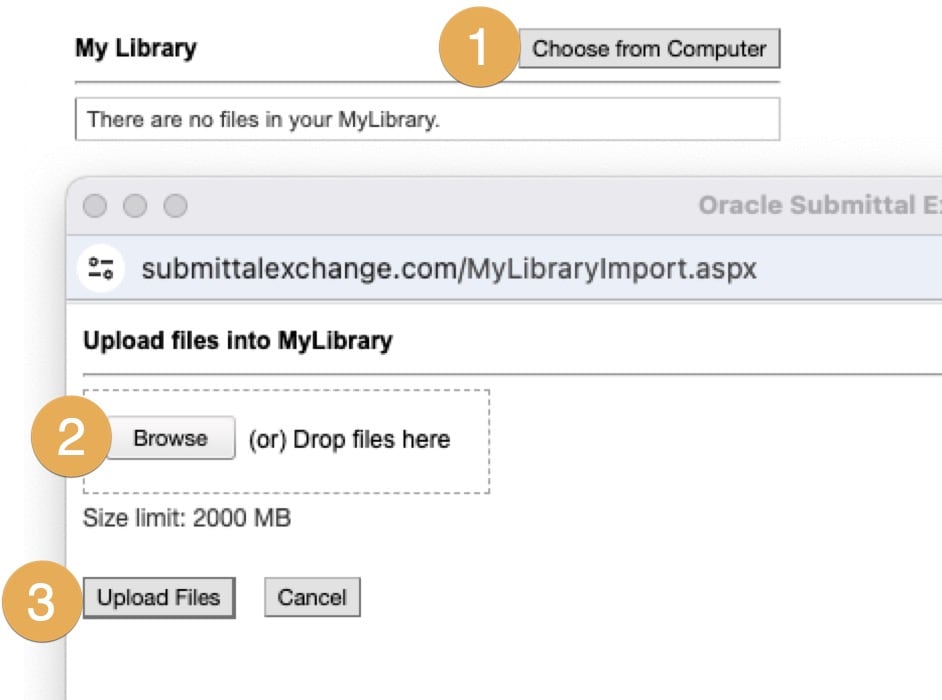
- Select Choose from Computer. The dialog box changes.
- Select Browse and upload your file. The file name displays in the dialog box. (Repeat this step as needed.)
- Select Upload Files. The item is now available in your library for future uploading.
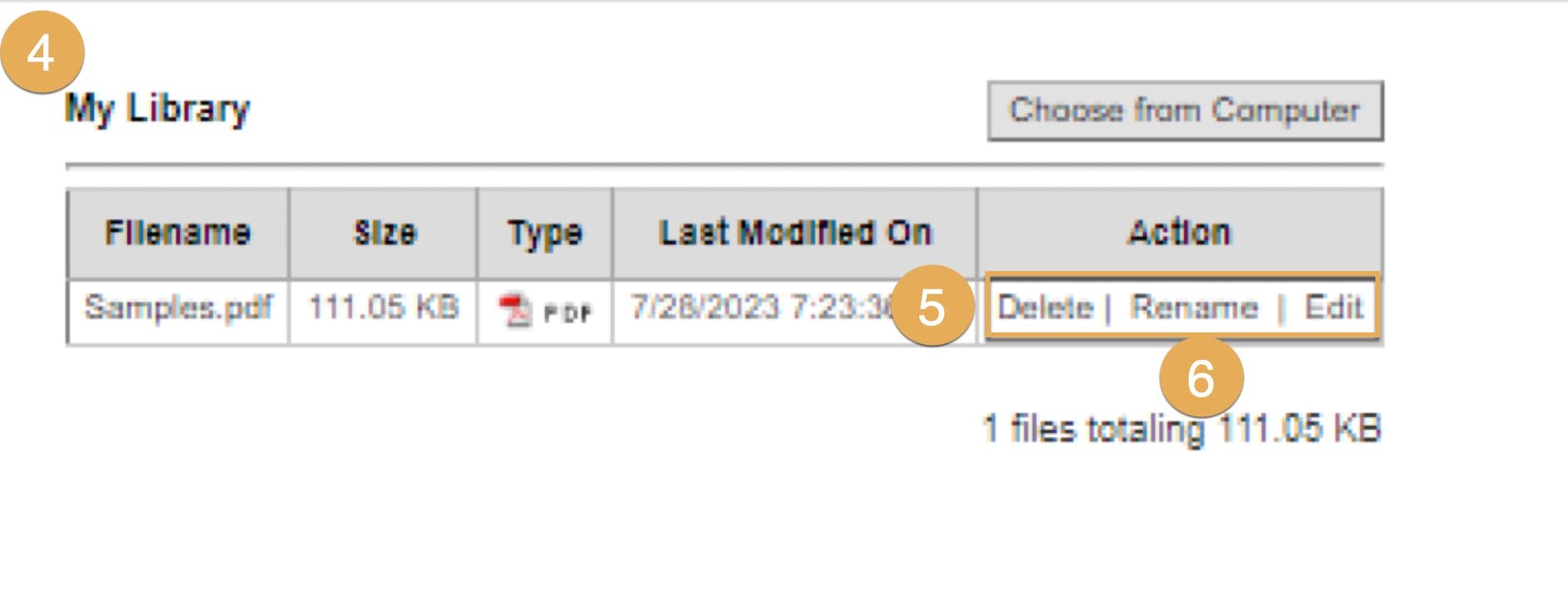
4. Once a file is uploaded, in the header the Filename, Size, Type, Last Modified On, and Action will populate.
5. Under Action you have the option to Delete, Rename or Edit a file.
6. Click on Rename, a dialog box will appear. Rename your file and click OK.
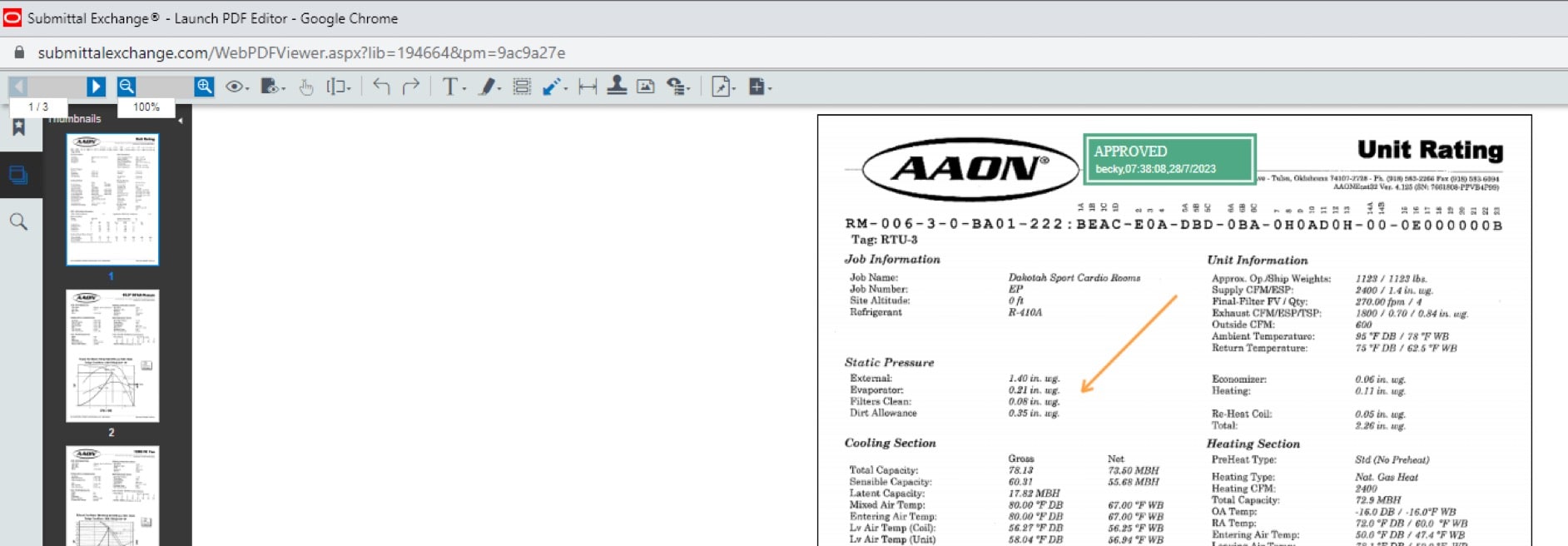
7. Click on Edit. A built-in PDF editor appears. Make your changes. Once you have applied changes, click Save  in upper-right corner.
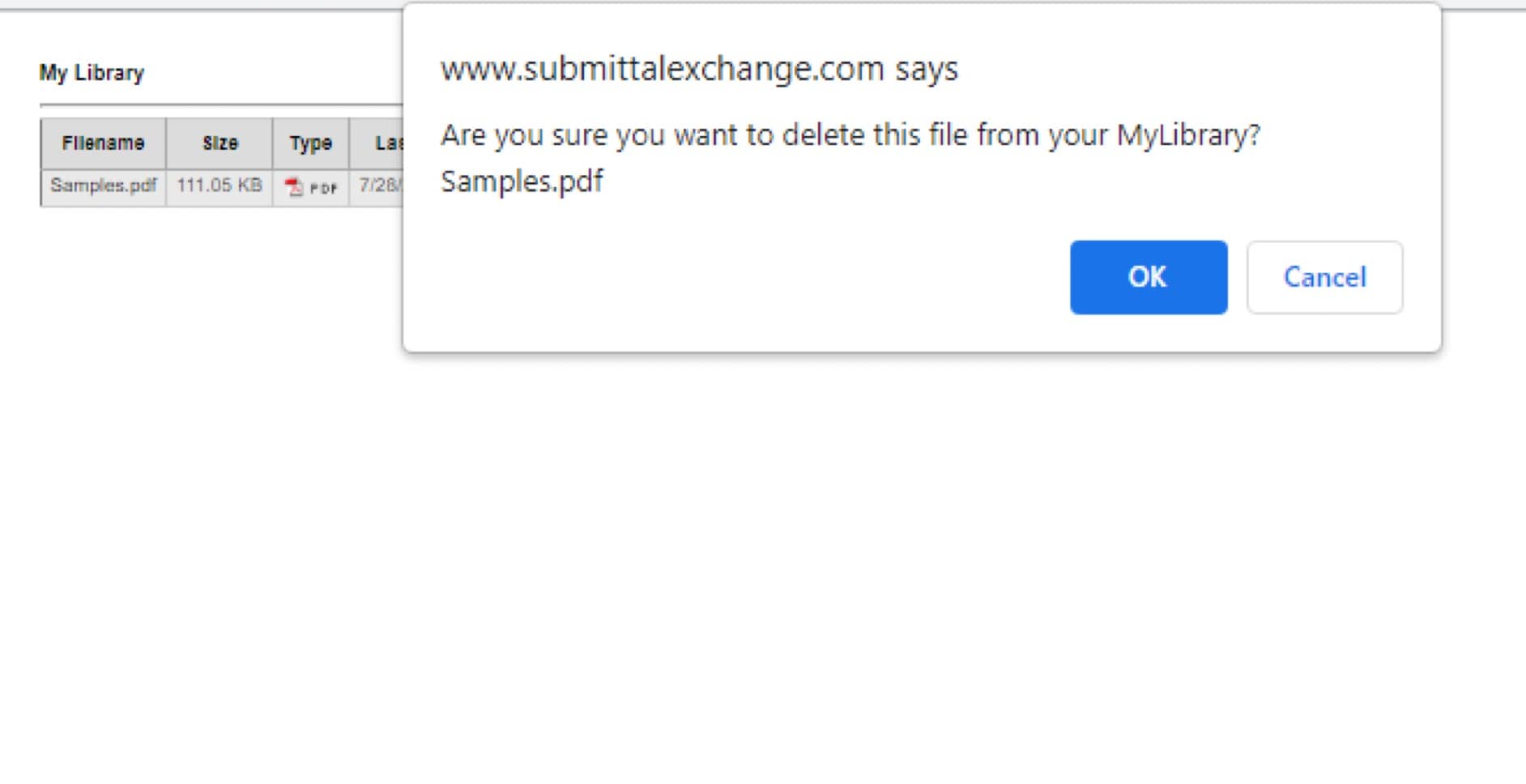
8. Click on Delete. A dialog box will appear. If you're sure you want to delete file, click OK.
Upload files to project logs using my library
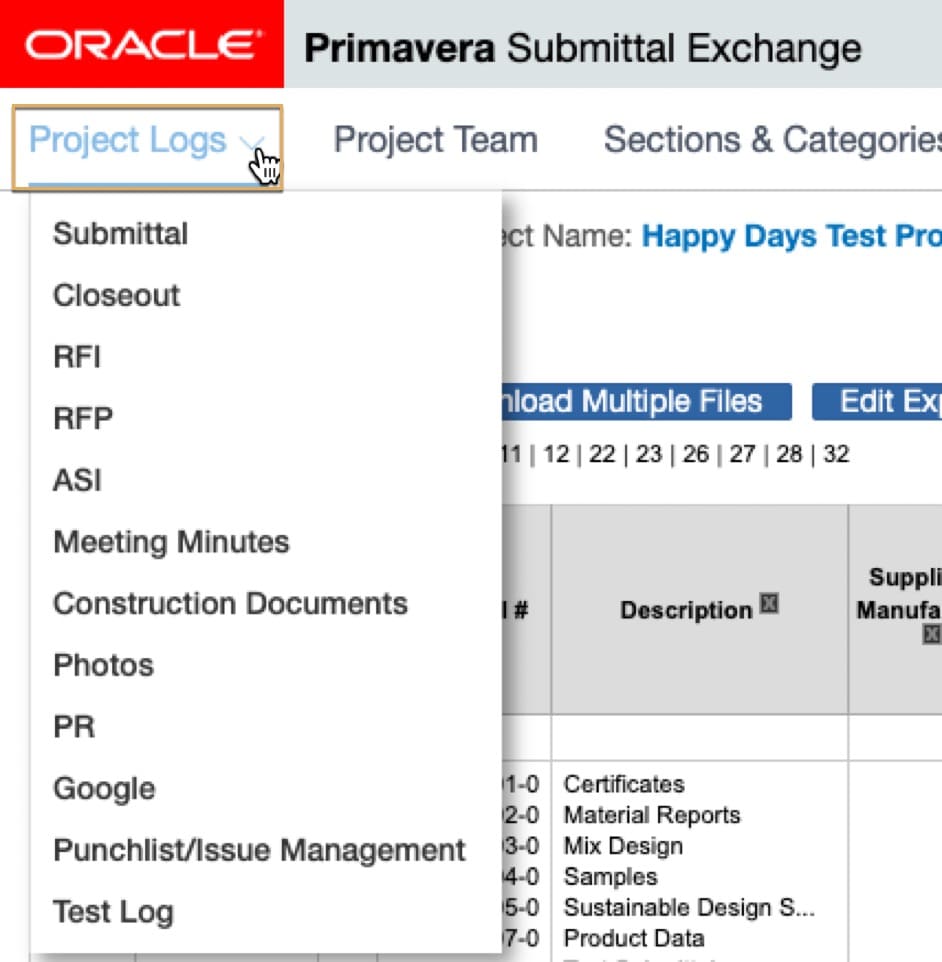
- From the Project Logs drop-down, click on the log you would like to upload files to.
2. Then click on the green upload arrow.
3. Next to the Browse box, you will see a My Library option. Click on My Library. 
4. A new dialog box will open displaying all files in My Library. Click the box of the file you want to upload, and then click Attach Selected Files.
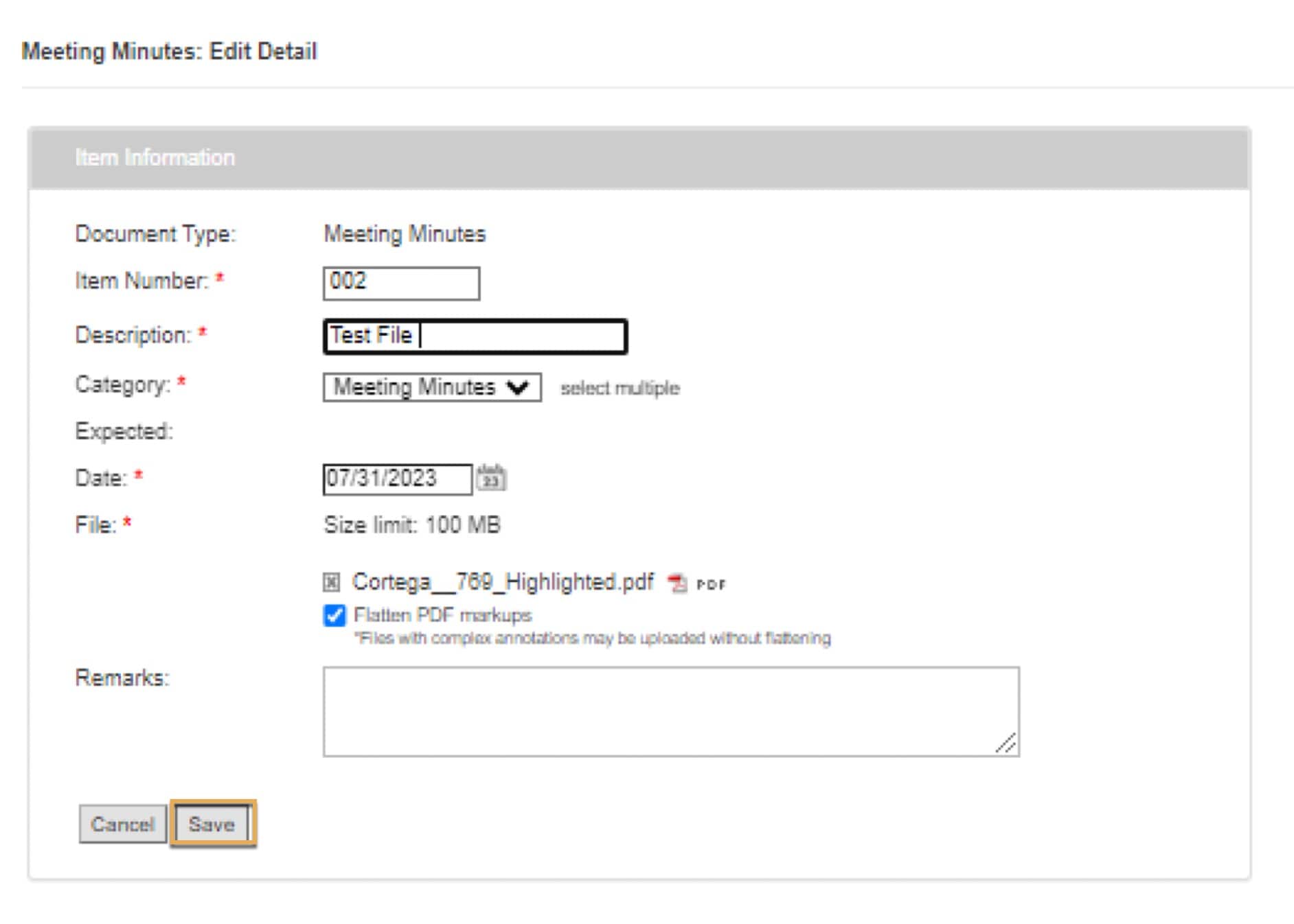
5. It will then take you back to the dialog box. Be sure to fill in all items that have a red * next to them. Click Save.