Reports
Working with reports
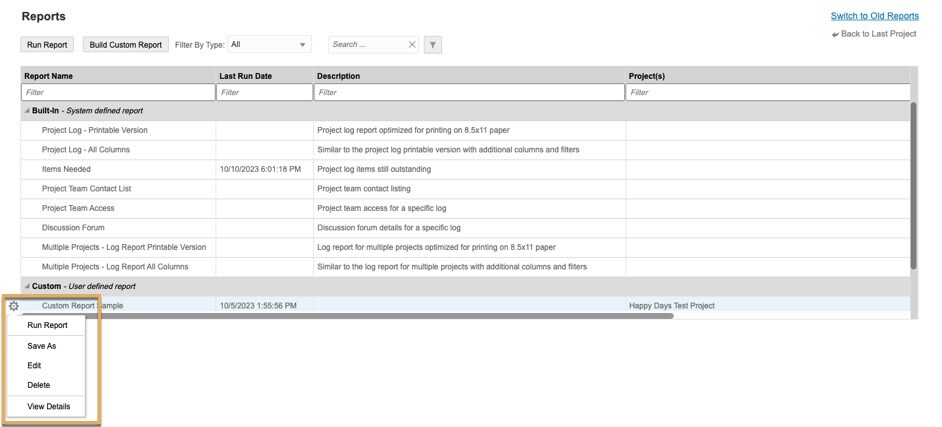
The Reports page allows you to run built-in reports. You can also view, create, edit, and run custom and saved reports.
The Reports menu is located in the top right corner. 
How to run a defined report
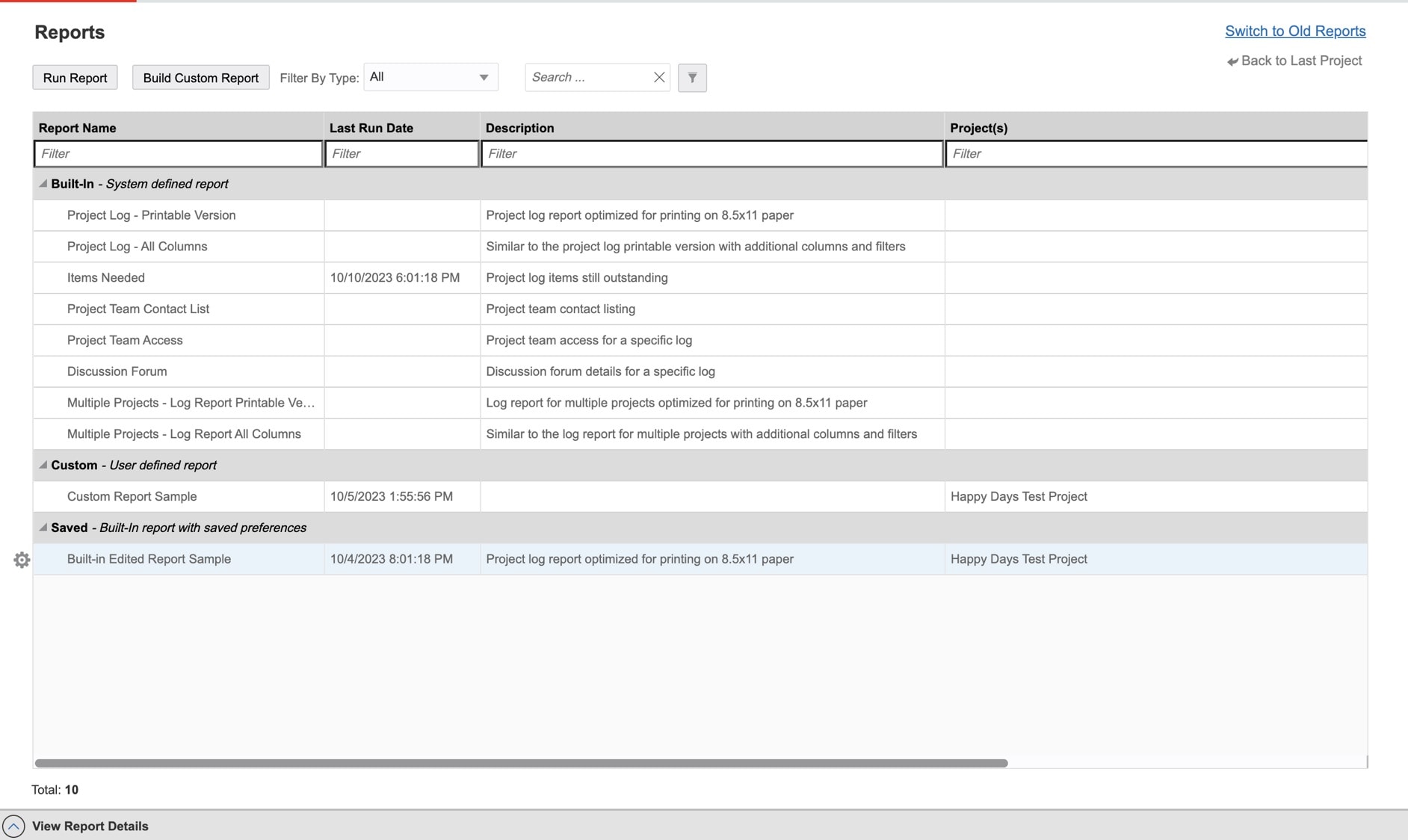
Scroll up and down with the gear on the left side to choose the Built-In (System Defined Report).
- Click the gear
 and click Run Report.
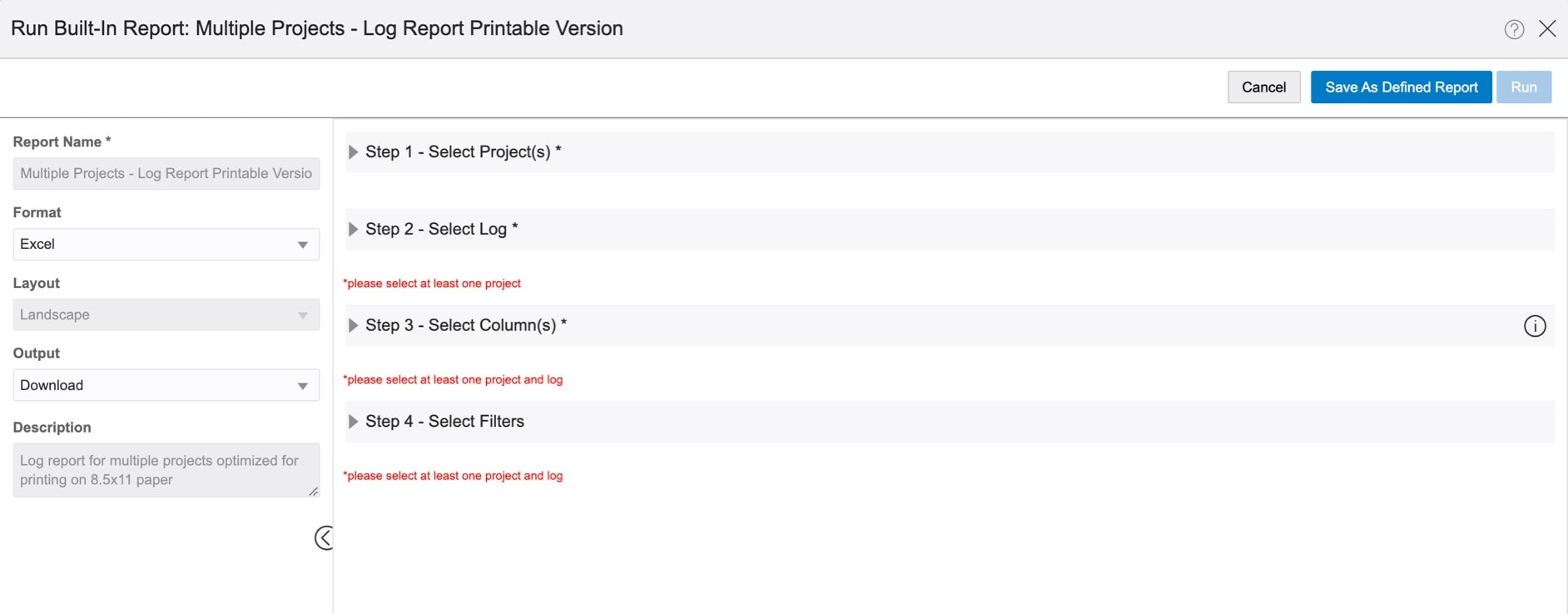
 - Click Add Project(s), select the projects to report on, and click Done.
- Click Add Log, select logs to include in a report, and click Done.
- Under columns, click Add Columns to filter additional columns. Note: If "Days Open" is selected, you will have to choose how "Days Open" will be calculated.
- Click Save as Defined Report or Run. Save as Defined Report requires a Report Name first.
- Click Save to save the report, or click Run to save the report and run the report for viewing.
Tip!
If scheduling recurring reports, change the Output to send as attachment link rather than a downloaded report.
How to build a custom report
- Click Build Custom Report.
 Next, add a Report Name.
 - Click Add Project(s), select the projects to report on, and click Done.
- Click Add Log(s), select logs to include in a report, and click Done.
- Click Add Columns to filter additional columns. Note: If "Days Open" is selected, you will have to choose how "Days Open" will be calculated.
- Click Save to save the report, or click Save and Run to save the report and run the report for viewing in your Custom User Defined Reports.
How to set up scheduled reports
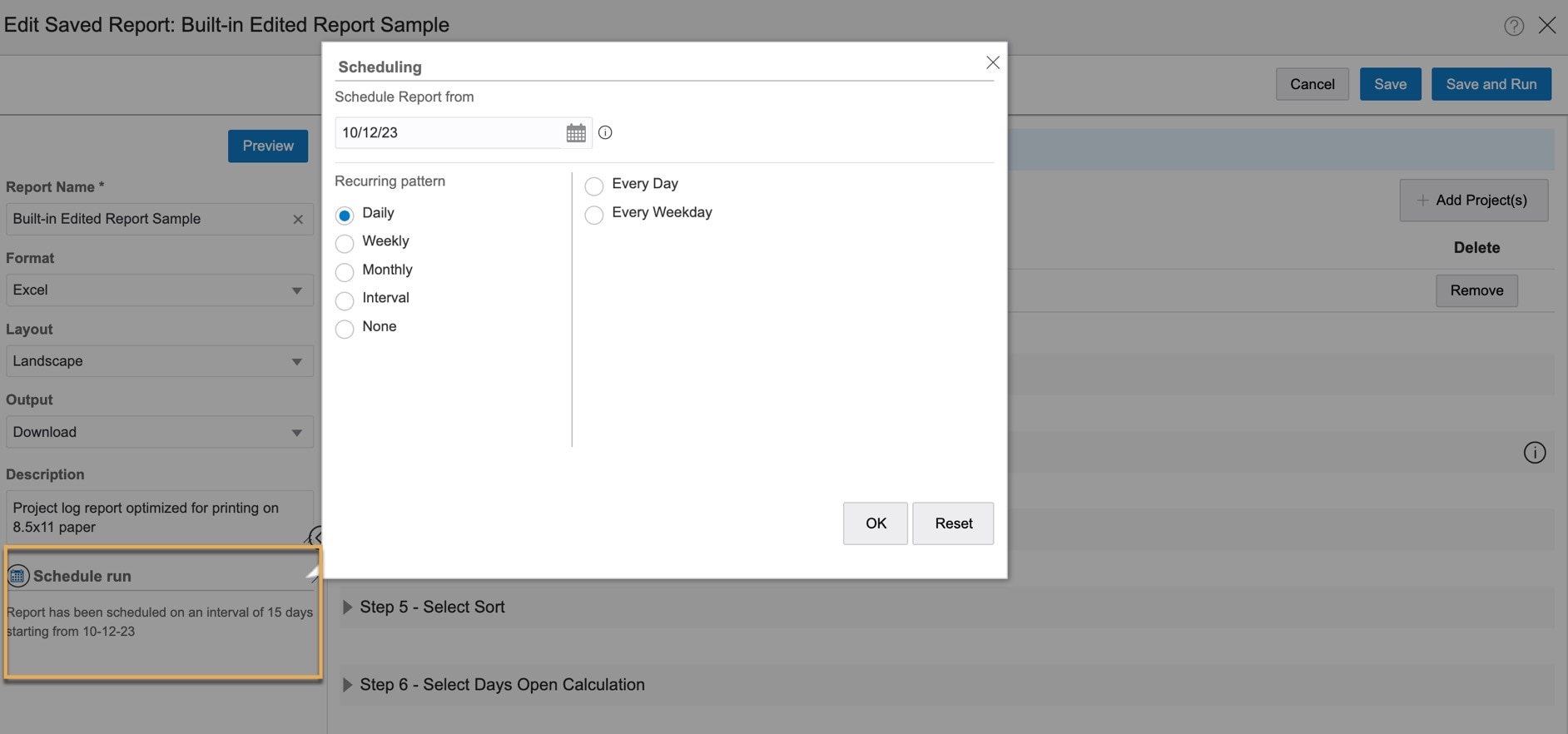
Use the gear on the left side to choose the Report. Select Edit.
- Click Schedule run.
- Choose Date and Recurring pattern. Click OK.
- Under Schedule run, select the options of when you would like to schedule the report to run.
Editing, running, and deleting saved or custom reports
- Click on the gear next to the report. Depending on the Report type, the following options are available: Run Report, Save As, Edit, Delete or View Details.
- Select an option and follow the onscreen steps.