Sections
What are sections?
Sections detail various products, construction materials, and methods to be used in the project development. They also include submittal numbers and descriptions.
Specifications typically define the sections and their structure. It's general practice to omit all Division 01 specifications since they usually provide instructions, unless otherwise requested prior to the creation of your Submittal Exchange project.
Adding sections and expected items
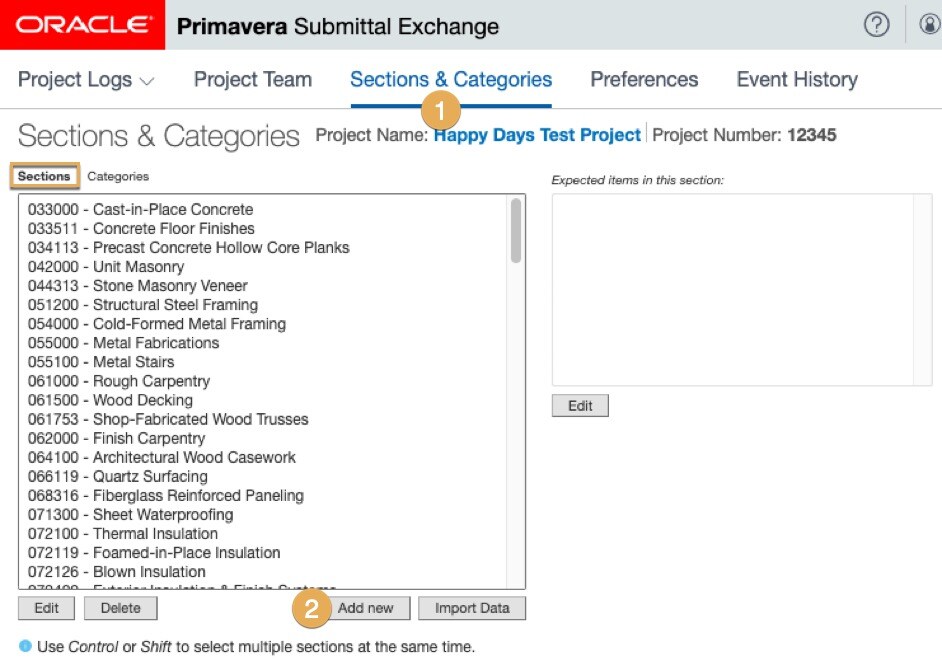
- Click on Sections & Categories
- Click Add new under the existing sections box.
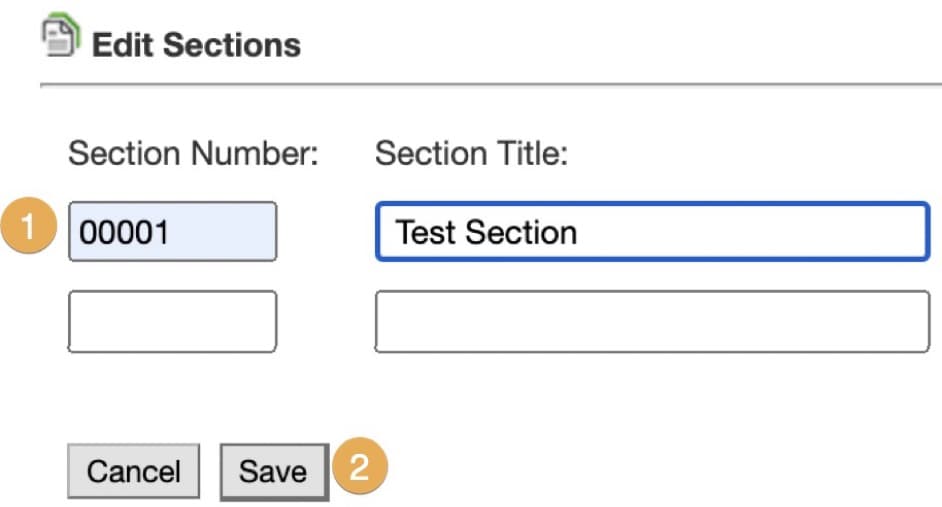
3. Enter a Section Number and Section Title for each section to be added to the project.
4. Click Save at the bottom of the dialog box. The system adds the new sections.
Verify that any new sections appear in the Sections & Categories tab or in the Submittal Log.
Note: Make sure the new section is added to the applicable team members' profiles under the Project Team tab.
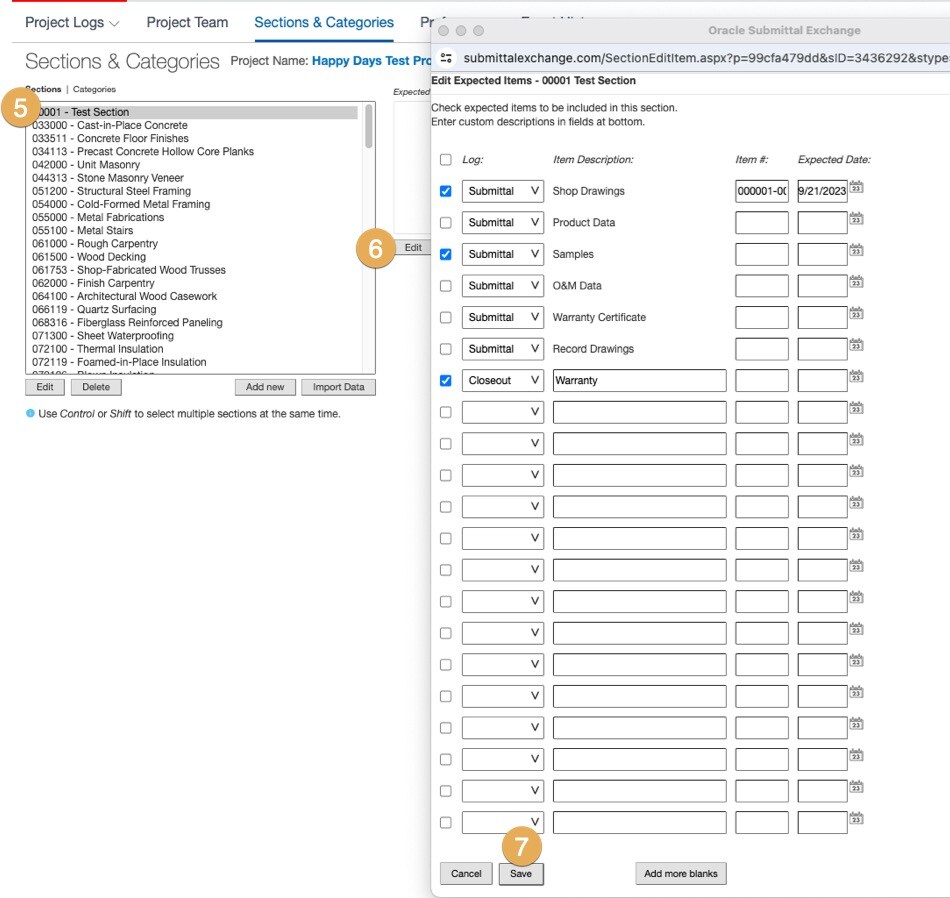
5. To add an expected item to new section, click on the specification section in the left-hand table.
6. Select Edit below the Expected Items table (right table). Select standard expected items or enter text in the blank fields. Pre-numbering and required submittal dates can also be set here, but are not required.
7. Click Save. The system adds the new expected items.
Editing sections
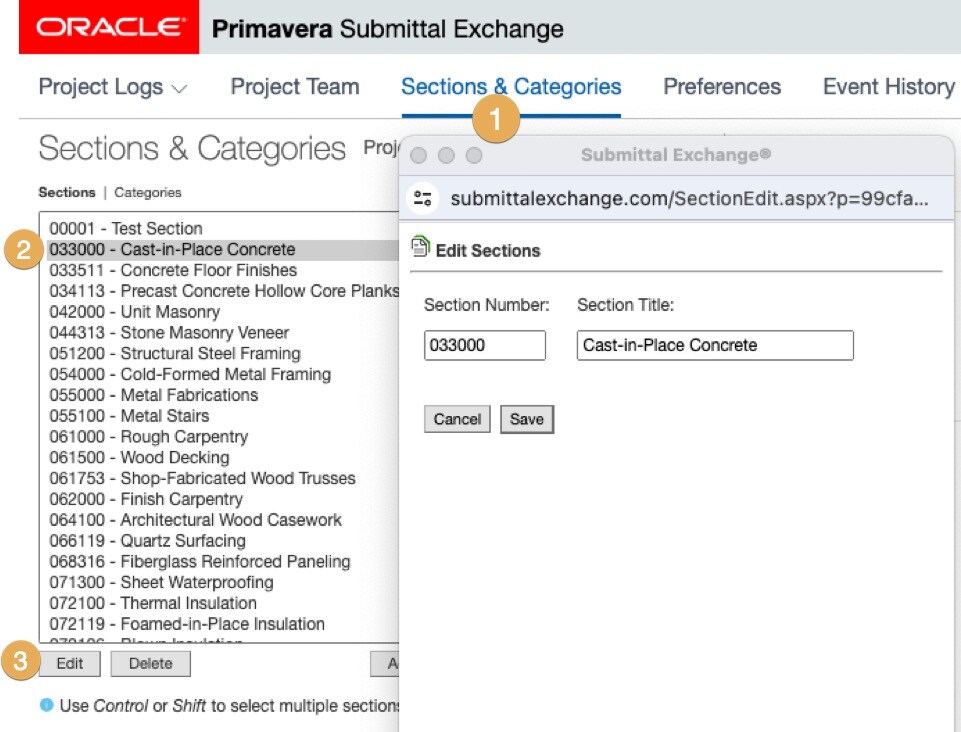
- Click on Sections & Categories.
- Highlight the desired section.
- Click Edit.
- Make necessary edits and click Save.
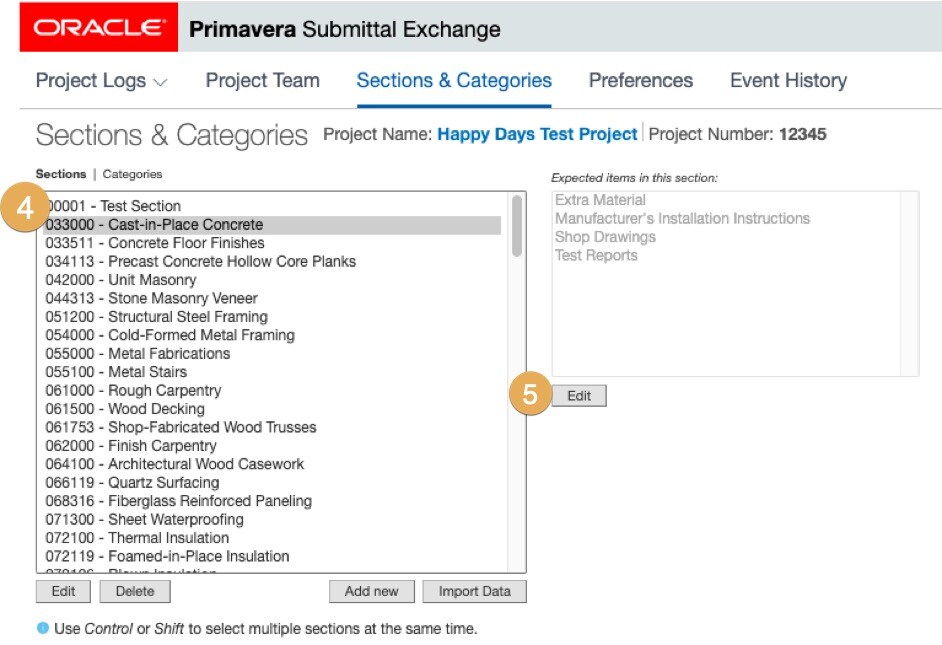
4. To edit expected items, click the Specification Section in the left-hand table. This will display current expected items for that section in the right table.
5. Select Edit below the Expected Items table (right table).
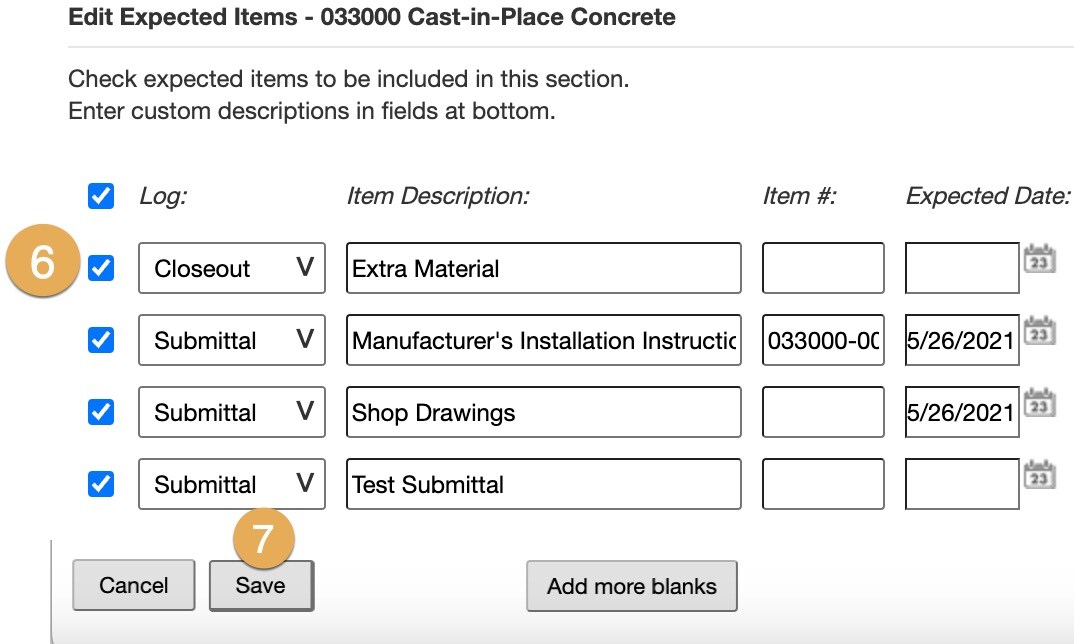
6. To remove an expected item, you will uncheck the box. You can also add expected items in this window. Under the Log, select from the drop-down arrow if Submittal or Closeout. Then under Item Description, type in your new item description.
7. Click Save.
Deleting sections
- Click on Sections & Categories.
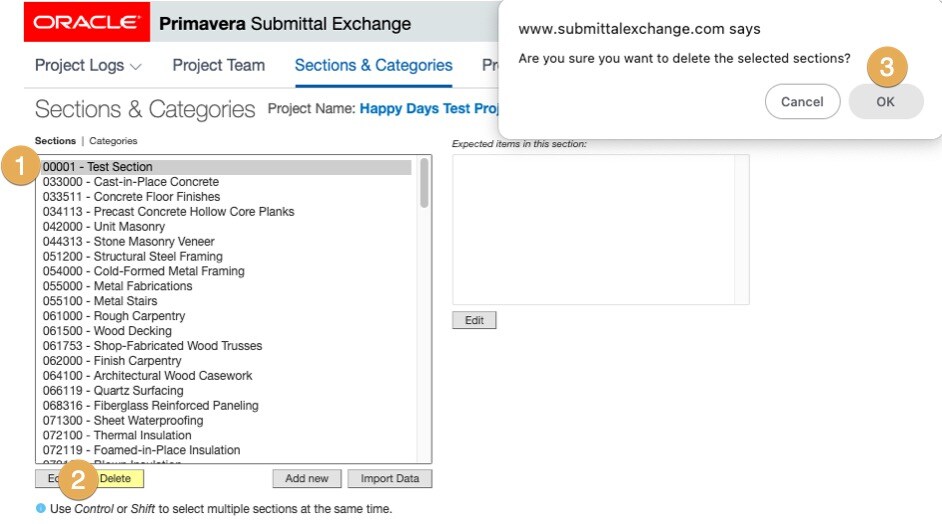
- Highlight the desired section and then click Delete below the table.
- Click Ok.
Tip!
The system will not allow you to delete sections that contain uploaded documents or expected items. If expected items appear in the right table, you will need to click Edit under the right table and remove the expected items.