Setting up your budget
In this article, you'll learn how to set up and edit your Schedule of Values in Textura.
Edit Schedule of Values
After confirming your contract and assigning users, enter or upload your Schedule of Values. The Schedule of Values, found under My Contract, is a list of cost items that you will bill against.
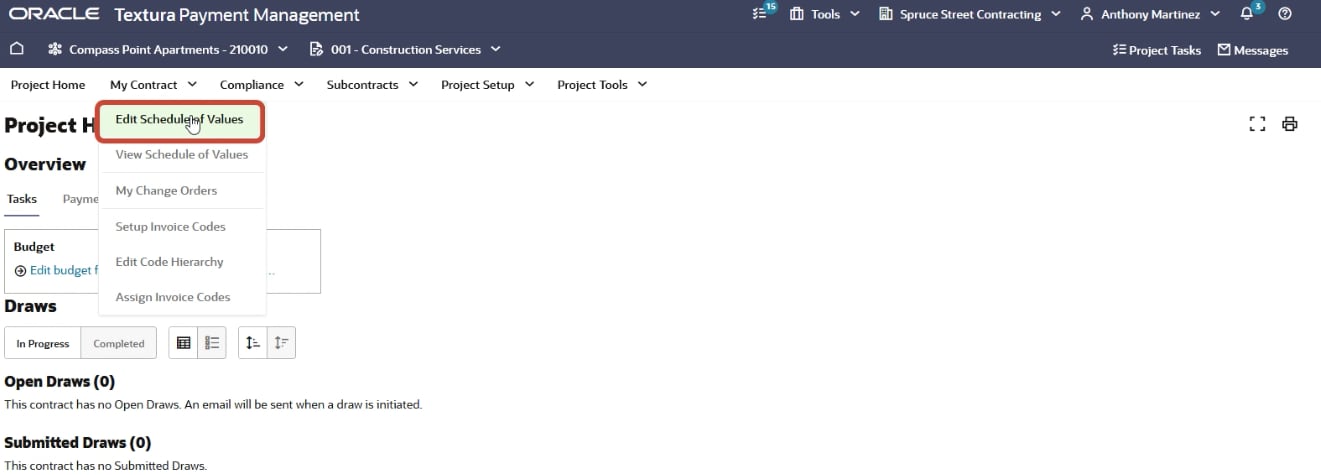
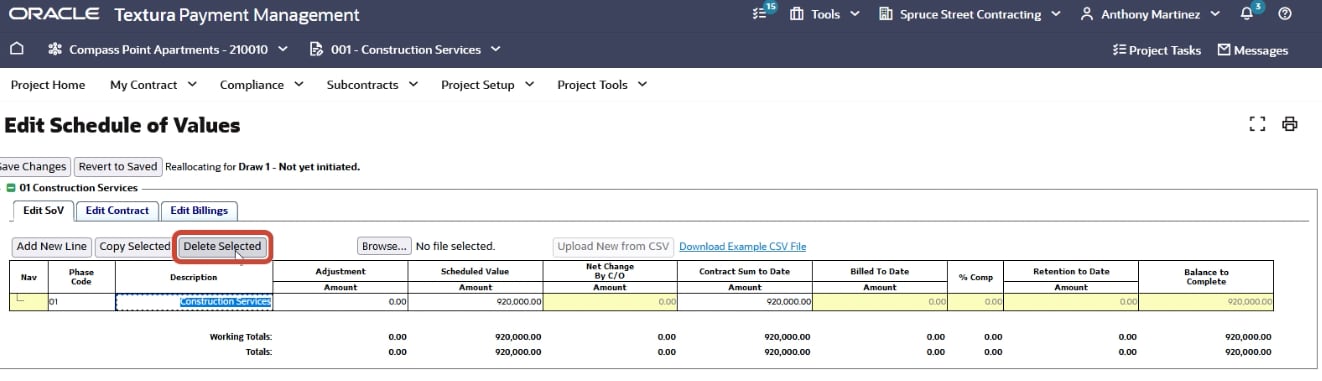
Initially, your Schedule of Values may display a single line with your total contract amount. To define a more detailed budget, select that line and click Delete Selected.
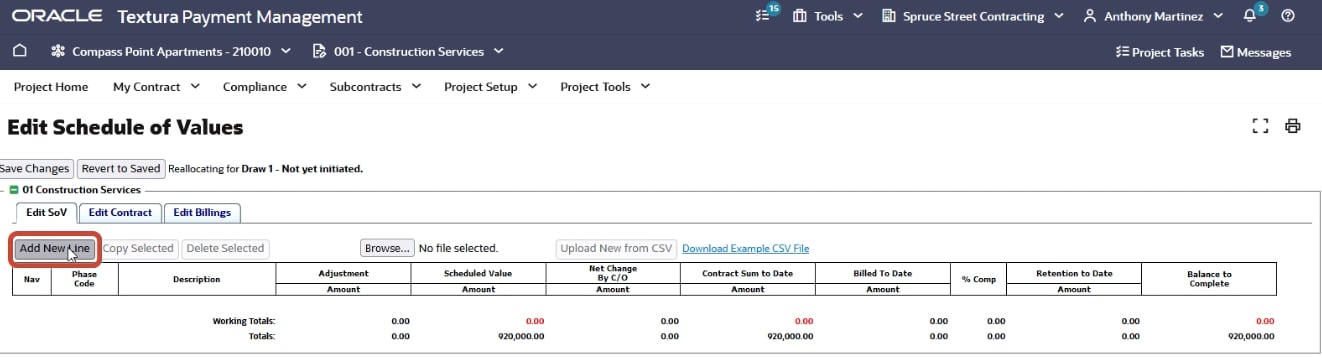
Next, click Add New Line. Enter the following information:
- Phase code (a unique indicator for each item)
- Description (description of line item material or service)
- Scheduled value (budget dollar amount for the item)
Add lines as needed. Once you save, the lines in your budget will automatically sort based on the phase code.
Tip!
- When creating your phase codes, use three-digit numbers to ensure proper sorting. (For example, 001, 002, 003.)
- As you type each line into these three columns, the rest of the columns automatically populate.
- As you add each line, the working totals at the bottom of each column increase.
- The working total amounts display in red until they are in agreement with the total amounts.
Upload your Schedule of Values
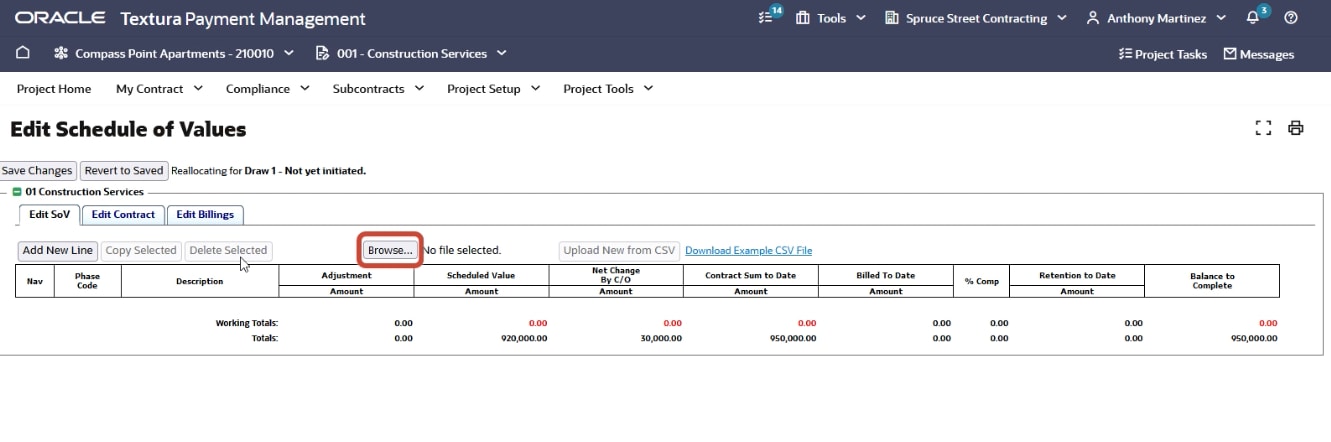
If your organization uses a lengthy Schedule of Values, you can save time by uploading it using an Excel file.
To do this, you must first download and open the example file.
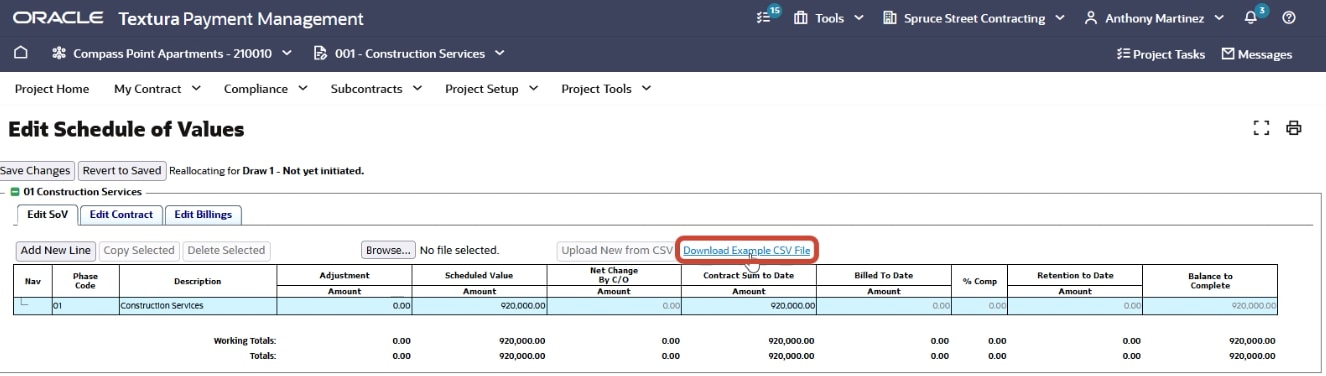
Cut and paste your Schedule of Values into the example spreadsheet and save the file. In Textura, delete the single-line entry. Browse to select your saved Excel file and click Upload.
Click Save Changes.
Tip!
- Before uploading your CSV into Textura, remove any special characters to avoid receiving an upload error.
- Ensure the CSV only has data in columns A, B, and C.
Review Status page
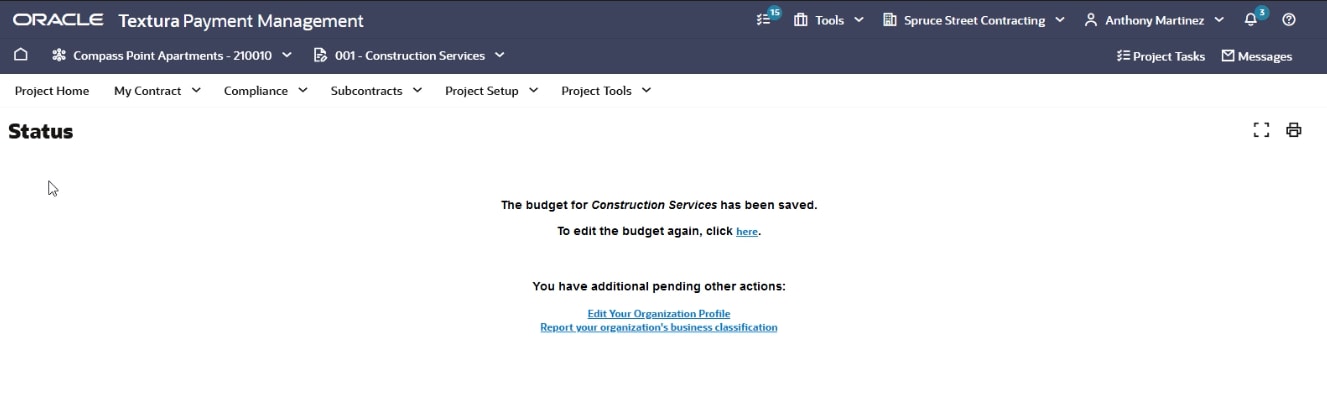
The Status page displays the changes you made. You can return to the page and edit again if necessary.
Working with Change Orders
You may have to edit your Schedule of Values again if the General Contractor makes a change to the value of your contract.
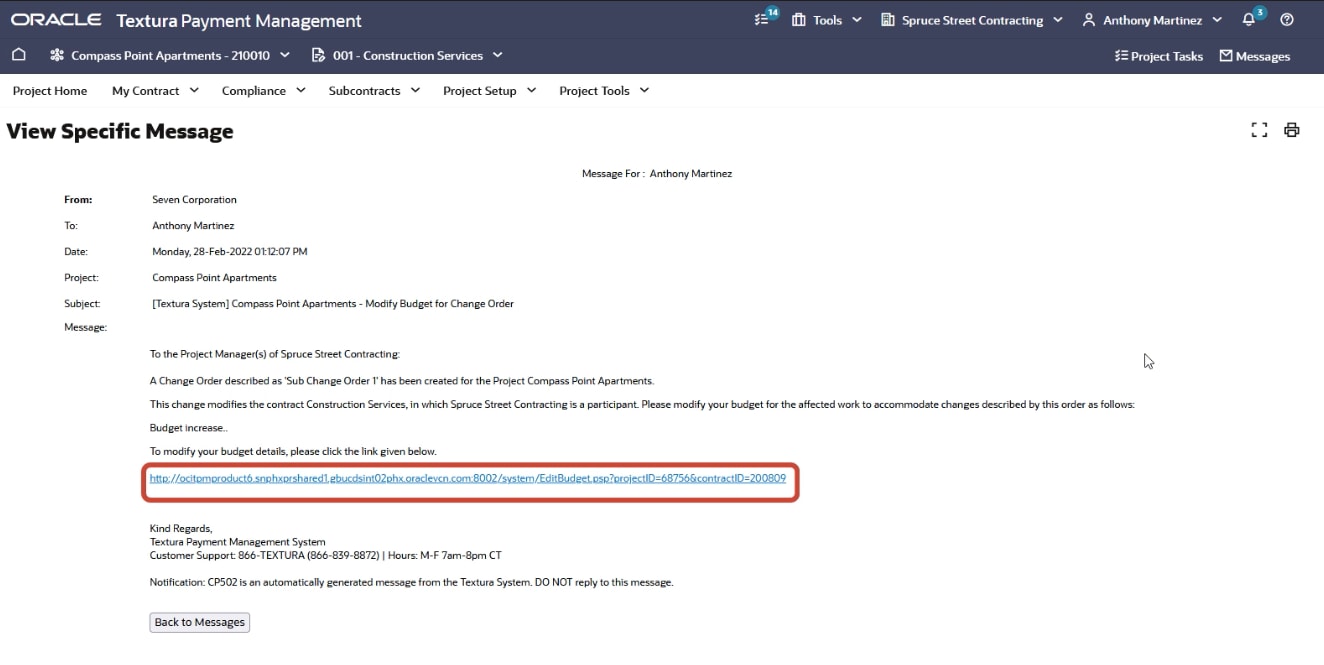
If so, you'll receive an email informing you of the General Contractor's Change Order and a link to edit your budget.
A task notification is also displayed on your Project Home page. Click the link in the email or the task on the Project Home page.
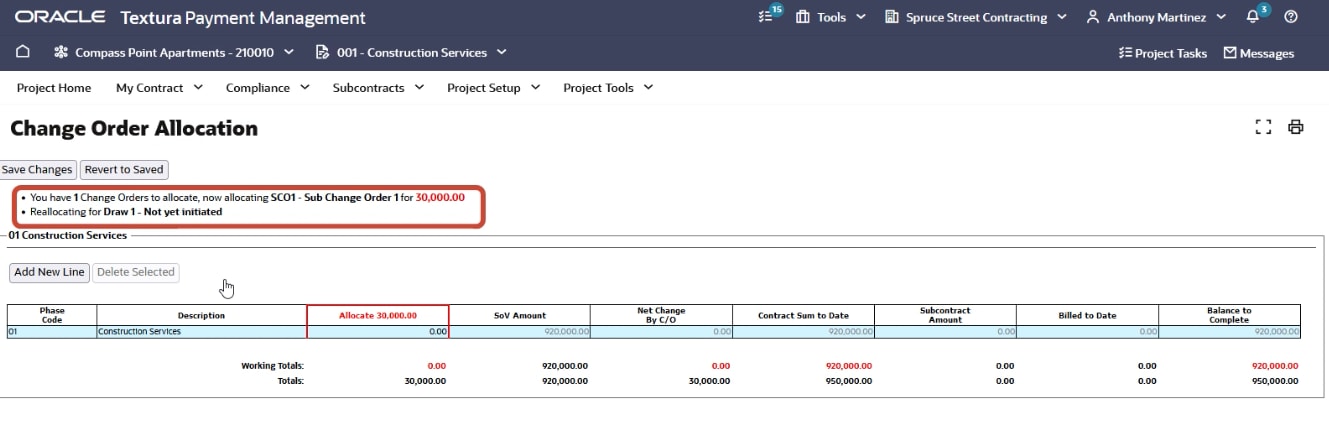
The page displays the number of Change Orders you have to allocate and the Change Order you are currently allocating with dollar amounts.
The Change Order causes the working subtotals and totals rows at the bottom of the table to be out of agreement.
Allocate the Change Order to one or more of the existing rows in your Schedule of Values, or add a new line to allocate the entire Change Order.
If you add a new line, type:
- Phase code
- Description
- Amount
You must allocate the exact amount of the Change Order.
Tip!
Allocating a Change Order does not affect the totals in the Schedule of Values Amount column.
However, the Change Order is reflected in the Allocate, Net Change By Change Order, Contract Sum to Date, and Balance to Complete columns.
Click Save Changes.
You can repeat the process until all Change Orders are allocated.
View Change Order information at any time by clicking My Contract and selecting My Change Orders.
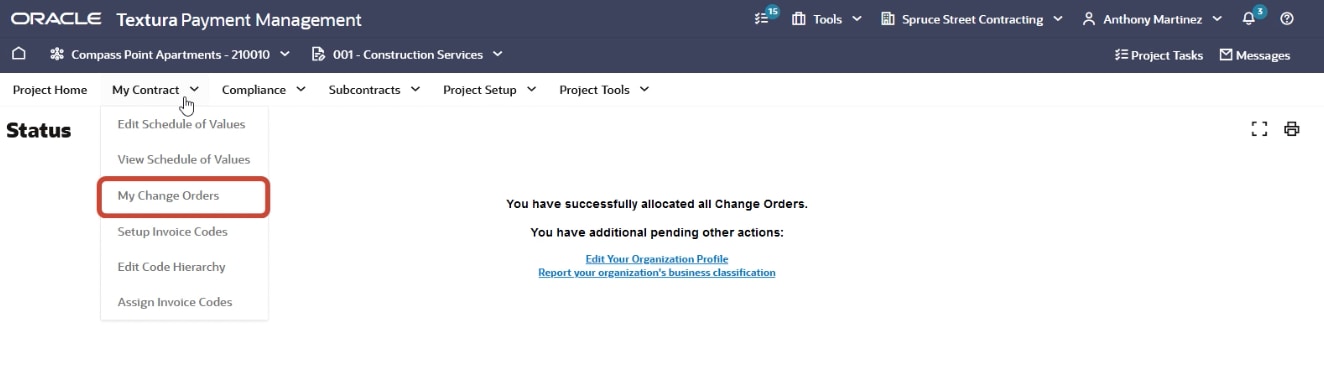
The page displays a summary of the Change Orders on the contract, as well as a list of the individual Change Orders that can be filtered on multiple columns.