Account access solutions
Not clicking the Textura link in the invitation within the allotted 48-hour period.
If you didn't click the link in the invitation email within the 48-hour period allotted, call support to get a new email and click the link within 48 hours of receiving it.
Note: Clicking the link multiple times can result in being locked out of your account.
Tip!
North America
Support Phone Numbers
- English: 866-TEXTURA (866-839-8872)
- Français: 855-444-3704
- Español: 855-444-3703
The new Enterprise Administrator hasn't set up two-factor authentication.
Set up two-factor authentication. Oracle Textura requires two-factor authorization for security purposes. If you haven't set up two-factor authentication, you may be locked out of your account.
Setting up verification will help protect your Oracle Textura account.
Forgot username
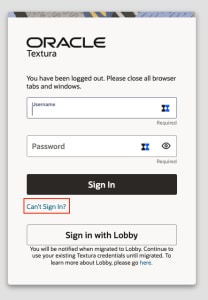
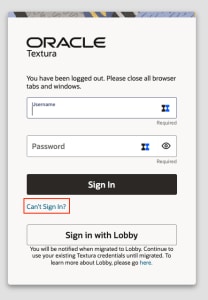
If you've forgotten your username, click "Can't Sign In?" on the login menu.
Click "Forgot Username?" on the next screen.
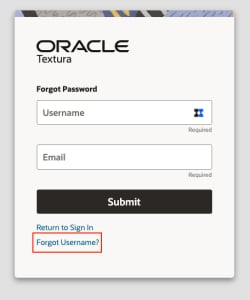
On the "Forgot Username" screen, enter the email address associated with your Textura account.
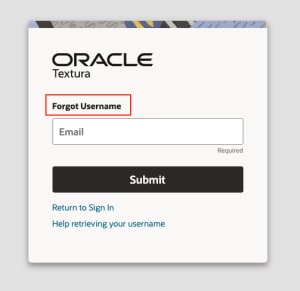
Verify your identity with two-factor authorization.
You'll receive an email with your username within 1 hour.
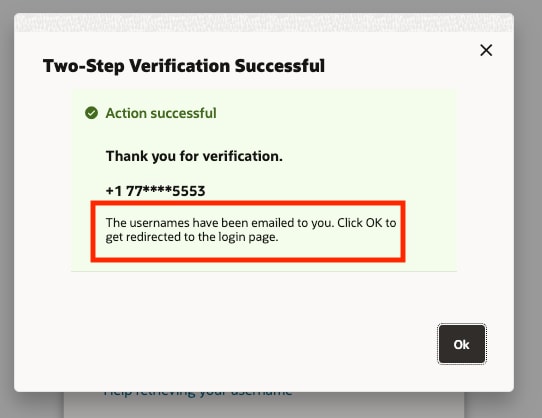
Tip!
Forgot password
If you've forgotten your password, click "Can't Sign In?" on the login menu.
Under "Forgot Password," enter your username and email associated with your Textura account.
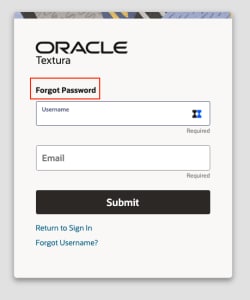
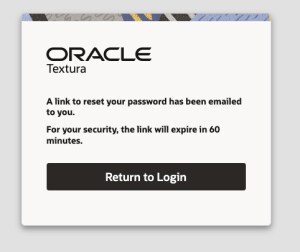
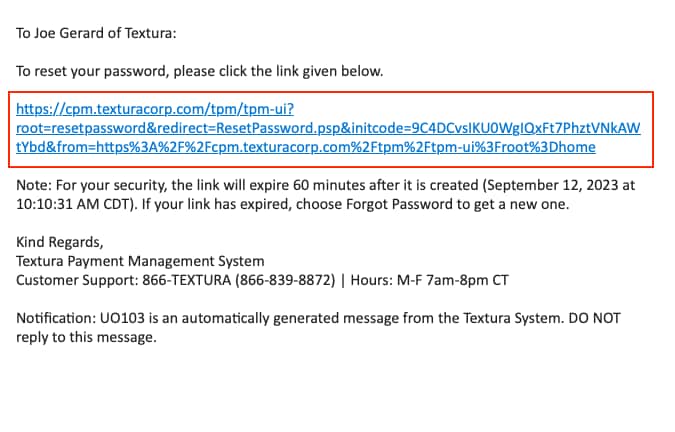
You'll receive a link to reset your password to the email associated with your account within 1 hour.