Get ready to request/receive payment
Prepare for the draw process
Now that you've completed your personal and organizational information, let's make sure you're set up and ready to request and receive payment. Follow the steps below to verify you've completed all the necessary information.
- Confirm the contract/s for the project/s you've been invited to participate in.
- Grant the required permissions to users to submit invoices/receive payment. (You can Browse Users and/or Create a User from the User drop-down menu next to the Home button in Textura.)
- Validate that your schedule of values has been uploaded to the project.
Enter invoice details
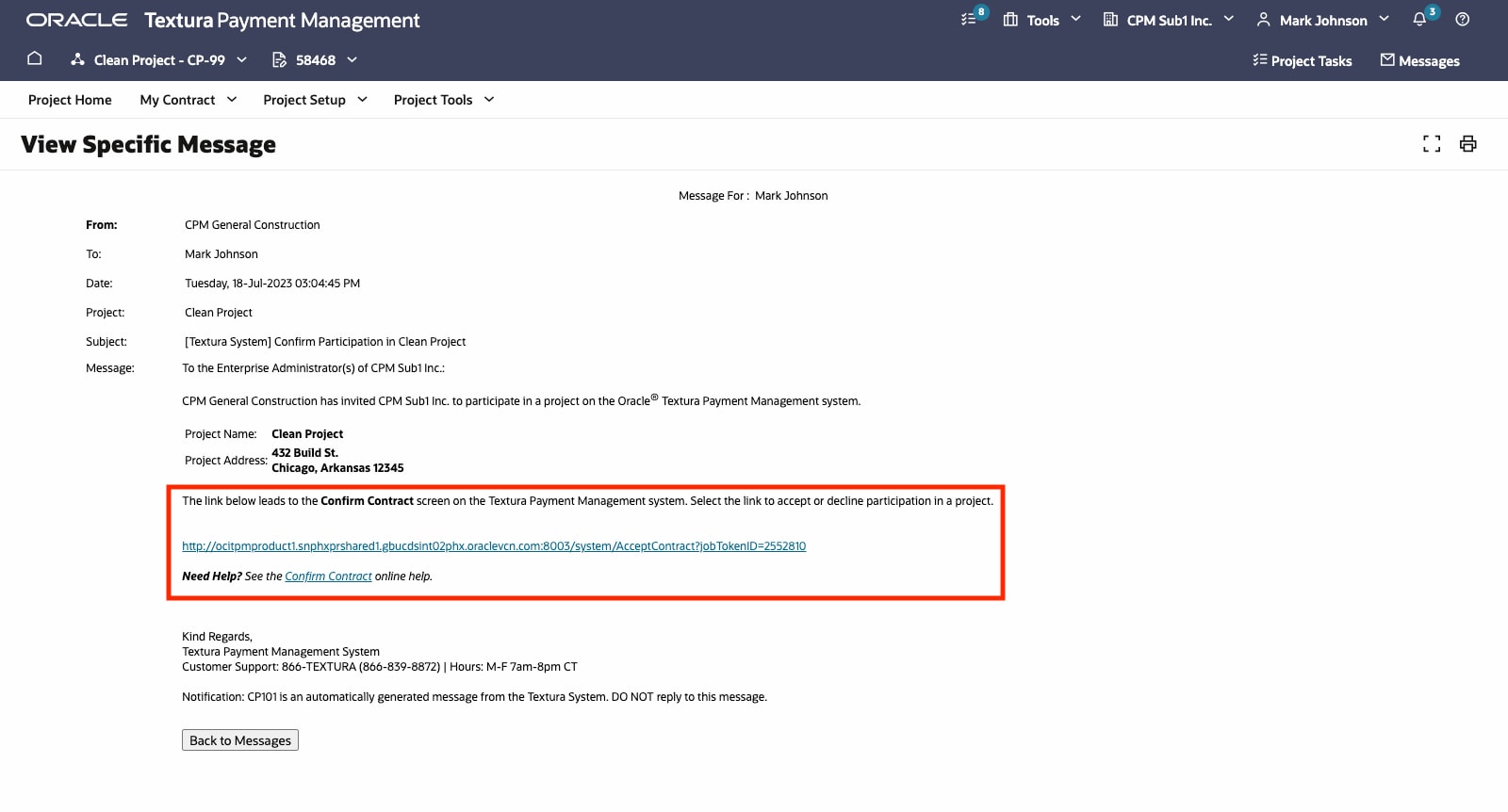
When your organization is invited to participate in a draw, you'll receive an email with a link to enter invoice details. You'll also see this as an open task in the "Open Draws" section that will take you to the Enter Invoice details page.
You can enter details by:
- % Complete, which auto-generates a dollar value based on the Schedule of Values; or
- A dollar value in the Work This Period, Materials Stored this Period, or Completed to Date columns
Bill for retention (if allowed)
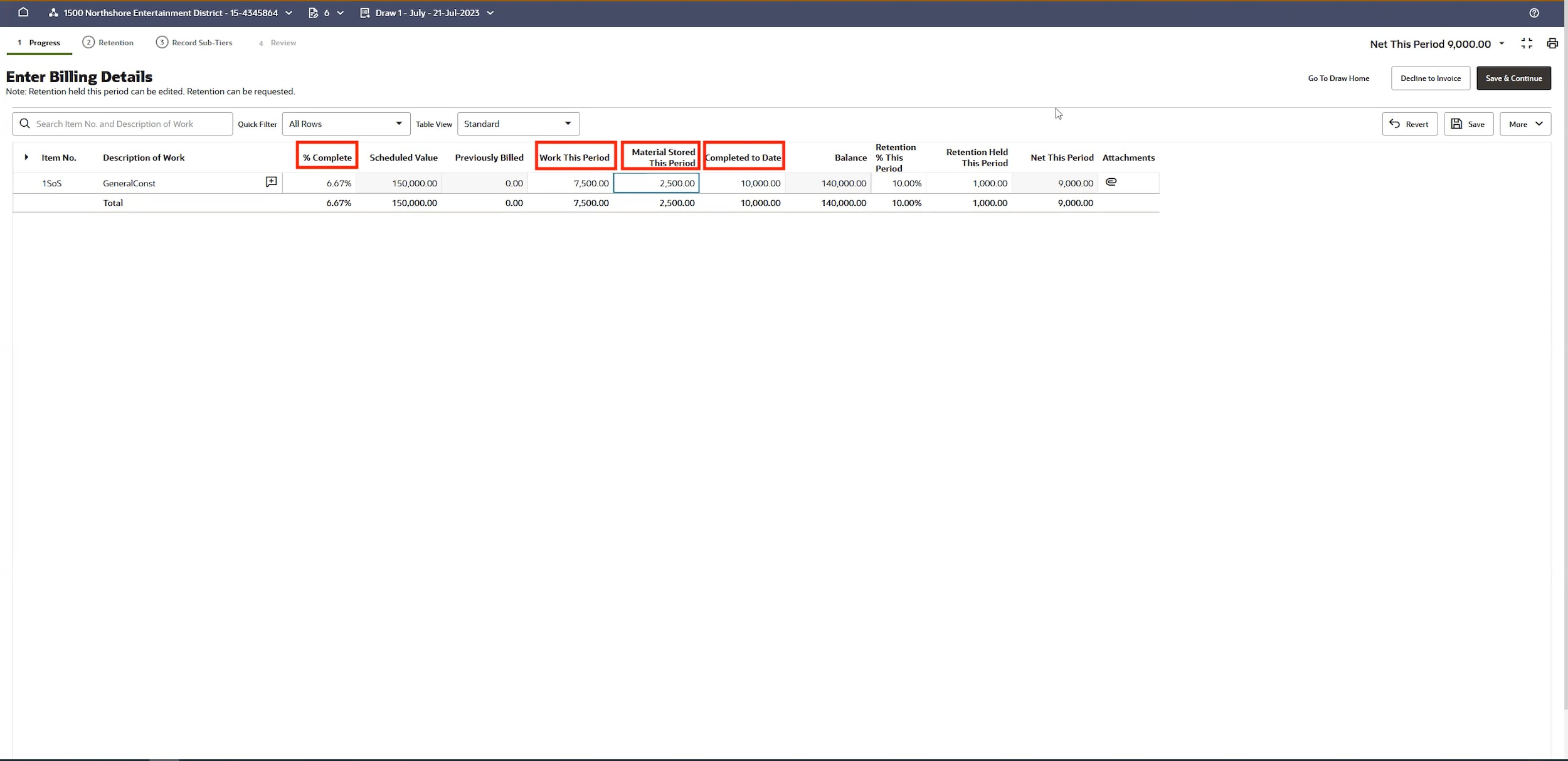
If you're allowed to bill for retention in previous draws, you'll see the Retention tab in the upper left. If you're allowed to bill for progress only, the Retention tab will not display.
Record payments to sub-tiers (if required)
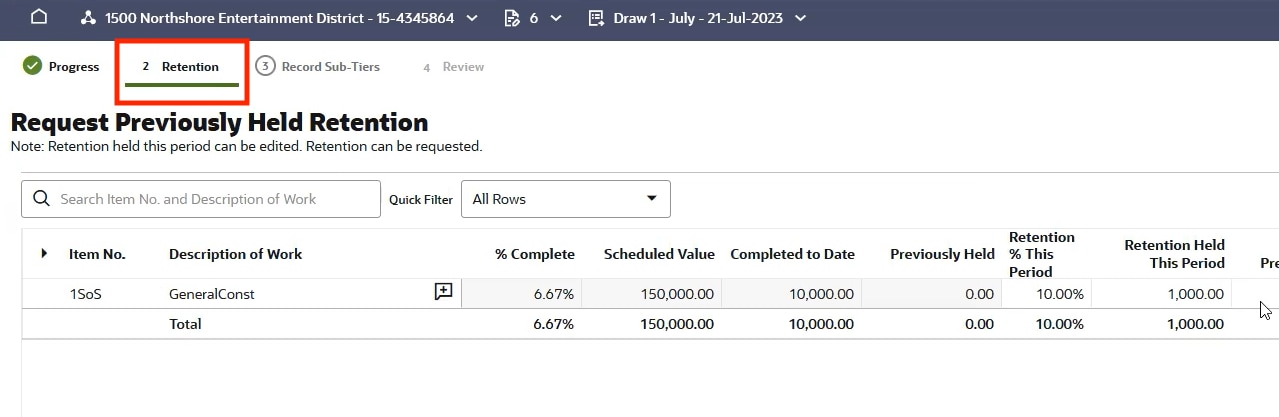
Record any payment amounts for sub-tiers or supplies (if your General Contractor requires it) in the Record Sub-Tiers.
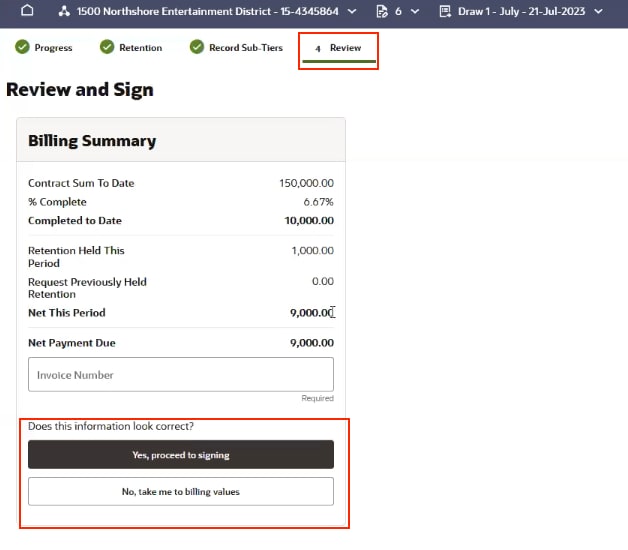
Review billing summary
Once you've reviewed your billing summary and clicked Yes, proceed to signing, the page will update automatically if you're a signer. If you're not a signer, an auto-generated email will be sent to the signer. If you're the signer, click Sign Billing Documents and continue in DocuSign.
Sign the Lien Waiver, then have it notarized (if required by General Contractor).
Check invoice status
When the General Contractor pays your invoice, you'll receive an email from Textura. It can take up to 3 business days for the payment to be received. You can check the status on My Invoice Page.
Invoicing Status definitions:
- Invoicing: Invoice eligible for an open draw must be submitted or resubmitted
- Submitted: Invoice was successfully submitted
- Paid: Payment for the invoice has been released
Tip!
What's next?
Learn how to set up your budget.
Need to review information on setting up your user and company profiles? Visit this page for a guide on how to complete them.