Self Service Provisioning - Creating Environments with Application Manager
Let's explore some best practices when creating environments during Self Service Provisioning for your Utilities Cloud service(s).
After activating a new Utilities Cloud service, you’ll create your environments using Oracle’s self service provisioning tool, Application Manager (aka App Manager), part of the Oracle Cloud Console.
Before you begin
It’s crucial to approach the provisioning process with a structured plan and a solid understanding of Oracle Cloud Infrastructure (OCI) fundamentals. By dedicating the time to understand these fundamentals, you can avoid potential challenges and optimize your infrastructure.
While we aim to provide insights in this guide, every organization's needs are unique. If you require additional resources or clarification, your Customer Success Manager (CSM) is available to assist. However, it is essential to note that while CSMs provide guidance, they are not technical support engineers.
While we aim to provide insights in this guide, every organization's needs are unique. If you require additional resources or clarification, your Customer Success Manager (CSM) is available to assist. However, it is essential to note that while CSMs provide guidance, they are not technical support engineers.
Tip!
It’s helpful to have a foundational understanding of OCI architecture before creating environments. We recommend OCI architecture foundations on Oracle University to help build your knowledge. Familiarity with OCI security basics is also recommended.
Key details
Here are a few key details about App Manager to keep in mind when creating your provisioning plan:
- Before environment creation, review your tenancy's home region, which was set during cloud account activation.
- After an environment is created in a particular region, it cannot be moved or transferred. Read more about regional considerations.
- App Manager's dashboard displays environments specific to the selected region. If you work across multiple regions and switch between them, you won't see environments created in other regions.
- When creating environments, ensure the identity domain, that will be used to control access to an environment, is in the same compartment as the App Manager environment. Check out this Oracle Help Center article on understanding compartments.
- We also have an App Manager FAQ available to help address commonly asked questions.
Accessing App Manager
Access App Manager from your Oracle Cloud Infrastructure (OCI) tenancy.
You'll land on the App Manager Homepage that gives a high-level view of your subscription(s), quick actions, and where you can go for help.
You'll land on the App Manager Homepage that gives a high-level view of your subscription(s), quick actions, and where you can go for help.
Working with environments
To access your environments, click Go to Service from the subscription on the Homepage, or select My Applications from the top left menu, and then your subscription.
The App Manager Overview page shows everything that your subscription includes and displays updates throughout the lifecycle of your subscription.
The App Manager Overview page shows everything that your subscription includes and displays updates throughout the lifecycle of your subscription.
Creating environments basics
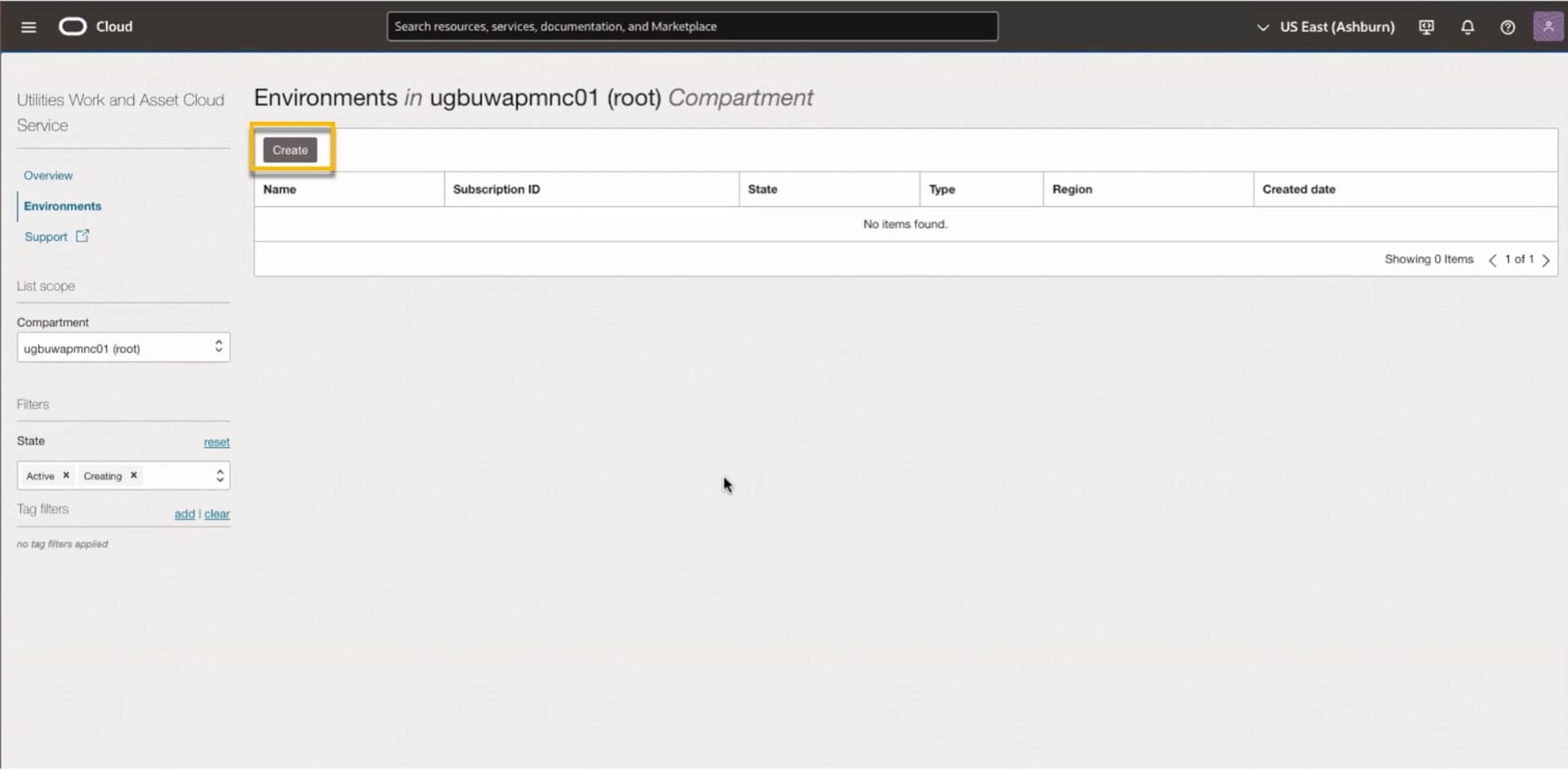
From the Environment list, select Create to start the create environment workflow.
Note: In this example, we're creating our environment in the Root compartment.
Note: In this example, we're creating our environment in the Root compartment.
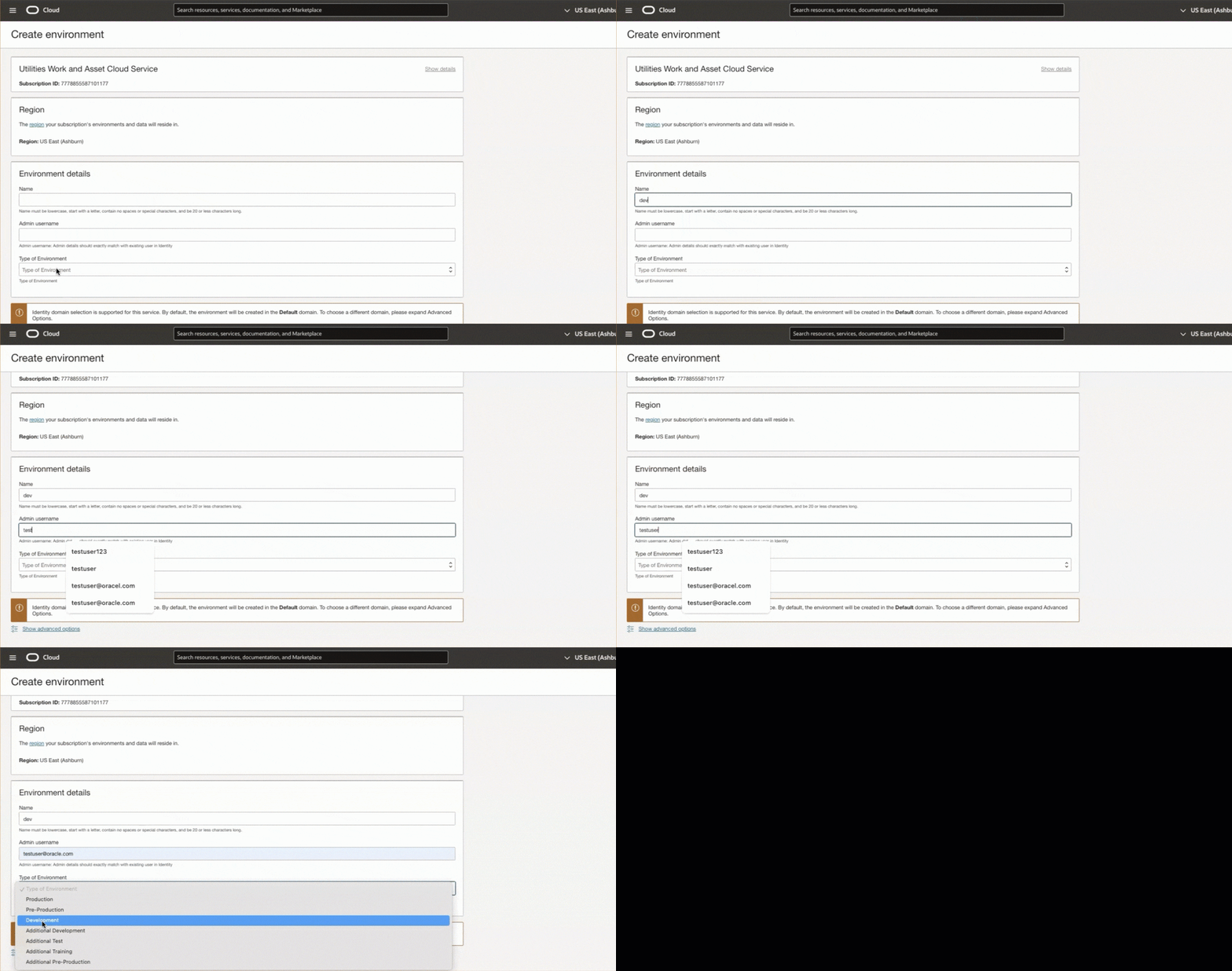
Select a Region
- Important: After an environment is created in a particular region, it cannot be moved or transferred.
- Ideally, your home or tenancy's region, selected at activation, is the same as your provisioning region.
- If the home region is different than the expected provisioning region, we suggest verifying the region with Oracle Support or your CSM before you decide. Review other key regional considerations.

Configure your environment details
Name: Like Region, your environment name cannot be changed after creation and cannot be reused.
- When naming environments, use descriptive names that clearly indicate the environment's purpose (e.g., dev, test, staging, prod). Consider using abbreviations or prefixes to group related resources or indicate the environment's type.
- Note: The name is not connected to the actual environment nor is it associated with the environment's domain. It is only used by App Manager and cannot be changed after the environment is created.
Admin username: The Admin username should exactly match with a user in the identity domain that controls access to your environment.
- For example, If we're using the Default identity domain, the Admin username should be a user of that Default identity domain with administrator privileges.
- It's important to keep this contact up-to-date in case we need to get in touch with you.
Type of Environment: Identify the environment you're creating based on how your organization plans to use it.
- Generally, your base subscription has these types: Development, Pre-Production, and Production.
- If you purchase additional environment types these display as Additional Development, Additional Test, Additional Pre-Production, and Additional Training.
Advanced options
Advanced Options show the compartments and identity domains that control access to your environment.
Remember to double-check that the identity domain, which lets people access a certain environment, is in the same compartment as the App Manager environment. It's a simple step, but it's crucial for everything to work together smoothly.
Encryption and tags are also selected here. Read more advanced options.

Check all details are correct, then select Create to submit your request. You'll be redirected to your dashboard, and the status will update to Creating.
The Environment state updates to Active once provisioning is complete. Note: It can take up to 48 hours after Oracle Utilities teams receive the payload for your new environments to provision and their status in App Manager to change to Active.
The Environment state updates to Active once provisioning is complete. Note: It can take up to 48 hours after Oracle Utilities teams receive the payload for your new environments to provision and their status in App Manager to change to Active.

Creating environments using multiple compartments
There may be instances where you want to organize your environments to meet the needs of your business. Compartments are used to organize OCI resources.
When creating environments using compartments, ensure that you have corresponding identity domain that you plan to use for the environment you're creating. The identitiy domain and the enviornment your provisioning will need to reside in the same compartment.
In App Manager, select the compartment and identity domain you want to associate to your new environment under Advanced Options.
When creating environments using compartments, ensure that you have corresponding identity domain that you plan to use for the environment you're creating. The identitiy domain and the enviornment your provisioning will need to reside in the same compartment.
In App Manager, select the compartment and identity domain you want to associate to your new environment under Advanced Options.

Environment states
Environment states shown on the App Manager environments page only reflect the setup process of the environment.
Some notes:
Some notes:
- The state of the environment is not the same as the status of the application running on the environment.
- If you work across multiple regions, you won't see environments created in other regions since App Manager's dashboard is specific to the selected region.
- It can take up to 48 hours after Oracle Utilities teams receive the payload for your new environments to provision and their status in App Manager to change to Active.
Application URL
Once your environment is Active, you can access the link to your main application under the Additional Links tab.
Copy the link into a new browser window to get to your application.

Legacy account security
Oracle has transitioned all legacy Identity Cloud Service accounts to Identity Domains accounts. During this transition, an identity domain named OracleIdentityCloudService was created in the same root compartment as the Default identity domain. That domain has all the security settings of the legacy account.
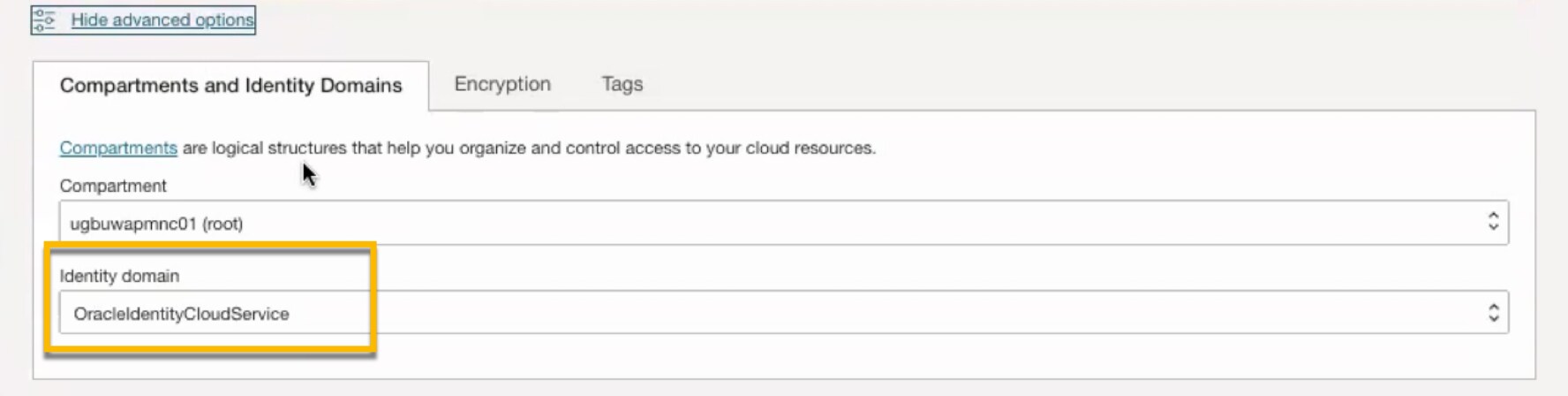
For those who transitioned from legacy to Identity Domain accounts, you will find two identity domains within your root compartment. These are the default identity domains associated with your account. When you proceed to create a new environment, you have the option to choose from these two available identity domains. Note: the OracleIdentityCloudService will be selected as your default identity domain in App Manager.
In the example below, we're creating an environment in the Root compartment using a legacy account as our identity domain.
For those who transitioned from legacy to Identity Domain accounts, you will find two identity domains within your root compartment. These are the default identity domains associated with your account. When you proceed to create a new environment, you have the option to choose from these two available identity domains. Note: the OracleIdentityCloudService will be selected as your default identity domain in App Manager.
In the example below, we're creating an environment in the Root compartment using a legacy account as our identity domain.
Other resources
- Frequently Asked Questions - Self Service Provisioning
- Cloud Account Activation Guide
- Need in-depth details or a video walk-through—Take the App Manager module in the Cloud Account Admin Essentials course, available on Oracle University