
 Generate
API Signing Keys for PeopleSoft Cloud Manager
Generate
API Signing Keys for PeopleSoft Cloud Manager Before You Begin
This 15-minute tutorial shows you how to generate API signing keys for the Cloud Manager installation.
Background
An API signing key pair is needed for authentication when Cloud Manager submits API requests. After you generate the key, you add the key to your user account in the Oracle Cloud Infrastructure Compute Console. You will also enter the key as input in the Resource Manager stack.
After you generate the keys in this tutorial, you can use the same API keys with the Lift Utility to create and upload DPKs to Oracle Cloud Infrastructure. See the information on using the Lift Utility in PeopleSoft Cloud Manager for Oracle Cloud Infrastructure on the PeopleSoft Hosted Online Help site.
This is the seventh tutorial in the Install PeopleSoft Cloud Manager series. Read the tutorials in the order listed. The optional tutorials offer alternate methods for setup.
- Prepare to Install PeopleSoft Cloud Manager
- Verify Oracle Cloud Account Information for PeopleSoft Cloud Manager
- Plan the Virtual Cloud Network for PeopleSoft Cloud Manager (optional)
- Create a Virtual Cloud Network for PeopleSoft Cloud Manager in the Oracle Cloud Infrastructure Console (optional)
- Create a Custom Linux Image for PeopleSoft Cloud Manager (optional)
- Create a Custom Windows Image for PeopleSoft Cloud Manager in Oracle Cloud Infrastructure (optional)
- Generate API Signing Keys for PeopleSoft Cloud Manager
- Install the PeopleSoft Cloud Manager Stack with Resource Manager
- Log in to the Cloud Manager Instance
- Specify Cloud Manager Settings
- Use File Storage Service for PeopleSoft Cloud Manager
- Manage Cloud Manager Users, Roles, and Permission Lists
- Configure a Web Proxy for PeopleSoft Cloud Manager (optional)
 Generate
the API Key Pair
Generate
the API Key Pair
- In a Bash shell (Linux) or git bash shell (Microsoft
Windows), create the API signing pair and note the names and
passphrase.
The passphrase for the Cloud Manager installation must contain only alphanumeric characters and the following special characters: ~@#%^*-_=+[{]}:.,?/
This tutorial uses cm_api_key.pem and cm_api_key_public.pem as the key names.
See Required Keys and OCIDs in the Oracle Cloud Infrastructure Documentation.
Note. The path /c/Users/username/.oci in the git bash shell corresponds to the path C:\Users\username\.oci in the Windows File Explorer. To view the current working directory in the git bash shell, enter
pwd. - Open the public key in a text editor, or view the contents.
For example:
$ more cm_api_key_public.pem
- Copy the text into your clipboard.
The method to copy text in Putty may vary. For example, select the text and left-click to copy it. Use this format to enter the API key in your user account.
-----BEGIN PUBLIC KEY-----
MIIBxxxxxxxxxxxxxxxxxxxxxxxxxxxxxxxxxxxxxxxxxxxxxxxxx
xxxxxxxxxxxxxxxxxxxxxxxxxxxxxxxxxxxxxxxxxxxxxxxxxxxxx
xxxxxxxxxxxxxxxxxxxxxxxxxxxxxxxxxxxxxxxxxxxxxxxxxxxxx
xxxxxxxxxxxxxxxxxxx
-----END PUBLIC KEY----- - Open the private key in a text editor, or view the contents. Save the contents to use in the tutorial Install Cloud Manager with Resource Manager.
 Add
the API Public Key to Your User Account
Add
the API Public Key to Your User Account
- In the Oracle Cloud Infrastructure console, select Identity, Users, and then your user name.
- Under API Keys, click Add Public Key.

Description of this illustration (generate-api-key8-user-page-addkey.png) - Paste the key contents into the field and click Add.
The key appears on the user details page.
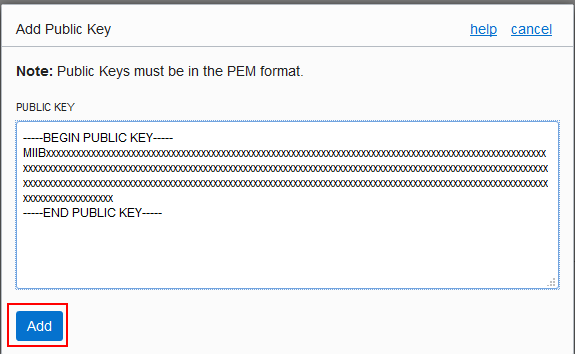
Description of this illustration (generate-api-key9-add-dbox.png) - Save the full path, names, and passphrase for the public
and private API keys.
You will use them in the next tutorial.
 Next
Tutorial
Next
Tutorial
Install Cloud Manager with Resource Manager
 Want
to Learn More?
Want
to Learn More?
- PeopleSoft Cloud Manager Image Overview, My Oracle Support, Doc ID 2233277.1
- Cumulative Feature Overview Tool (Go to the original CFO tool and select Cloud Manager at the top)
- Oracle Cloud Documentation in Oracle Help Center