
 Plan
the Virtual Cloud Network for PeopleSoft Cloud Manager (Optional)
Plan
the Virtual Cloud Network for PeopleSoft Cloud Manager (Optional) Before You Begin
This 30-minute tutorial describes the process to plan a Virtual Cloud Network to use with PeopleSoft Cloud Manager. You can create the Virtual Cloud Network as part of the Cloud Manager installation, or in the Oracle Cloud Infrastructure console.
Background
To create a Cloud Manager instance on Oracle Cloud Infrastructure, you need a Virtual Cloud Network (VCN), subnets that are either public or private, route table, and security lists to define access rules and restrictions. This tutorial includes information about creating VCN features for use with Cloud Manager. For more extensive information on VCNs, see the Oracle Cloud Infrastructure documentation.
Note that if you use Resource Manager to install the Cloud Manager stack, you can create a VCN and necessary networking resources as part of the Resource Manager process. In that case you can skip this tutorial. This procedure is meant for advanced users who want to set up the network resources manually.
See Overview of Networking in the Oracle Cloud Infrastructure Documentation.
Note. In those places where this tutorial mentions ports, it refers to a TCP port, unless explicitly mentioned as a UDP port.
This is the third tutorial in the Install PeopleSoft Cloud Manager series. Read the tutorials in the order listed. The optional tutorials offer alternate methods for setup.
- Prepare to Install PeopleSoft Cloud Manager
- Verify Oracle Cloud Account Information for PeopleSoft Cloud Manager
- Plan the Virtual Cloud Network for PeopleSoft Cloud Manager (optional)
- Create a Virtual Cloud Network for PeopleSoft Cloud Manager in the Oracle Cloud Infrastructure Console (optional)
- Create a Custom Linux Image for PeopleSoft Cloud Manager (optional)
- Create a Custom Windows Image for PeopleSoft Cloud Manager in Oracle Cloud Infrastructure (optional)
- Generate API Signing Keys for PeopleSoft Cloud Manager
- Install the PeopleSoft Cloud Manager Stack with Resource Manager
- Log in to the Cloud Manager Instance
- Specify Cloud Manager Settings
- Use File Storage Service for PeopleSoft Cloud Manager
- Manage Cloud Manager Users, Roles, and Permission Lists
- Configure a Web Proxy for PeopleSoft Cloud Manager (optional)
 Review
Virtual Cloud Network Elements
Review
Virtual Cloud Network Elements
Network components used for Cloud Manager environments include the following:
VCN - You can create a VCN as part of the Cloud Manager Resource Manager stack setup, or in the Oracle Cloud Infrastructure Console.
- When you install the Cloud Manager stack in Resource
Manager, you choose whether to create a new VCN or use an
existing VCN.
If you create a new VCN, the installation creates a VCN with gateways, subnets, and security rules, in the same compartment as the Cloud Manager instance.
- In the Oracle Cloud Infrastructure Console you can create a
VCN with related resources, which creates a VCN with default
components, including public or private subnets, security
lists, Internet or NAT gateways, and route tables.
See the tutorial Create a VCN in the Oracle Cloud Infrastructure Console.
- You also have the option to create only a VCN in the Oracle Cloud Infrastructure Console, and specify the other resources later.
- The requirements for the VCN for the File Storage service
file system that is used for the Cloud Manager Repository
depend upon the method you use for setup.
Note. Because a File Storage service file system is accessed by the IP address or DNS of the mount target, this tutorial sometimes refers to the mount target rather than the file system.
See the tutorial Use File Storage Service for the PeopleSoft Cloud Manager Repository for more information.
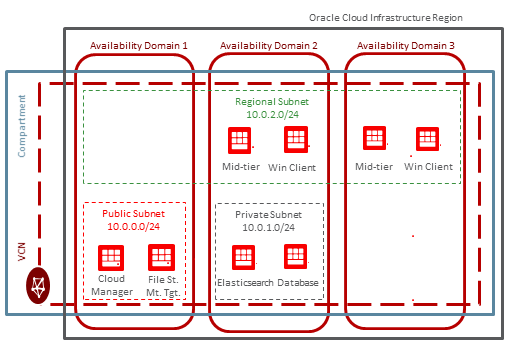
Subnets - You can create public, private, and regional subnets in Cloud Manager VCNs. See the section Defining Subnets.
- Public subnets
Instances that you create in a public subnet have public IP addresses, and can be accessed from the Internet.
- Private subnets
When you create an instance in a private subnet, it will not have a public IP address. To give instances in private subnets outgoing access to the Internet, without exposing them to inbound internet connections, you can set up a Network Address Translation (NAT) Gateway, or use a web proxy. Oracle recommends the use of the NAT Gateway, which tends to be easier than setting up a web proxy. However, you may also choose a web proxy to fulfill business or security requirements.
When you install the Cloud Manager stack in Resource Manager, you can choose to create public or private subnets. If you choose private subnets, you can choose to create a "jump host", or bastion host, as part of the installation. The IP for a private subnet cannot be accessed directly from the Internet. To access a CM instance in a private subnet, you can set up a jump host to enable SSH tunneling and Socket Secure (SOCKS) proxy connection to the Cloud Manager web server (PIA). The jump host is created using an Oracle Linux platform image, and will be created inside the new VCN.
See the Oracle Cloud Infrastructure documentation for information on setting up a NAT Gateway. See the tutorial Configure a Web Proxy for Cloud Manager to learn how to set the necessary environment variables on the Cloud Manager instance for use with a web proxy.
- Regional subnets
A regional subnet is not specific to a particular Availability Domain. It can contain resources in any of the region’s Availability Domains. Oracle recommends them because they are more flexible. You can create a regional subnet in the Oracle Cloud Infrastructure console, and Cloud Manager will be able to deploy PeopleSoft environment instances on these regional subnets.
This illustration shows a simple VCN with public, private and regional subnets.
Security Lists and Ports
- The section Plan Subnets in this tutorial describes how to design VCN subnets to accommodate the necessary communication between components including Cloud Manager, the File Storage service mount target for the file system, full-tier, mid-tier, and so on.
- The section Review Security Lists for Necessary Ports gives an example of setting up security lists for a Cloud Manager instance with components that are separated in different subnets.
- The section Review Cloud Manager Ports lists the ports used by the Cloud Manager configuration.
 Review
a Sample Cloud Manager Deployment
Review
a Sample Cloud Manager Deployment
This illustration shows the network components for a sample Cloud Manager deployment.

- All of the instances and the VCN are installed in Availability Domain 1.
- The Cloud Manager instance is installed in Private Subnet B, which means it does not have access to the Internet.
- Provisioned PeopleSoft environments are set up in the same Private Subnet B.
- The provisioned PeopleSoft environments can include a variety of nodes, including Database (DB), PeopleTools client, Application Server (APP server), web server, Elasticsearch, and Kibana,
- A jump host is installed in Public Subnet A, and reaches the Internet through a NAT Gateway.
- The Cloud Manager instance or the provisioned PeopleSoft environments must access the Internet through the jump host.
- The Cloud Manager instance connects to a file system set up on File Storage Service through a mount target, which is in the same Private Subnet B as the Cloud Manager instance.
- PeopleSoft application images (APP DPKs) and PeopleTools
patches are downloaded to the File Storage Service file system
and made available in the Cloud Manager Repository.
The downloaded items also include software that you can select when provisioning an environment, such as COBOL DPKs, as well as bugs and PRPs.
- You can upload your on-premise environments to Object
Storage with the Cloud Manager Lift and Shift process.
In the illustration, the on-premise environment is connected to the VCN through a Dynamic Routing Gateway.
- Databases for provisioned environments can be hosted in Database Service (DBaaS).
- The subnets have security lists that allow access to the
ports required for the various components.
The Review Cloud Manager Ports section in this tutorial lists the ports needed.
 Plan
Subnets
Plan
Subnets
Use subnets and security lists to organize environment components according to your needs for security and communication.
The subnets that you define in your VCN must take into account the requirements for communication between the PeopleSoft environment and Cloud Manager components. It is important to note that all subnets must allow traffic from the Cloud Manager instance. To achieve this, you must add rules to each security list allowing SSH, WinRM, and File Storage service mount target ports from the source subnet (which is the subnet on which Cloud Manager resides).
For successful deployments of PeopleSoft environments, you must define security lists for subnets based on what type of PeopleSoft instances will be deployed in that subnet.
For example, if you create separate subnets for mid-tier, database tier and PeopleSoft Windows Client, then you must create security lists for the subnet that hosts the mid-tier instance such that it allows all the required ports that a user plans to use when deploying PeopleSoft environments.
If you plan to use more than one subnet for your PeopleSoft deployments, then those subnets must allow communications from one to the other, and also from the subnet where Cloud Manager is set up. Create security lists for subnets that allow Cloud Manager and the File Storage service mount target to communicate with instances that will be deployed on other subnets. In addition, the subnets must be able to communicate with each other. For example, if using a mid-tier subnet and database subnet, the security lists for each subnet must be set up so that the database subnet allows traffic from the mid-tier subnet, in addition to allowing traffic from the Cloud Manager subnet.
When you create a VCN for Cloud Manager, you choose from options to create a VCN with related resources or create only a VCN. The tutorial Create a Virtual Cloud Network for PeopleSoft Cloud Manager in the Oracle Cloud Infrastructure Console creates a VCN using the option to create related resources. This creates a VCN with default components, including three public subnets with open access, an Internet gateway, a route table, and a security list. In this case, you must update the default security list with a rule to allow all Cloud Manager SSH, WinRM, and File Storage service mount target ports either with the VCN CIDR as source or Cloud Manager's subnet CIDR as source.
If instead you choose to create only a VCN, you would define the subnets separately. In this case, there would be one security list per subnet, and you must update each security list to allow traffic from the subnet where Cloud Manager resides.
The PeopleSoft Cloud Manager image contains a web server installation with default ports 8000 (HTTP) and 8443 (HTTPS). Your security protocols may require you to use other port values. If you use other ports, configure them here and supply the same values when installing the Cloud Manager stack.
Note. Oracle highly recommends that you use the HTTPS protocol in all deployments. Follow the instructions found in the PeopleTools System and Server Administration product documentation to implement the encryption keys and certificates required for Secure Sockets Layer (SSL) encryption. See PeopleTools on the Oracle Help Center, Online Help and PeopleBooks.
The following table shows the required security rules needed based on the PeopleSoft node types:
| Destinations | Source: Cloud Manager and File Storage Service Mount Target | Source: Mid-tier | Source: Database | Source: PeopleSoft Windows Client | Source: Full-tier (PUM) | Source: Elasticsearch |
|---|---|---|---|---|---|---|
| Cloud Manager and File Storage
Service Mount Target |
|
File Storage service mount target (TCP ports 111, 2048, 2049, 2050; UDP ports 111 and 2048) | File Storage service mount target (TCP ports 111, 2048, 2049, 2050; UDP ports 111 and 2048) |
|
File Storage service mount target (TCP ports 111, 2048, 2049, 2050; UDP ports 111 and 2048) | File Storage service mount target (TCP ports 111, 2048, 2049, 2050; UDP ports 111 and 2048) |
| Mid-tier | SSH (port 22) |
|
NA |
|
NA |
NA |
| Database | SSH (port 22) | Database ports (1521) | NA |
NA |
NA |
NA |
| PeopleSoft Windows client |
|
NA |
NA |
NA |
NA |
NA |
| Full-tier (PUM) |
SSH (port 22) |
NA |
NA |
|
NA |
|
| Elasticsearch | SSH (port 22) | Elasticsearch HTTP (port 9200) |
NA |
NA |
Elasticsearch (port 9200) | NA |
 Review
Security Lists for Necessary Ports
Review
Security Lists for Necessary Ports
Here are sample security lists for the three default subnets that are created for a VCN with related resources. This assumes the following setup:
- The Cloud Manager instance and File Storage service mount target are hosted on Public Subnet evQs: US-ASHBURN-AD-1 (10.0.0.0/24).
- Mid-tier components (application server, Process Scheduler, and web server), Windows Client, Full-tier and Elasticsearch instances are hosted on Public Subnet evQs: US-ASHBURN-AD-2 (10.0.1.0/24).
- Database instances are hosted on Public Subnet evQs: US-ASHBURN-AD-3 (10.0.2.0/24).
The following table lists the rules required for the security list for the first public subnet, hosting the Cloud Manager instances and file system mount targets.
| # | Source CIDR | IP Protocol | Source Port Range | Destination Port Ranges |
|---|---|---|---|---|
| 1 | 10.0.0.0/24 | TCP |
All |
2048-2050 (File Storage service mount target) |
| 2 | 10.0.0.0/24 | TCP | All | 111 (File Storage service mount target) |
| 3 | 10.0.0.0/24 | UDP | All | 2048 (File Storage service mount target) |
| 4 | 10.0.0.0/24 | UDP | All | 111 (File Storage service mount target) |
| 5 | 10.0.1.0/24 | TCP | All | 2048-2050 (File Storage service mount target) |
| 6 | 10.0.1.0/24 | TCP | All | 111 (File Storage service mount target) |
| 7 | 10.0.1.0/24 | UDP | All | 2048 (File Storage service mount target) |
| 8 | 10.0.1.0/24 | UDP | All | 111 (File Storage service mount target) |
| 9 | 10.0.2.0/24 | TCP | All | 2048-2050 (File Storage service mount target) |
| 10 | 10.0.2.0/24 | TCP | All | 111 (File Storage service mount target) |
| 11 | 10.0.2.0/24 | UDP | All | 2048 (File Storage service mount target) |
| 12 | 10.0.2.0/24 | UDP | All | 111 (File Storage service mount target) |
| 13 | 0.0.0.0/0 | TCP | All | 22 (SSH) |
The following table lists the rules required for the security list for the second subnet, hosting the mid-tier, PeopleSoft Windows client, full-tier, and Elasticsearch.
| # | Source CIDR | IP Protocol | Source Port Range | Destination Port Ranges |
|---|---|---|---|---|
| 1 | 10.0.0.0/24 | TCP |
All |
22 (SSH) |
| 2 | 10.0.0.0/24 | TCP | All | 5985 and 5986 (Winrm) 139 and 445 (CIFS) |
| 3 | 10.0.0.0/24 | UDP | All | 137 and 138 (CIFS) |
| 4 | 10.0.1.0/24 | TCP | All |
|
| 5 | 0.0.0.0/0 | TCP | All | 3389 (RDP) |
The following table lists the rules required for the security list for the third subnet, hosting the database.
| # | Source CIDR | IP Protocol | Source Port Range | Destination Port Ranges |
|---|---|---|---|---|
| 1 | 10.0.0.0/24 | TCP |
All |
22 (SSH) |
| 2 | 10.0.0.0/24 | TCP | All | 1521 (database port) |
 Review
Cloud Manager Ports
Review
Cloud Manager Ports
The following table lists the ports used by the Cloud Manager configuration.
| # | Port Name | Value | Comment |
|---|---|---|---|
| 1 | RDP | 3389 | Required for Remote Desktop access to Windows VM. |
| 2 | File Storage service mount target | TCP ports 111, 2048, 2049, and 2050 UDP ports 111 and 2048 |
Required* |
| 3 | Winrm | 5985 and 5986 | Winrm is a Windows administration protocol used by Cloud Manager to connect remotely to the Windows VMs. See the tutorial Create a Windows Custom Image for PeopleSoft Cloud Manager in Oracle Cloud Infrastructure. |
| 4 | CIFS process | TCP ports 139 and 445 UDP ports 137 and 138 |
Common Internet File System (CIFS) is a protocol used for transferring files from the Windows VMs to the Cloud Manager VM. |
| 5 | NFS | TCP ports 111, 892, 2049, and 32803 | Required in the PUM instance subnet for the Cloud Manager self-update. |
| 6 | HTTP | 8000 (default) | For security reasons Oracle recommends that you do not use the default HTTP port number. Change it in the Cloud Manager stack setup. |
| 7 | HTTPS | 8443 (default) | For security reasons Oracle recommends that you do not use the default HTTPS port number. Change in Cloud Manager stack setup. |
| 8 | WSL | 7000 (default) | Change in Cloud Manager stack setup if desired. |
| 9 | JOLT | 9033 (default) | Change in Cloud Manager stack setup if desired. |
| 10 | Database port | 1522 (default) | None |
| 11 | webserver_admin_port | 7700 (default) | None |
| 12 | webserver_http_port | 7740 (default) | None |
| 13 | webserver_https_port | 7743 (default) | None |
| 14 | OHS domain node manager port | 7500 (default) | None |
| 15 | Elasticsearch HTTP port | 9200 (default) | None |
| 16 | Kibana HTTP port | 5601 (default) | None |
* The File Storage service file system requires stateful ingress to TCP ports 111, 2048, 2049, and 2050 and stateful ingress to UDP ports 111 and 2048. The File Storage service file system also requires stateful egress from TCP ports 111, 2048, 2049, and 2050 and stateful egress from UDP port 111.
See Configuring VCN Security List Rules for File Storage in the Oracle Cloud Infrastructure documentation.
 Next
Tutorial
Next
Tutorial
Create a Virtual Cloud Network for PeopleSoft Cloud Manager in the Oracle Cloud Infrastructure Console (optional)
 Want
to Learn More?
Want
to Learn More?
- PeopleSoft Cloud Manager Image Overview, My Oracle Support, Doc ID 2233277.1
- Cumulative Feature Overview Tool (Go to the original CFO tool and select PeopleSoft Cloud Manager at the top.)
- Oracle Cloud Documentation in Oracle Help Center