
 Verify
Oracle Cloud Account Information for PeopleSoft Cloud Manager
Verify
Oracle Cloud Account Information for PeopleSoft Cloud Manager Before You Begin
This 15-minute tutorial shows you how to verify the Oracle Cloud Infrastructure account details that you need to install PeopleSoft Cloud Manager.
Background
This is the second tutorial in the Install PeopleSoft Cloud Manager series. Read the tutorials in the order listed. The optional tutorials offer alternate methods for setup.
- Prepare to Install PeopleSoft Cloud Manager
- Verify Oracle Cloud Account Information for PeopleSoft Cloud Manager
- Plan the Virtual Cloud Network for PeopleSoft Cloud Manager (optional)
- Create a Virtual Cloud Network for PeopleSoft Cloud Manager in the Oracle Cloud Infrastructure Console (optional)
- Create a Custom Linux Image for PeopleSoft Cloud Manager (optional)
- Create a Custom Windows Image for PeopleSoft Cloud Manager in Oracle Cloud Infrastructure (optional)
- Generate API Signing Keys for PeopleSoft Cloud Manager
- Install the PeopleSoft Cloud Manager Stack with Resource Manager
- Log in to the Cloud Manager Instance
- Specify Cloud Manager Settings
- Use File Storage Service for PeopleSoft Cloud Manager
- Manage Cloud Manager Users, Roles, and Permission Lists
- Configure a Web Proxy for PeopleSoft Cloud Manager (optional)
 Verify
Access to Oracle Cloud Infrastructure Compute and Oracle Cloud
Infrastructure Object Storage
Verify
Access to Oracle Cloud Infrastructure Compute and Oracle Cloud
Infrastructure Object Storage
To verify account access in Oracle Cloud Infrastructure:
-
Sign in to Compute using the URL provided by your administrator, for example:
https://console.us-ashburn-1.oraclecloud.com.
-
Enter the name of your tenancy if necessary, and enter your user name and password.
-
Select Compute > Instances from the Menu on the top left of the page.
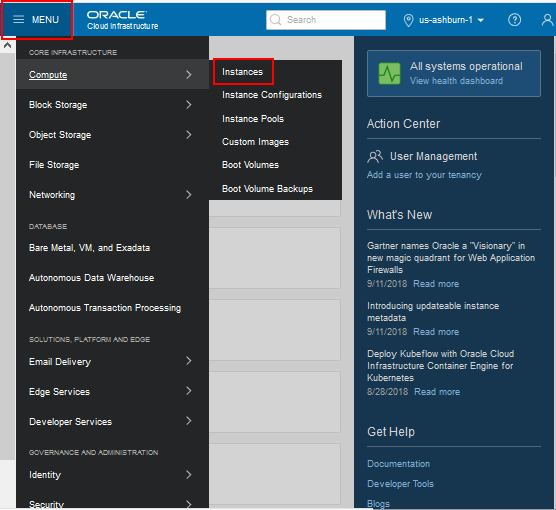
Description of the illustration (cldmgr_verifyaccess_oci_home_03.png) -
On the Compute page, select your compartment from the drop-down list on the left.
If the Instances area does not display anything, as shown in this example, you may not have the appropriate permission to create instances. Contact your administrator.

Description of the illustration (cldmgr_verifyaccess_instancespage_04.png)
 Review
Tenancy Service Limits
Review
Tenancy Service Limits
Before you begin installing and using Cloud Manager, it is a good idea to review the available resources and service limits for your tenancy.
- In Oracle Cloud Infrastructure, select Governance >
Limits, Quotas and Usage from Menu at the top right of the
page.
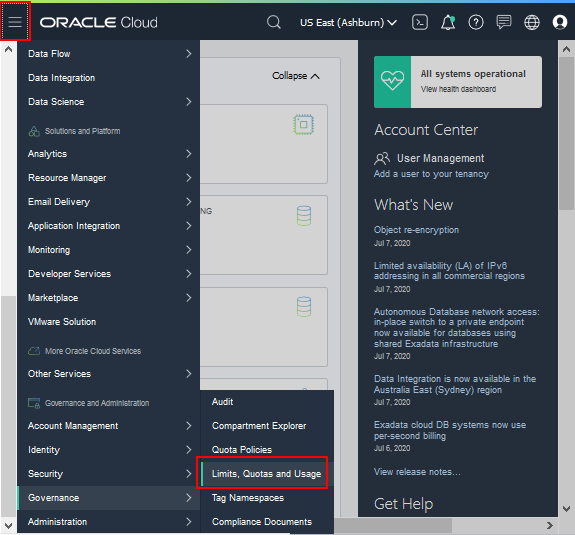
Description of this illustration (review_limits_governance_menu.png) - The page displays your resource limits, usage, and
availability for the region. Use the drop-down lists to filter
by service, scope, resource and compartments.
For example, for the Compute service, ensure that the Availability Domain and compartment where you plan to work has enough resources to create your instances.
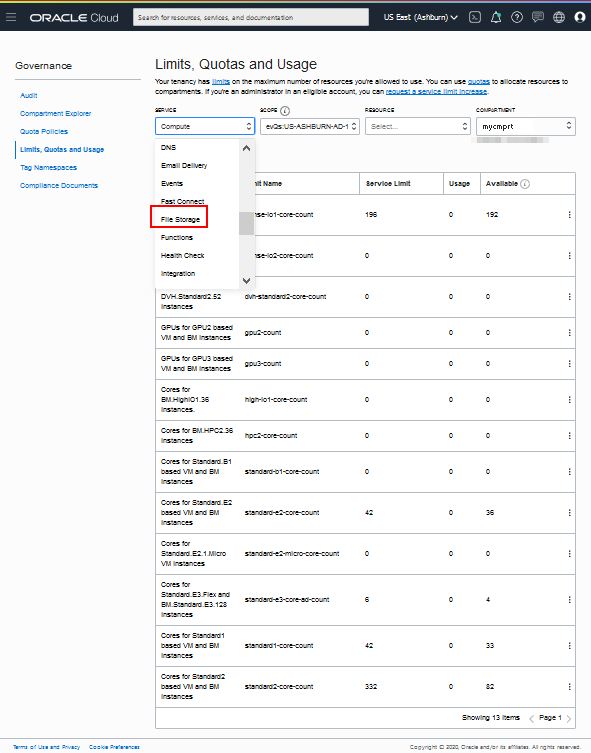
Description of this illustration (review_limits_compute.png) - For example, for the File Storage section, verify that there
are enough file system and mount point resources.
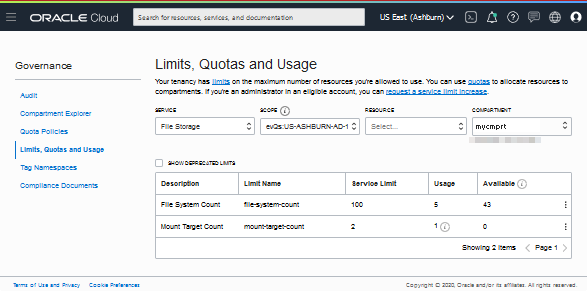
Description of this illustration (review_limits_filestorage_service.png)
See Service Limits in the Oracle Cloud Infrastructure documentation.
 Next
Tutorial
Next
Tutorial
Plan the Virtual Cloud Network for PeopleSoft Cloud Manager
 Want
to Learn More?
Want
to Learn More?
- PeopleSoft Cloud Manager Image Overview, My Oracle Support, Doc ID 2233277.1
- Cumulative Feature Overview Tool (Go to the original CFO tool and select Cloud Manager at the top)
- Oracle Cloud Documentation in Oracle Help Center