
 Manage
Cloud Manager Users, Roles, and Permission Lists
Manage
Cloud Manager Users, Roles, and Permission Lists Before You Begin
This 15-minute tutorial shows you how to manage the roles, users, and permission lists that are delivered with PeopleSoft Cloud Manager.
Background
This is the thirteenth tutorial in the Install PeopleSoft Cloud Manager series. Read the tutorials in the order listed. The optional tutorials offer alternate methods for setup.
- Prepare to Install PeopleSoft Cloud Manager
- Verify Oracle Cloud Account Information for PeopleSoft Cloud Manager
- Plan the Virtual Cloud Network for PeopleSoft Cloud Manager (optional)
- Create a Virtual Cloud Network for PeopleSoft Cloud Manager in the Oracle Cloud Infrastructure Console (optional)
- Create a Custom Linux Image for PeopleSoft Cloud Manager (optional)
- Create a Custom Windows Image for PeopleSoft Cloud Manager in Oracle Cloud Infrastructure (optional)
- Generate API Signing Keys for PeopleSoft Cloud Manager
- Install the PeopleSoft Cloud Manager Stack with Resource Manager
- Log in to the Cloud Manager Instance
- Specify Cloud Manager Settings
- Use File Storage Service for PeopleSoft Cloud Manager
- Manage Cloud Manager Users, Roles, and Permission Lists
- Configure a Web Proxy for PeopleSoft Cloud Manager (optional)
 Review
Cloud Manager Roles, Permission Lists, and Users
Review
Cloud Manager Roles, Permission Lists, and Users
Cloud Manager is delivered with these roles, permission lists, and user account:
- Delivered roles
- Cloud Administrator (PACL_CAD)
- Cloud PeopleSoft Administrator (PACL_PAD)
- Self-Service User (PACL_SSC)
- Delivered permission lists
- Cloud Administrator Permissions (PACL_001)
- PeopleSoft Admin for Cloud (PACL_002)
- Cloud Self Service (PACL_003)
- Delivered user account
The CLADM user account is associated with the Cloud Administrator role and other PeopleSoft administrative roles.
Here is a brief summary of the tasks associated with each delivered role.
The Cloud Administrator:
- Downloads and initiates the Cloud Manager image from Oracle Cloud Marketplace.
- Provisions the Cloud Manager instance in Oracle Cloud Infrastructure Compute.
- Configures the Cloud Manager Repository to auto-download required PeopleSoft Update Images (PIs) from My Oracle Support.
- Has access to all Cloud Manager tiles.
- Has the ability to add Cloud PeopleSoft Administrator and Self-Service Users.
- Can manage all environments.
The Cloud PeopleSoft Administrator:
- Creates deployment templates based on downloaded PIs or customer environments that have been cloned to template in Oracle Cloud Infrastructure Compute.
- Has access to the Topology, Environment Template, Environments, and My Settings tiles.
- Can manage all environments.
The Self-Service User:
- Creates Oracle Cloud Infrastructure Compute instances from available templates.
- Starts, stops, and deletes instances.
- Has access to the Environments and My Settings tiles.
- Can manage only his own environments.
 View
Cloud Manager Permission Lists and Roles
View
Cloud Manager Permission Lists and Roles
To view the delivered Cloud Manager Permission Lists:
- Sign in to Cloud Manager in a browser, as described in the tutorial Specify Cloud Manager Setings.
-
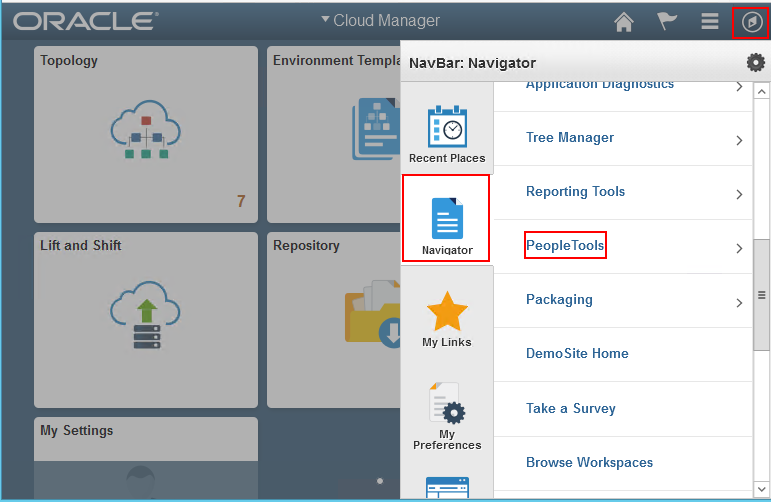
On the Cloud Manager home page, click the NavBar button at the top right, click the Navigator button, and select PeopleTools, Security, Permissions & Roles, Permission Lists from the menu.
Description of this image -
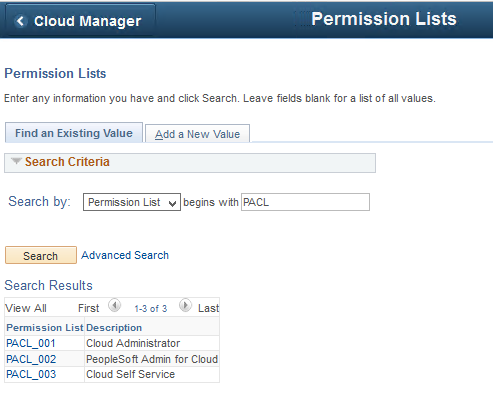
Enter PACL in the Search By field, and click Search on the Permission Lists page to see the three delivered Cloud Manager Permission Lists, PACL_001, PACL_002, PACL_003.
Description of this image -
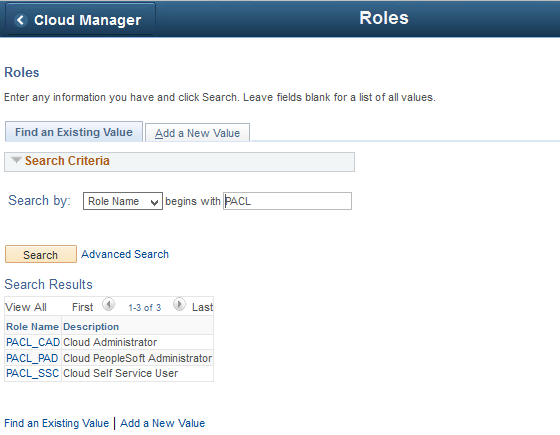
Navigate to PeopleTools, Security, Permissions & Roles, Roles, enter PACL and click Search to view the delivered Cloud Manager Roles, PACL_CAD, PACL_PAD and PACL_SSC.
Description of this image -
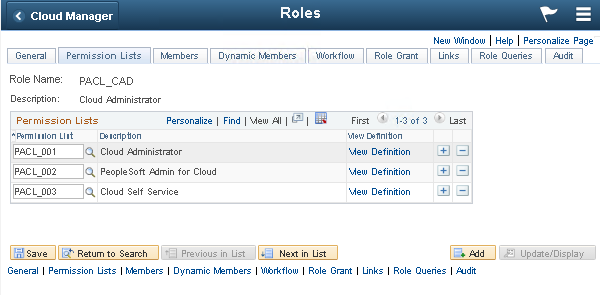
Select PACL_CAD from the Search Results and select the Permission Lists tab.
The permission lists that are associated with Cloud Administrator include PACL_001, PACL_002, and PACL_003.
Description of this image -
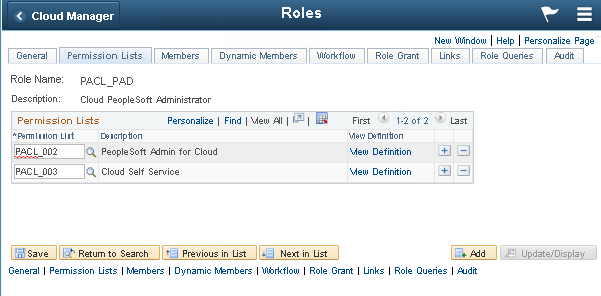
Click Next in List to view the three permission lists associated with PACL_PAD, the Cloud PeopleSoft Administrator.
The associated permission lists include the Cloud Manager permission lists PACL_002 and PACL_003.
Description of this image -
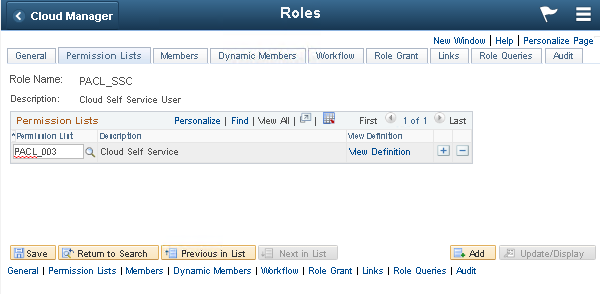
Click Next in List to view the two permission lists associated with PACL_SSC, the Cloud Self Service User.
The associated permission list is the Cloud Manager permission list PACL_003.
Description of this image
 Add
Cloud Manager Roles to an Existing User Profile
Add
Cloud Manager Roles to an Existing User Profile
To set up a user profile for a Cloud Manager user, the Cloud Administrator can create a new user, or begin with an existing user and add the requisite roles, as shown in this section. For details on working with PeopleSoft user profiles, see PeopleTools: Security Administration, "Working with User Profiles." See PeopleTools on Oracle Help Center, Online Help and PeopleBooks.
-
Sign in to Cloud Manager in a browser using the Cloud Administrator user ID, CLADM, and the password you specified when running the Cloud Manager Configuration Wizard.
-
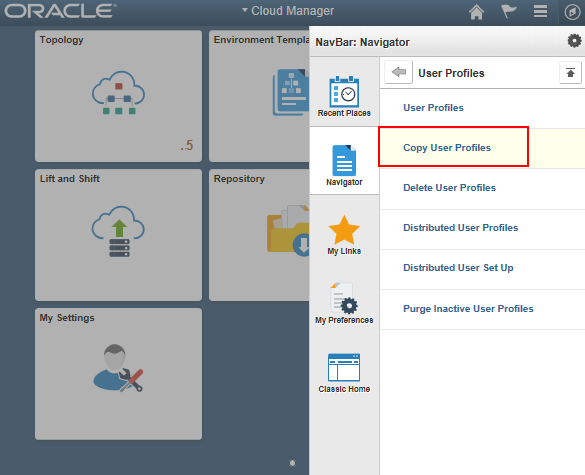
On the home page, select PeopleTools, Security, User Profiles, Copy User Profiles to access the User Profiles search page.
Description of this image -
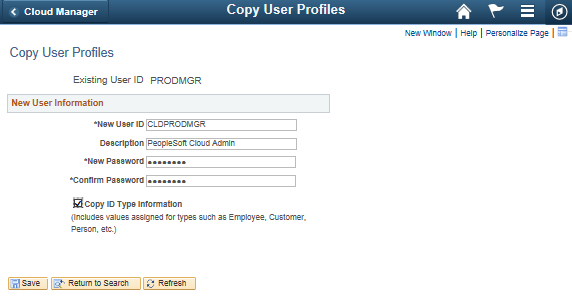
Select the User ID that you want to copy, for example PRODMGR.
-
On the Copy User Profiles page, enter a new user ID, CLDPRODMGR in this example, a description, and the password that the new user ID should use to sign in to Cloud Manager.
Note. This example show the Copy ID Type Information option selected. If this option is not selected, the system does not save the EMPLID in the PSOPRDEFN table.
Click Save.
Description of this image -
On the General page, supply any necessary information.
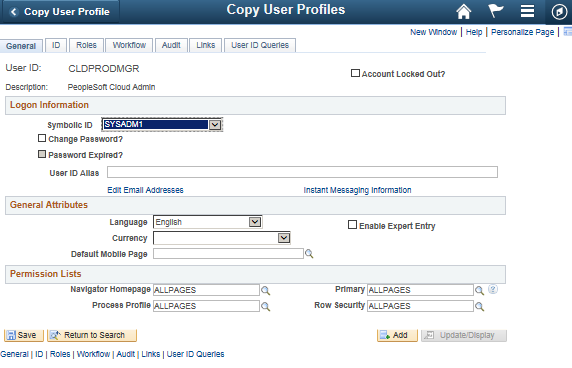
Description of this image -
Select the Roles tab, and click the plus sign in the User Roles table to add a new row.
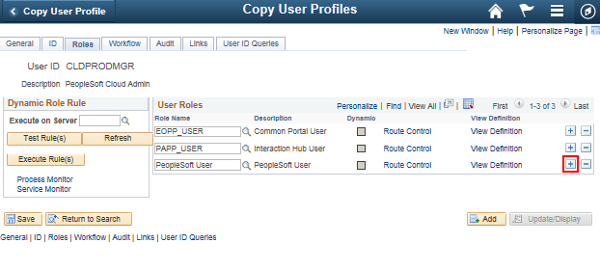
Description of this image -
On the Look Up Role Name page, enter PACL in the search field, and select PACL_PAD, for the Cloud PeopleSoft Administrator.
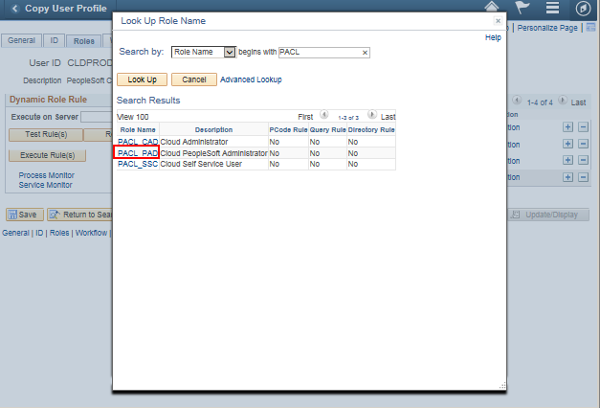
Description of this image
The new role appears in the User Roles table.
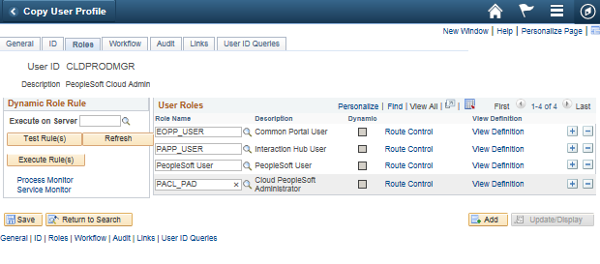
Description of this image -
Repeat steps 6 and 7 to add other Cloud Manager roles.
 Want
to Learn More?
Want
to Learn More?
- PeopleSoft Cloud Manager Image Overview, My Oracle Support, Doc ID 2233277.1
- Cumulative Feature Overview Tool (Go to the original CFO tool and select PeopleSoft Cloud Manager at the top.)
- Oracle Cloud Documentation in Oracle Help Center