Invitation to Use Textura
This article will walk you through the initial steps you need to take when first invited to use Oracle Textura.
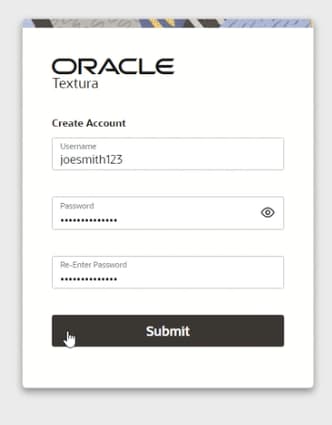
Create your username and password
Before you begin using Oracle Textura, you'll receive an invitation email from your General Contractor that contains a link to create a username and password.
Follow the steps prompts to create your username and password, then click Submit.
You'll receive an on-screen notification that your username and password have been created successfully.
Tip!
The link you receive is specific to you and only valid for 48 hours. If you don't click it within that time period, please contact Textura Support at 866-TEXTURA (866-839-8872) to request a new one.
Complete two-step verification
Enter your username and password again to sign into Textura.
If you're the first person from your organization to sign in to Textura, you'll be automatically designated as the Enterprise Administrator. This privilege gives you the ability to make wide-ranging changes to your organization's account. You can designate another or additional Enterprise Administrators later if you would like.
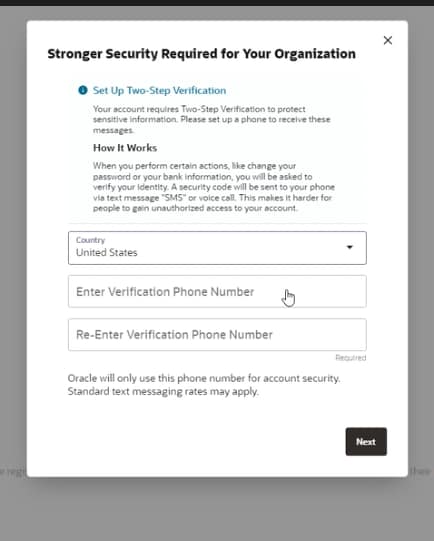
You'll need to set up two-step verification by providing a mobile or voice number to receive a text or phone call to verify your identity.
Tip!
Do not provide a voice number that includes menu prompts. Using a mobile phone is preferred.
Log in and complete required fields
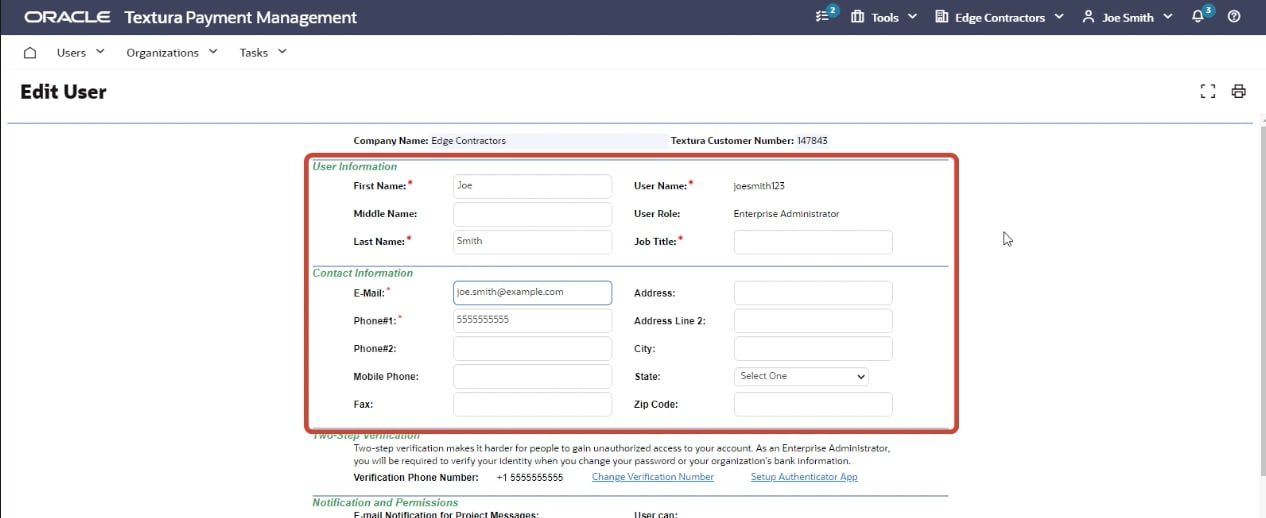
Once logged in, you'll be prompted to enter your User and Contact Information. Complete the required fields, marked with an asterisk, then click Save Profile.
Tip!
For more assistance with this section, visit this page.
Add company information
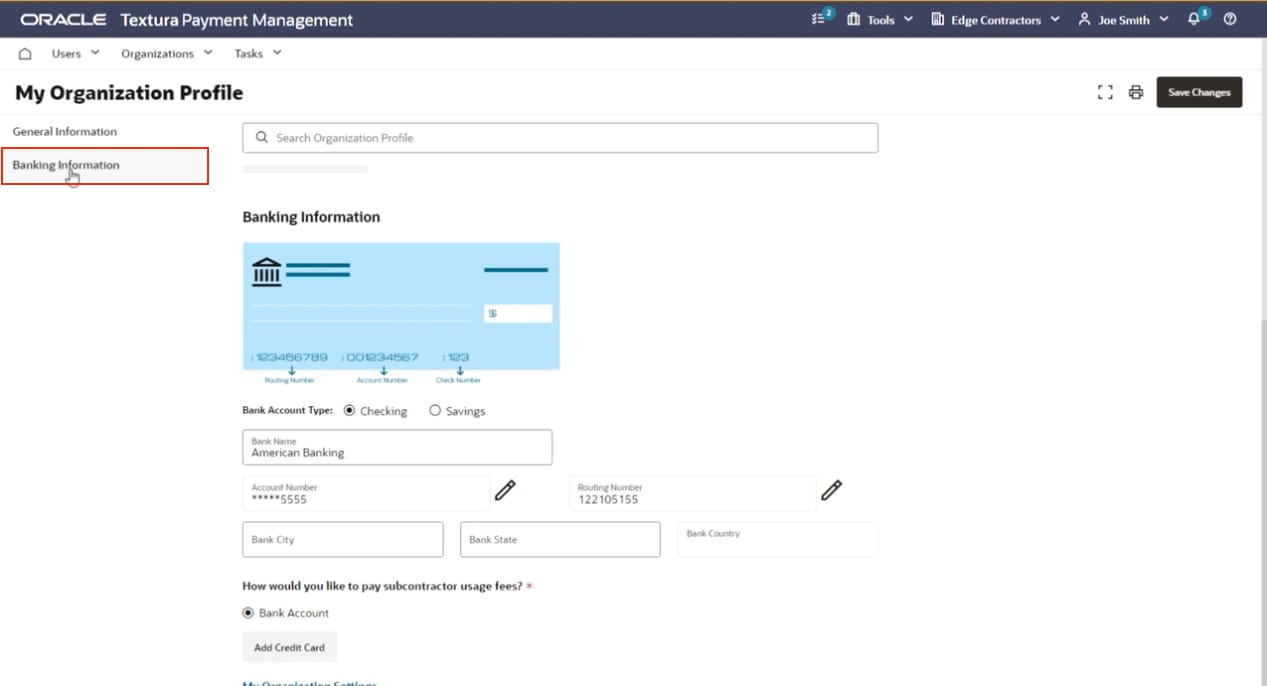
The next step is to edit your organization's information. Enter your company's business information, tax ID, and banking information.
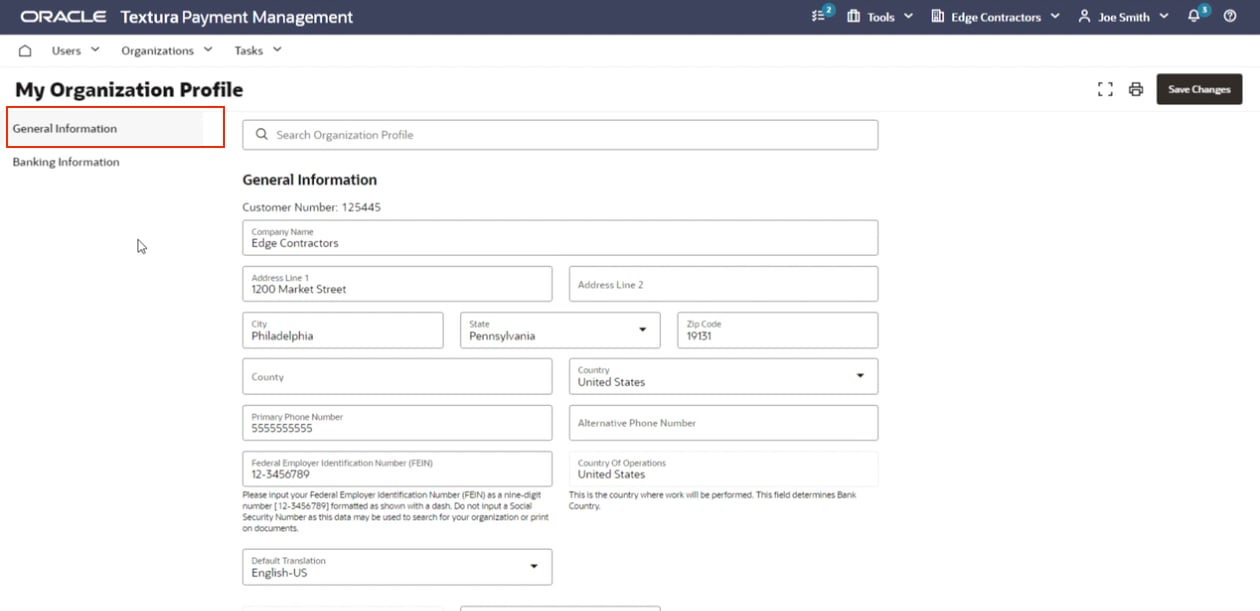
Add banking information
The banking information is particularly important. Textura must have this information before your company can participate in a project and get paid.
Your banking information is also used to pay a usage fee for Textura. If you prefer to use a credit card, click the link and enter your credit information. Be sure to change the Pay Subcontract Usage Fees field To Credit Card.
Once payment information is completed, click Save Changes.