How-To Document
Build Tabular Forms for Multi-Row Operations
Based on Oracle Application Express (formerly HTML DB] version 1.5
After completing this How-To, you should be able to understand how to:
- Build a tabular form using wizard
- Build a tabular form using the HTMLDB_ITEM package
- Build a tabular form with extra rows for insert
- Add optimistic locking on tabular form
- Add validation using collections
Table of Contents
- Introduction
- Software Requirements
- Building a tabular form using wizard
- Building a tabular form manually
Introduction
In Oracle HTML DB, you can create a tabular form in two ways:
- Using the Tabular Form wizard.
- Using the HTMLDB_ITEM package.
The easiest way to build a tabular form is to use Tabular Form wizard. This wizard creates a tabular form with a built in multiple row update process. This built in process does optimistic locking behind the scene to maintain the data integrity. In certain cases you may want to build a tabular form manually to control the display and functionality. You can use HTMLDB_ITEM package to build a tabular form manually. When you build a tabular form using HTMLDB_ITEM, you will need to build your own optimistic locking since it is not done automatically during update. This How To describes how you can create a tabular form using EMP table that is included when a new workspace is provisioned.
Software Requirements
- Oracle HTML DB
- Web browser such as Netscape 7.0 or higher+ or Internet Explorer 5.5+ or higher
Building a Tabular Form Using a Wizard
The simplest way to build a tabular form is to use Tabular Form wizard. This wizard creates a tabular form with a built in multiple row update process. This process checks for MD5 checksum values before doing the update in order to perform optimistic locking behind the scene. When you build a tabular form using the wizard, there are some editing restrictions. We will go over these restrictions in the later steps.
We will start by creating a tabular form on EMP table using the wizard with following steps:
- Navigate to Appication Builder.
- From the Available Applications list, select Sample Application.
- Click the Wizards tab .
- Under Forms, click Tabular Form.
- Select the owner of EMP table and click Next.
- Select EMP table and and click Next.
- Select the following columns as select columns and click Next:
ENAME, JOB, MGR, HIREDATE, SAL, COMM, DEPTNO - Select the following columns as updateable columns and click Next:
JOB, MGR, HIREDATE, SAL, COMM, DEPTNO - Select EMPNO as the primary key and click Next.
- Accept the default values for page and region attributes and click Next.
- Select Do not use tabs and click Next.
- For the Submit Button Label, enter Apply Changes and click Next.
- Click Finish to create the tabular form.
Changing Updateable Column Display Type
When the wizard creates the tabular form, all updateable columns display as text field by default. The following section describes how to change this default display to a select list.
To change the default display of JOB and DEPTNO to a select list:
- Navigate to the Page Definition of the page containing the tabular form.
- Under Regions, click Q in front of Tabular Form.
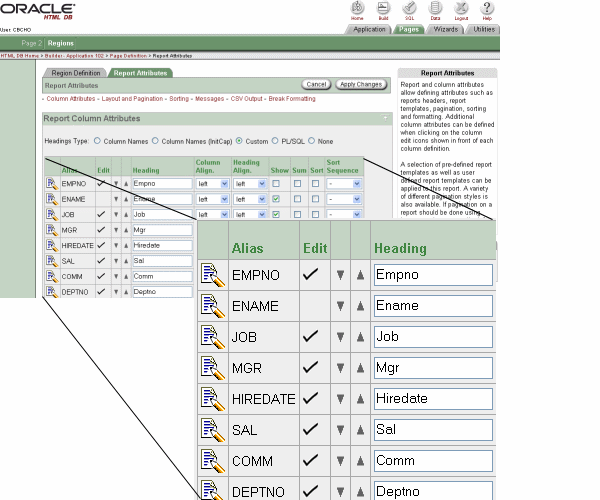
- Under Report Column Attributes, click the edit icon next to the JOB column.
Figure 1 - Edit report column attributes
- Under Updateable Column Attributes, select Select List (query based LOV) as the Display As value.
- Under List of Values, enter the following LOV query:
select distinct job a, job b from empFigure 2 - Edit updateable column attributes

- Click Apply Changes to complete the change of JOB column.
- Click the edit icon next to the DEPTNO column.
- Under Updateable Column Attributes, select Select List (query based LOV) as the Display As value.
- Under List of Values, enter the following LOV query:
select dname, deptno from dept - Click Apply Changes to complete the change of DEPTNO column.
- Click Apply Changes again to complete the change of this tabular form.
Run the page. The tabular form displays with JOB and DEPTNO column in select list (see Figure 3).
Figure 3 - Wizard created tabular form

Edit Restrictions on Wizard Generated Tabular Form
If you create a tabular form using the wizard, the wizard creates a SQL Query (updateable report) region type. When you wish to change the display type of updateable columns for this type of region, you need to use updateable column attributes. If you change the display type using HTMLDB_ITEM package in the select list of a SQL statement, the update will not work properly. For example, the wizard generated SQL statement cannot be mixed with HTMLDB_ITEM package:
select

htmldb_item.hidden(1,empno) empno,
"ENAME",
"JOB",
htmldb_item.select_list_from_query(2,mgr,'select ename, empno from emp') mgr,
"HIREDATE",
"SAL",
"COMM",
"DEPTNO"
from "#OWNER#"."EMP"
order by 1
The select list of a SQL statement of a tabular form should not be modified after it has been generated. Doing so can result in a checksum error when altering data of the form and applying updates. Consider the following example:
select ename from emp;
Note that this should not be altered to:
select lower(ename) from emp.
Building a Tabular Form Manually
You can also create a tabular form manually by defining SQL report query using HTMLDB_ITEM package. When you build a tabular form manually, you have more control on editing the tabular form query and processing the update. However, be aware this manual approach does involve more steps. If you wish to build a complex tabular form, it is best to take the manual approach. Otherwise, building a simple tabular form can be easily done using the wizard.
To build a tabular form manually:
- Navigate to Appication Builder.
- From the Available Applications list, select Sample Application.
- Click the Wizards tab.
- Under Reports, select SQL Report.
- Enter Update EMP as the Page Name and click Next.
- Select Do not use tabs and click Next.
- Enter following SQL query and click Next:
				select htmldb_item.hidden(1,empno) empno,
ename,
htmldb_item.select_list_from_query(3,job,'select distinct job, job from emp') job,
htmldb_item.popupkey_from_query(4,mgr,'select ename, empno from emp',10) mgr,
wwv_flow_item.date_popup(6,null,hiredate) hiredate,
htmldb_item.text(7,sal,10) sal,
htmldb_item.text(8,comm,10) comm,
htmldb_item.select_list_from_query(9,deptno,'select dname, deptno from dept') deptno
from emp
Note: Checkbox, popup calendar, and popup key LOV are not supported under updateable column attributes in report attributes section. These are included in HTMLDB_ITEM package only currently. HTMLDB_ITEM is an HTML DB supplied package you can use to generate certain form elements dynamically. When the page is submitted, the values of each column are stored in global package arrays, which can be referenced as g_f01, g_f02, g_f03.. g_fnn. in the HTMLDB_APPLICATION package, based on the p_idx parameter value that was passed in. For example, the value passed in for p_idx in EMPNO column is 1, so we will reference the EMPNO column values using the global variable HTMLDB_APPLICATION.G_F01 later on. Also, due to the behavior of popupkey, HTMLDB_ITEM.POPUPKEY_FROM_QUERY takes two index values. Since MGR column is defined with HTMLDB_ITEM.POPUPKEY_FROM_QUERY and uses p_idx of 4 and 5, HIREDATE column is defined with p_idx of 6.
- For the Region name, enter Update Emp.
- For the Maximum Rows per Page, enter 1000 and click Next.
Note: 1000 specifies the maximum number of rows to display at one time per page in the result set. This will prevent pagination on the tabular form. If there is pagination on the tabular form, updates will be lost when you paginate before clicking update button. For example, after you edit some employee record on the first page and navigate to the next page without saving, the change will be lost.
- Click Finish to create the tabular form.
To enhance the display of the report, you can change the report column headings as follows:
- Navigate to the Page Definition containing the tabular form.
- Under regions, click the Q next to Tabular Form, Update Emp.
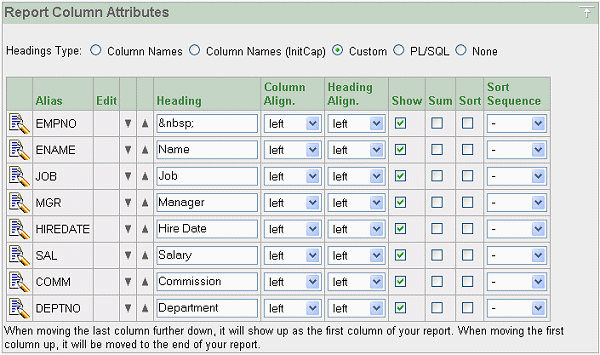
- For the Heading type, select Custom.
- Change the column headings to the following:
- EMPNO:
- ENAME: Name
- JOB: Job
- MGR: Manager
- HIREDATE: Hire Date
- SAL: Salary
- COMM: Commission
- DEPTNO: Department
Figure 4 - Edit column headings
- Click Apply Changes.
To submit the tabular form array values, you need to add a button.
To add a button, follow these steps:
- Navigate to the Page Definition containing the tabular form.
- Under buttons, click Create.
- Select Update EMP 1.10 as the Region.
- Select Create a button in a region position and click Next.
- Enter UPDATE_EMP as the Button Name.
- Enter Update Employee(s) as the Label and click Next.
- For the Position, select Top of Region and click Next.
- From Branch to Page, select same page containing your tabular form.
- Click Create Button.
To update employee records, you need to add a process:
- Under processes, click Create.
- Enter Update EMP as the Process Name.
- For Process Point, select On Submit - After Computations and Validations.
- For Type, select PL/SQL anonymous block and click Next.
- Enter following PL/SQL page process and click Next:
-- -- update EMP -- for i in 1..htmldb_application.g_f01.count loop update emp set job = replace(htmldb_application.g_f03(i),'%'||'null%',NULL), mgr = replace(htmldb_application.g_f04(i),'%'||'null%',null), hiredate = htmldb_application.g_f06(i), sal = htmldb_application.g_f07(i), comm = htmldb_application.g_f08(i), deptno = replace(htmldb_application.g_f09(i),'%'||'null%',NULL) where empno = htmldb_application.g_f01(i); end loop; - Enter the following success and failure messages and click Next:
- Success Message:
Updated employee(s).
- Failure Message:
Unable to update employee(s).
- Success Message:
- Click Create Process.
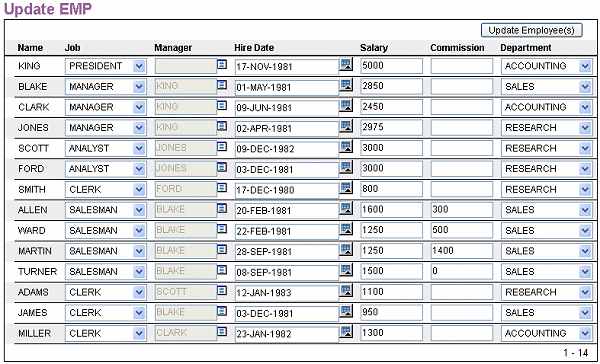
When you run the page, you should see a tabular form looks like Figure 5.
Figure 5 - Manually created tabular form
Building a Tabular Form with Extra Rows for Insert
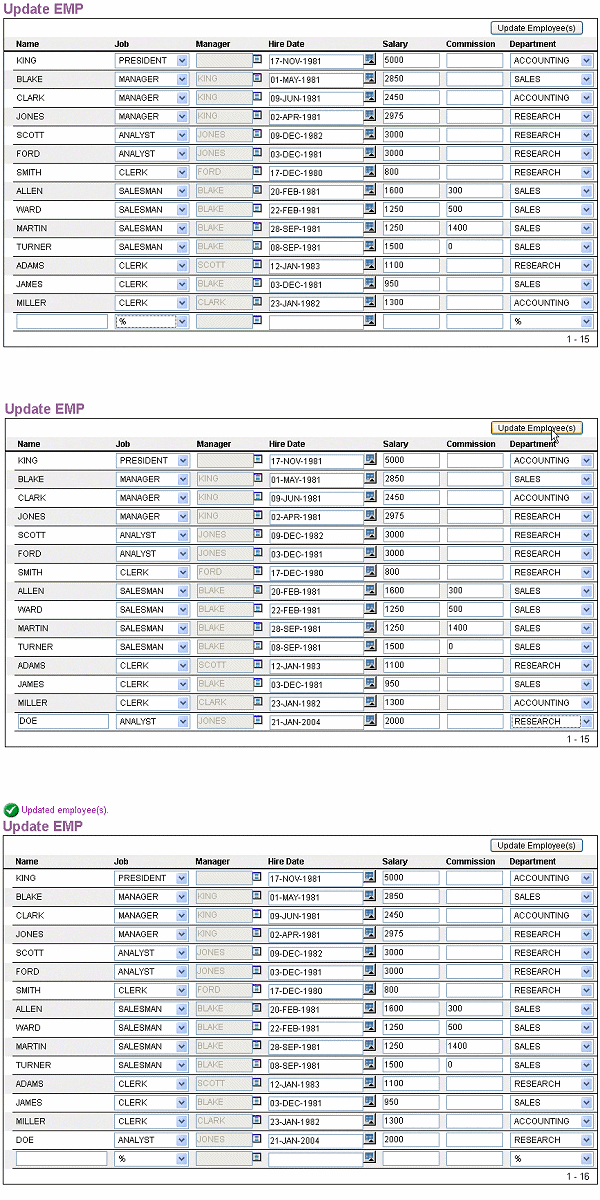
Building a tabular form with an extra row for insert is useful when you wish to have a tabular form that does both insert and update. This section describes how to add an extra insert row to the tabular form.
To add an extra insert row to a tablular form:
- Navigate to the Page Definition containing the tabular form.
- Under Regions, click Update EMP.
- Under Region Source, change the query as follows:
select x.empno,

x.ename,
x.job,
x.mgr,
x.hiredate,
x.sal,
x.comm,
x.deptno
from (
select htmldb_item.hidden(1,empno) empno,
wwv_flow_item.display_and_save(2,ename) ename,
htmldb_item.select_list_from_query(3,job,'select distinct job, job from emp') job,
htmldb_item.popupkey_from_query(4,mgr,'select ename, empno from emp',10) mgr,
wwv_flow_item.date_popup(6,null,hiredate) hiredate,
htmldb_item.text(7,sal,10) sal,
htmldb_item.text(8,comm,10) comm,
htmldb_item.select_list_from_query(9,deptno,'select dname, deptno from dept') deptno
from emp
union all
select htmldb_item.hidden(1,null) empno,
htmldb_item.text(2,null) ename,
htmldb_item.select_list_from_query(3,null,'select distinct job, job from emp') job,
htmldb_item.popupkey_from_query(4,null,'select ename, empno from emp',10) mgr,
wwv_flow_item.date_popup(6,null,null) hiredate,
htmldb_item.text(7,null,10) sal,
htmldb_item.text(8,null,10) comm,
htmldb_item.select_list_from_query(9,null,'select dname, deptno from dept') deptno
from dual) x
Note: The select statement with null values will let users to add a new record.
- Click Apply Changes.
The primary key column, EMPNO, is not an updateable column on the tabular form. Since the primary key is required to insert the data into the EMP table, you need to have a trigger populate the primary key using a sequence. You can create a sequence and trigger in SQL Workshop.
To create a sequence and trigger using SQL Workshop:
- Navigate to SQL Workshop.
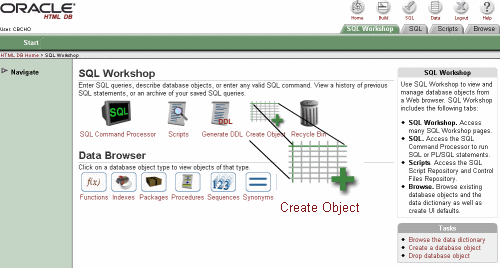
- Click Create Object, select Sequence, and click Next.
Figure 6 - Create object from SQL Workshop
- For the Sequence Name, enter EMP_SEQ and click Next.
- Click Create to create the sequence.
- On the success page, click the SQL Workshop Home icon.
- Click Create Object, select Trigger, and click Next.
- Select the schema where you have EMP table and click Next.
- Select the EMP table and click Next.
- Under Action, select Create Trigger and click Next.
- Under Create Trigger, specify the following and click Next:
- For the Trigger name, enter BI_EMP.
- For Firing Point, select BEFORE.
- For options, select insert.
- Enter following as trigger body:
select emp_seq.nextval

into:new.empno
from dual;
- Click Finish to create the trigger.
- Navigate to Application Builder.
- Navigate to the Page Definition containing the tabular form.
- Under Processes, click Update EMP.
- Change the PL/SQL process as follows:
-- -- update EMP -- for i in 1..htmldb_application.g_f01.count loop if htmldb_application.g_f01(i) is not null then update emp set job = replace(htmldb_application.g_f03(i),'%'||'null%',NULL), mgr = replace(htmldb_application.g_f04(i),'%'||'null%',null), hiredate = htmldb_application.g_f06(i), sal = htmldb_application.g_f07(i), comm = htmldb_application.g_f08(i), deptno = replace(htmldb_application.g_f09(i),'%'||'null%',NULL) where empno = htmldb_application.g_f01(i); else if htmldb_application.g_f02(i) is not null then insert into emp (ename, job, mgr, hiredate, sal, comm, deptno) values (htmldb_application.g_f02(i), replace(htmldb_application.g_f03(i),'%'||'null%',NULL), replace(htmldb_application.g_f04(i),'%'||'null%',NULL), htmldb_application.g_f06(i), htmldb_application.g_f07(i), htmldb_application.g_f08(i), replace(htmldb_application.g_f09(i),'%'||'null%',NULL)); end if; end if; end loop; - Click Apply Changes.
Figure 7 - Tabular form with extra row for insert
Adding Optimistic Lockingoptimistic locking
Since you created this tabular form manually, optimistic locking is not done automatically behind the scenes. You need to add an optimistic locking to the tabular form in order to keep the data integrity. You can use HTMLDB_ITEM.MD5_CHECKSUM to include MD5 checksum values on the form. When the page is submitted, HTMLDB_ITEM.MD5_CHECKSUM populates the global HTMLDB_APPLICATION.G_FCS with a checksum of the values provided.
To add the checksum values, you need to edit the tabular form query as follows:
- Navigate to the Page Definition containing the tabular form.
- Under Regions, click Update EMP.
select x.empno, x.ename, x.job, x.mgr, x.hiredate, x.sal, x.comm, x.deptno, x.cks from ( select htmldb_item.hidden(1,empno) empno, wwv_flow_item.display_and_save(2,ename) ename, htmldb_item.select_list_from_query(3,job,'select distinct job, job from emp') job, htmldb_item.popupkey_from_query(4,mgr,'select ename, empno from emp',10) mgr, wwv_flow_item.date_popup(6,null,hiredate) hiredate, htmldb_item.text(7,sal,10) sal, htmldb_item.text(8,comm,10) comm, htmldb_item.select_list_from_query(9,deptno,'select dname, deptno from dept') deptno, htmldb_item.md5_checksum(job,mgr,hiredate,sal,comm,deptno) cks from emp union all select htmldb_item.hidden(1,null) empno, htmldb_item.text(2,null) ename, htmldb_item.select_list_from_query(3,null,'select distinct job, job from emp') job, htmldb_item.popupkey_from_query(4,null,'select ename, empno from emp',10) mgr, wwv_flow_item.date_popup(6,null,null) hiredate, htmldb_item.text(7,null,10) sal, htmldb_item.text(8,null,10) comm, htmldb_item.select_list_from_query(9,null,'select dname, deptno from dept') deptno, htmldb_item.md5_checksum(null,null,null,null,null,null) cks from dual) x - Click Apply Changes.
To assure the data integrity, next you need to edit the update process to get the original checksum values and compare them with the submitted checksum values. If they are not same, the application will raise an error.
To implement this, change the update process as follows:
- Navigate to the Page Definition containing the tabular form.
- Under Processes, click Update EMP.
- Change the PL/SQL process as follows:
declare l_cks wwv_flow_global.vc_arr2; j pls_integer := 1; begin -- -- Get original MD5 checksum -- select wwv_flow_item.md5(job,mgr,hiredate,sal,comm,deptno) cks BULK COLLECT INTO l_cks from emp; -- -- Compare the original checksum, l_cks, -- with submitted checksum, htmldb_application.g_fcs. -- If they are different, raise an error. -- for i in 1..l_cks.count loop if htmldb_application.g_fcs(i) != l_cks(i) then rollback; raise_application_error( -20001, 'Current version of data in database has changed '|| 'since user initiated update process.'); return; end if; end loop; -- -- update EMP -- for i in 1..htmldb_application.g_f01.count loop if htmldb_application.g_f01(i) is not null then update emp set job = replace(htmldb_application.g_f03(i),'%'||'null%',NULL), mgr = replace(htmldb_application.g_f04(i),'%'||'null%',null), hiredate = htmldb_application.g_f06(i), sal = htmldb_application.g_f07(i), comm = htmldb_application.g_f08(i), deptno = replace(htmldb_application.g_f09(i),'%'||'null%',NULL) where empno = htmldb_application.g_f01(i); else if htmldb_application.g_f02(i) is not null then insert into emp (ename, job, mgr, hiredate, sal, comm, deptno) values (htmldb_application.g_f02(i), replace(htmldb_application.g_f03(i),'%'||'null%',NULL), replace(htmldb_application.g_f04(i),'%'||'null%',NULL), htmldb_application.g_f06(i), htmldb_application.g_f07(i), htmldb_application.g_f08(i), replace(htmldb_application.g_f09(i),'%'||'null%',NULL)); end if; end if; end loop; end; - Click Apply Changes.
ORA-20001: Current version of data in database has changed since user initiated update process.
Adding Validation Using Collections
Collections enable you to temporarily capture one or more non-scalar values. You can use collections to store rows and columns currently in session state so they can be accessed, manipulated, or processed during a user's specific session. Think of a collection as a bucket in which you can temporarily store and name rows of information. This section describes how to add validations to a tabular form. The tabular form does not keep session state of the user input when the validations fail. To save the user input, you can use collections.
To start, you first create a not null validation to validate the user input.
To create a not null validation to validate the user input:
- Navigate to the Page Definition containing the tabular form.
- Under Validations, click Create.
- Under Validation Attributes, specify the following and click Next.
- Enter not null as the validation name.
- For the Error Display Location, select Inline in Notification.
- For the Validation Type, select Function Returning Error Text.
- Enter the following Validation:
for i in 1..htmldb_application.g_f01.count loop if htmldb_application.g_f01(i) is not null then if replace (htmldb_application.g_f03(i),'%'||'null%',null) is null then return 'Job must have some value.'; end if; if htmldb_application.g_f06(i) is null then return 'Hiredate must have some value.'; end if; if htmldb_application.g_f07(i) is null then return 'Sal must have some value.'; end if; if replace(htmldb_application.g_f09(i),'%'||'null%',null) is null then return 'Deptno must have some value.'; end if; else if htmldb_application.g_f02(i) is not null then if replace(htmldb_application.g_f03(i),'%'||'null%',null) is null then return 'Job must have some value.'; end if; if htmldb_application.g_f06(i) is null then return 'Hiredate must have some value.'; end if; if htmldb_application.g_f07(i) is null then return 'Sal must have some value.'; end if; if replace(htmldb_application.g_f09(i),'%'||'null%',null) is null then return 'Deptno must have some value.'; end if; end if; end if; end loop; - Enter the following Error Message and click Next:
Unable to update employee(s).
- Click Create.
The tabular form does not keep the session state when the validation fails. You can use collections to save the user input by creating a process as follows:
- Navigate to the Page Definition containing the tabular form.
- Under Processes, click Create.
- Under Process Attributes, specify the following and click Next:
- Enter create collection as the process name.
- Select On Submit - Before Computations and Validations as the process point.
- Enter the following PL/SQL page process and click Next:
- Click Create Process.
				declare
  la_cks wwv_flow_global.vc_arr2;
begin
  if htmldb_application.g_fcs.count > 0 then
    la_cks := htmldb_application.g_fcs;
  else
    la_cks := htmldb_application.g_f10;
  end if;

  htmldb_collection.create_or_truncate_collection('UPDATE_EMP');

  htmldb_collection.create_or_truncate_collection('INSERT_EMP');

  for i in 1..htmldb_application.g_f01.count
  loop
    if htmldb_application.g_f01(i) is not null then
      htmldb_collection.add_member(
          p_collection_name => 'UPDATE_EMP',
          p_c001            => htmldb_application.g_f01(i),
          p_c002            => htmldb_application.g_f02(i),
          p_c003            => htmldb_application.g_f03(i),
          p_c004            => htmldb_application.g_f04(i),
          p_c005            => htmldb_application.g_f06(i),
          p_c006            => htmldb_application.g_f07(i),
          p_c007            => htmldb_application.g_f08(i),
          p_c008            => htmldb_application.g_f09(i),
          p_c009            => la_cks(i));
    else
      htmldb_collection.add_member(
          p_collection_name => 'INSERT_EMP',
          p_c001            => htmldb_application.g_f01(i),
          p_c002            => htmldb_application.g_f02(i),
          p_c003            => htmldb_application.g_f03(i),
          p_c004            => htmldb_application.g_f04(i),
          p_c005            => htmldb_application.g_f06(i),
          p_c006            => htmldb_application.g_f07(i),
          p_c007            => htmldb_application.g_f08(i),
          p_c008            => htmldb_application.g_f09(i),
          p_c009            => la_cks(i));
    end if;
  end loop;
end;
In order to show session state of the tabular form, you need to display the tabular form the previously saved collection. To make this happen, we will create a new tabular form region as follows:
- Navigate to the Page Definition containing the tabular form.
- Under Regions, click Create.
- Select Report as region type and click Next.
- Under Report Implementatin, select SQL Report and click Next.
- Enter Update Emp as the region title and click Next.
- Enter the following SQL Query:
select x.empno, x.ename, x.job, x.mgr, x.hiredate, x.sal, x.comm, x.deptno, x.cks from ( select htmldb_item.hidden(1,c001) empno, wwv_flow_item.display_and_save(2,c002) ename, htmldb_item.select_list_from_query(3,c003,'select distinct job, job from emp') job, htmldb_item.popupkey_from_query(4,c004,'select ename, empno from emp',10) mgr, wwv_flow_item.date_popup(6,null,c005) hiredate, htmldb_item.text(7,c006,10) sal, htmldb_item.text(8,c007,10) comm, htmldb_item.select_list_from_query(9,c008,'select dname, deptno from dept') deptno, htmldb_item.hidden(10,c009) cks from htmldb_collections where collection_name = 'UPDATE_EMP' union all select htmldb_item.hidden(1,c001) empno, htmldb_item.text(2,c002) ename, htmldb_item.select_list_from_query(3,c003,'select distinct job, job from emp') job, htmldb_item.popupkey_from_query(4,c004,'select ename, empno from emp',10) mgr, wwv_flow_item.date_popup(6,null,c005) hiredate, htmldb_item.text(7,c006,10) sal, htmldb_item.text(8,c007,10) comm, htmldb_item.select_list_from_query(9,c008,'select dname, deptno from dept') deptno, htmldb_item.hidden(10,c009) cks from htmldb_collections where collection_name = 'INSERT_EMP') x - For Rows per Page, enter 1000 and click Next.
- Under Identify Display Conditions:
- For the Condition Type, select PL/SQL Expression.
- Enter the following as expression 1:
htmldb_collection.collection_exists(p_collection_name => 'UPDATE_EMP')

and
htmldb_collection.collection_exists(p_collection_name => 'INSERT_EMP')
- Click Create Region.
To submit the values from tabular form you created previously, you need to add a button.
To add a button, follow these steps:
- Navigate to the Page Definition containing the tabular form.
- Under Buttons, click Create.
- From Region, select Update EMP 1.20.
- Select Create a button in a region position.
- Under Identify Button name and Label, enter the following and click Next:
- For Button Name, enter UPDATE_EMP2.
- For Label, enter Update Employee(s).
- Under Display Properties:
- For Postion, select Top of Region and click Next.
- For Branch to Page, select the page number containing the tabular form.
- Click Create Button.
Since you added a new region that displays tabular form from a collection, you need to change the update process to evaulate the checksum values from the new tabular form as well.
To change the update process, follow these steps:
- Navigate to the Page Definition containing the tabular form.
- Under Processes, click Update EMP.
- Change the PL/SQL process as follows:
declare l_cks wwv_flow_global.vc_arr2; j pls_integer := 1; begin -- -- Get original MD5 checksum -- select wwv_flow_item.md5(job,mgr,hiredate,sal,comm,deptno) cks BULK COLLECT INTO l_cks from emp; if htmldb_application.g_fcs.count > 0 then -- -- Compare the original checksum, l_cks, -- with submitted checksum, htmldb_application.g_fcs. -- If they are different, raise an error. -- for i in 1..l_cks.count loop if htmldb_application.g_fcs(i) != l_cks(i) then rollback; raise_application_error( -20001, 'Current version of data in database has changed '|| 'since user initiated update process.'); return; end if; end loop; else -- -- Compare the original checksum, l_cks, -- with submitted checksum from a collection, htmldb_application.g_f10. -- If they are different, raise an error. -- for i in 1..l_cks.count loop if htmldb_application.g_f10(i) != l_cks(i) then rollback; raise_application_error( -20001, 'Current version of data in database has changed '|| 'since user initiated update process.'); return; end if; end loop; end if; -- -- update EMP -- for i in 1..htmldb_application.g_f01.count loop if htmldb_application.g_f01(i) is not null then update emp set job = replace(htmldb_application.g_f03(i),'%'||'null%',NULL), mgr = replace(htmldb_application.g_f04(i),'%'||'null%',null), hiredate = htmldb_application.g_f06(i), sal = htmldb_application.g_f07(i), comm = htmldb_application.g_f08(i), deptno = replace(htmldb_application.g_f09(i),'%'||'null%',NULL) where empno = htmldb_application.g_f01(i); else if htmldb_application.g_f02(i) is not null then insert into emp (ename, job, mgr, hiredate, sal, comm, deptno) values (htmldb_application.g_f02(i), replace(htmldb_application.g_f03(i),'%'||'null%',NULL), replace(htmldb_application.g_f04(i),'%'||'null%',NULL), htmldb_application.g_f06(i), htmldb_application.g_f07(i), htmldb_application.g_f08(i), replace(htmldb_application.g_f09(i),'%'||'null%',NULL)); end if; end if; end loop; end; - Click Apply Changes.
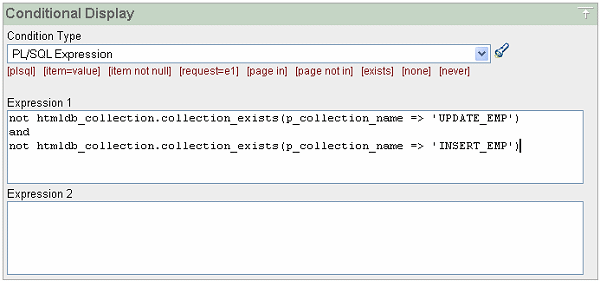
Now the existing tabular form region from EMP table needs to display only when there is no existing collection. To accomplish this, you need to add a conditional display as follows:
- Navigate to the Page Definition containing the tabular form.
- Under Regions, click the first Update EMP region name.
- Under Conditional Processing:
- From Condition Type, select PL/SQL Expression.
- Enter the following as Expression 1 Value:
not htmldb_collection.collection_exists(p_collection_name => 'UPDATE_EMP')

and
not htmldb_collection.collection_exists(p_collection_name => 'INSERT_EMP')
Figure 8 - Edit region conditional display
- Click Apply Changes.
Next, you will create a before header process to delete the collection. This process will ensure the application will not display the tabular form from a collection when the page is rendered initially.
To create a before header process:
- Navigate to the Page Definition containing the tabular form.
- Under Page Rendering Processes, click Create.
- Under Process Attributes,specify the following and click Next:
- For the name, enter delete collection.
- For the process point, select On Load - Before Header.
- Enter the following PL/SQL page process and click Next:
htmldb_collection.delete_collection('UPDATE_EMP'); htmldb_collection.delete_collection('INSERT_EMP'); - Under Identify Process Conditions:
- From Condition Type, select PL/SQL Expression.
- Enter following in Expression 1:
htmldb_collection.collection_exists('UPDATE_EMP')

and
htmldb_collection.collection_exists('INSERT_EMP')
- Click Create Process.
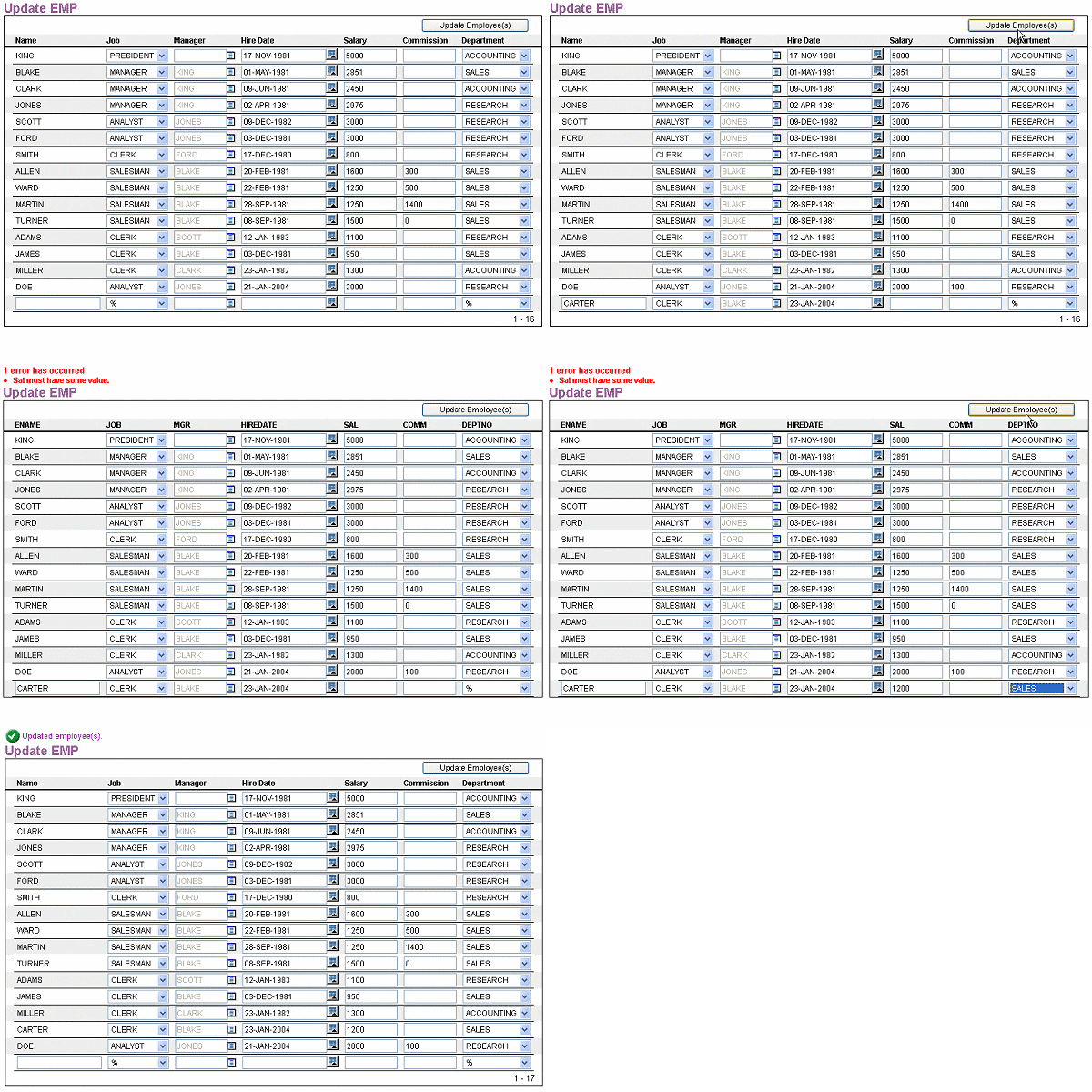
Now try to update and insert employee records. It will validate user input and do optimistic locking before doing the update and insert (see Figure 9).
Figure 9 - Tabular form with validation
Discuss this how-to in the OTN HTML DB Forum.