How to refresh a table of data after inserting or deleting a row using ADF
Overview
This document explains how to refresh a table of data on a "browse" page after inserting a new row or deleting a row, when using a session bean data control. The image below depicts a browse page containing a table of departments, where buttons for inserting or deleting rows are available:
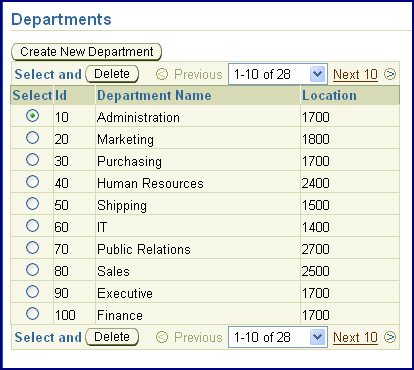
The user can select a row and click the Delete button. This button is bound to the removeEntity() data control method and by default, will immediately delete the row from the table in the database. However, the table will still display the row because the table is not refreshed by default. The section titled "Deleting a row using a session bean data control" explains how to refresh the table when a method such as removeEntity() is called and the user remains on the same page.
Another option in this scenario is to insert a new row. This is normally performed on a separate page. For example, the image below depicts an insert form where the user enters new data and clicks a submit button to insert the row:
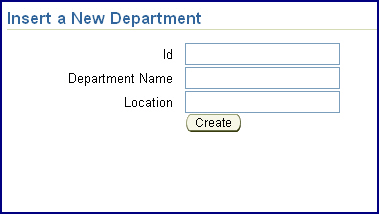
The Create button on this page calls the persistEntity() data control method from the session bean. By default, the row will be immediately inserted into the table when this method is called. However, if the Create button also navigates the user back to the browse page, the table will not display the new row because it is not refreshed by default. The section titled, "Inserting a row using a session bean data control" explains how to refresh a table after a method such as persistEntity() is called and the user is returned to the page containing the table of data.
Basic Steps
This document assumes that you have created a session bean which accesses either EJB Entity or TopLink POJO persistence objects, and that you have created a data control for the session bean. Additionally, the steps below assume that you have created a page containing a table of data, either using JSF, ADF Faces, or ADF Swing.
In the case of the browse page image above, the table was created by dragging the Departments collection from the data control palette onto the page and choosing Create > Tables > ADF Read Only Table... from the dynamic list.
In the insert page image, the insert form was created by dragging the Departments collection from beneath the Constructors node in the data control palette onto the page. This is just one way to create a new row, and the SRDemo sample and accompanying documentation explain how to perform insert operations using other methods.
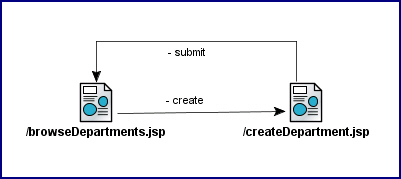
The following image depicts the page flow for this scenario:
Deleting a row using a session bean data control
Add Delete functionality to the browse page
Perform the following steps to add delete functionality to the browse page:
- Navigate to the browse page in the visual editor and ensure that the table of data enables selection so that a single row can be selected and a Submit button is enabled in the table.
- Drag the removeEntity(Object) method from the session bean data control onto the Submit button for the browse table. From the dynamic menu, choose Bind Existing commandButton.
- In the Action Binding Editor, specify the entity that will be deleted. Double click within the Value field to enable the ellipses button, then click the ellipses button to open the expression editor.
- Expand the
ADF Bindings,
bindings,
findAllDepartmentsIter, and
currentRow nodes. Shuttle the dataProvider node to the right so that the Expression is specified as
${bindings.findAllDepartmentsIter.currentRow.dataProvider}
. This assumes that your collection's iterator is named findAllDepartmentsIter. Modify the iterator name as necessary.
Note that the ActionListener property for the button is set to #{bindings.removeEntity.execute}.
Refresh the data table
Perform the following steps to refresh the table of data after deleting a row:
- In order to execute both the removeEntity() method and a call to the table's query method when the removeEntity button is clicked, create a JSF managed bean. Double click the removeEntity() button to invoke the managed bean properties.
Click New... to create a new managed bean. - Specify a name and class of the bean and click OK.
- Specify a method name and to ensure that the removeEntity() binding code is added to the method, select Generate ADF Binding Code and click OK.
- Note that the managed bean method uses the following code to call the removeEntity method binding, defined with the appropriate entity argument value in the browse page definition file:
OperationBinding operationBinding = bindings.getOperationBinding("removeEntity");
Object result = operationBinding.execute(); -
To call the query action method binding as well, you will add similar code to the method.
Copy the code below and paste it just beneath
Object result = operationBinding.execute();
in the managed bean, replacing findAllDepartments with the name of the query method for your table://Refresh the page
OperationBinding requery = bindings.getOperationBinding("findAllDepartments");
requery.execute();
Inserting a row using a session bean data control
Add Create functionality to the insert page
Perform the following steps to use the constructor to create a new row:
- Navigate to the insert page in the visual editor and ensure that the form contains a Submit button.
- To commit the inserted row, use the persistEntity method. Drag the persistEntity(object) node from the data control palette onto the Submit button and choose Bind Existing CommandButton.
- The persistEntity method accepts an argument, the entity to be committed. In the Action Binding Editor, double click within the
value field to enable the ellipses button to appear. Click the ellipses button to bind the value of the entity argument. In the binding editor, select the entity to be committed by expanding the
ADF Bindings,
bindings,
DepartmentsIter, and
currentRow nodes. Select
dataProvider and shuttle it to the right to create the expression.
Ensure the expression is set to ${bindings.DepartmentsIter.currentRow.dataProvider} and click OK. This assumes that your collection's iterator is named DepartmentsIter. Modify the iterator name as necessary. - In the insert page visual editor, select the persistEntity button. Use the Property Inspector to set the Action property to your navigation case name that returns to the browse page.
Refresh the data table
Perform the following steps to refresh the table of data after inserting a row:
- Open the browse page and right click in the visual editor. Choose Go To Page Definition.
- In the Structure window, expand the highest level node. Right click the executables node and choose Insert inside executables -> invokeAction.
- In the Common Properties tab, specify tableRefresh as the Id for the action and choose your table query name (such as findAllDepartments) in the Binds dropdown list.
- Click the Advanced Properties tab.
- Choose ifNeeded as the Refresh property and to ensure the action is called each time the page is rendered, enter ${!adfFacesContext.postback} as the RefreshCondition and click OK.
Conclusion
This document explains how to refresh a table of data on a browse page when using ADF and a session bean data control. The scenarios covered include:
- Select a row from a table of data, click a button to delete the row, and remain on the same page. The table of data should be refreshed so that the deleted row is not visible.
- Click a button on a page containing a table of data to navigate to an insert form. Specify row details, click a button to insert the row, and return to the browse page. The table of data should be refreshed so that the inserted row is visible.
The refresh operations for these scenarios are performed by using a JSF managed bean to execute a refresh, and by using the !adfFacesContext.postback refresh condition for an action called in the page definition file.
For further information, refer to the tutorials, sample applications, and ADF developer's guides on the JDeveloper page on Oracle Technology Network.