Hands-On Lab: Getting Started with OpenStack on Oracle Linux and Oracle VM
by Ronen Kofman
Published January 2015 (updated July 2015)
Disclaimer: This hands-on lab makes use of Oracle product features and functionality in a test environment and is not intended to be used in a production environment.
Table of Contents
- Introduction
- Two Options for Taking this Lab
- Creating the Oracle VM VirtualBox Virtual Machine
- Installing and Configuring Oracle VM 3.3.1
- Installing and Configuring OpenStack Icehouse
- Exercise 1: Basic OpenStack Operation
- Exercise 2: Network Features
- Exercise 3: Storage Features
- Exercise 4: Guest Communication
- Summary
- See Also
- The "short version." In addition to this document, a VM was created that has OpenStack already installed on it and an image of Oracle Linux 6.5 already loaded. This VM is available for download here after you accept the license agreement. Select the link labeled Oracle OpenStack for Oracle Linux VirtualBox VM (download image for Hands-on lab - short version).
This VM is useful if you would like to skip the installation and configuration stages, which can take some time. If you use this option, after you download the VM, you do not need to have an internet connection to complete the rest of the lab.
If you choose this option, you can directly go to the Step 7 of the "Installing and Configuring OpenStack Icehouse" section (changing the
novncproxy_base_urlparameter) and then, after completing that step, continue to Exercise 1. This option also allows you to skip Step 2 of Exercise 1 for uploading an image, because an image has already been uploaded to the VM. - The "long version." This option requires you to have an internet connection. To use this option, before you start the exercises, you must perform the procedures in the "Creating the Oracle VM VirtualBox Virtual Machine," "Installing and Configuring Oracle VM 3.3.1," and "Installing and Configuring OpenStack Icehouse" sections. Then you can perform the exercises.
- Start up Oracle VM VirtualBox and create a VM that has the following characteristics:
- Type: Linux
- Version: Oracle Linux (64-bit)
- Memory: 4 GB
- vCPUs: Two
- One interface configured as "Bridged"—to allow internet access to the VM A 50 GB disk, allocated dynamically for a Virtual Desktop Infrastructure (VDI)
- Download the Oracle VM 3.3.1 Media Pack for x86 64 bit ISO from edelivery.oracle.com/linux and mount it as an ISO image to your virtual machine. Here is what the virtual machine looks like after it is created and the ISO image is mounted:
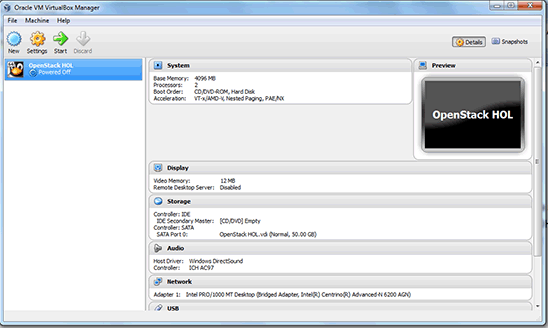
Figure 1. VM after the ISO image is mounted
- Boot up the VM and the Oracle VM server installation will start. During the installation you will need to provide some standard information.
- You can choose the network option that is convenient to you for the public interface; either DHCP or static will work. It is recommended that you use DHCP because it is likely that you will try the VM in different places with different network settings. The lab was created in such a way that there is no dependency on an IP address.
- During the installation, you will be asked to provide a password for the Oracle VM Server agent. Although you will not be using the agent during this lab, you still need to provide a password. After providing the password, the installation will start. When the installation is complete, the VM will reboot and you can then continue.
- Oracle VM Server is using the Xen hypervisor. For more information about how the hypervisor works, see the Oracle OpenStack for Oracle Linux Release 1.0 Installation and User's Guide (PDF) . The Xen hypervisor has a control domain called Domain0 (or dom0). This lab uses an "all-in-one" installation in which all components are installed to dom0.
Note: This "all-in-one" deployment model is NOT supported for production use. It is targeted only for the purpose of this lab.
To ensure faster operation, we need increase the size of the dom0 memory so it is larger than the size assigned during the default installation. To do that, change the value of the dom0 memory size in the
/boot/grub/grub.conffile to2048Minstead of the default value defined there:title Oracle VM Server-ovs (xen-4.3.0 3.8.13-26.4.2.el6uek.x86_64) root (hd0,0) kernel /xen.gz console=com1,vga com1=57600,8n1 dom0_mem=max:2048M allowsuperpage module /vmlinuz-3.8.13-26.4.2.el6uek.x86_64 ro root=UUID=f1312dd6-0275-45b5-a1ec-fd6684be7854 rd_NO_LUKS rd_NO_LVM LANG=en_US.UTF-8 rd_NO_MD SYSFONT=latarcyrheb-sun16 KEYBOARDTYPE=pc KEYTABLE=us rd_NO_DM rhgb quiet module /initramfs-3.8.13-26.4.2.el6uek.x86_64.img - To cause the changes to take effect, reboot the server.
- Log in to the VM console and run the following commands, which will update the yum repository to point to the Icehouse yum repository.
Note: If you require a proxy to access the internet, you should first set up a proxy for accessing the yum repository. Add the proxy in the /etc/yum.confdirectly, for example:Check with your IT person for the proxy command for your location if you are behind the corporate firewall.vi /etc/yum.confproxy=http://www-proxy.xx.companyname.com:xxcd /etc/yum.repos.dwget http://public-yum.oracle.com/public-yum-openstack-ol6.repo - All the preinstallation steps are done by a package called
oraclevm-openstack-preinstallthat needs to run on every Oracle VM server. In our case, there is only one server, so you simply need to install the package using yum:yum install -y oraclevm-openstack-preinstall - Next, install
packstackfrom the yum repository using the following command:yum install -y openstack-packstack - Before you proceed, you need to change the content of the
/etc/oracle-releasefile to contain the stringOracle Linux Server release 6.5, because the OpenStack controller assumes it is installed on Oracle Linux, not on Oracle VM Server, so it expects to see a Linux version in the file. To fit everything into one VM, you will install both the controller and compute components on the same node, but that is not something you would do in a production setting. - Now you can invoke the
packstackcommand, using the following syntax, which will install OpenStack.packstack --install-hosts=127.0.0.1By using the IP address 127.0.0.1, the VM can boot and run anywhere without any dependency on the specific network it is connected to. The following shows the command and its output:
[root@localhost ~]# packstack --install-hosts=127.0.0.1Welcome to Installer setup utilityInstalling:
Clean Up                                             [ DONE ]
Setting up ssh keys                                  [ DONE ]
Discovering hosts' details                           [ DONE ]
Adding pre install manifest entries                  [ DONE ]
Adding MySQL manifest entries                        [ DONE ]
Adding AMQP manifest entries                         [ DONE ]
Adding Keystone manifest entries                     [ DONE ]
Adding Glance Keystone manifest entries              [ DONE ]
Adding Glance manifest entries                       [ DONE ]
Installing dependencies for Cinder                   [ DONE ]
Adding Cinder Keystone manifest entries              [ DONE ]
Adding Cinder manifest entries                       [ DONE ]
Checking if the Cinder server has a cinder-volumes vg[ DONE ]
Adding Nova API manifest entries                     [ DONE ]
Adding Nova Keystone manifest entries                [ DONE ]
Adding Nova Cert manifest entries                    [ DONE ]
Adding Nova Conductor manifest entries               [ DONE ]
Creating ssh keys for Nova migration                 [ DONE ]
Gathering ssh host keys for Nova migration           [ DONE ]
Adding Nova Compute manifest entries                 [ DONE ]
Adding Nova Scheduler manifest entries               [ DONE ]
Adding Nova VNC Proxy manifest entries               [ DONE ]
Adding Nova Common manifest entries                  [ DONE ]
Adding Openstack Network-related Nova manifest entries[ DONE ]
Adding Neutron API manifest entries                  [ DONE ]
Adding Neutron Keystone manifest entries             [ DONE ]
Adding Neutron L3 manifest entries                   [ DONE ]
Adding Neutron L2 Agent manifest entries             [ DONE ]
Adding Neutron DHCP Agent manifest entries           [ DONE ]
Adding Neutron LBaaS Agent manifest entries          [ DONE ]
Adding Neutron Metadata Agent manifest entries       [ DONE ]
Adding OpenStack Client manifest entries             [ DONE ]
Adding Horizon manifest entries                      [ DONE ]
Adding post install manifest entries                 [ DONE ]
Preparing servers                                    [ DONE ]
Installing Dependencies                              [ DONE ]
Copying Puppet modules and manifests                 [ DONE ]
Applying 127.0.0.1_prescript.pp
127.0.0.1_prescript.pp:                              [ DONE ]
Applying 127.0.0.1_mysql.pp
Applying 127.0.0.1_amqp.pp
127.0.0.1_mysql.pp:                                  [ DONE ]
127.0.0.1_amqp.pp:                                   [ DONE ]
Applying 127.0.0.1_keystone.pp
Applying 127.0.0.1_glance.pp
Applying 127.0.0.1_cinder.pp
127.0.0.1_keystone.pp:                               [ DONE ]
127.0.0.1_glance.pp:                                 [ DONE ]
127.0.0.1_cinder.pp:                                 [ DONE ]
Applying 127.0.0.1_api_nova.pp
127.0.0.1_api_nova.pp:                               [ DONE ]
Applying 127.0.0.1_nova.pp
127.0.0.1_nova.pp:                                   [ DONE ]
Applying 127.0.0.1_neutron.pp
127.0.0.1_neutron.pp:                                [ DONE ]
Applying 127.0.0.1_osclient.pp
Applying 127.0.0.1_horizon.pp
127.0.0.1_osclient.pp:                               [ DONE ]
127.0.0.1_horizon.pp:                                [ DONE ]
Applying 127.0.0.1_postscript.pp
127.0.0.1_postscript.pp:                             [ DONE ]
Applying Puppet manifests                            [ DONE ]
Finalizing                                           [ DONE ]
**** Installation completed successfully ******
Additional information:
* A new answerfile was created in: /root/packstack-answers-20140812-131301.txt
* Time synchronization installation was skipped. Please note that unsynchronized time on
server instances might be problem for some OpenStack components.
* Did not create a cinder volume group, one already existed
* File /root/keystonerc_admin has been created on OpenStack client host 127.0.0.1. To use
the command line tools you need to source the file.
* To access the OpenStack Dashboard browse to http://127.0.0.1/dashboard .
Please, find your login credentials stored in the keystonerc_admin in your home directory.
* Because of the kernel update the host 127.0.0.1 requires reboot.
* The installation log file is available at: /var/tmp/packstack/20140812-131257-ke5glf/openstack-setup.log
* The generated manifests are available at: /var/tmp/packstack/20140812-131257-ke5glf/manifests
The installation is now complete and you can start using OpenStack.
- The installation was done using IP address 127.0.0.1, so for security reasons, the web server running the dashboard will accept access only to this address. We, however, will try to connect to the dashboard using the bond0 address, which is different from 127.0.0.1, so you need to change the permitted IP address.
To do that, go to
/etc/openstack-dashboard/local_settingsand add the IP address of bond0 to the allowed host list. In this case, add '*' so that whatever address bond0 is, you can access the dashboard through it (which is useful in the DHCP case).ALLOWED_HOSTS = ['127.0.0.1', '', 'localhost', '*' ] - Along the same lines as Step 6, since you installed with IP address 127.0.0.1 and you will access the dashboard through another IP address, you need to change the
novncproxy_base_urlparameter to have the bond0 address in the Nova configuration file and then restart Nova. In this case, you cannot use '*':# openstack-config --set /etc/nova/nova.conf DEFAULT novncproxy_base_url http://<bond0 IP address>:6080/vnc_auto.html# openstack-config --set /etc/nova/nova.conf DEFAULT use_cow_images False# openstack-config --set /etc/nova/nova.conf libvirt virt_type xen # service openstack-nova-compute restart Stopping openstack-nova-compute: [ OK ] Starting openstack-nova-compute: [ OK ] - The first step will be to log in to dom0 through the console or
ssh, and then source a file calledkeystonerc_admin. This file is located at the place from which you ran thepackstackcommand, which is commonly/root/. This file contains the password and username as environment variables, so you do not have to type them for every command.# source keystonerc_admin~(keystone_admin)]# cat keystonerc_adminexport OS_USERNAME=admin export OS_TENANT_NAME=admin export OS_PASSWORD=d4d06369ab1c4782Point your browser to the IP address of bond0 (use
# ifconfig -ato get the bond0 IP address). Then log in asadminand for the password, use the value obtained forOS_PASSWORDfrom the abovesource keystonerc_admincommand.Note: If you have set
http_proxy, unset it now; otherwise, some services will not work.# unset http_proxy - The next step is to upload an Oracle Linux 6.5 image to OpenStack so that you can run OpenStack instances.
Note: If you are using the short version of this lab, which has a preinstalled VM, skip this step.
An image is a virtual disk in raw format, which can be created by Oracle VM VirtualBox, through Oracle VM Manager, or by any other method.
- First, download the
ol65-pvm.imgimage from here by accepting the license agreement and then clicking the link labeled Oracle Linux 6.5 image for Hands-on lab (long version). - Then run the following command, which uploads the Oracle Linux 6.5 image to OpenStack.
# glance image-create --name ol65 --disk-format=raw --container-format=bare < ol65-pvm.img+------------------+--------------------------------------+| Property | Value | +------------------+--------------------------------------+ | checksum | f037b34db632c3b603802951edf1ca83 | | container_format | bare | | created_at | 2014-08-13T01:42:25 | | deleted | False | | deleted_at | None | | disk_format | raw | | id | 19163d42-4498-493e-9fb6-126f632619b1 | | is_public | False | | min_disk | 0 | | min_ram | 0 | | name | ol65 | | owner | fa55991d5f4449139db2d5de410b0c81 | | protected | False | | size | 1395864320 | | status | active | | updated_at | 2014-08-13T01:44:10 | | virtual_size | None | +------------------+--------------------------------------+Note: Images are also available online, for example, Cirros, as shown below. When uploading an image that was not built as a Xen paravirtual image, you have to designate it as an HVM (hardware virtual machine) using the
vm_modeproperty. Setting thevm_modeproperty ensures that the VM will launch correctly. For more information about HVM and paravirtualized VMs in Xen, please refer to the Oracle VM documentation. However, doing that is not suitable for Oracle VM Server running in Oracle VM VirtualBox and would work only on bare-metal Oracle VM Server installation. Therefore, for all steps in this lab, it is recommended that only theol65-pvm.imgimage be used.# glance image-create --name cirros --disk-format=qcow2 --container-format=bare < cirros-0.3.3-i386-disk.img+--------------------+--------------------------------------+| Property | Value | +--------------------+--------------------------------------+ | Property 'vm_mode' | hvm | | checksum | 283c77db6fc79b2d47c585ec241e7edc | | container_format | bare | | created_at | 2014-10-05T18:35:49 | | deleted | False | | deleted_at | None | | disk_format | qcow2 | | id | bf21b1b6-d2d7-4c00-b9f6-9c0a401f78dc | | is_public | False | | min_disk | 0 | | min_ram | 0 | | name | cirros | | owner | 9de7de80f72a4df5a6ebd87a245b6414 | | protected | False | | size | 12268032 | | status | active | | updated_at | 2014-10-05T18:35:49 | | virtual_size | None | +--------------------+--------------------------------------+
- First, download the
- Log in to the UI by pointing your browser to the IP address of bond0 and entering username
adminand the password from thekeystonerc_adminfile. If you are using the precreated Oracle VM VirtualBox image and using a host-only adapter, the IP address will likely be 192.168.56.101, which is allocated by the Oracle VM VirtualBox DHCP service. You can check the IP address from the console or viasshusing theifconfig bond0command. - Next, you need to create a new flavor, which is a definition of an instance size. Since we are short on memory in this configuration, but we still would like to start some instances, create a special flavor called
m1.microthat has only 256 MB for the instance and a single virtual CPU. This is enough for the purposes of this exercise. To create the new flavor, select Admin-> System Panel -> Flavors and fill in the information shown in Figure 2: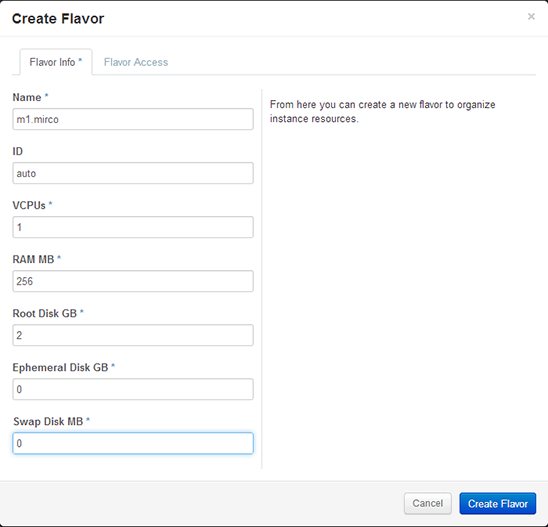
Figure 2. Creating a new OpenStack flavor
Figure 3 shows that you can have several flavors.
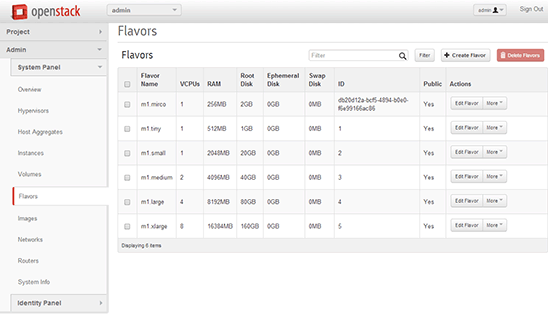
Figure 3. Several OpenStack flavors in the Flavors screen
- Before you launch an instance, you have to create a network to connect it to. You can create a network from the UI or the command line.
- We will use the UI, so navigate to Project -> Network -> Networks:

Figure 4. Networks screen
- Click the Create Network button and fill in the information shown in Figure 5:
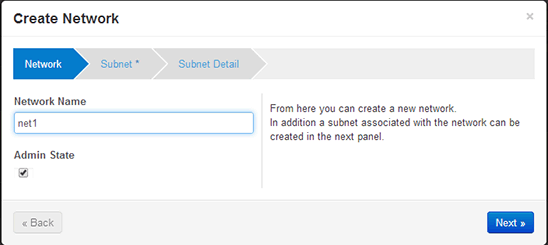
Figure 5. Creating the first network
- Then define the subnet using the values shown in Figure 6:
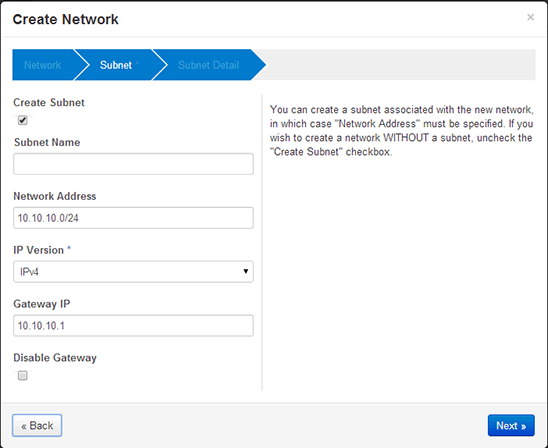
Figure 6. Filling in the subnet information
- Now create a second network, called
net2, with a subnet of 20.20.20.0/24: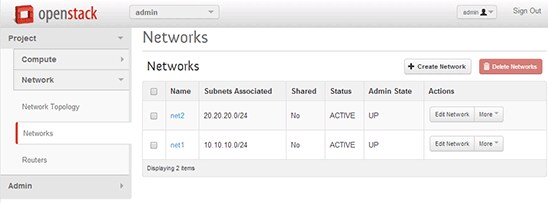
Figure 7. Creating a second network
You now have two networks you can connect instances to.
- We will use the UI, so navigate to Project -> Network -> Networks:
- To launch an instance, do the following:
- Navigate to Project -> Compute -> Instances and click the launch instance button. You should see the Launch Instance screen shown in Figure 8. Fill in the details, including setting Instance Boot Source to
Boot from image, and choose the image you previously uploaded: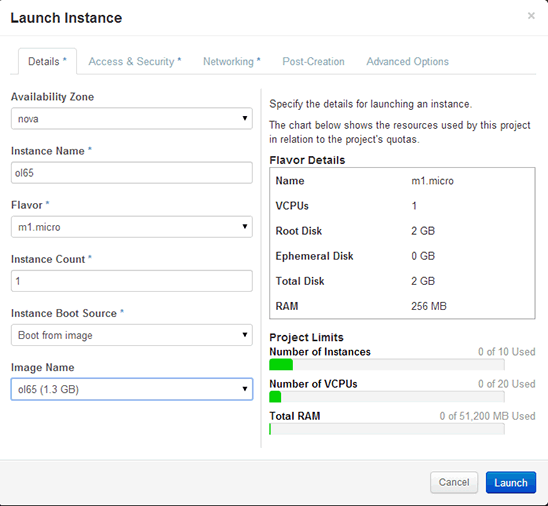
Figure 8. Launch Instance screen
- Navigate to the Networking tab and select network
net1by dragging it from the Available Networks box and dropping it into the Selected Network box: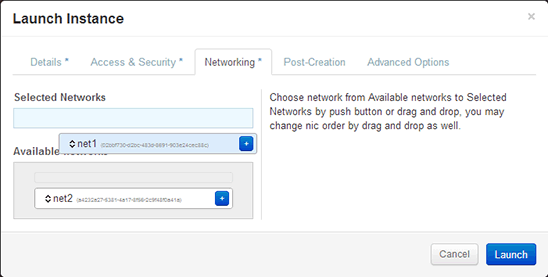
Figure 9. Networking tab
- Then click Launch. The instance will take couple of minutes to build.
- Navigate to Project -> Compute -> Instances and click the launch instance button. You should see the Launch Instance screen shown in Figure 8. Fill in the details, including setting Instance Boot Source to
- Now let's launch another instance and connect it to
net2in the same way. Then, navigate to the Project -> Network -> Network Topology view, and click the Open Console button on both instances. Figure 10 shows what you should see: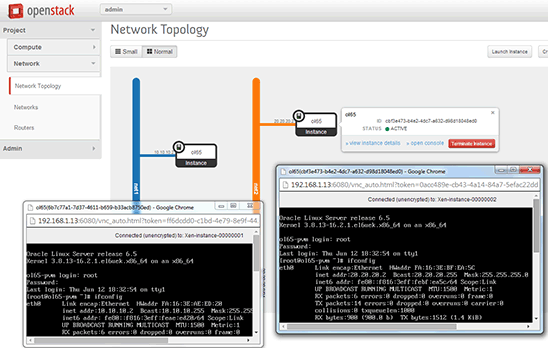
Figure 10. Screen showing the consoles
- To create a router, go to the Network Topology tab and click the Create Router button on the top right of the screen. Use the Create Router dialog box to define a router and give it a name.
- To configure the router, do the following:
- Select Project -> Network -> Routers and select the router you just created.
- Now you need to add interfaces, so add the two interfaces from
net1andnet2: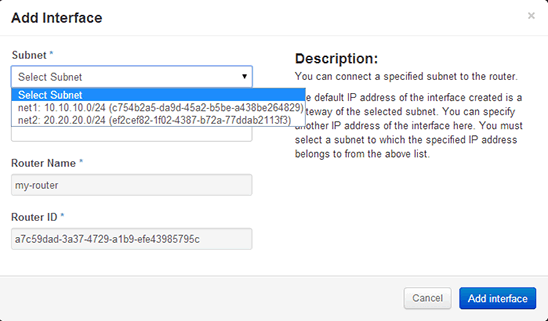
Figure 11. Adding network interfaces
The interfaces are then shown in the Router Details screen shown in Figure 12:
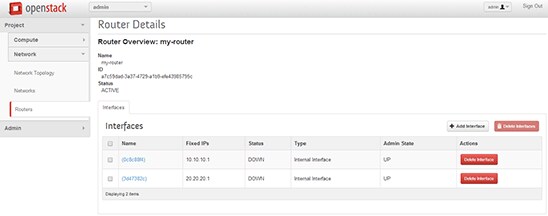
Figure 12. Router Details screen showing the interfaces
If you go back to the Network Topology view, you should see the diagram shown in Figure 13:
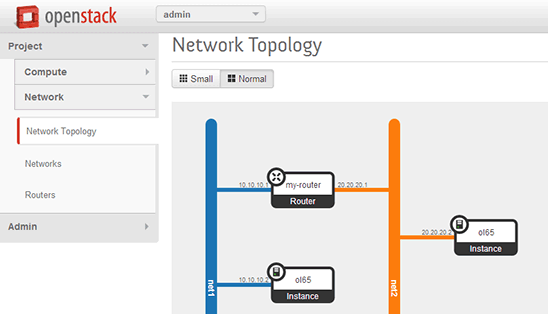
Figure 13. Updated network topology diagram
- To test communication between the instances, open a console from one of the instances and ping the other instance to see whether the ping returns.
- Next, let's create a security group:
- Go to Project -> Compute -> Access & Security and create a new security group called
my-group. - Attach the security group to the instance on the 20.20.20.0/24 subnet. To do this, go to Project -> Compute -> Instances, click the More button, and choose Edit Security Groups. Then remove the default group and add
my-group: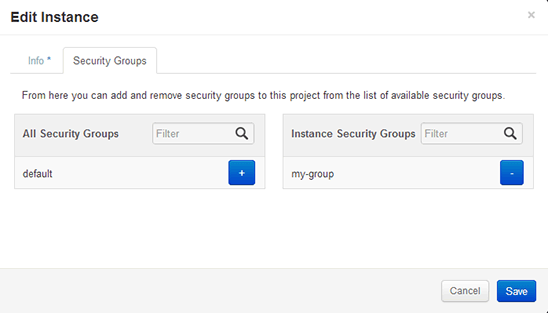
Figure 14. Adding a security group
- Go to Project -> Compute -> Access & Security and create a new security group called
- Examine the
my-groupsecurity group and notice that there are two egress rules, which allow outbound traffic from the instance: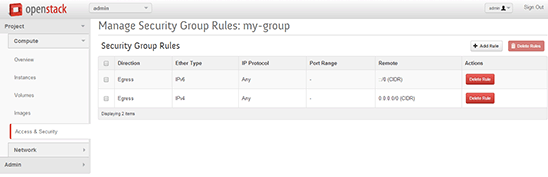
Figure 15. Egress rules
This means that any outbound traffic from the 20.20.20.2 is allowed, but any inbound traffic will be blocked.
- Try to ping one instance from the other instance. When trying to ping 20.20.20.2 from the 10.10.10.2 instance (inbound traffic); the ping does not return. When trying to ping from the 20.20.20.2 instance, the ping does return.
- Now let's add a rule to allow us to ping the 20.20.20.2 instance. To do this, go to the Security Group Rules screen shown in Figure 15, click the Add rule button, and create a rule that allows ingress ICMP traffic (see Figure 16):
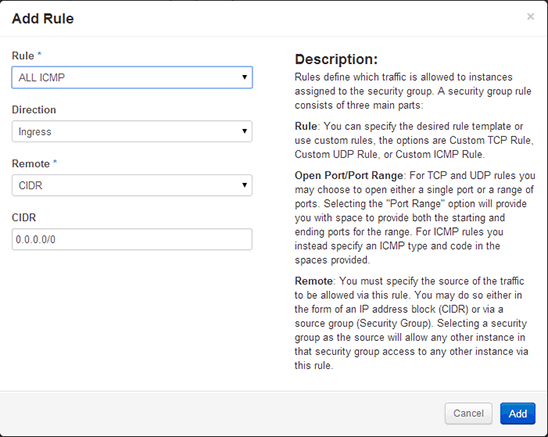
Figure 16. Adding a security rule
- Check to see that the ping now goes through from both sides.
- Go to Project -> Compute -> Volumes and create a 2 GB volume called
my-volume: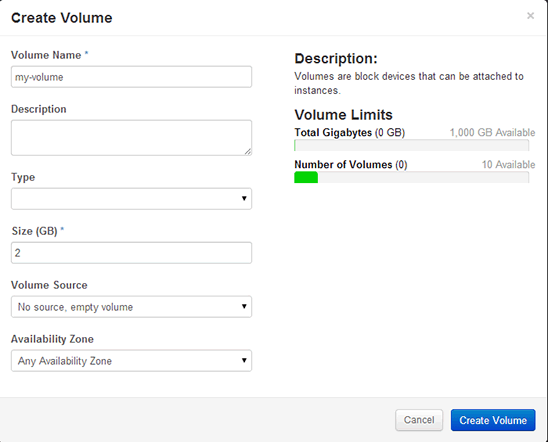
Figure 17. Creating a storage volume
The Cinder service is used to create and maintain volumes. Cinder is capable of connecting to various kinds of back-end storage devices to create volumes, and it does that using drivers. Cinder can support multiple back ends in which the term volume would mean different things. For example, on NFS, a volume is a file, while on iSCSI, a volume is a LUN. The Cinder driver used by default is LVM, in which every "volume" is an LVM partition.
In our case, we have a physical volume group called
cinder-volumeswith 20 GB that is automatically created bypackstack. You can see it by using thepvdisplaycommand:# pvdisplay--- Physical volume ---PV Name /dev/loop0 VG Name cinder-volumes PV Size 20.60 GiB / not usable 2.00 MiB Allocatable yes PE Size 4.00 MiB Total PE 5273 Free PE 5273 Allocated PE 0 PV UUID zhuYJS-ATQX-mqWP-Y52W-8xLV-SuSj-fm42CUWhen you created the volume, a logical volume was created, which you can see by running the
lvdisplaycommand:# lvdisplay--- Logical volume ---LV Path /dev/cinder-volumes/volume-ce2f538c-97b2-4f34-97b4-d74d2522e199 LV Name volume-ce2f538c-97b2-4f34-97b4-d74d2522e199 VG Name cinder-volumes LV UUID p4FwPZ-0oVS-xZ0n-0M7x-eZ1b-oXOz-17cfdL LV Write Access read/write LV Creation host, time <HOST DNS NAME>, 2014-08-13 12:51:05 -0400 LV Status available # open 0 LV Size 2.00 GiB Current LE 512 Segments 1 Allocation inherit Read ahead sectors auto - currently set to 256 Block device 252:0 - Next, create a bootable volume and start an instance with it. To do this, perform the same steps as in Step 1 above, but this time, create a volume from the image called
my-bootable-volume. A bootable volume is a volume with an image on it, so it can serve as a boot device. This will take a couple of minutes because Cinder downloads the image to the newly created volume.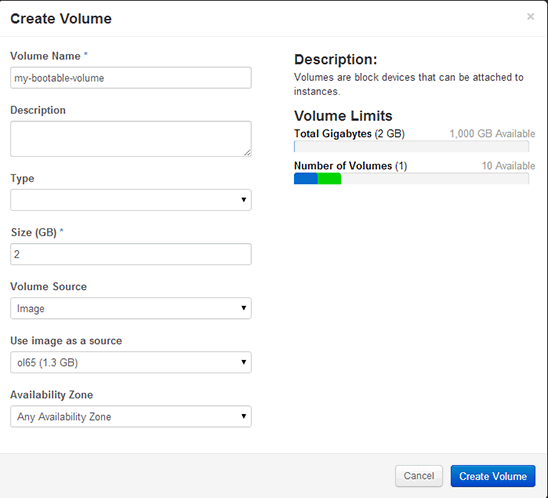
Figure 18. Creating a bootable volume
- Boot from the volume:
In the first exercise, you created instances that ran on local storage. To run them, Nova copied the image to the run area and started them up, which can take a considerable amount of time depending on the size of the image.
In this case, you will boot from a volume that is already created by using the
nova bootcommand. Note that the command uses the volume ID and the network ID, which can be obtained by using thenova net-listandnova volume-listcommands:# nova boot --boot-volume d7b1761b-f7ac-4be8-b12d-d9cedbdb4015 --flavor m1.micro ol65-from-volume--nic net-id=02bbf730-d2bc-483d-8691-903e24cec88c+--------------------------------------+--------------------------------------------------+ | Property | Value | +--------------------------------------+--------------------------------------------------+ | OS-DCF:diskConfig | MANUAL | | OS-EXT-AZ:availability_zone | nova | | OS-EXT-SRV-ATTR:host | - | | OS-EXT-SRV-ATTR:hypervisor_hostname | - | | OS-EXT-SRV-ATTR:instance_name | instance-00000004 | | OS-EXT-STS:power_state | 0 | | OS-EXT-STS:task_state | scheduling | | OS-EXT-STS:vm_state | building | | OS-SRV-USG:launched_at | - | | OS-SRV-USG:terminated_at | - | | accessIPv4 | | | accessIPv6 | | | adminPass | bMy2QpKt5SFz | | config_drive | | | created | 2014-08-13T17:12:48Z | | flavor | m1.micro (bebcb651-a4ce-46ed-a7b4-3bbe635a9b26) | | hostId | | | id | f546f919-6826-41d9-9506-bc2ca322f94f | | image | Attempt to boot from volume - no image supplied | | key_name | - | | metadata | {} | | name | ol65-from-volume | | os-extended-volumes:volumes_attached | [{"id": "d7b1761b-f7ac-4be8-b12d-d9cedbdb4015"}] | | progress | 0 | | security_groups | default | | status | BUILD | | tenant_id | fa55991d5f4449139db2d5de410b0c81 | | updated | 2014-08-13T17:12:48Z | | user_id | aae95afa6f154113a3be4b76604cd828 | +--------------------------------------+--------------------------------------------------+Note that the boot time of this instance is noticeably shorter, because it uses persistent storage and does not have to copy the image to the run area as in the ephemeral case.
- Attach a volume to a running instance. To do that, attach the first volume you created,
my-volume, to the instance you just booted:# nova volume-attach f546f919-6826-41d9-9506-bc2ca322f94f ce2f538c-97b2-4f34-97b4-d74d2522e199 auto+----------+--------------------------------------+| Property | Value | +----------+--------------------------------------+ | device | /dev/sdb | | id | ce2f538c-97b2-4f34-97b4-d74d2522e199 | | serverId | f546f919-6826-41d9-9506-bc2ca322f94f | | volumeId | ce2f538c-97b2-4f34-97b4-d74d2522e199 | +----------+--------------------------------------+Although the output says
/dev/sdb, the volume will appear as/dev/xvdb. Go in to the console and see that the device is there. - Detach a volume from a running instance by detaching
my-volume:# nova volume-detach f546f919-6826-41d9-9506-bc2ca322f94f ce2f538c-97b2-4f34-97b4-d74d2522e199Then verify from the console that the device is no longer there. At the same time, you can see that the status changes from "in-use" to "available" by executing the
nova volume-listcommand. - Create a volume from a volume. To do this, you will create another volume called
my-bootable-volume-copyfrommy-bootable-volume. This is a very efficient way to create "templates"; the bootable volume is a template and you clone it when you create a new virtual machine. Since the creation is done on the storage side, it can happen instantly creating a highly efficient scalable system for creating new virtual machines.# cinder create --source-volid d7b1761b-f7ac-4be8-b12d-d9cedbdb4015 --display-name my-bootable-volume-copy 2+---------------------+--------------------------------------+| Property | Value | +---------------------+--------------------------------------+ | attachments | [] | | availability_zone | nova | | bootable | false | | created_at | 2014-08-13T18:07:22.932814 | | display_description | None | | display_name | my-bootable-volume-copy | | encrypted | False | | id | 9caa1291-1334-4be1-894b-714c55bcec7d | | metadata | {} | | size | 2 | | snapshot_id | None | | source_volid | d7b1761b-f7ac-4be8-b12d-d9cedbdb4015 | | status | creating | | volume_type | None | +---------------------+--------------------------------------+ - Start up
my-bootable-volume-copyusing thenova bootcommand:# nova boot --boot-volume 9caa1291-1334-4be1-894b-714c55bcec7d --flavor m1.micro ol65-from-volume --nic net-id=a4232a27-5381-4a17-8f56-2c9f48f0a41a+--------------------------------------+--------------------------------------------------+ | Property | Value | +--------------------------------------+--------------------------------------------------+ | OS-DCF:diskConfig | MANUAL | | OS-EXT-AZ:availability_zone | nova | | OS-EXT-SRV-ATTR:host | - | | OS-EXT-SRV-ATTR:hypervisor_hostname | - | | OS-EXT-SRV-ATTR:instance_name | instance-00000005 | | OS-EXT-STS:power_state | 0 | | OS-EXT-STS:task_state | scheduling | | OS-EXT-STS:vm_state | building | | OS-SRV-USG:launched_at | - | | OS-SRV-USG:terminated_at | - | | accessIPv4 | | | accessIPv6 | | | adminPass | 88AZodusrTxK | | config_drive | | | created | 2014-08-13T18:30:26Z | | flavor | m1.micro (bebcb651-a4ce-46ed-a7b4-3bbe635a9b26) | | hostId | | | id | 0395b52e-ec9b-4c7a-a0bf-61d1b13b54e5 | | image | Attempt to boot from volume - no image supplied | | key_name | - | | metadata | {} | | name | ol65-from-volume | | os-extended-volumes:volumes_attached | [{"id": "9caa1291-1334-4be1-894b-714c55bcec7d"}] | | progress | 0 | | security_groups | default | | status | BUILD | | tenant_id | fa55991d5f4449139db2d5de410b0c81 | | updated | 2014-08-13T18:30:27Z | | user_id | aae95afa6f154113a3be4b76604cd828 | +--------------------------------------+--------------------------------------------------+The end result looks like Figure 19:
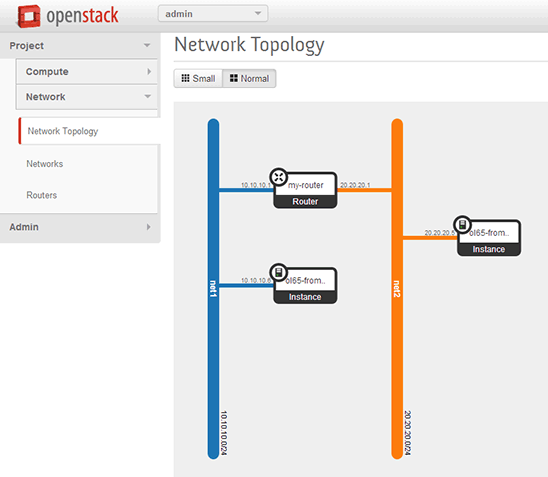
Figure 19. Updated network topology diagram
- First, let's enable the metadata service. To do that, update the Neutron DHCP agent to enable metadata communication by editing the file
/etc/neutron/dhcp_agent.inito change two parameters, and then restart the agent:# enable_isolated_metadata = Falseenable_isolated_metadata = True# enable_metadata_network = False enable_metadata_network = True # service neutron-dhcp-agent restart Stopping neutron-dhcp-agent: [ OK ] Starting neutron-dhcp-agent: [ OK ] - Create the following two text files:
# echo "my configuration info is here" > my-config-file# echo "my metadata is here" > my-metadata-file - We will use the following command to demonstrate file injection:
nova boot --image <IMAGE ID> --flavor <FLAVOR ID> ol65 --nic net-id=<NETWORK ID> --file /root/my-metadata-file=/root/my-config-file -user-data=/root/my-metadata-file- First, use the following commands to determine the network ID, the image ID, and the flavor ID:
# nova net-list+--------------------------------------+-------+------+| ID | Label | CIDR | +--------------------------------------+-------+------+ | 02bbf730-d2bc-483d-8691-903e24cec88c | net1 | - | | a4232a27-5381-4a17-8f56-2c9f48f0a41a | net2 | - | +--------------------------------------+-------+------+ # nova image-list +--------------------------------------+------+--------+--------+ | ID | Name | Status | Server | +--------------------------------------+------+--------+--------+ | 19163d42-4498-493e-9fb6-126f632619b1 | ol65 | ACTIVE | | +--------------------------------------+------+--------+--------+ # nova flavor-list +--------------------------------------+-----------+-----------+------+-----------+------+-------+-------------+-----------+ | ID | Name | Memory_MB | Disk | Ephemeral | Swap | VCPUs | RXTX_Factor | Is_Public | +--------------------------------------+-----------+-----------+------+-----------+------+-------+-------------+-----------+ | 1 | m1.tiny | 512 | 1 | 0 | | 1 | 1.0 | True | | 2 | m1.small | 2048 | 20 | 0 | | 1 | 1.0 | True | | 3 | m1.medium | 4096 | 40 | 0 | | 2 | 1.0 | True | | 4 | m1.large | 8192 | 80 | 0 | | 4 | 1.0 | True | | 5 | m1.xlarge | 16384 | 160 | 0 | | 8 | 1.0 | True | | bebcb651-a4ce-46ed-a7b4-3bbe635a9b26 | m1.micro | 256 | 2 | 0 | | 1 | 1.0 | True | +--------------------------------------+-----------+-----------+------+-----------+------+-------+-------------+-----------+ - Then run the following command to start the instance:
# nova boot --image 19163d42-4498-493e-9fb6-126f632619b1 --flavor bebcb651-a4ce-46ed-a7b4-3bbe635a9b26 ol65 --nic net-id=02bbf730-d2bc-483d-8691-903e24cec88c --file /root/my-config-file=/root/my-config-file--user-data /root/my-metadata-file +--------------------------------------+-------------------------------------------------+ | Property | Value | +--------------------------------------+-------------------------------------------------+ | OS-DCF:diskConfig | MANUAL | | OS-EXT-AZ:availability_zone | nova | | OS-EXT-SRV-ATTR:host | - | | OS-EXT-SRV-ATTR:hypervisor_hostname | - | | OS-EXT-SRV-ATTR:instance_name | instance-00000011 | | OS-EXT-STS:power_state | 0 | | OS-EXT-STS:task_state | scheduling | | OS-EXT-STS:vm_state | building | | OS-SRV-USG:launched_at | - | | OS-SRV-USG:terminated_at | - | | accessIPv4 | | | accessIPv6 | | | adminPass | e94VxbfdTUJM | | config_drive | | | created | 2014-08-13T22:02:37Z | | flavor | m1.micro (bebcb651-a4ce-46ed-a7b4-3bbe635a9b26) | | hostId | | | id | fcbc4869-9da3-4c72-9caa-f547bdd30495 | | image | ol65 (19163d42-4498-493e-9fb6-126f632619b1) | | key_name | - | | metadata | {} | | name | ol65 | | os-extended-volumes:volumes_attached | [] | | progress | 0 | | security_groups | default | | status | BUILD | | tenant_id | fa55991d5f4449139db2d5de410b0c81 | | updated | 2014-08-13T22:02:37Z | | user_id | aae95afa6f154113a3be4b76604cd828 | +--------------------------------------+-------------------------------------------------+ - Note in Figure 20 that now the
my-config-filefile we created earlier is available at/root/my-config-file: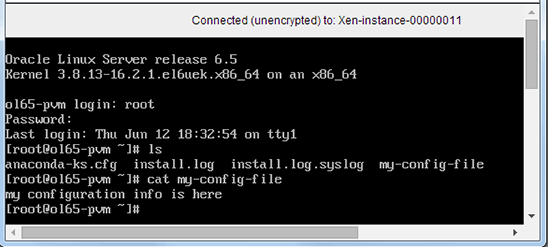
Figure 20. Results of file injection
When we used
--file <dst-path=src-path>, we asked Nova to plant the local file (on the client) located at<src-path>into the guest at<dst-path>. This file-injection capability allows us to plant configuration information into instances during boot time.The use case for file injection is to have a configuration script that will consume the input file we inject, making use of this data to configure the instance.
- First, use the following commands to determine the network ID, the image ID, and the flavor ID:
- Another method to deliver information to the guest is using the metadata service. From within the guest, we are able to access a special IP address: 169.254.169.254. This IP address is the access point for the metadata service and allows the instance to receive information about itself or information you have "planted." When we used the
--user-dataoption earlier, we planted the information in the metadata service. Figure 21 shows an example of how to retrieve this information from within the guest: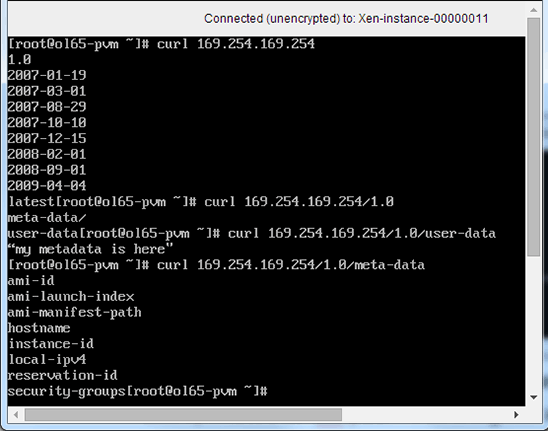
Figure 21. Retrieving information from within the guest
Introduction
This document details the actions that were done during Oracle OpenWorld 2014 session Hands-On Lab 9870.
OpenStack is open source cloud management software. It has become one of the most popular open source projects to date (late 2014) and has more than 2000 active developers from wide range of companies contributing to it. OpenStack provides a scalable, pluggable framework for creating private and public clouds. Users can pick and choose various components for network, storage, and compute capabilities to create an OpenStack deployment using their technologies of choice.
This lab will walk you through the complete process of installing the OpenStack Icehouse release and exercising some key features of the software. The lab is designed specifically to run inside an Oracle VM VirtualBox virtual machine (VM) to allow you to try out OpenStack on a laptop without any requirements for a server or storage.
Two Options for Taking this Lab
Two options are provided for taking this lab:
This lab is long and consists of several exercises. The first exercise explores basic OpenStack operation. Subsequent exercises explore network features, storage features, and guest communication. Completing all the exercises might take several hours; however, you can do only as much as you're interested in, and you can complete more exercises later. The exercises are independent of each other and can be done in any order.
Creating the Oracle VM VirtualBox Virtual Machine
Installing and Configuring Oracle VM 3.3.1
Tip: This is a good time to shut down the VM and take a snapshot of the VM in case the next steps go wrong or you discover that you would like to change some parameters. In such a case, using a snapshot to revert to this point will help you do that.
Installing and Configuring OpenStack Icehouse
To install OpenStack, you will use packstack, which is an open source tool that uses puppet to deploy OpenStack. It creates puppet manifests based on user input and runs them. To initiate the installation process, perform the following steps:
Exercise 1: Basic OpenStack Operation

Exercise 2: Network Features
Routing
Now let's try to connect the two instances you created earlier. Those instances are on different subnets, so you will use a router, which is one of the OpenStack networking features:
The two networks are now connected through the virtual router and now we can route traffic between them.
Security Groups and Security Rules
Exercise 3: Storage Features
In this exercise, you will use persistent storage. By default, OpenStack uses ephemeral storage. With ephemeral storage, the virtual disk is deleted when the instance is terminated, and there is no way to retrieve information from it. With persistent storage, the data is retained and is available for future use. Persistent storage is very much like "traditional" virtualization, so it is useful when using instances that have a large disk footprint or when using databases or for any use case that requires data to remain available after an instance is terminated.
Exercise 4: Guest Communication
Note: The operations in this exercise affect instances at start time, so it is best to terminate the currently running instances.
This exercise deals with how we transfer information into the guest, which is very important when creating templates or when trying to automate deployment processes. OpenStack deals mainly with the infrastructure, but to configure an application, we need to send configuration data to the instance.
OpenStack provides several methods to send information to an instance. We will explore two of them: using a metadata service and performing file injection.
Summary
This lab took you through the steps for installing and exercising OpenStack. We explored basic operations, network features, storage features, and guest communication. OpenStack has many more features you can explore and test using this setup. OpenStack can be complex, but with this Oracle VM VirtualBox VM, you can try almost every feature.
We hope you enjoyed this lab and wish you happy deployment of OpenStack!
See Also
Oracle OpenStack for Oracle Linux Release 1.0 Installation and User's Guide (PDF)