How to Configure a Failover Oracle Solaris Kernel Zone
by Venkat Chennuru
Published October 2014
Using Oracle Solaris Cluster 4.2 on Oracle Solaris 11.2
This article describes how to configure an Oracle Solaris Kernel Zone in failover mode in a two-node cluster using the Oracle Solaris Cluster high availability (HA) agent for Oracle Solaris Zones.
Table of Contents
This article is intended to help a new or experienced Oracle Solaris administrator to quickly and easily configure an Oracle Solaris Kernel Zone in failover mode using the Oracle Solaris Cluster HA for Oracle Solaris Zones agent. For more details, see the Oracle Solaris Cluster Data Service for Oracle Solaris Zones Guide.
About Oracle Solaris Cluster Failover Zones
Oracle Solaris Zones include support for fully independent and isolated environments called kernel zones, which provide a full kernel and user environment within a zone. Kernel zones increase operational flexibility and are ideal for multitenant environments where maintenance windows are significantly harder to schedule. Kernel zones can run at a different kernel version from the global zone and can be updated separately without requiring a reboot of the global zone. You can also use kernel zones in combination with Oracle VM Sever for SPARC for greater virtualization flexibility.
This article describes how to set up a failover kernel zone on a two-node cluster.
Configuration Assumptions
This article assumes the following configuration is used:
- The cluster is installed and configured with Oracle Solaris 11.2 and Oracle Solaris Cluster 4.2.
- The repositories for Oracle Solaris and Oracle Solaris Cluster are configured on the cluster nodes.
- The cluster hardware is a supported configuration for Oracle Solaris Cluster 4.2 software. For more information, see the Oracle Solaris Cluster 4.x Compatibility Guide (PDF).
- The cluster is a two-node SPARC cluster. (However, the installation procedure is applicable to x86 clusters as well.)
- Each node has two spare network interfaces to be used as private interconnects, also known as transports, and at least one network interface that is connected to the public network.
- SCSI shared storage is connected to the two nodes.
- Your setup looks like Figure 1. You might have fewer or more devices, depending on your system or network configuration.
It is recommended that you have console access to the nodes during administration, but this is not required.
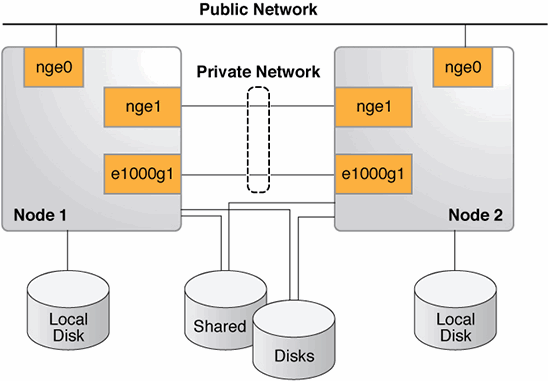
Figure 1. Oracle Solaris Cluster hardware configuration
Prerequisites
Ensure the following prerequisites are met:
- The boot disk of a kernel zone in an HA zone configuration must reside on a shared disk.
- The zone must be configured on each cluster node where the zone can fail over.
- The zone must be active on only one node at a time, and the zone's address must be plumbed on only one node at a time.
- Make sure you have a shared disk available to host the zonepath for the failover zone. You can use
/usr/cluster/bin/scdidadm -Lor/usr/cluster/bin/cldevice listto see the shared disks. Each cluster node has a path to the shared disk. - Verify that the Oracle Solaris operating system version is at least 11.2.
- Verify that the kernel zone brand package,
brand/brand-solaris-kz, is installed on the host. - Run the
virtinfocommand to verify that kernel zones are supported on cluster nodes. The following example shows that the kernel zone brand package is installed on the hostphys-schost-1. - Identify two shared disks, one for the boot disk and the other for the suspend disk. Suspend and resume are supported for a kernel zone only if a kernel zone has a suspend resource property in its configuration. If the suspend device is not configured, it is not possible to use warm migration. Kernel zones support cold and warm migration during switchover. This example uses shared disks
d7andd8. You can usesuriadmfor looking up the URI for both disks. - The zone source and destination must be on the same platform for zone migration. On x86 systems, the vendor as well as the CPU revision must be identical. On SPARC systems, the zone source and destination must be on the same hardware platform. For example, you cannot migrate a kernel zone from a SPARC T4 host to a SPARC T3 host.
root@phys-schost-1:~# uid -a


SunOS phys-schost-1 5.11 11.2 sun4v sparc sun4v
root@phys-schost-1# pkg list brand/brand-solaris-kz
id (PUBLISHER)                                  VERSION                    IFO
system/zones/brand/brand-solaris-kz               0.5.11-0.175.2.0.0.41.0    i--
root@phys-schost-1:~# virtinfo
id            CLASS
logical-domain  current
non-global-zone supported
kernel-zone     supported
  root@phys-schost-1:~# /usr/cluster/bin/scdidadm -L d7 d8
7        phys-schost-1:/dev/rdsk/c0t60080E500017B5D80000084D52711BB9d0 /dev/did/rdsk/d7
7        phys-schost-2:/dev/rdsk/c0t60080E500017B5D80000084D52711BB9d0 /dev/did/rdsk/d7
8        phys-schost-1:/dev/rdsk/c0t60080E500017B5D80000084B52711BAEd0 /dev/did/rdsk/d8
8        phys-schost-2:/dev/rdsk/c0t60080E500017B5D80000084B52711BAEd0 /dev/did/rdsk/d8
root@phys-schost-1:~# suriadm lookup-uri /dev/did/dsk/d7
dev:did/dsk/d7
root@phys-schost-1:~# suriadm lookup-uri /dev/did/dsk/d8
dev:did/dsk/d8
Enable a Kernel Zone to Run in a Failover Configuration Using a Failover File System
In a failover configuration, the zone's zonepath must reside on a highly available file system. Oracle Solaris Cluster provides the SUNW.HAStoragePlus service to manage a failover file system.
-
Register the
SUNW.HAStoragePlus(HASP) resource type. - Create the failover resource group.
-
Create a
HAStoragePlusresource to monitor the disks that are used as boot or suspend devices for the kernel zone. - Create and configure the zone on
phys-schost-1. You must ensure that the boot and suspend devices reside on shared disks. For configuring a two-node cluster, execute the following commands onphys-schost-1and then replicate the zone configuration tophys-schost-2. - Verify that the zone is configured.
-
Install the zone using
zoneadmand then boot the zone. - Verify that the zone is successfully installed and boots up.
- In another window, log in to the zone's console and boot the zone. Follow the prompts through the system configuration interactive screens to configure the zone.
- Shut down the zone and switch the resource group to another node available in the list of resource group nodes.
- Copy the zone configuration to the second node and create the kernel zone on the second node using the configuration file.
- Attach the zone and verify that the zone can boot on the second node. Log in from another session to ensure that the zone boots up fine.
- Shut down and detach the zone.
- Install the failover zone agent if it is not already installed.
- To create the resource from any one node, edit the
sczbt_configfile and set the parameters as shown below. - To configure the zone-boot resource, set the parameters in the zone-boot configuration file.
- Check the status of the resource groups and resources.
- Log in using the
zlogin -C sol-kz-fz1command to verify that zone successfully boots up and then switch to other node to test switchover.
phys-schost-1# /usr/cluster/bin/clrt register SUNW.HAStoragePlus
phys-schost-1# /usr/cluster/bin/clrg create sol-kz-fz1-rg
root@phys-schost-1:~# clrs create -t SUNW.HAStoragePlus -g sol-kz-fz1-rg \
-p GlobalDevicePaths=dsk/d7,dsk/d8 sol-kz-fz1-hasp-rs
root@phys-schost-1:~# /usr/cluster/bin/clrg online -emM -n phys-schost-1 \ sol-kz-fz1-rg
root@phys-schost-1:~# zonecfg -z sol-kz-fz1 'create -b; set brand=solaris-kz;
add capped-memory;
set physical=2G; end; add device;
set storage=dev:did/dsk/d7; set bootpri=1; end; add suspend; set
storage=dev:did/dsk/d8; end; add anet; set lower-link=auto; end; set autoboot=false; add attr;
set id=osc-ha-zone; set type=boolean; set value=true; end;'
phys-schost-1# zoneadm list -cv


  ID id             STATUS      PATH      BRAND      IP
   0 global           running      /        solaris    shared
   - sol-kz-fz1       configured   -        solaris-kz excl
root@phys-schost-1:~# zoneadm -z sol-kz-fz1 install
Progress being logged to /var/log/zones/zoneadm.20140829T212403Z.sol-kz-fz1.install
pkg cache: Using /var/pkg/publisher.
 Install Log: /system/volatile/install.4811/install_log
 AI Manifest: /tmp/zoneadm4203.ZLaaYi/devel-ai-manifest.xml
  SC Profile: /usr/share/auto_install/sc_profiles/enable_sci.xml
Installation: Starting ...
        Creating IPS image
        Installing packages from:
            solaris
                origin:  http://solaris-publisher.domain.com/support/sru/
            ha-cluster
                origin:  http://cluster-publisher.domain.com/solariscluster/sru/
        The following licenses have been accepted and not displayed.
        Please review the licenses for the following packages post-install:
          consolidation/osnet/osnet-incorporation
        Package licenses may be viewed using the command:
          pkg info --license <pkg_fmri>

DOWNLOAD                                PKGS         FILES    XFER (MB)   SPEED
Completed                            482/482   64261/64261  544.1/544.1  1.9M/s

PHASE                                          ITEMS
Installing new actions                   87569/87569
Updating package state database                 Done
Updating package cache                           0/0
Updating image state                            Done
Creating fast lookup database                   Done
Installation: Succeeded
        Done: Installation completed in 609.014 seconds.
  phys-schost-1# zoneadm list -cv
  ID id             STATUS      PATH        BRAND       IP
   0 global           running     /           solaris     shared
   - sol-kz-fz1       installed   -           solaris-kz  excl
phys-schost-1# zlogin -C sol-kz-fz1
phys-schost-1# zoneadm -z sol-kz-fz1 boot
phys-schost-1# zoneadm -z sol-kz-fz1 shutdown
phys-schost-1# zoneadm -z sol-kz-fz1 detach -F
phys-schost-1# /usr/cluster/bin/clrg switch -n phys-schost-2 sol-kz-fz1-rg
phys-schost-1# zoneadm list -cv
  ID id        STATUS      PATH   BRAND      IP
   0 global      running     /      solaris    shared
   - sol-kz-fz1  configured  -      solaris-kz excl
root@phys-schost-1:~# zonecfg -z sol-kz-fz1 export -f \
/var/cluster/run/sol-kz-fz1.cfg
root@phys-schost-1:~# scp /var/cluster/run/sol-kz-fz1.cfg phys-schost- \
2:/var/cluster/run/
root@phys-schost-1:~# rm /var/cluster/run/sol-kz-fz1.cfg
root@phys-schost-2:~# zonecfg -z sol-kz-fz1 -f /var/cluster/run/sol-kz-\
fz1.cfg
root@phys-schost-2:~# rm /var/cluster/run/sol-kz-fz1.cfg
root@phys-schost-2:~# zoneadm -z sol-kz-fz1 attach -x force-takeover
root@phys-schost-2:~# zoneadm -z sol-kz-fz1 boot
root@phys-schost-2:~# zlogin -C sol-kz-fz1
root@phys-schost-2:~# zoneadm -z sol-kz-fz1 shutdown
root@phys-schost-2:~# zoneadm -z sol-kz-fz1 detach -F
root@phys-schost-1# pkg install ha-cluster/data-service/ha-zones
root@phys-schost-2# pkg install ha-cluster/data-service/ha-zones
root@phys-schost-2:~# clrt register SUNW.gds
root@phys-schost-2:~# cd /opt/SUNWsczone/sczbt/util
root@phys-schost-2:~# cp -p sczbt_config sczbt_config.sol-kz-fz1-rs
root@phys-schost-2:~# vi sczbt_config.sol-kz-fz1-rs
RS=sol-kz-fz1-rs
RG=sol-kz-fz1-rg
PARAMETERDIR=
SC_NETWORK=false
SC_LH=
FAILOVER=true
HAS_RS=sol-kz-fz1-hasp-rs
RG=sol-kz-fz1-rg
Zoneid="sol-kz-fz1"
Zonebrand="solaris-kz"
Zonebootopt=""
Milestone="svc:/milestone/multi-user-server"
LXrunlevel="3"
SLrunlevel="3"
Mounts=""
Migrationtype="warm"
root@phys-schost-2:~# ./sczbt_register -f ./sczbt_config.sol-kz-fz1-rs
sourcing ./sczbt_config.kz
Registration of resource kz-rs succeeded.
root@phys-schost-2:~# /usr/cluster/bin/clrs enable sol-kz-fz1-rs
root@phys-schost-2:~# /usr/cluster/bin/clrs status -g sol-kz-fz1-rg
=== Cluster Resources ===
Resource id         Node id     State        Status Message
-------------------   ------------- -----        -------------------
sol-kz-fz1-rs         phys-schost-1 Online       Online - Service is online.
                      phys-schost-2 Offline      Offline

sol-kz-fz1-hasp-rs    phys-schost-1  Online      Online
                      phys-schost-2  Offline     Offline
root@phys-schost-2:~#
root@phys-schost-2:~# /usr/cluster/bin/clrg switch -n phys-schost-1 sol-kz-fz1-rg
root@phys-schost-2:~# /usr/cluster/bin/clrs status -g sol-kz-fz1-rg
=== Cluster Resources ===

Resource id         Node id     State         Status Message
-------------------   ----------    -----          -------------------
sol-kz-fz1-rs         phys-schost-1 Online         Online
                      phys-schost-2 Offline        Offline

ha-zones-hasp-rs      phys-schost-1 Online         Online
                      phys-schost-2 Offline        Offline
root@phys-schost-2:~#
See Also
For more information about configuring Oracle Solaris Cluster components, see the following manuals.
- Oracle Solaris Cluster 4.2 information library
- Oracle Solaris Cluster Software Installation Guide
- Oracle Solaris Cluster Data Services Planning and Administration Guide
About the Author
Venkat Chennuru has been working as quality lead in the Oracle Solaris Cluster group for the last 14 years.
Revision 1.1, 01/12/2015
Revision 1.0, 10/24/2014