Lab: How To Migrate to Oracle VM and Oracle Linux from VMware and Red Hat Enterprise Linux 6
by Simon Coter with contributions from Christophe Pauliat, Olivier Canonge, and Doan Nguyen
Published December 2013
This hands-on lab takes you through the best practices for migrating an existing Oracle Database workload from VMware to Oracle VM. It also walks you through how to migrate to Oracle Linux a Red Hat Enterprise Linux 6 guest exported from VMware by downloading Oracle's Unbreakable Enterprise Kernel from Oracle's public yum server.
Contents
Introduction
This document details all actions that were done during Oracle OpenWorld 2013 session Hands-On Lab 9981.
This hands-on lab takes you through the best practices for migrating an existing Oracle Database workload from VMware to Oracle VM. It also walks you through how to migrate to Oracle Linux a Red Hat Enterprise Linux 6 guest exported from VMware by downloading Oracle's Unbreakable Enterprise Kernel from Oracle's public yum server.
Oracle VM is a free-license product, and it's the only virtualization x86 software solution certified for all Oracle products.
This lab showcases the https://en.wikipedia.org/wiki/Open_Virtualization_Format (OVA) format, a free-of-charge service supplied by Oracle's public yum server with which Oracle Linux and Oracle VM can be maintained without a subscription. By performing the steps in this lab, you will obtain a fully supported and certified configuration for Oracle Database (whereas on VMware, Oracle Database is only supported, not certified).
During this lab at Oracle OpenWorld, we used a demo environment built on a single x86 laptop (using Oracle VM VirtualBox), which contained two virtual servers and one Oracle VM Server guest:
- Oracle VM Server
- Oracle VM Manager
- Oracle VM guest imported as an assembly
Note: You can also run this lab at your home or office on an x86 server, desktop, or laptop.
Preparation (Done Before the Lab)
To save time and fit in the one-hour slot of Oracle OpenWorld labs, the following actions were performed before the actual lab.
- Install Oracle Linux 6.4 (64 bits) on all the laptops.
- Install Oracle VM VirtualBox 4.2.16 plus extensions on all the laptops.
- Disable the Oracle VM VirtualBox DHCP server (the default is for it to be enabled).
- Install the Java runtime environment (JRE 7 update 25) on all the laptops. (This is needed to launch a VM console from Oracle VM Manager.)
- Install and configure an Oracle VM Manager 3.2.4 server in an Oracle VM VirtualBox virtual machine.
- Install and configure an Oracle VM Server 3.2.4 server in an Oracle VM VirtualBox virtual machine.
- Configure the network and VNICs (Virtual Network Interface Cards).
- Create an Oracle VM repository based on the assembly size.
- Export from a third-party virtualization solution (such as VMware) a guest in OVA format (that is, as an assembly).
- Configure the default HTTP server on Oracle VM Manager (port 80).
- Prepare an Oracle yum server based on http://public-yum.oracle.com.
Note: To run this lab from your home or office, perform the tasks in Appendix A first to prepare your environment before you run the lab.
Summary of the Lab Steps
In this lab, you will execute the following steps in Oracle Enterprise Manager Cloud Control 12c:
- Start the two servers (Oracle VM Server and Oracle VM Manager).
- Connect to Oracle VM Manager and become familiar with the product.
- Verify that the Oracle VM environment started correctly.
- Import an assembly that has Oracle Database on top and was exported from VMware.
- Create an Oracle VM Template based on the VMware assembly.
- Edit the Oracle VM Template that was created.
- Create a guest based on the Oracle VM Template that was created.
- Verify and then start the Oracle VM guest that was created.
- Manually modify the guest configuration and remove VMware tools.
- Switch from the Red Hat kernel to Oracle's Unbreakable Enterprise Kernel for free.
- Transform the guest into a usable Oracle VM Template ("gold image").
Note: The migration approach followed by this lab is not the only one; other valid migration methods are based on official Oracle VM Templates such as Oracle VM Templates for Oracle Database.
Global Picture
Figure 1 shows all the components (Oracle VM VirtualBox and Oracle VM virtual machines) with their names and configuration (memory, IP addresses, and so on).
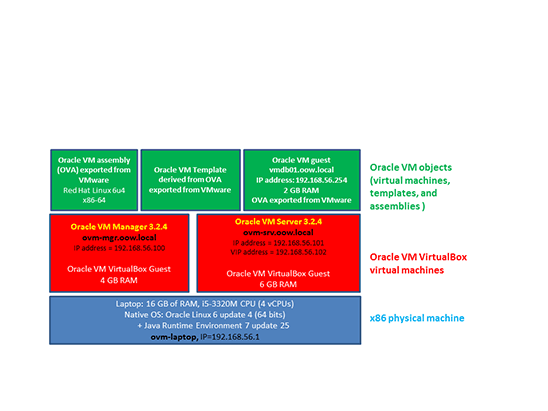
Figure 1. Diagram of all the components and their configuration.
Detailed Instructions for the Lab
Start the Two Servers
As previously explained, we will use Oracle VM VirtualBox to host the two servers (Oracle VM Server and Oracle VM Manager) on a single x86 physical machine.
-
If it has not been started yet, start the Oracle VM VirtualBox console by clicking
 .
.
In the console, you should see the two VMs we will use in this lab.
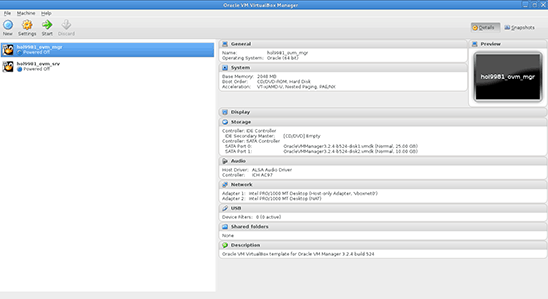
Figure 2. Oracle VM VirtualBox console.
- Select the VM called hol9981_ovm_mgr and Click
 to start it.
 - Select the VM called hol9981_ovm_srv and Click to start it.
-
Wait for the two VMs to be ready:
- Wait for the
desktop startedprompt on the hol9981_ovm_mgr VM console. - When this prompt is displayed, all VMs are ready (since Oracle VM Manager takes the longest to start).
- Wait for the
 .
.
 to start it.
Connect to the Oracle VM Manager 3.2.4 Console
-
On your x86 physical machine, open a Firefox browser and connect to the Oracle VM Manager 3.2.4 console using URL
https://192.168.56.100:7002/ovm/console.Note: Firefox might raise a security warning (for example,
This Connection is Untrusted) since the SSL certificates are self-signed. If so, ignore the warning (expand I understand the Risks, then click Add Exception, and then click Confirm Security Exception).You should get the login window shown in Figure 3:
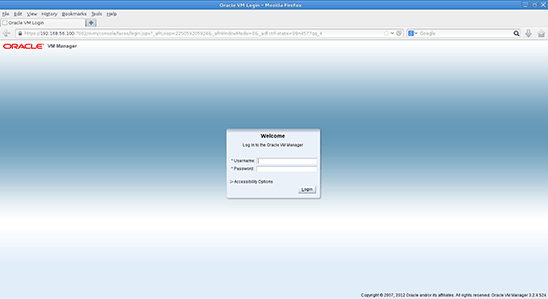
Figure 3. Login window.
-
Log in using the following credentials:
- Login: admin (default Oracle VM Manager administrator)
- Password: Welcome1 (W is uppercase)
Verify that the Oracle VM Environment Correctly Started
-
Once you are logged in to the Oracle VM Manager console, go to the Servers and VMs tab and verify the status of the Oracle VM pool and server; everything should look like Figure 4.
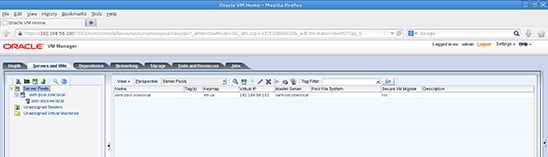
Figure 4. Status of the Oracle VM pool and server in the Servers and VMs tab.
-
Click the Networking tab and verify that the existing network is usable by guests. You should see a checkmark under Virtual Machines, as shown in Figure 5.
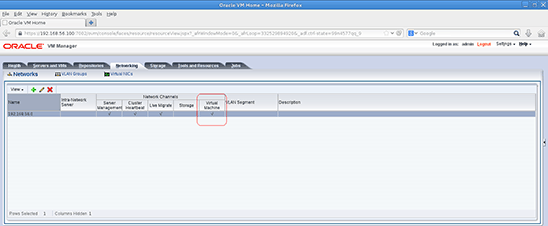
Figure 5. Networking tab.
-
Click the Virtual NICs hyperlink (at the top of the Networking tab), and then click Auto Fill and Create to create new VNICs.
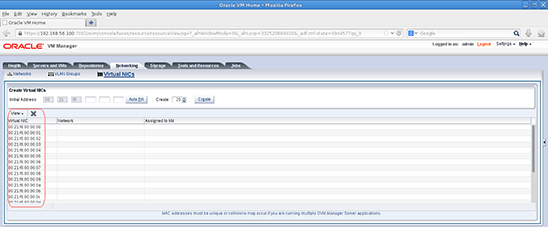
Figure 6. Newly created VNICs.
-
Click Servers and VMs, expand the pool named ovm-pool.oow.local, click the server named ovm-srv.oow.local, and select the Physical Disks perspective in the right pane.
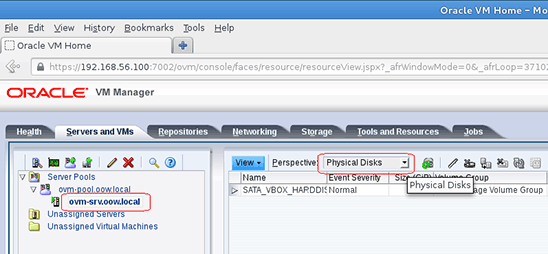
Figure 7. Displaying the physical disks.
-
Select the physical disk named SATA_VBOX_HARDDISK and click Refresh Physical Disk.
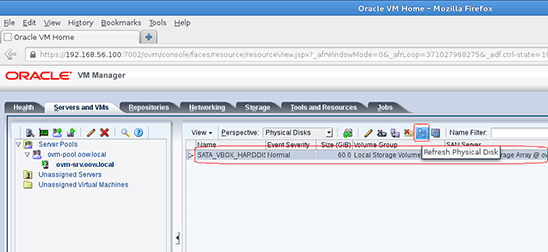
Figure 8. Selecting a physical disk.
- Confirm the refresh of the physical disk by clicking OK.
-
Click the Repositories tab and select Show all repositories.
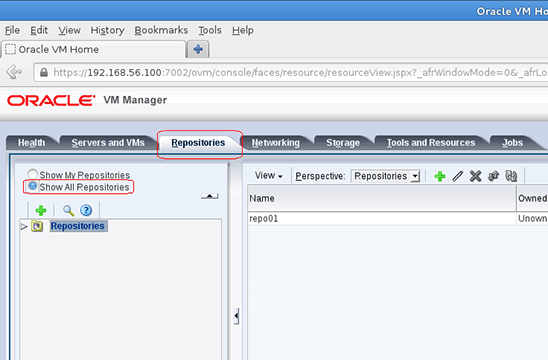
Figure 9. Showing all repositories.
-
Expand Repositories, click the repository named repo01, and click the Edit Selected Repository icon.
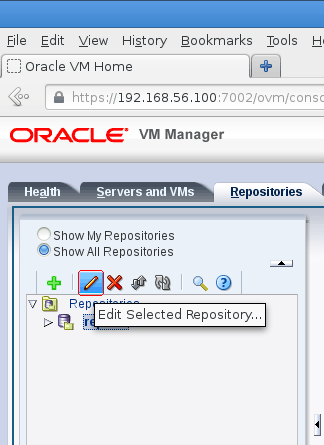
Figure 10. Editing a repository.
-
In the new window that appears, click Take ownership and click OK.
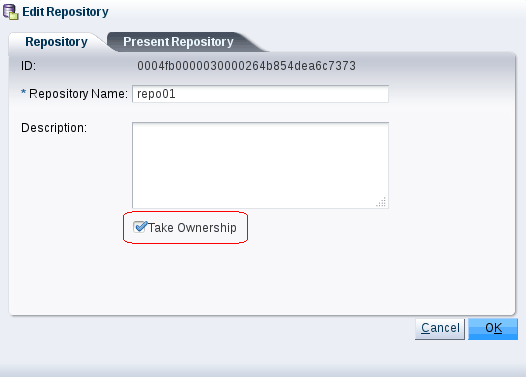
Figure 11. Selecting the Taken Ownership option.
-
Re-select Repositories, expand it, and select repo01, and then click the Present/Unpresent icon.
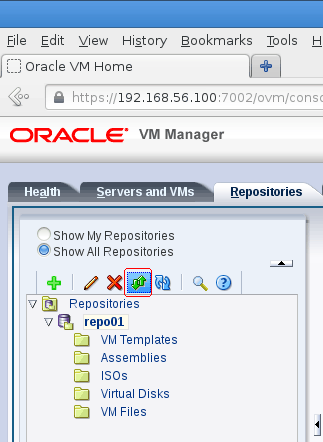
Figure 12. Selecting the Present/Unpresent icon.
-
In the new window named "Present this repository to server(s)," move to the right the server pool named ovm-pool.oow.local and click OK.
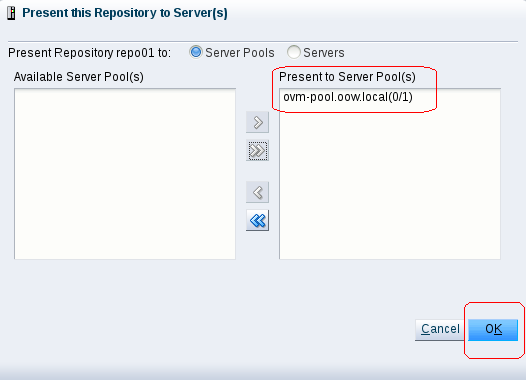
Figure 13. Presenting the repository to the server pool.
-
Select the repo01 repository and click the Refresh Selected Repository icon.
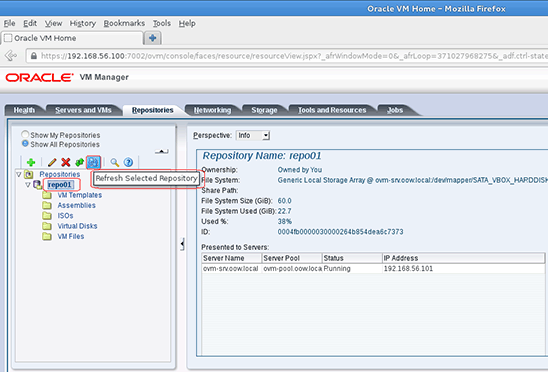
Figure 14. Refreshing the repository.
-
Click the Assemblies folder, select the assembly named repo01_<code>, and click the Refresh selected VM Assembly icon.
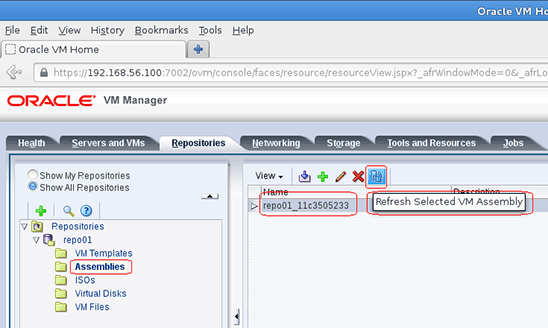
Figure 15. Refreshing the VM assembly.
Import the Assembly Exported from VMware
The purpose of this section is to show how to import into Oracle VM an assembly that was exported from VMware as described in Appendix A. An assembly can be described as a template of a group of virtual machines or a collection of multiple VM templates.
Note for importing assemblies or templates into Oracle VM: Oracle VM assemblies or templates can be imported from an HTTP or FTP server. An HTTP server is shown in the following example.
-
Click the Repositories tab, expand the repo01 repository, and select the Assemblies directory; after that, Click
 to proceed with the assembly import.
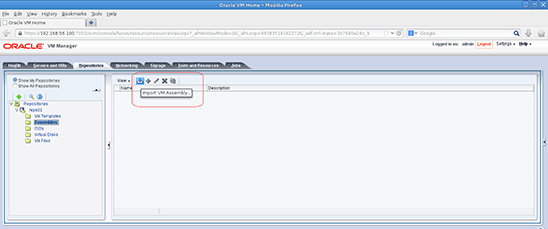
Figure 16. Preparing to import an assembly.
-
In the Import VM Assembly window shown in Figure 17, enter into the "VM Assembly download location" field a URL that specifies the download location of the assembly
.ovafile you exported from VMware earlier:Example URL for a
.ovafile stored on your own web server:
http://apachehost/path/file.ovaExample URL for a
.ovafile stored on the Oracle VM Manager server:
http://192.168.56.100/ovas/rhel-64-oracle-rdbms.ova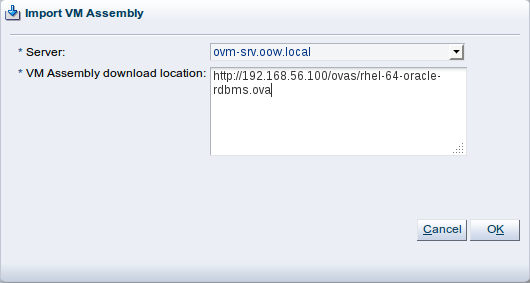
Figure 17. Example of specifying the assembly location.
-
In the same window, click OK and, after that, follow the job progression in the Job Summary window.
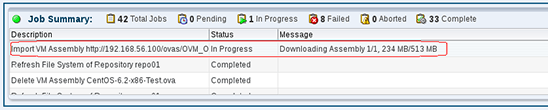
Figure 18. Following the progress of the import.
At the end of the job, your assembly will be shown in the Repositories tab with the same name as the
.ovafile that was imported: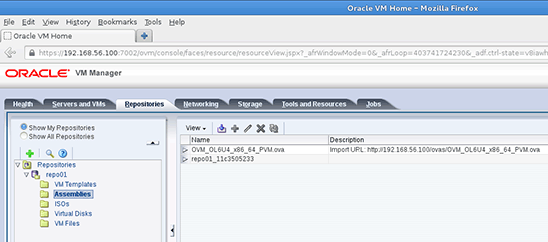
Figure 19. The imported assembly.
 to proceed with the assembly import.
Create an Oracle VM Template Starting from an Assembly
The purpose of this section is to show how-to create an Oracle VM Template starting from an assembly.
In Oracle VM Manager, templates and assemblies appear in different folders of the storage repository, but their VM configuration files and disk images are stored in the same location as those of other virtual machines and templates.
The procedure to obtain a new virtual guest starting from an assembly is:
Assembly =>Template =>New Guest(s)
To create the template based on the rhel-64-oracle-rdbms.ova assembly exported from VMware, proceed with the following steps:
-
Click the Repositories tab, expand the repo01 repository, and select the Assemblies directory; after that, click the assembly row and click (
 ).
).
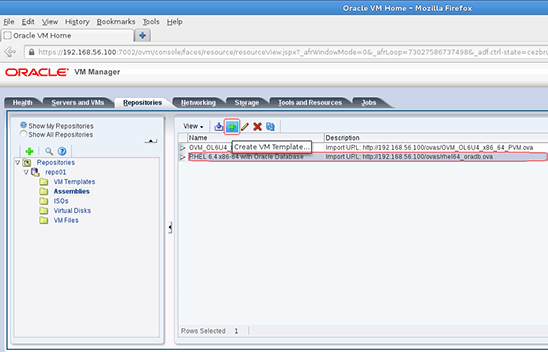
Figure 20. Preparing to create a template.
-
Enter the following details in the new window:
- In the VM Template Name field, enter the name of your template.
-
In the Description field, enter a description of the template that will be created.
In our example, we use the following:
VM Template Name: rhel-64-oracle-rdbms
Description: Red Hat 6.4 x86-64 exported from VMware with Oracle Database on board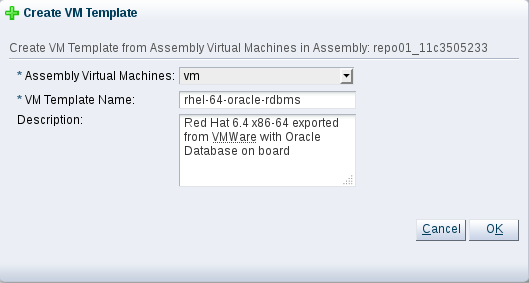
Figure 21. Specifying a name and description for the template.
-
In the same window, click OK and, after that, follow the job progression in the Job Summary window.
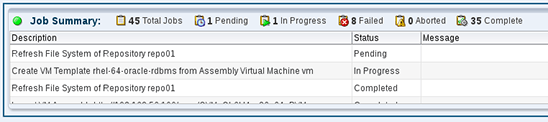
Figure 22. Following the progress of the template creation.
Note: The creation of a VM template could take several minutes. The larger the size of the machine exported from VMware, the more time it will take to obtain the template. While waiting, read the next steps.
-
When the job is completed, verify that the template is correctly created and ready to use:
Click the Repositories tab, expand the repo01 repository, and select the VM Templates directory; after that, click the template and expand it.
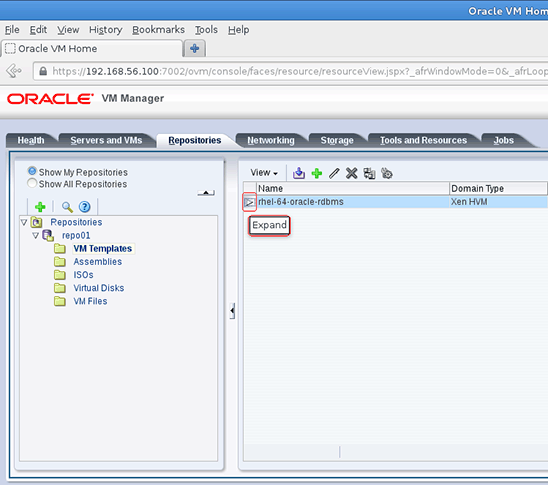
Figure 23. Expanding the template.
The Oracle VM Template configuration should look like Figure 24:
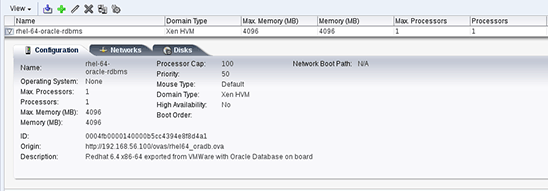
Figure 24. Checking the template configuration.
 ).
).
Edit the Oracle VM Template
The template, which was derived from an assembly exported from VMware, needs correct sizing and network configuration; so this section shows how to edit an Oracle VM Template.
-
Click the Repositories tab, expand the repo01 repository and select the VM Templates directory; after that, click the template created before (in our example, it is named rhel-64-oracle-rdbms) and Click
 .
.
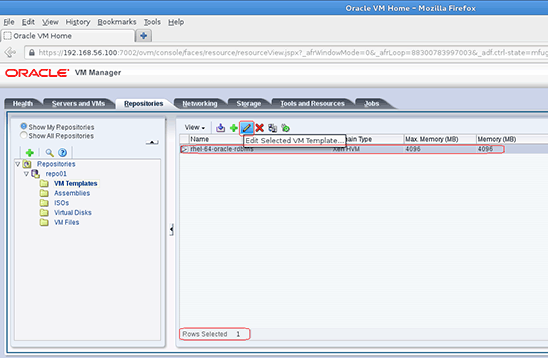
Figure 25. Preparing to edit the template.
-
In the window that appears, enter the following details:
In the Configuration tab:
Operating System: Red Hat Enterprise Linux 6
Domain Type: Xen PVM
Max. Memory (MB): 2048
Memory (MB): 2048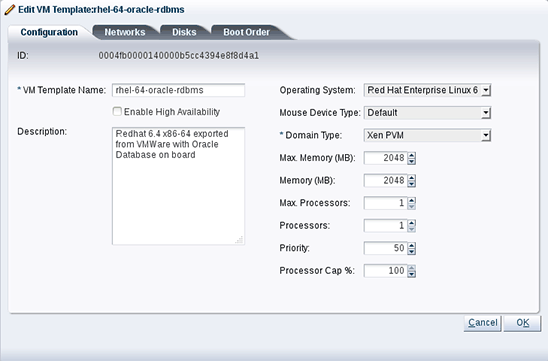
Figure 26. Specifying the template configuration.
In the Networks tab:
Select 192.168.56.0 and move it to the Selected Ethernet Networks panel on the right using .
.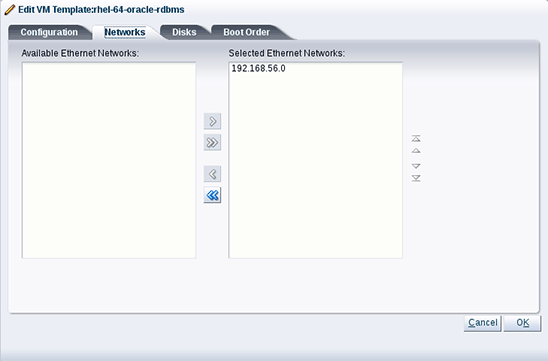
Figure 27. Selecting a network.
No changes need to be made in the Disks and Boot Order tabs, so click OK.
The result of this configuration is shown in Figure 28 and Figure 29:
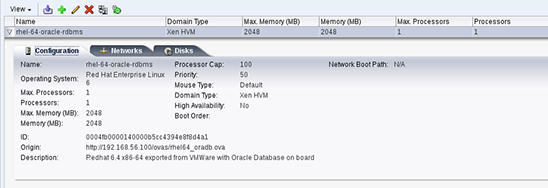
Figure 28. Template configuration.
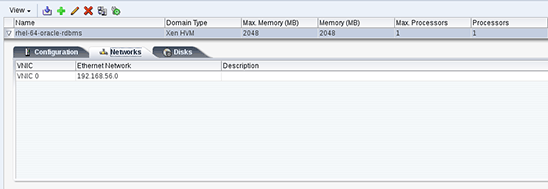
Figure 29. Network selection.
 .
.
 .
.
Create a Guest Based on the Oracle VM Template
We will now create a guest (virtual machine) based on the template just created. This section will show how to create a guest from an Oracle VM Template (in our case, the Oracle VM Template has been derived from a virtual machine exported from VMware).
-
Click the Servers and VMs tab and Click
 .
.
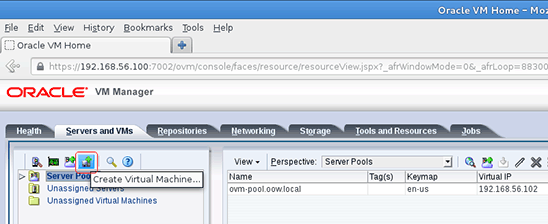
Figure 30. Preparing to create a virtual machine.
-
In the Create Virtual Machine window, choose the Clone from an existing VM Template option and, after that, enter the following details:
Clone count: 1
Repository: repo01
VM Template: rhel-64-oracle-rdbms
VM Name: vmdb01.oow.local
Server Pool: ovm-pool.oow.local
Description: first guest created from a VMware OVA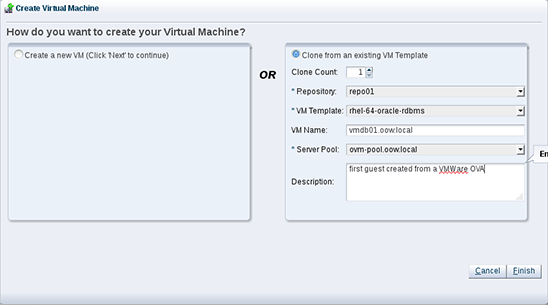
Figure 31. Specifying the virtual machine configuration.
Then click Finish to confirm the guest creation.
-
Verify that the creation job completed successfully.
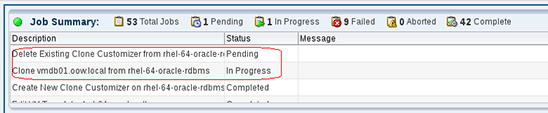
Figure 32. Verifying that the job completed successfully.
Note about Immediate VM creation on Oracle Cluster File System 2: The VM creation should be almost immediate since the repository uses the Oracle Cluster File System 2 file system and the reflink feature. This avoids the need to copy all blocks of the template files, but instead uses pointers to existing blocks in the new files. (For details on the Oracle Cluster File System 2 reflink feature, see https://blogs.oracle.com/wim/entry/ocfs2_reflink.)
 .
.
Verify and Start the Oracle VM Guest
Our guest is ready but, before we start it, we need to verify that everything was accomplished. This section will show how to verify a guest and start it.
-
Click the Servers and VMs tab, expand Server Pools, and expand the pool named ovm-pool.oow.local by clicking
 .
.
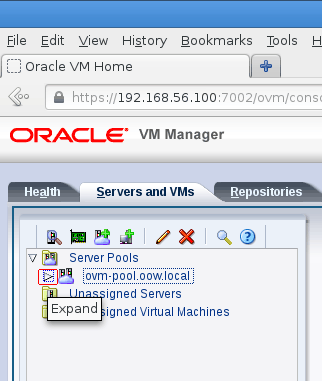
Figure 33. Expanding the server pool.
-
Select the physical server (dom0) named ovm-srv.oow.local, and the guest we created will appear in the panel on the right.
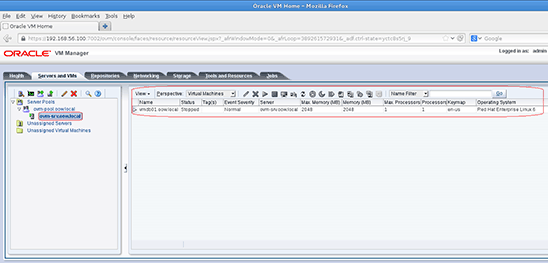
Figure 34. Selecting the server.
-
Select the Red Hat Enterprise Linux 6 guest named vmdb01.oow.local and Click .
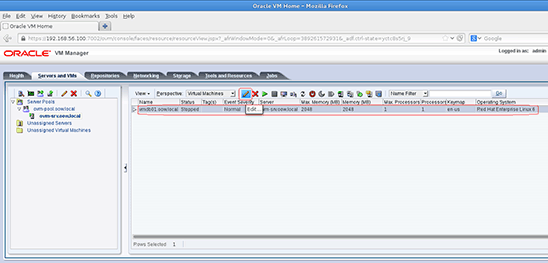
Figure 35. Selecting the guest.
-
In the "Edit Virtual Machine: vmdb01.oow.local" window, verify the following details:
In the Configuration tab:
Name: vmdb01.oow.local
Operating System: Red Hat Enterprise Linux 6
Domain Type: Xen PVM
Max. Memory (MB): 2048
Memory (MB): 2048
Max. Processors: 1
Processors: 1
Priority: 50
Processor Cap %: 100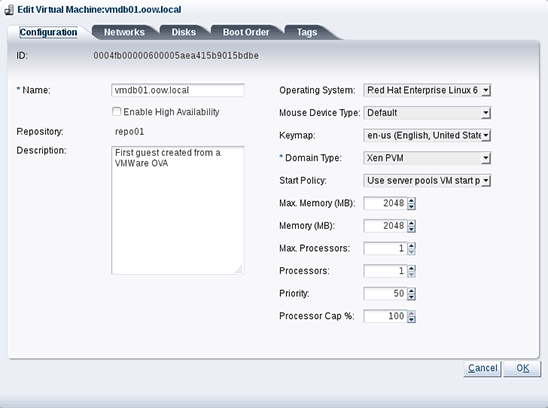
Figure 36. Verifying the guest configuration.
In the Networks tab:
Network: 192.168.56.0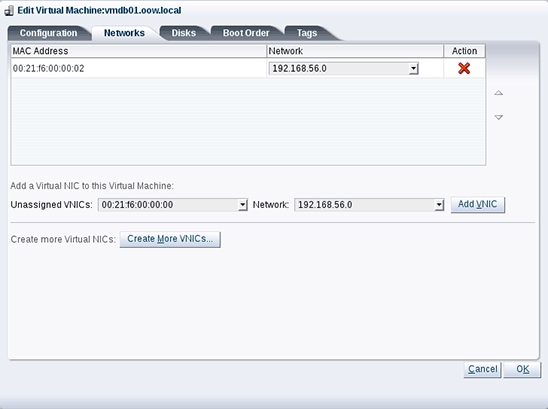
Figure 37. Verifying the network configuration.
In the Disks tab:
For Slot 0, the Disk Type is Virtual Disk (no change).
For Slot 1, the Disk Type is Empty (changed from CD/DVD to Empty).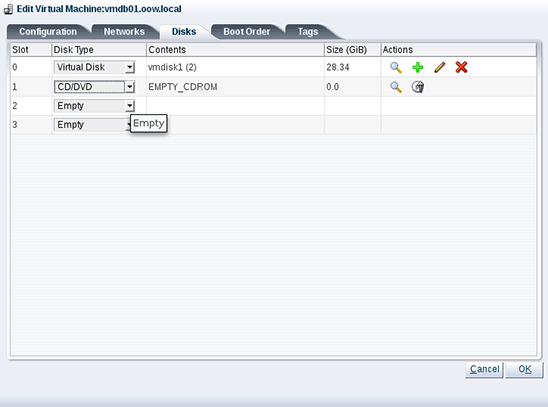
Figure 38. Verifying the disk configuration.
Click OK.
-
Start the vmdb01.oow.local guest by clicking
 .
.
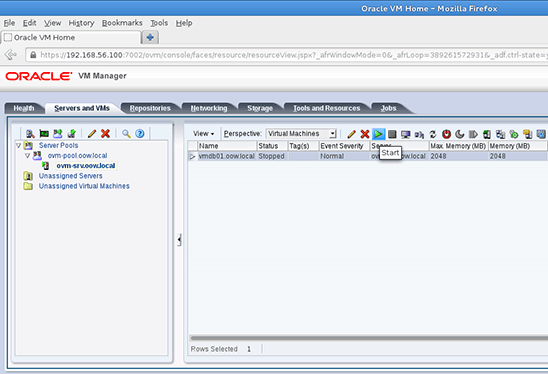
Figure 39. Starting the guest.
The guest will temporarily change to the "Starting" state; you can also verify that the job completed successfully. If you want, you can also click Job Details to see a detailed log of the start process.
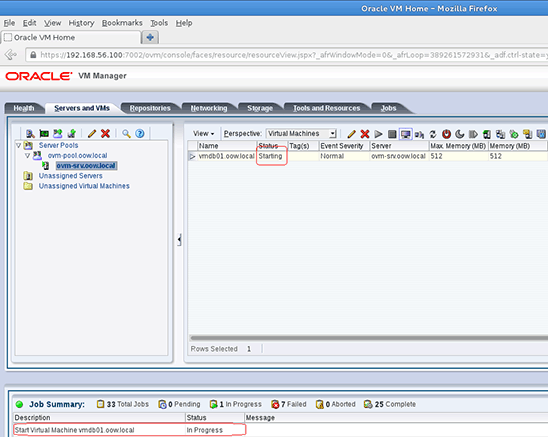
Figure 40. Getting details for the job.
-
Verify that the job completed successfully; you can evaluate the result in the Job Summary section at the bottom of the window and also in the Status column.
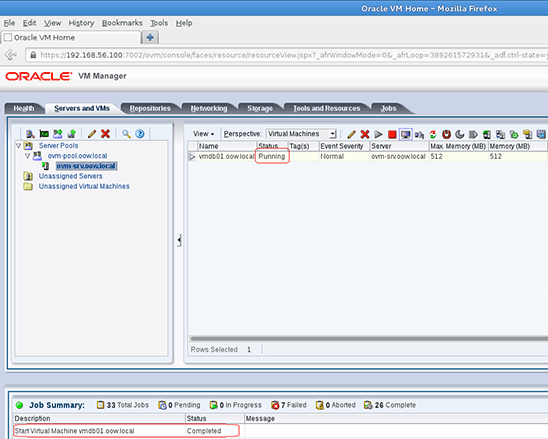
Figure 41. Verifying that the job completed successfully.
 .
.
 .
.
Manually Modify the Guest Configuration
Obviously this guest needs some changes. First of all, the network configuration needs to be changed since the default network configuration on VMware is network 192.168.93.0/24 while the default network configuration on Oracle VM VirtualBox is 192.168.56.0/24.
Also, guest ovmdb01.oow.local is not network-reachable, so you have to connect to its console to modify the network configuration; this section will show how to open a guest console and modify a network configuration.
-
Select the guest named vmdb01.oow.local and Click
 .
.
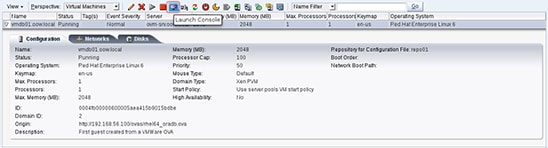
Figure 42. Opening a guest console.
-
A pop-up blocker might appear. If so, allow pop-ups for Oracle VM Manager.

Figure 43. Pop-up blocker message.
-
The browser will ask what to do with a file (
ovm_rasproty-ws.jnlp); choose Open with and select /usr/java/latest/bin/javaws (the latest installed JRE on your machine).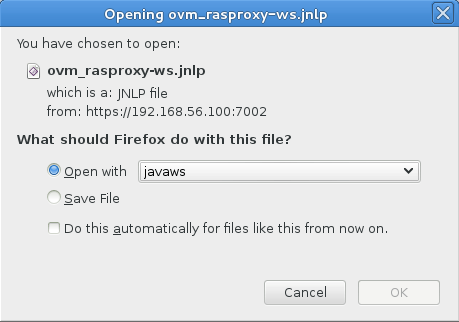
Figure 44. Confirming that the file should be opened.
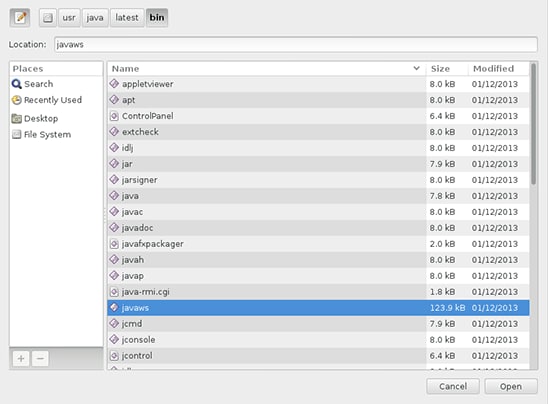
Figure 45. Telling the browser to open the file using the JRE.
Click OK to confirm.
The console with a boot-progress bar will appear but it will not have a login prompt:
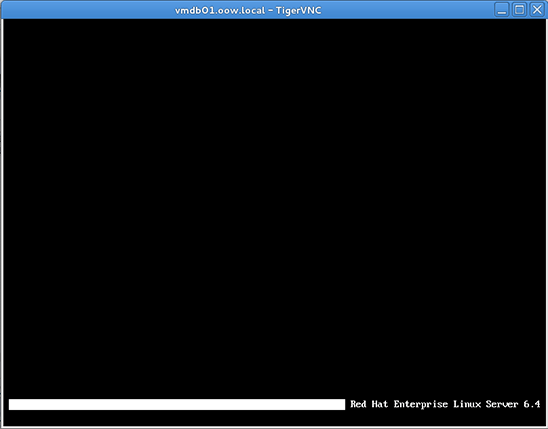
Figure 46. Console without login prompt.
-
To obtain a login prompt, move your mouse cursor in the VNC console window, click, and press the F8 function key on your keyboard; a menu will appear and there select the ALT option.
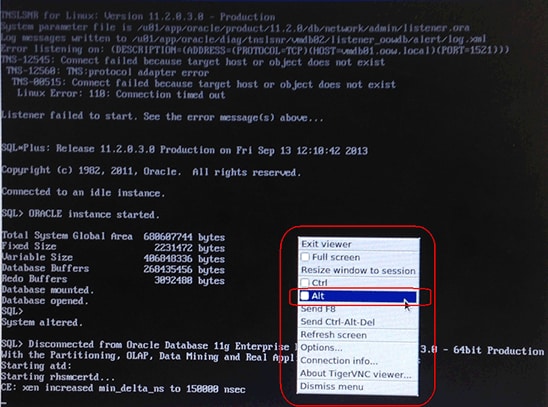
Figure 47. Selecting the ALT option.
IMPORTANT: This task might not be possible from your home or office if no local VNC client is installed. If you aren't able to get the login prompt on the console, use the substeps below to determine the DHCP address assigned to the Red Hat Enterprise Linux 6 guest (vmdb01.oow.local) and then connect to the guest. If you are able to get the login prompt, proceed to Step 5.
- Connect to Oracle VM Manager ovm-mgr.oow.local (192.168.56.100) using
ssh root@192.168.56.100(the root password isovsroot). -
Execute the command
tail-50 /var/log/messages |grep DHCPACK, for example:[root@ovm-mgr ~]# tail -50 /var/log/messages |grep DHCPACK Aug 16 01:59:30 ovm-mgr dhcpd: DHCPACK on 192.168.56.254 to 00:21:f6:00:00:02 via eth0 -
Connect to the Red Hat Enterprise Linux 6 guest using the DHCP address obtained above (the password is
ovsroot), for example:ssh root@192.168.56.254 - Proceed to step 6.
- Connect to Oracle VM Manager ovm-mgr.oow.local (192.168.56.100) using
-
Now press the F2 function key to open Console Window number 2 and you'll see the login prompt; at this point you have to deselect the ALT option, so press F8 and then deselect the ALT option.

Figure 48. Login prompt.
Log in using the following:
User: root
Password: ovsroot -
Uninstall the VMware tools by executing the following command:
#vmware-uninstall-tools.pl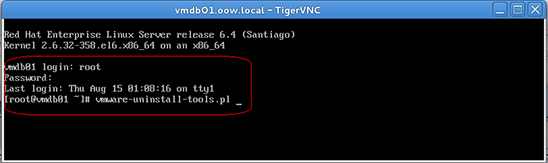
Figure 49. Uninstalling the VMware tools.
-
Verify that the removal succeeded:
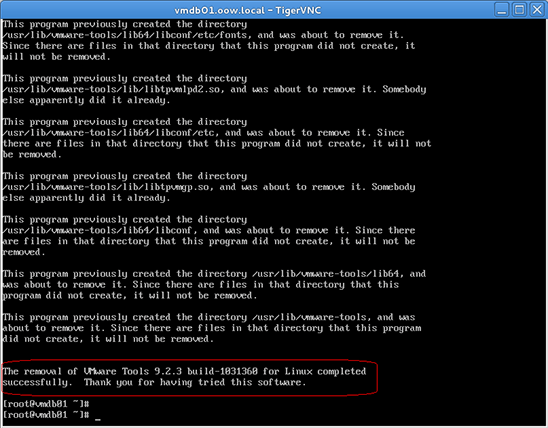
Figure 50. Verifying the uninstallation of the VMware tools.
-
In the Oracle VM console, verify the guest IP address (from the DHCP server installed on Oracle VM Manager):
#ifconfig eth0
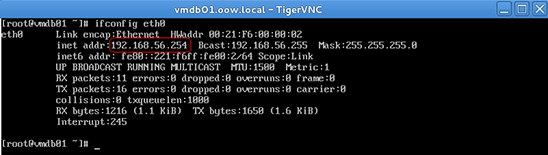
Figure 51. Verifying the guest IP address.
-
Open a terminal window on your machine and connect to the guest using the IP address you obtained above:
#ssh root@<IP_address_obtained>
Note: The guest root password is
ovsroot.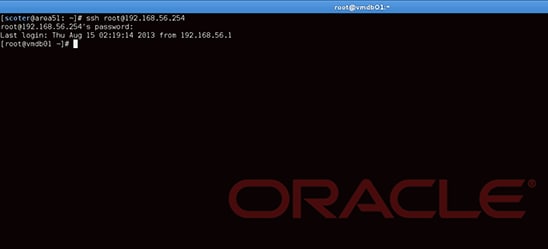
Figure 52. Connecting to the guest.
-
Verify the status of Oracle Database and Oracle Listener using the following commands:
# service oraOOWDB status
# ps -edaf |grep oracle
The output should be similar to Figure 53:
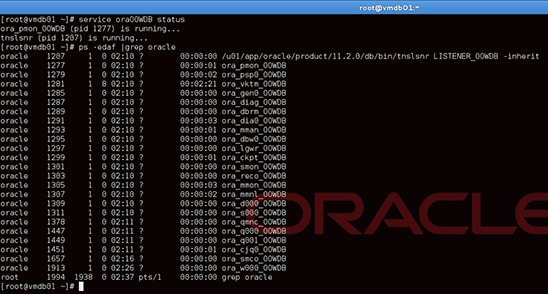
Figure 53. Verifying the status of Oracle Database and Oracle Listener.
 .
.

Switch from Red Hat to Oracle Linux
One of the goals of this lab is to show Oracle's public yum server: http://public-yum.oracle.com.
Oracle's public yum server offers a free and convenient way to install the latest Oracle Linux packages as well as packages from the Oracle VM installation media via a yum client.
You can download the full Oracle Linux and Oracle VM installation media via Oracle Software Delivery Cloud. To stay current on errata updates, you might wish to subscribe to the Oracle Linux errata mailing list. This yum server is offered without support of any kind. If you require support, please consider purchasing Oracle Linux Support online or via your sales representative.
For this lab, we will replicate a local Oracle public yum server to speed up the switching process. The role of the local Oracle public yum server belongs to the ovm-mgr.oow.local (192.168.56.100) server.
- If you are not already connected, connect via a terminal window to your vmdb01.oow.local guest.
-
Execute the following command to copy the yum configuration:
#scp 192.168.56.100:/etc/yum.repos.d/myRepo.repo /etc/yum.repos.d/
Note: The root password requested from ovm-mgr.oow.local is ovsroot.
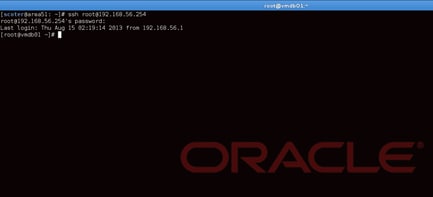
Figure 54. Preparing to copy the yum configuration.
-
Pass the
redhat-releasepackage tooracle-releaseby executing the following commands:#yumdownloader oraclelinux-release.x86_64 oraclelinux-release-notes.x86_64

Figure 55. Passing the Oracle Linux release packages.
#rpm -Uhv --force oraclelinux-release*
Figure 56. Forcing the packages to upgrade.
-
Install the Oracle Linux distribution packages and Oracle's Unbreakable Enterprise Kernel using the following command:
#yum install oracle-logos.noarch oracle-rdbms-server-11gR2-preinstall.x86_64 oracleasm-support.x86_64Note: This command will replace Red Hat logos, install the Unbreakable Enterprise Kernel (due to dependencies) and, last but not least, install Oracle software preinstallation packages such as the following:
oracle-rdbms-server-11GR2-preinstalloracle-em-agent-12cR1-preinstall
These preinstallation packages are available for x86_64 only. Specifically, these packages do the following:
- Cause the download and installation of various software packages and specific versions needed for database installation, with package dependencies resolved via yum
- Create, if needed, the user
oracleand the groupsoinstallanddba, which are the defaults used during database installation - Modify the kernel parameters in
/etc/sysctl.confto change settings for shared memory, semaphores, the maximum number of file descriptors, and so on - Set hard and soft shell resource limits in
/etc/security/limits.conf, such as the number of open files, the number of processes, and the stack size to the minimum required based on the Oracle Database 11g Release 2 installation requirements - Set
numa=offin the kernel boot parameters for an x86_64 machine
These packages automate and prepare Oracle Linux to accommodate software such as Oracle Database, Oracle WebLogic, Oracle Enterprise Manager Cloud Control, Oracle E-Business Suite, and so on.
Yum will ask for a confirmation to proceed with the install of packages; reply with Y:
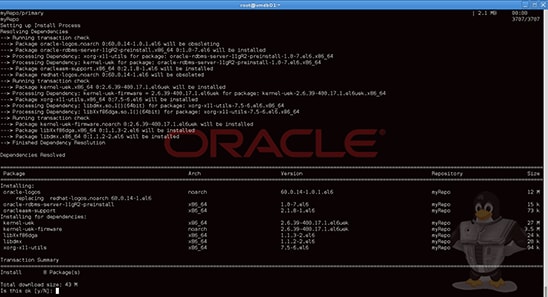
Figure 57. Confirming the installation of the packages.
The installation process will complete in a few minutes as shown below:
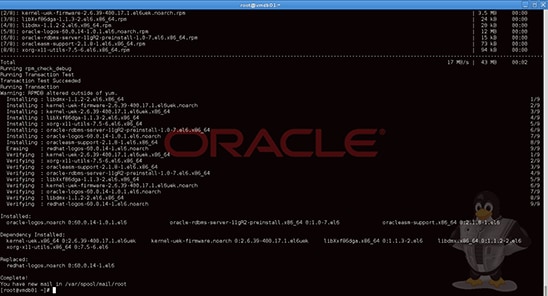
Figure 58. Completion of package installation.
-
Verify the vmdb01.oow.local GRUB configuration to ensure that it will boot with the new Unbreakable Enterprise Kernel.
You can verify your GRUB configuration using the command
cat /boot/grub/grub.conf, for example: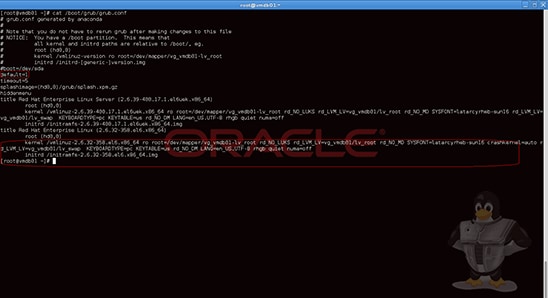
Figure 59. Verifying the GRUB configuration.
In this example, "default kernel (1)" is the old Red Hat kernel; so we have to modify the default value to
0. We would like also to see all boot steps, so, we need to removerhgb quietfrom the boot kernel command line.As
root, open the/boot/grub/grub.conffile and change the default value from1to0and removerhgb quiet; to accomplish this task, you can use an editor such as vi or, if you don't know this tool, execute the following commands:# sed -i s/default=1/default=0/ /boot/grub/grub.conf # sed -i s/rhgb\ quiet// /boot/grub/grub.conf
After that, verify that the default value is correctly set (value is
0).#cat /boot/grub/grub.conf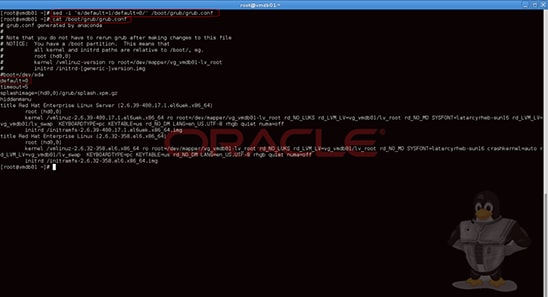
Figure 60. Verifying that the default value is correct.
-
Disable Linux services that are not needed:
#chkconfig rhsmcertd off# chkconfig rhnsd off -
Reboot the vmdb01.oow.local guest from Oracle VM Manager:
-
Click the Servers and VMs tab, expand Server Pools, and expand the ovm-pool.oow.local pool using .
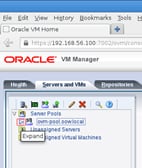
Figure 61. Expanding the pool.
-
Select the physical server (dom0) named ovm-srv.oow.local and the running guest will appear in the panel on the right.
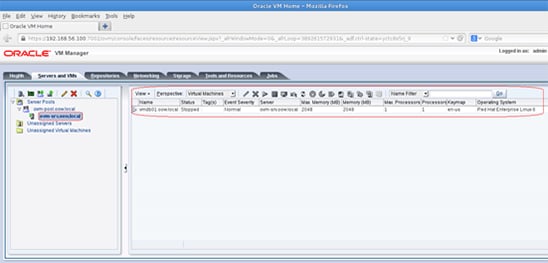
Figure 62. Selecting the server.
-
Select the guest named vmdb01.oow.local and Click
 .
.
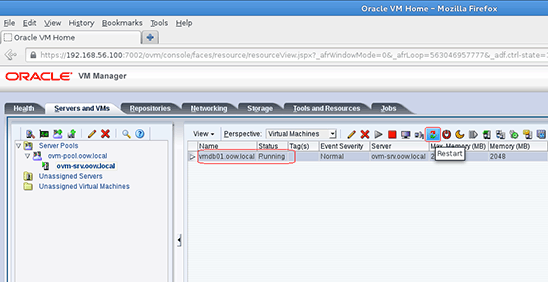
Figure 63. Restarting the guest.
- Confirm the reboot of the guest by clicking OK.
-
Click the Servers and VMs tab, expand Server Pools, and expand the ovm-pool.oow.local pool using
-
Wait for the guest to reboot (you can follow its reboot in the console opened before). When the reboot is completed, do the following to verify the Unbreakable Enterprise Kernel and the parameters introduced by the preinstallation package
oracle-rdbms-server-11GR2-preinstall:-
Reconnect using
ssh.#ssh root@<IP_address_of_guest>
Log in using the following:
Username: root
Password: ovsrootIn the following figure, the IP address of the guest is 192.168.56.254.

Figure 64. Connecting to the guest.
-
Verify that the kernel loaded:
#uname -a

Figure 65. Verifying that the kernel loaded.
-
Verify the kernel parameters introduced by the package:
# cat /etc/sysctl.conf
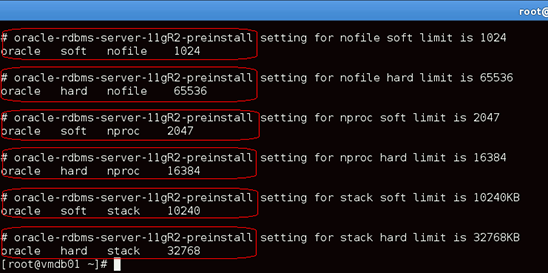
Figure 66. Verifying the kernel parameters.
-
Verify the settings for the Linux
oracleuser introduced by the preinstallation package:# cat /etc/security/limits.conf
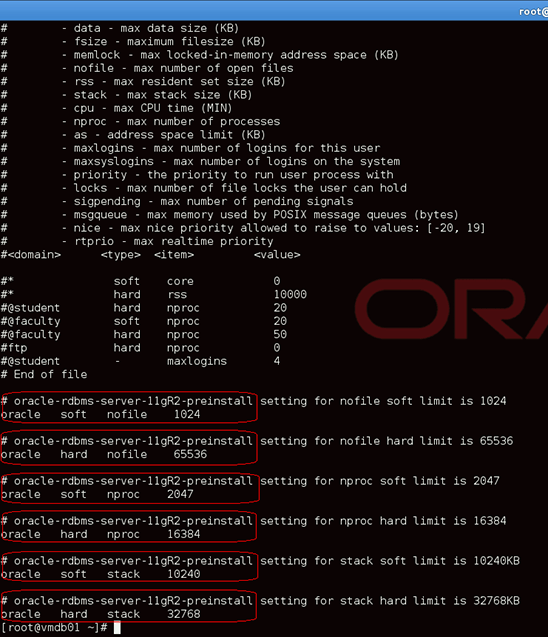
Figure 67. Verifying the setting for the
oracleuser.
-
Reconnect using
 .
.
By performing the steps in this section, we obtained the following fully supported and certified configuration for Oracle Database (whereas on VMware, Oracle Database was only supported, not certified):
Oracle VM => Oracle Linux => Oracle Database 11g Release 2
We obtained this fully certified Oracle Database configuration with a cheaper virtualization solution. You can obtain further details from the following My Oracle Support note:
"Support Position for Oracle Products Running on VMWare Virtualized Environments (Doc ID 249212.1)"
The first statement in the My Oracle Support note says "Oracle has not certified any of its products on VMware virtualized environments."
Create Your Own Templates Starting from a Guest
This section will describe how to build an Oracle VM Template starting from an existing guest (in our case, a guest created by a VMware OVA).
An Oracle VM Template is a reusable guest on which we will be able to create more guests automatically.
-
First, install the RPMs that supply Oracle VM APIs; in our example configuration, you can complete this task using the following command:
# yum install ovm*.
The main packages that will be installed are as follows:
ovm-template-config: Oracle VM Template configuration toolovmd: Oracle VM guest daemonlibovmapi: Oracle VM APIs
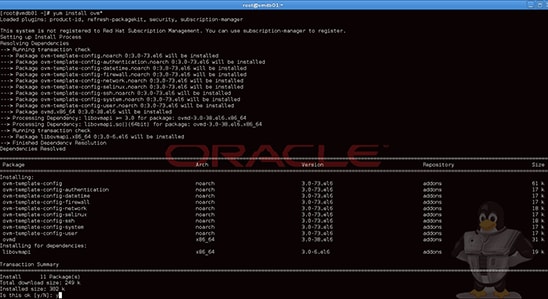
Figure 68. Installing the RPMs.
The task will be completed in few seconds, and the result will be similar to Figure 69:
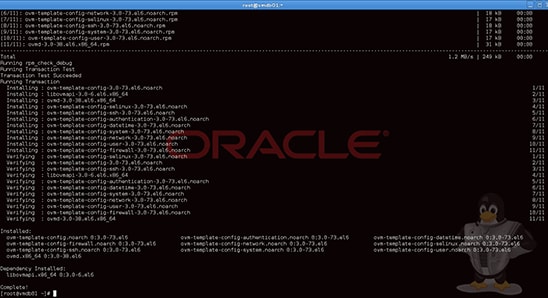
Figure 69. Result of installing the RPMs.
-
Connect to the guest console using Oracle VM Manager and prepare the guest to be transformed into an Oracle VM Template:
Once the console is open, execute the following commands:
# ovmd -s cleanup # chkconfig ovmd on # service ovmd enable-initial-config # shutdown -h nowNote: If you aren't able to open a guest console and obtain a login prompt, connect via
sshand execute all the steps in one command (the password isovsroot):ssh root@<IP_address_obtained_earlier> # ovmd -s cleanup; chkconfig ovmd on; service ovmd enable-initial-config; shutdown -h nowNote: If you are connected by
ssh, you'll lose the connection to the guest.
Figure 70. Preparing the guest.
-
Verify that your guest is stopped and, after that, clone it to a new Oracle VM Template:
- Connect to Oracle VM Manager, select the Servers and VMs tab, select the pool named ovm-pool.oow.local, and select the Virtual Machines perspective.
-
Click the vmdb01.oow.local guest and click the Clone or Move Virtual Machine icon.
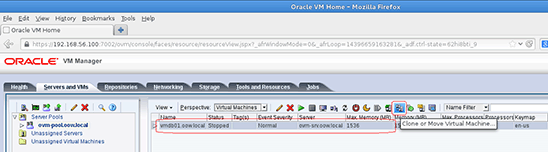
Figure 71. Preparing to clone the guest.
-
In the "Clone or Move Virtual Machine: vmdb01.oow.local" window, select the first option on the left and click Next.
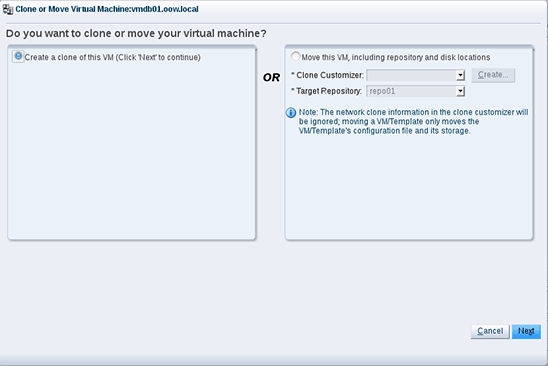
Figure 72. Specifying that the guest be cloned.
-
Enter the following details:
Clone to a: Template
Clone Count: 1
Clone Name: Oracle Linux 6.4 - Oracle Database 11.2
Target Server Pool: ovm-pool.oow.local
Description: Oracle Linux Template with Oracle 11.2 Database on boardClick OK to confirm the creation of the new Oracle VM Template.
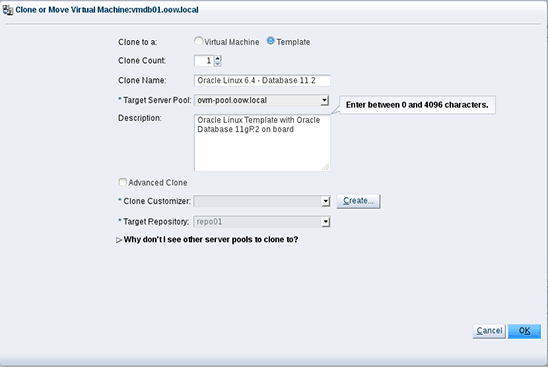
Figure 73. Cloning the guest to create a template.
-
Verify the creation of your Oracle VM Template by clicking the Repositories tab, expanding the repo01 repository, and clicking the VM Templates folder.
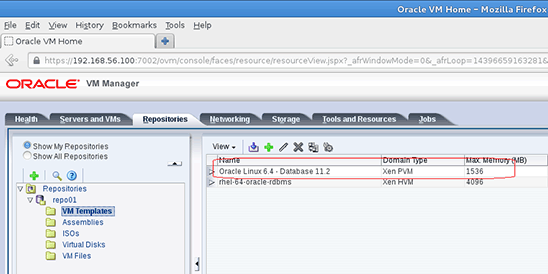
Figure 74. Verifying the creation of the template.
-
Select the new Oracle VM Template named Oracle Linux 6.4 - Database 11.2 and Click .
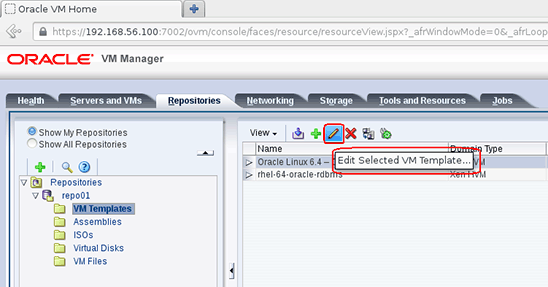
Figure 75. Selecting the template.
-
Change Operating System from Red Hat Enterprise Linux 6 to Oracle Linux 6 and click OK.
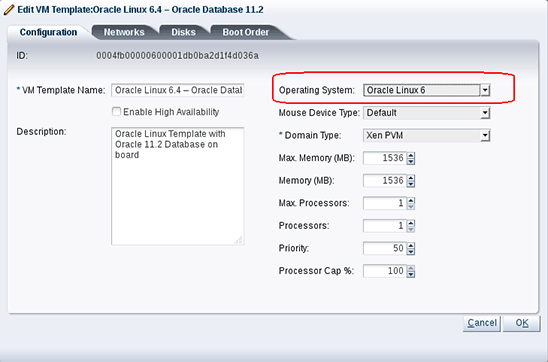
Figure 76. Changing the template's OS.
-
Create a new guest named vmdb02 from the new Oracle Linux template by selecting the new Oracle VM Template named Oracle Linux 6.4 - Database 11.2 and clicking
 .
.
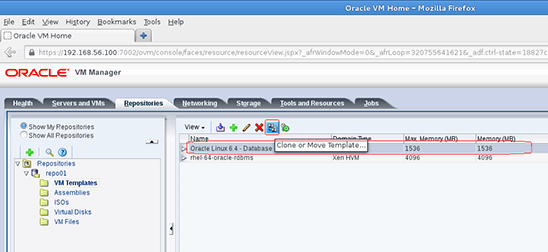
Figure 77. Preparing to create a new guest.
-
In the "Clone or Move Template: Oracle Linux 6.4 - Database 11.2" window, select the Create a clone of this Template option.
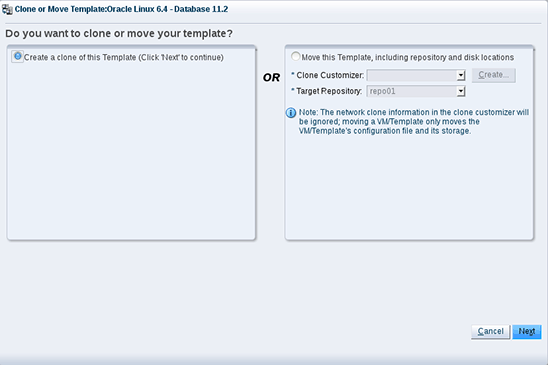
Figure 78. Specifying the clone operation.
-
Enter the following details:
Clone to a: Virtual Machine
Clone Count: 1
Clone Name: vmdb02.oow.local
Target Server Pool: ovm-pool.oow.local
Description: clone pre-configured started from Oracle VM TemplateClick OK to confirm the creation of the new Oracle VM guest.
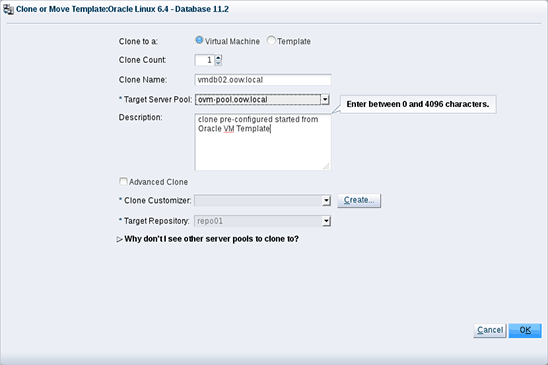
Figure 79. Confirming the creation of the new guest.
-
Start the new Oracle VM guest vmdb02.oow.local by selecting Servers and VMs, expanding the pool named ovm-pool.oow.local, selecting the guest named vmdb02.oow.local, and clicking .
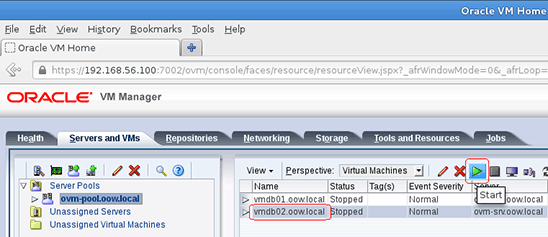
Figure 80. Starting the guest.
-
Open the vmdb02.oow.local console by clicking .
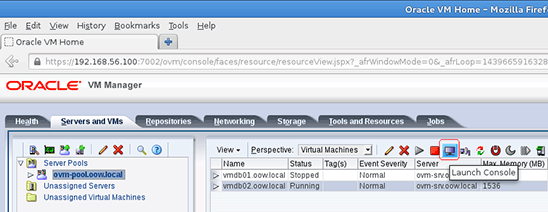
Figure 81. Opening the guest's console.
-
One of first Oracle Linux services that you can start via the console will be "starting OVM template configure":

Figure 82. Console options.
The Oracle VM Template configuration will ask for information for the new guest vmdb02.oow.local; enter the following details:
In the NETWORK category:
System host name: vmdb02.oow.local
Network device to configure: eth0
Activate interface on system boot: yes
Boot protocol: DHCP or static: static
IP address of the interface: 192.168.56.199
Netmask of the interface: 255.255.255.0
Gateway IP address: 192.168.56.1
DNS servers separated by comma: 192.168.56.1In the AUTHENTICATION category:
System root password: <your_first_name>+<your_surname>+1Note: Due to security policies, we have to insert one long password that contains at least one number.
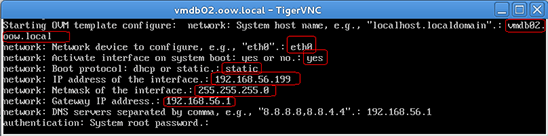
Figure 83. Specifying the template's configuration.
-
Open a terminal window on your machine and connect to your new guest (IP address 192.168.56.199) using
ssh.Commands such as
hostname,ifconfig, anduname -awill show you details.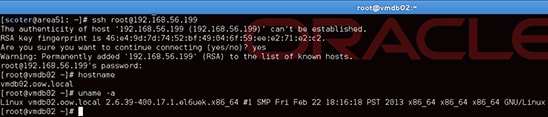
Figure 84. Connecting to the new guest.
 .
.
Summary
Congratulations! You have successfully imported a guest from VMware to Oracle VM, switched from Red Hat to Oracle Linux, and created your first Oracle VM Template using Oracle VM Template configuration scripts.
You can now master your knowledge and create your own Oracle VM Template configuration scripts by following the guide deployed by Wim Coekaerts on his Oracle blog:
https://blogs.oracle.com/wim/entry/oracle_vm_template_config_script
Appendix A: Preparing the Environment to Run the Lab from Your Home or Office
Find a Suitable Machine
This appendix explains how to prepare the environment if you want to run this lab from your home or office.
The first step is to find an x86 machine (server, desktop, or laptop) that has the required resources:
- At least 16 GB of RAM
- An x86 64-bit CPU (Intel or AMD) with at least four CPU threads and with virtualization extensions (Intel VT or AMD-V)—only Parallel Virtual Machine (PVM) guests are allowed on top of this architecture
- An OS supported by Oracle VM VirtualBox (Microsoft Windows, various Linux distributions, Oracle Solaris 10 or 11, or Apple Mac OSX)
- 100 GB of disk space
Then you download the required binaries, install Oracle VM VirtualBox on the machine, and install the following two servers (two Oracle VM VirtualBox virtual machines, in fact), as described in the next sections:
- Oracle VM Server
- Oracle VM Manager
Download Required Binaries
This section lists the required binaries and explains how to download them.
-
Download the files for your x86 machine:
Java Runtime Environment (JRE) 7 (the
javawsbinary is needed to get the VNC console)
Download the version for your OS from http://java.com/en/download/manual.jsp.Oracle VM VirtualBox binaries (version 4.2.16 during writing of this document)
Download the version for your OS from https://www.virtualbox.org/wiki/Downloads.
File name:
For Oracle Linux or Red Hat Linux 6 (64 bits):VirtualBox-4.2-4.2.16_86992_el6-1.x86_64.rpm(size 69 MB)
For Microsoft Windows:VirtualBox-4.2.16-86992-Win.exe(size 95 MB)Oracle VM VirtualBox Extension Pack 4.2.x
Download this from https://www.virtualbox.org/wiki/Downloads (the same file is used for all operating systems).File name:
Oracle_VM_VirtualBox_Extension_Pack-4.2.16-86992.vbox-extpack(size 11 MB) -
Download the file for Oracle VM Server:
VirtualBox template for Oracle VM Server 3.2.4
Download this from http://www.oracle.com/virtualization/technologies/vm/downloads/template-downloads.html
File name:OracleVMServer.3.2.4-b525.ova(size 249 MB) -
Download the file for Oracle VM Manager:
VirtualBox template for Oracle VM Manager 3.2.4
Download this from http://www.oracle.com/virtualization/technologies/vm/downloads/template-downloads.html
File name:OracleVMManager.3.2.4-b524.ova(size 2.75 GB)
Install Oracle VM VirtualBox
- On your chosen x86 machine, install the JRE you downloaded.
- Install the Oracle VM VirtualBox 4.2.x binaries on your x86 machine.
- Start the Oracle VM VirtualBox console.
- If it has not already been created, go to File-> Preferences-> Network and create a host-only network in Oracle VM VirtualBox using the default IP information (IPv4 address 192.168.56.1 and netmask 255.255.255.0 for your x86 machine). Also disable the default Oracle VM VirtualBox DHCP server. After these changes, reboot your x86 machine.
- Go to File-> Preferences-> General-> Default Machine Folder and choose the folder you want to use to store the virtual machines files.
- Go to File-> Preferences-> Extensions and install the Oracle VM VirtualBox Extension Pack you downloaded.
Install Oracle VM Server
-
In the Oracle VM VirtualBox console, import the VM from the Oracle VM Server template:
- Select File-> Import Appliance.
- Select the OracleVMServer.3.2.4-b525.ova file you downloaded.
- Click Next.
- Change the name of Virtual System 1 from Oracle VM Server 3.2.4-b525 to hol9981_ovm_srv.
- Click Import.
-
Modify the settings of the virtual machine hol9981_ovm_srv:
- Set Amount of Memory to 6144MB (System).
- Configure the network by going to Network and clicking the Adapter 1 tab. From the Attached to list, select Host-only Adapter.
- Configure storage by removing the second 20 GB disk and adding a new 60 GB disk (or a bigger disk, based on the size of the guest you will export from VMware).
- Start the virtual machine hol9981_ovm_srv.
-
Configure the virtual machine (in the VM console):
-
Configure the network:
IP address: 192.168.56.101
Netmask: 255.255.255.0
Gateway: 192.168.56.1
DNS server: 192.168.56.1 (we will not use DNS, but we have to give an IP address here)
Hostname: ovm-srv.oow.local - Wait for the boot to complete.
-
Configure the network:
-
If your x86 machine runs a UNIX or Linux OS, open a terminal window and connect to the VM using
ssh. If your machine runs Microsoft Windows, use PuTTY instead.Note: The password is ovsroot.
$ ssh root@192.168.56.101 -
Add the following lines to the
/etc/hostsfile:192.168.56.100 ovm-mgr.oow.local ovm-mgr 192.168.56.101 ovm-srv.oow.local ovm-srv 192.168.56.199 vmdb02.oow.local vmdb02
Export the VMware Guest in OVA Format
In this lab, we create more than one guest and an Oracle VM Template starting from a Red Hat Enterprise Linux 6 guest exported from VMware.
The guest exported for this lab during Oracle OpenWorld was as follows:
- OS: Red Hat Enterprise Linux 6.4 x86-64
- vCPUs: Two
- vRAM: 8192 MB
- Disks: One disk of 30 GB
- Applications: Oracle Database Enterprise Edition 11.2.0.3
There is more than one method for exporting a guest into OVA format. The method used in this lab is text mode using a tool named OVF Tool.
To export your own Red Hat Linux guest using OVF Tool, use syntax such as the following:
# ovftool /app/vmware/RH_Linux_6_x86-64/rhel_6_64-bit.vmx /app/rhel-64-oracle-rdbms.ova
You can put the .ova file on the Oracle VM Manager server at the following path:
/var/www/html/ovas
For example:
scp /app/rhel-64-oracle-rdbms.ova 192.168.56.100:/var/www/html/ovas
Alternatively, you can put the .ova file on your own web server; be sure to note the path where you put the file, because you will need this information during the lab.
Export methods using other VMware products are reported at these public links:
Note: If you are instead going to export a Microsoft Windows guest from VMware, you could encounter a known problem: the BSOD (blue screen of death) on the first run of your guest on Oracle VM. To sort out this problem, you have two options you can follow before exporting the guest:
- Connect to your Windows guest and extract driver
.cabfiles already present in the Microsoft Windows distribution. - Install Oracle VM paravirtual (PV) drivers for Microsoft Windows. Download Oracle VM PV drivers for Microsoft Windows from the Oracle Software Delivery Cloud.
Reference: Oracle VM Windows PV Drivers for Microsoft Windows Guests (XP/Vista/7/2003/2008/2008 R2) 3.0.1 - 32-bit/64-bit (signed by Microsoft for the Windows Logo Program for Windows 2008, Windows 2008 R2, Windows 2003 and Windows 7)
Install Oracle VM Manager
-
In the Oracle VM VirtualBox console, import the VM from the Oracle VM Manager template:
- Select File-> Import Appliance.
- Select the OracleVMManager.3.2.4-b524.ova file you downloaded.
- Click Next.
- Change the name of Virtual System 1 from Oracle VM Manager 3.2.4-b524 to hol9981_ovm_mgr.
- Click Import.
-
Modify the settings of the virtual machine hol9981_ovm_mgr:
- Configure the network by going to Network and clicking the Adapter 1 tab.
- From the Attached to list, select Host-only Adapter.
- Start the virtual machine hol9981_ovm_mgr.
-
Configure the virtual machine (in the VM console):
- Set the root password to ovsroot.
-
Configure the network:
IP address: 192.168.56.100
Netmask: 255.255.255.0
Gateway: 192.168.56.1
DNS server: 192.168.56.1 (we will not use DNS, but we have to give an IP address here)
Hostname: ovm-mgr.oow.local - Wait for the boot to complete.
-
If your x86 machine runs a UNIX or Linux OS, open a terminal window and connect to the VM using
ssh. If your machine runs Microsoft Windows, use PuTTY instead.Note: The password is ovsroot.
$ ssh root@192.168.56.100 -
Add the following lines to the
/etc/hostsfile:192.168.56.100 ovm-mgr.oow.local ovm-mgr 192.168.56.101 ovm-srv.oow.local ovm-srv 192.168.56.100 vmdb02.oow.local vmdb02 -
Enable the Apache
httpddaemon on the manager (which will be used to upload templates):# service httpd start # chkconfig httpd on -
Configure directories that will support the
httpddaemon used for.ovafiles and the yum server.# mkdir -p /web/ovas # mkdir -p /web/yum # cd /var/www/html; ln -s /web/ovas .; ln -s /web/yum . -
Copy the
.ovafile you exported from VMware to the new directory created in the previous step. You should then obtain output similar to this if you list the contents of the directory:[root@ovm-mgr]# ls -l -rwxr-xr-x 1 ovmovm 9900220416 Aug 19 13:02 rhel-64-oracle-rdbms.ova [root@ovm-mgr]# pwd /web/ovas -
Prepare a yum repository for Oracle Linux 6 based on http://public-yum.oracle.com. (The Oracle VM Manager guest will need internet access, so you have to temporarily modify your network connection.)
-
Download the public yum repository file to install new packages:
# cd /etc/yum.repos.d # wget https://public-yum.oracle.com/public-yum-el5.repo -
Install the tools needed to build your local yum repository:
# yum install yum-utils createrepo -
Download the public yum repository file for Oracle Linux 6 (the target release of our guest on top of Oracle VM in this lab) and remove the Oracle Linux 5 repo file (which was used to install the packages above).
# rm -f /etc/yum.repos.d/public-yum-el5.repo # cd /etc/yum.repos.d # wget https://public-yum.oracle.com/public-yum-ol6.repo -
Create the local repository on the Oracle VM Manager machine.
Note: It might take many hours, depending on your internet connection, because it will download about 27 GB; if you don't have much time, see the alternative option below.
# /usr/bin/reposync --repoid=ol6_latest --repoid=ol6_UEK_latest -repoid=ol6_addons -p /web/yum
# /usr/bin/createrepo /web/yum/ol6_latest/getPackage/
# /usr/bin/createrepo /web/yum/ol6_UEK_latest/getPackage/
# /usr/bin/createrepo /web/yum/ol6_addons/getPackage/
An alternative option is to directly use http://public-yum.oracle.com in this lab; to implement this alternative, you will need to have internet access and, at the same time, configure your Oracle VM Manager guest to reach external sites.
-
Prepare the
.repofile to use on your future Oracle VM guest (with Oracle Linux 6 x86-64):[local_ol6_latest] name=Oracle Linux $releasever Latest ($basearch) baseurl=http://192.168.56.100/yum/OracleLinux/OL6/latest/$basearch/ gpgkey=http://192.168.56.100/RPM-GPG-KEY-oracle-ol6 gpgcheck=0 enabled=1 [local_ol6_UEK_latest] name=Latest Unbreakable Enterprise Kernel for Oracle Linux $releasever ($basearch) baseurl=http://192.168.56.100/yum/OracleLinux/OL6/UEK/latest/$basearch/ gpgkey=http://192.168.56.100/RPM-GPG-KEY-oracle-ol6 gpgcheck=0 enabled=1
-
Download the public yum repository file to install new packages:
-
Install and implement a DHCP server on Oracle VM Manager; we need this function to supply IP addresses on the guest that will be created on our Oracle VM Server:
#wget http://public-yum.oracle.com/repo/OracleLinux/OL5/9/base/x86_64/dhcp-3.0.5-31.el5_8.1.x86_64.rpm# chkconfig dhcpd on # service dhcpd startHere is an example of a
dhcpd.conffile you can implement (/etc/dhcpd.conf):# DHCP Server Configuration file. # see /usr/share/doc/dhcp*/dhcpd.conf.sample # ddns-update-style interim; ignore client-updates; subnet 192.168.56.0 netmask 255.255.255.0 { option routers 192.168.56.1; option subnet-mask 255.255.255.0; option nis-domain "oow.local"; option domain-name "oow.local"; option domain-name-servers 192.168.56.1; range dynamic-bootp 192.168.56.250 192.168.56.254; default-lease-time 86400; max-lease-time 86400; }
Configure the Oracle VM Environment
-
Connect to the Oracle VM Manager web console:
- On your x86 physical machine, open a Firefox browser and connect to the Oracle VM Manager console using URL
https://192.168.56.100:7002/ovm/console.
-
Log in using user
adminand passwordWelcome1.You should now see the Oracle VM Manager console:
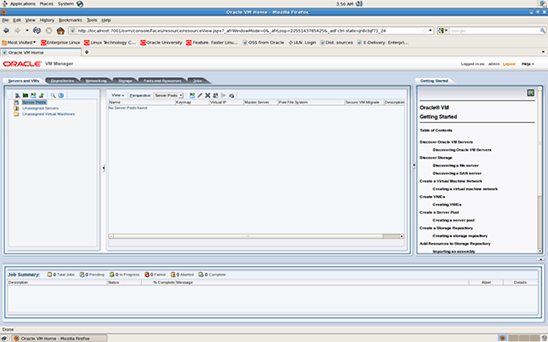
Figure 85. Oracle VM console.
- On your x86 physical machine, open a Firefox browser and connect to the Oracle VM Manager console using URL
-
Discover the Oracle VM Server:
- Click
 .
. - Leave 8899 for the Oracle VM Agent port.
- Enter ovsroot for the Oracle VM Agent password.
- Enter 192.168.56.101 for the IP address.
- Click OK to launch the discovery.
-
Wait a few seconds.
You should now see the server, named ovm-srv.oow.local, under Unassigned Servers.
- Under Unassigned Servers, click the server to see server information (CPU, memory, and so on).
- Click
-
Modify the network configuration:
Oracle VM has a number of network channels: Server Management, Live Migrate, Cluster Heartbeat, Virtual Machine, and Storage. The Server Management, Live Migrate, and Cluster Heartbeat roles are automatically assigned to the management network when you discover Oracle VM Server.
For simplicity, we will use a single network for all roles by assigning the Virtual Machine and Storage roles to the default network.
- Click the Networking tab.
- Select network 192.168.56.0 and Click to edit its properties.
-
In the network channels list, select the checkboxes Virtual Machine and Storage.
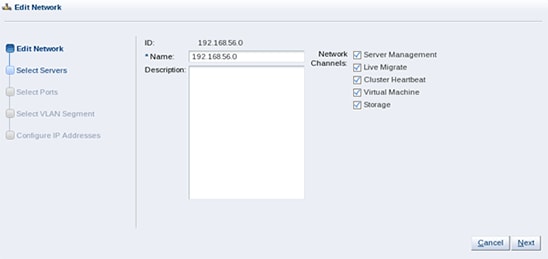
Figure 86. Assigning roles to the default network.
- Leave all other parameters as the default values by clicking Next three times. Then click Finish.
-
Create VNICs (Virtual Network Interface Cards):
The VNIC Manager creates VNICs, which can be used by virtual machines as network cards. You create virtual network interfaces by defining a range of MAC addresses to use for each VNIC.
- In the Networking tab, click Virtual NICs.
-
Click Auto-Fill and then Create. This will create 20 VNICs.
You should now see those VNICs listed:
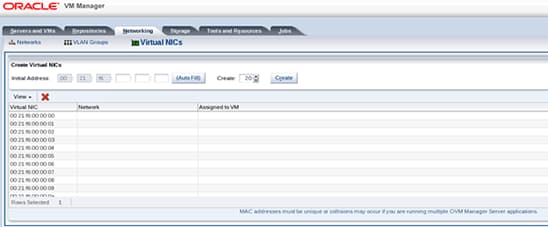
Figure 87. List of VNICs that were created.
-
Create a server pool using the Oracle VM server:
Note: A server pool contains a group of Oracle VM servers, which as a group perform virtual machine management tasks, such as providing high availability (HA), implementing resource and power management policies, and providing access to networking, storage, and repositories.
The virtual machines running on a server can be "live migrated" to another server in the same pool. Of course, you need to have a shared storage system (NFS, iSCSI, or FC) between all the servers of the pool. The pool is called clustered in this case.
Here, for simplicity, we will create a non-clustered server pool with a single server and will use a local hard disk drive (HDD). (Actually, it is a file on the machine that is seen by Oracle VM VirtualBox as an HDD.)
- In Oracle VM Manager, go back to the Servers and VMs tab.
-
Click the third icon from the left (
 ) to create a new server pool:
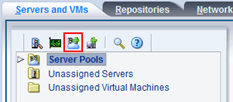
Figure 88. Preparing to create a server pool.
-
Enter the following information:
Server pool name: ovm-pool.oow.local
Virtual IP address for the pool: 192.168.56.200Note: The virtual IP address of the pool is assigned to one server in the pool, called the master server. Several actions are executed by this master server.
- Deselect Clustered Server Pool.
-
Click Next.
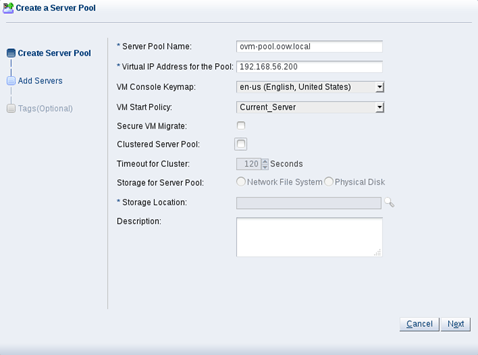
Figure 89. Creating the server pool.
- In the next window, Click
 to add all servers (here, only one server) to the pool, and finally click Finish.
 -
Once the pool is created, you should see the pool and our Oracle VM server, ovm-srv, in it. Click
 to expand.
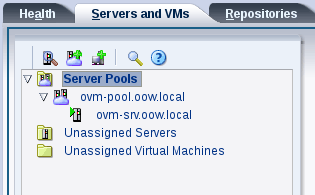
Figure 90. The created server pool and server.
-
Create the storage repository:
Before creating VMs hosted on the server pool, we need to create at least one storage repository in which to store the VMs' files.
Note: Only unused and unpartitioned local HDDs can be used.
- Click the Repositories tab.
- Click to create a new storage repository.
- For Repository Name, enter repo01.
- For Repository Location, select Physical Disk (this is used for local HDDs, iSCSI, and FC LUNs).
- Select the right server pool (there is only one choice for mypool here).
-
Click
 to select the local HDD.
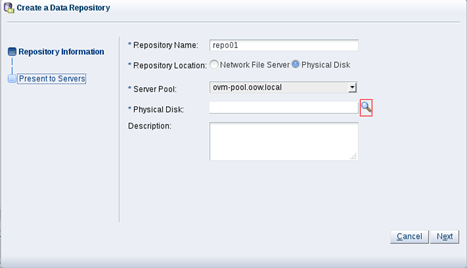
Figure 91. Creating the storage repository.
- Click Next.
- Click to present this repository to all servers (here, there is only one), and finally, click Finish.
-
Wait a few seconds for the repository to be created.
Note: For non-NFS storage (which is our case here), an OCFS2 (Oracle Cluster File System 2) file system is created on the repository.
-
You should now see the new repository. Click to expand it.
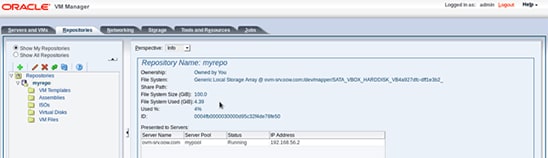
Figure 92. The newly created repository.
 .
.
 ) to create a new server pool:
 to add all servers (here, only one server) to the pool, and finally click Finish.
 to expand.
 to select the local HDD.
See Also
In addition, this hands-on-lab document is available at the following site: https://blogs.oracle.com/scoter/entry/oracle_openworld_2013_hands_on
About the Author
Simon Coter is a technical expert in core technology for Oracle in Italy.
Acknowledgments
Special thanks to Christophe Pauliat, Olivier Canonge, and Doan Nguyen for their contributions.
Revision 1.0, 12/20/2013