Three Recipes for Oracle Service Bus 11g
by Guido Schmutz, Edwin Biemond, Jan van Zoggel, Mischa Kölliker, and Eric Elzinga
Whip up a fresh batch of service- and message-oriented solutions with these recipes from the Oracle Service Bus 11g Development Cookbook
March 2012
This article presents three recipes specially selected from among the 80 recipes included in the Oracle Service Bus 11g Development Cookbook (Packt 2012), collectively illustrating how to efficiently develop service- and message-oriented (integration) solutions on Oracle Service Bus 11g. The three recipes presented here focus on:
- Messaging with JMS Transport: Sending a message to a JMS queue/topic (Chapter 3)
- Using File and Email Transport: Using the File Transport to write to a file (Chapter 6 )
- Communication, Flow Control, and Message Processing: Using custom XPath functions. (Chapter 9)
Ingredients
To develop and test these recipes you need to have Oracle Service Bus 11g (OSB) Patch Set 3 (11.1.1.4 or higher) and Oracle Database 11g (XE or Enterprise edition) installed on your system.
To use the web-based consoles, either Internet Explorer or Firefox is necessary.
All of the recipes were developed on the so-called "developers" installation of Oracle Service Bus 11g and Oracle SOA Suite 11g. This means that all the software is running on a single Admin Server – no additional Managed Servers are needed. At the beginning of writing the book, Oracle Service Bus Patch Set 3 (11.1.1.4) was the current release and we have implemented all the recipes using this version. Keep that in mind when interpreting the screenshots (though in most cases this is transparent). However, the differences will be relevant when entering the URI of the OSB server (i.e. to open the Service Bus Console). In our installation, having only an Admin Server, the port we use throughout these recipes is always 7001. Make sure to change that in case of a different installation.
To guide you through the installation of the various components, we have written an extra document, OsbCookbookInstallationGuide.pdf, included in this zip file: osb-cookbook-1540083.zip.
The environment for the recipes included in this article is comprised of set of artifacts, including a JMS queue and connection factory to be set up on Oracle WebLogic Server. These artifacts are installed through a WLST script, which is called from an ANT script. That script is also included in the aforementioned zip file (osb-cookbook-1540083.zip). Once extracted, the file can be installed by running setup\wlst\install.cmd.
Recipe 1: Sending a message to a JMS queue/topic
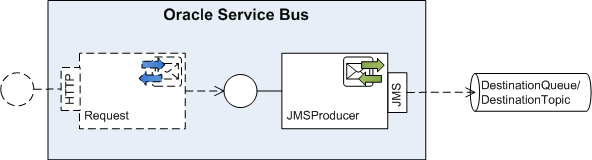
In this recipe we will create a Business Service which sends a message to either a JMS queue or to a JMS topic. Because writing to a queue and topic is very similar from the business service perspective, we decided to combine it into a single recipe. We will use and configure the JMS transport provided by Oracle Service Bus.
Getting ready
For this recipe we will use the DestinationQueue or the DestinationTopic from the OSB Cookbook standard environment and implement a business service to send messages to the queue/topic. We will not implement the proxy service in this recipe. Instead, we will test the business service directly on the OSB console.
How to do it...
First let's create the JMSProducer business service which sends the messages to the DestinationQueue. In the There's more section we will show the necessary changes to send a message to the JMS topic. In Eclipse OEPE, perform the following steps:
- Create a new OSB project writing-to-a-jms-queue and create a business folder within it.
- Create a new business service and name it JMSProducer.
- Navigate to the General tab.
- Set the Service Type option to Messaging Service.
- Navigate to the Messaging tab.
- Set the Request Message Type option to Text.
- Set the Response Message Type to None.
- Navigate to the Transport tab.
- Select jms for the value of the Protocol drop-down listbox.
- Enter
jms://localhost:7001/weblogic.jms.XAConnectionFactory/jms.DestinationQueueinto the EndpointURI field and click Add. - Navigate to the JMS Transport tab.
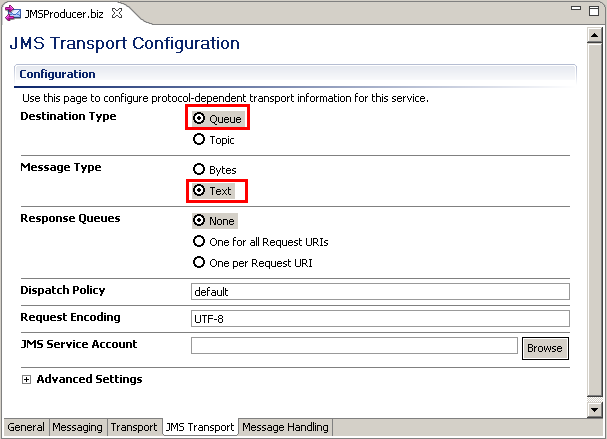
- Set the Destination Type option to Queue.
- Set the Message Type option to Text.
- Set Response queues option to None.
- Deploy the project to the OSB server.
This is all that is needed to send a message to a queue.
Now let's test the business service. In the OSB console, perform the following steps: - Navigate to the JMSProducer business service by clicking on Projects | writing-to-jms-queue | business in the Project Explorertree on the left.
- Click on the Launch Test Console icon (bug icon) in the Actions cell.
- Enter the message to send as text into the Payload field.
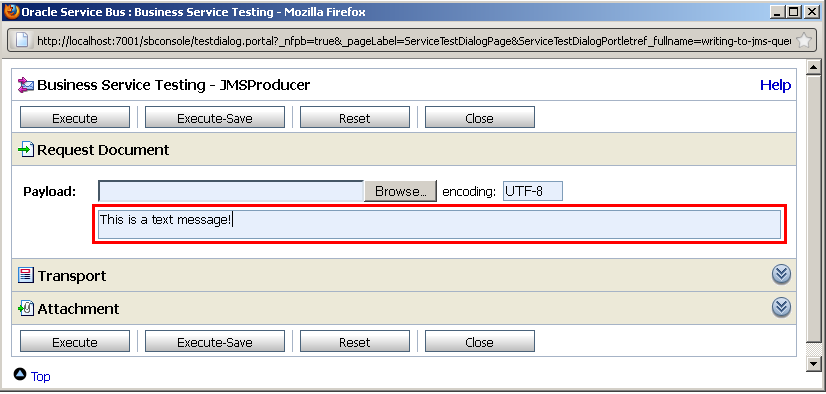
- Click Execute.
- The business service is invoked and a There was no response message is shown in the Response Document. This is because we have configured a one-way message exchange pattern by selecting Messaging Service with the Response Message Type set to None. If we invoke the business service from a proxy service, we would also get no response.
Let's check if the message is in the DestinationQueue by performing the following steps in the WebLogic Console: - In the Domain Structure tree on the left, navigate to Services | Messaging | JMS Modules.
- Click OsbCookbookResources.
- Click on DestinationQueue.
- Navigate to the Monitoring tab.
- Enable the checkbox in front of OSBBookJMSModule!DestinationQueue.
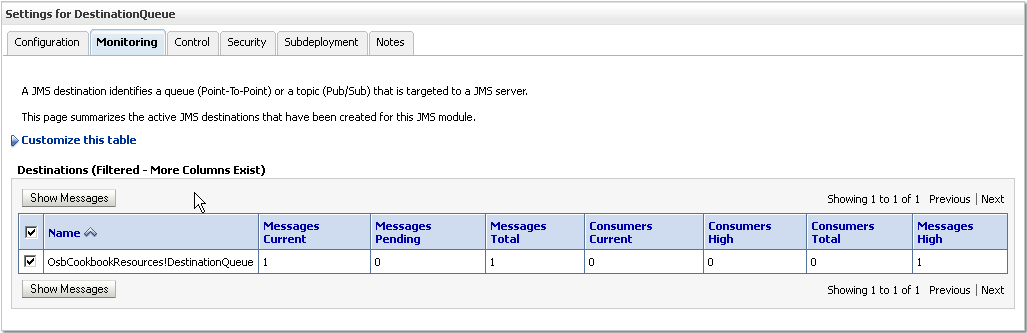
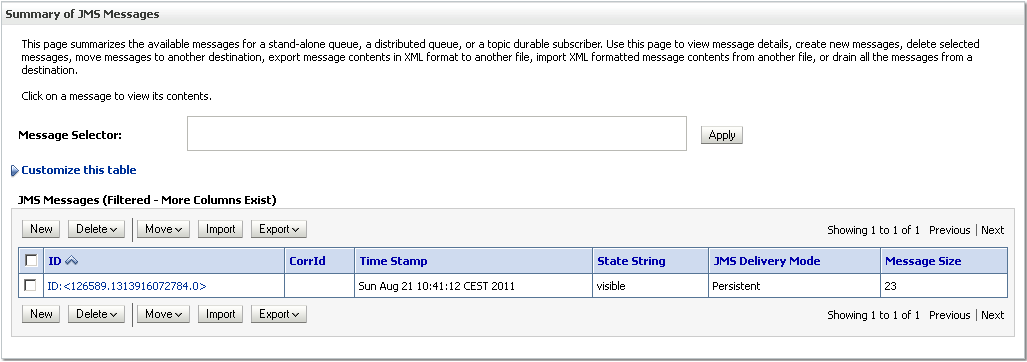
- Click Show Messages.
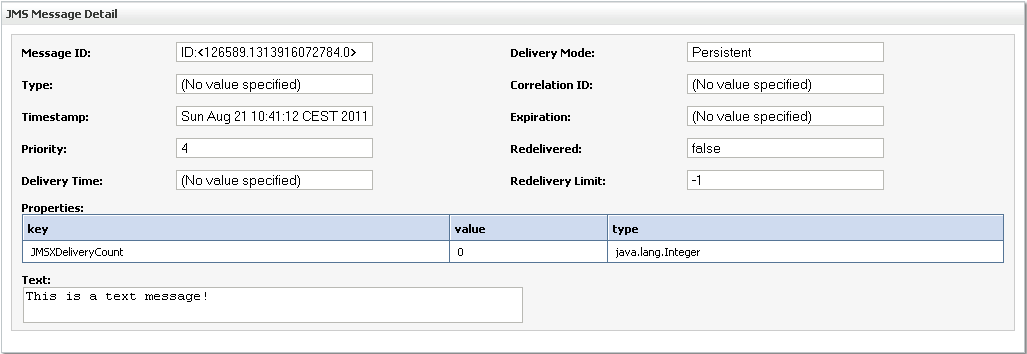
- Click on the ID of the message ID: <nnnnn.nnnnnnnn.n>.
- The details of the message with the payload and the JMS properties are shown.
How it works...
Configuring a business service with the JMS transport is enough to send a message from OSB to a JMS queue or topic. The queue or topic can reside on:
- the same WebLogic instance as the OSB server
- a remote WebLogic instance
- any JMS-compliant JMS server.
We have only configured the business service and tested it through the OSB console. In real-life the business service would be called from a proxy service either by a Routing or Publish action. If there is no need to transform the message, a simple pass through proxy-service is enough.
There's more...
This section will discuss some of the advanced settings on the JMS Transport tab, and the necessary changes to the recipe in order to send to a JMS topic instead of a JMS queue.
Advanced settings on JMS Transport
There are some advanced settings which can be set on the JMS Transport tab on the business service configuration, as illustrated in the image below.
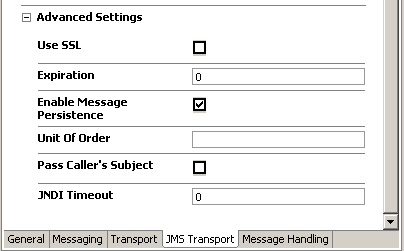
The option Enable Message Persistence is enabled by default, which guarantees message delivery because the messages are persisted and will survive server shutdowns and failures. To improve throughput, deselect this option (assuming the occasional lost message is tolerable).
Set a time interval in milliseconds in the Expiration field to specify the message time-to-live. After the time-to-live is passed, the message will automatically be treated according to the Expiration Policy defined on the JMS destination (i.e., the queue) and either discarded, logged, or redirected to another JMS destination.
The default value of 0 for Expiration means that a message never expires and therefore waits to be consumed forever or until the server is shutdown, if the message is not persistent.
Any JMS destination can override the Expiration set on the business service by setting the Time-to-Live Override setting through the WebLogic Console when configuring the JMS destination.
Sending to a JMS topic
The same steps as shown in the How to do it ... section apply for sending to a JMS topic, too. To change from the queue to the JMS topic DestinationTopic, make sure to enter jms://localhost:7001/weblogic.jms.XAConnectionFactory/jms.DestinationTopic into the EndpointURI in step 10, below, and to set the Destination Type option to Topic in step 12. Redeploy the project to the OSB server.
With that the business service will now write to the JMS topic. This can be tested through the OSB console by performing the following steps:
- Navigate to the JMSProducer business service by clicking on Projects | writing-to-jms-topic | business in the Project Explorer tree on the left.
- Click on the Launch Test Console icon (bug icon) in the Actions cell.
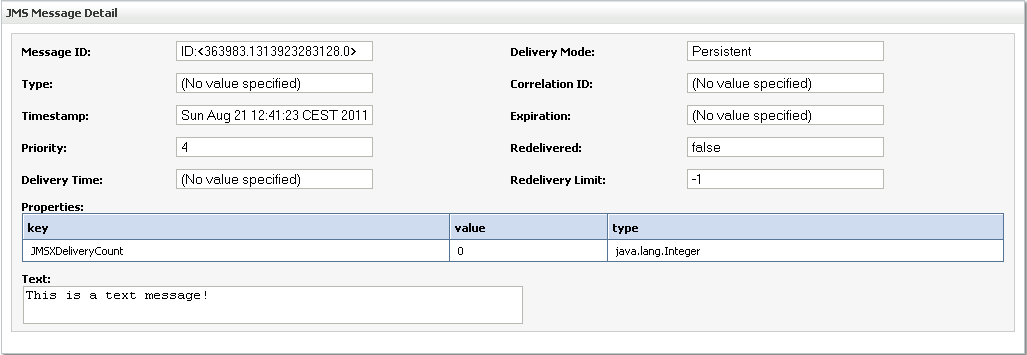
- Enter This is a text message! into the Payload field.
- Click Execute.
- The business service is executed and a There was no response message is shown in the Response Document. This is because we have configured a one-way message exchange pattern by selecting Messaging Service and only a Request Message Type.
- In the Domain Structure tree on the left, navigate to Services | Messaging | JMS Modules.
- Click OsbCookbookResources.
- Click on DestinationTopic.
- Navigate to the Monitoring tab.
Let's check if the message is in the DestinationTopic by performing the following steps in the WebLogic Console:
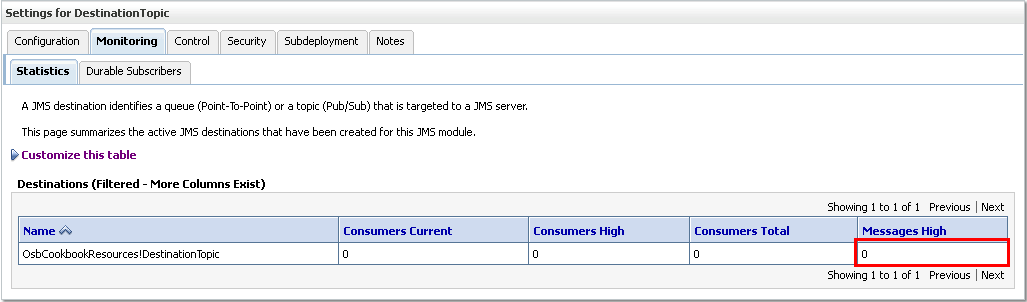
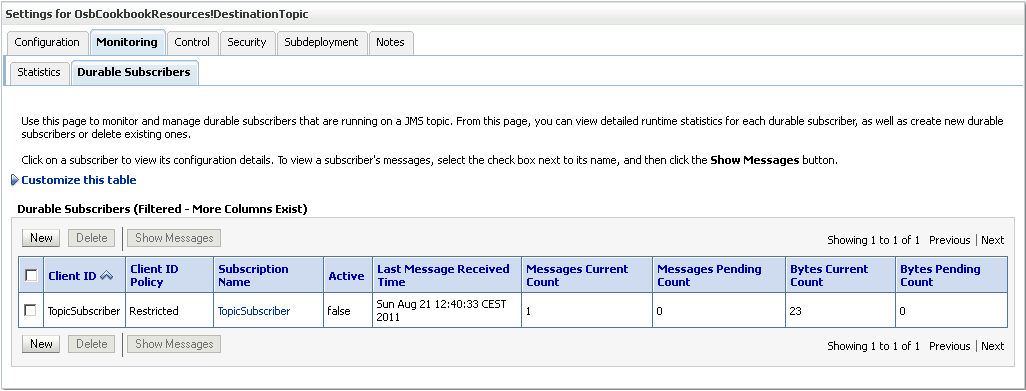
Because we don't have any subscribers on the topic, the message is not persisted. So let's add a subscriber to the topic:
Retest the business service refresh the Durable Subscribers tab.
Recipe 2: Using the File transport to write to a file
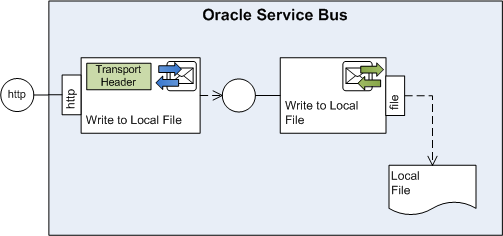
In this recipe we will write a file to the local file system (local to the OSB server). We will implement a business service which uses the File transport to do that. Additionally, we will create a proxy service and control the file name of the file being written by using a Transport Header action.
How to do it...
We begin with a business service writing a file to a local folder. In Eclipse OEPE perform the following steps:
- Create a new OSB project and name it using-file-transport-to-write-to-file.
- Create a business folder in that new project.
- In the business folder create a new business service named WriteToLocalFile.
- On the General tab select Messaging Service as the Service Type option.
- Navigate to the Messaging tab and select Text as the Request Message Type.
- Leave the Response Message Type set to None.
- Navigate to the Transport tab ad select file from the Protocol drop-down list.
- Enter file:///C:/work/destination into the Endpoint URI field and click Add.
- Navigate to the File Transport tab.
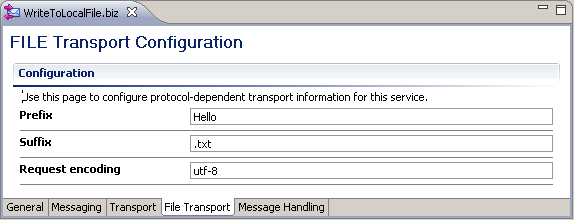
- Enter Hello into the Prefix field and .txt into the Suffix field.
- Deploy the project to the OSB server.
- Click on Project Explorer in the menu on the left and navigate to the WriteToLocalFile business service.
- Click on the Launch Test Console icon.
- Enter Hello world! for the content to write to the local file into the Payload field.
- Click Execute.
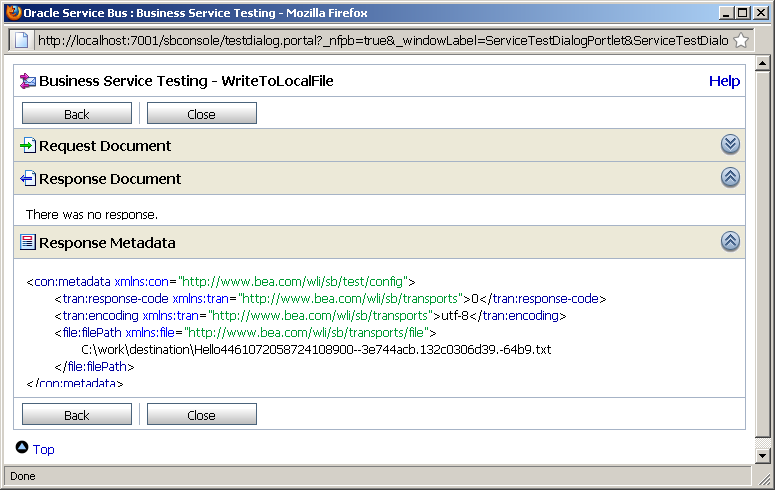
- The result of the test is presented as shown in the image below. There is no response, as writing a file is always a one-way operation. But the content of the meta data returns the file path, i.e., a generated name with the prefix Hello and the suffix .txt.
- Check that a file has been created at the given location.
- Create a proxy folder.
- Right click on the business service WriteToLocalFile and select Oracle Service Bus | Generate Proxy Service.
- Select the proxy folder in the Enter or select the parent folder tree, enter WriteToLocalFile into the File name field, and click Finish.
- Navigate to the Transport tab and change the Protocol to http.
- Navigate to the Message Flow tab.
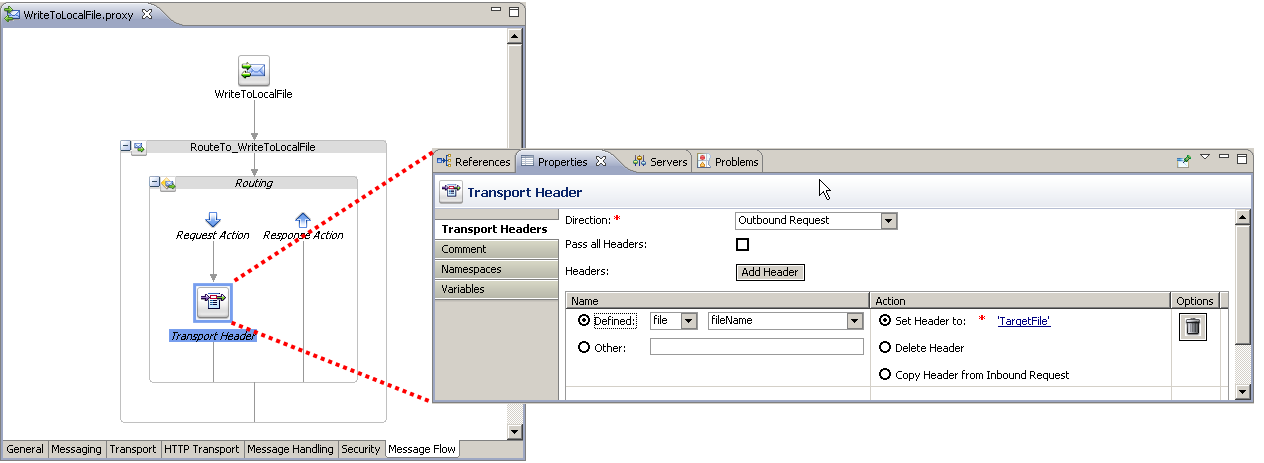
- Insert a Transport Header action into the generated Request Action of the Routing node.
- On the Properties tab of the Transport Header action, click on Add Header.
- Select the Defined option and select file and fileName in the corresponding drop-downs.
- Select the Set Header to option and click on <Expression>.
- Enter 'TargetFile' (including the quotes) into the Expression field.
- Deploy the project to the OSB server.
- Click on Project Explorer in the menu on the left and navigate to the WriteToLocalFile proxy service inside the proxy folder.
- Click on the Launch Test Console icon.
- Enter Hello world! for the content to write to the local file into the Payload field.
- Click Execute.
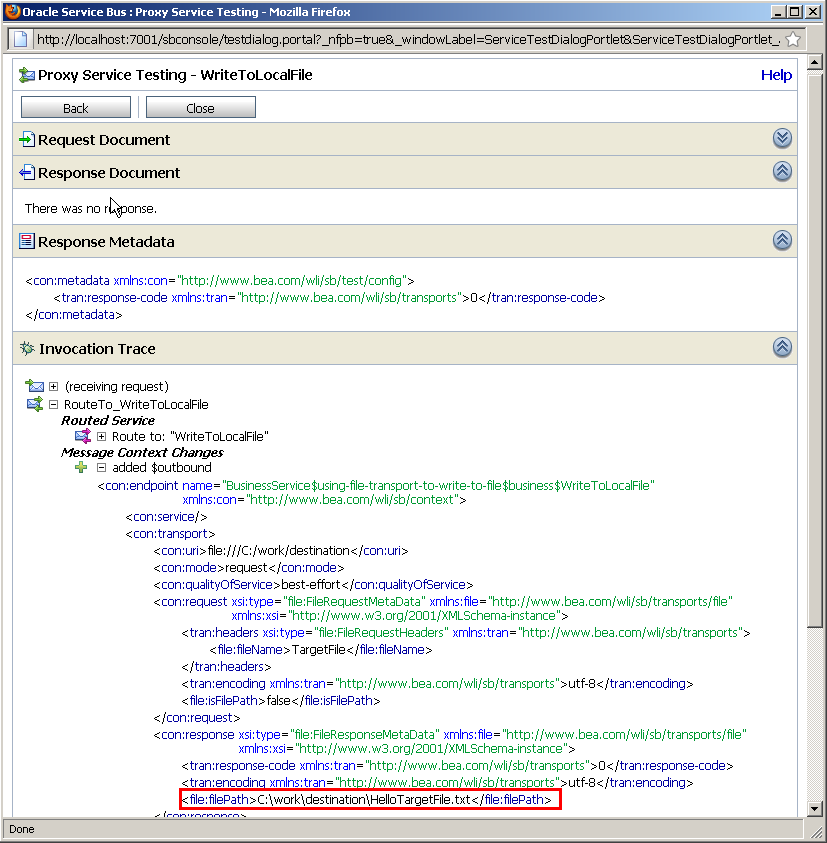
- The test result should resemble the image below. The outbound variable will show the value of the complete filePath used to write the file. The file name is created with the prefix Hello and the suffix .txt from the File Transport configuration and the name TargetFile from the Transport Header action.
- Check that a file has been created at the given location.
- Create a Service Account artifact called FTPUser.sa.
- Create a new business service WriteToFtpFile in the business folder.
- On the General tab select Messaging Service as the Service Type option.
- Navigate to the Messaging tab and select Text as the Request Message Type.
- Leave the Response Message Type on None.
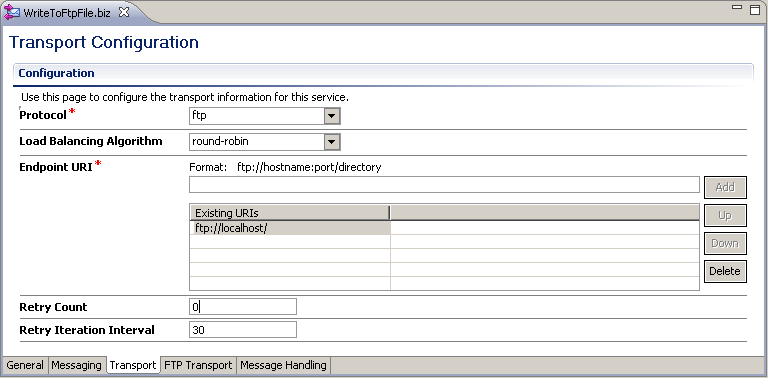
- Navigate to the Transport tab and select ftp from the Protocol drop-down list.
- Enter ftp://localhost/ into the Endpoint URI field and click Add.
- Navigate to the FTP Transport tab.
- Select external user for the User Authentication option, then click Browse and select the FTPUser Service Account artifact.
- Enter Hello into the Prefix for destination File Name field and .txt into the Suffix for destination File Name field.
- Select ascii for the Transfer Mode option.
- Navigate to the
[WL_HOME]/Oracle_OSB1/config/xpath-functionsfolder. -
Copy the osb-built-in.xml file and paste it as a new file called osb-cookbook.xml, which will hold the definition of the custom XPath function.
- Open osb-cookbook.xml in an Editor.
- Remove all the existing <xpf:function> elements and add our function, as shown in the image below:
- Save the file.
- Copy the osb-checksum-util.jar from the \chapter-9\getting-ready\misc to the [WL_HOME]/Oracle_OSB1/config/xpath-functions folder.
- Restart both Eclipse OEPE and the OSB server to reload the configuration.
- Open the Checksum proxy service and navigate to the Message Flow tab.
- Insert a Replace action into the CalculateChecksumStage.
- On the Properties of the Replace action, enter body into the In Variable field.
- Click <Expression> and select the XQuery Functions tab.
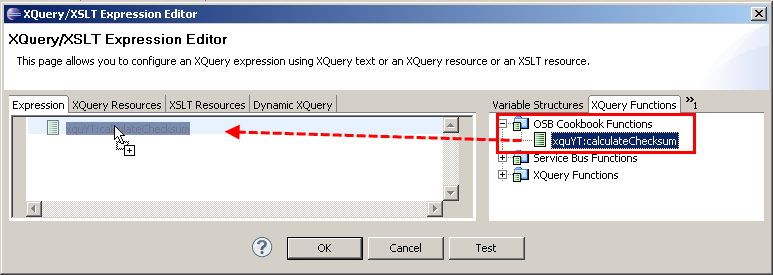
- Replace the $arg-string in the parameter list with $body/text() and click OK.
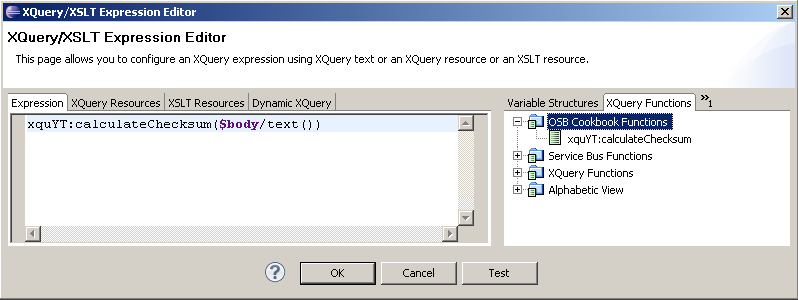
- Select the Replace node contents option.
- Deploy the project to the OSB server.
- In the Project Explorer navigate to proxy folder inside the using-custom-xpath-function project.
- Click on the Launch Test Console icon of the Checksum proxy service.
- Enter This is some text on which the Checksum will be calculated! into the Payload field and click Execute.
- The output in the Response Document section should show the same checksum value 4265366956, as in the recipe with the Java Callout action.
The business service to write a file is now configured and we can test it through the Test Console. In the Service Bus Console perform the following steps:
We now have a business service through which we can write to a local file. The file name is generated. We can only control the prefix and suffix being used through the configuration of the File transport.
To specify the complete file name, a Transport Header action can be used in the Routing action of the proxy service which is invoking the business service.
How it works...
Simply using a business service configured with the File transport is enough to be able to write a file to a local folder. The Endpoint URI configured on the File transport defines where that target local folder resides. If the folder does not yet exist, then it is created by the File transport upon writing the first file.
The File transport allows some control over the file name by the prefix and suffix option. However the middle part of the file name is by default generated based on a UUID-like string. By that we it's guaranteed that the file names are always unique. If this is not the behaviour we want, then we can overwrite the file name by using a Transport Header action, as shown in the next section, Specifying a file name at runtime.
If a file already exists, "_N" will be appended, where N is a number starting from 0. The string will be added before the suffix, so an original filename targetFile.txt would be extended to targetFile_0.txt, if targetFile.xml already exists in the destination folder.
There's more...
In this section we discuss how to specify the file name dynamically at runtime and how to use the FTP transport to write a file to a remote folder through FTP.
Specifying a file name at runtime
If we want to overwrite the file name generated by the File transport, then we have set some transport headers using a Transport Headeraction when invoking the business service from a proxy service.
So let's create a proxy service which invokes the business service created above. To simplify things, we just use the Generate Service functionality to create a proxy service based on the existing business service and change the protocol to Http transport. In Eclipse OEPE perform the following steps:
We can now test the proxy service through the Test Console. In the Service Bus Console perform the following steps:
Writing a file to a remote folder through FTP
We can replace the File transport with FTP transport to write to a remote file system through FTP.
To write the file to an FTP server, perform the following steps in Eclipse OEPE:
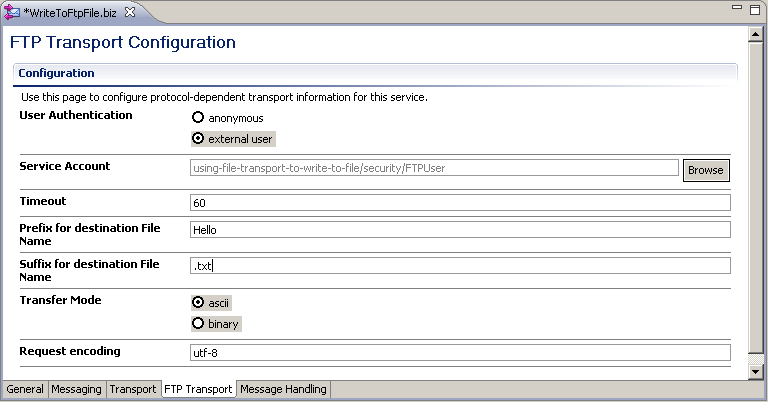
The business service can now be invoked from the proxy service, and the file is written to the FTP server.
Recipe 3: Using Custom XPath functions
In this recipe we will show how to implement custom XPath functions, which extend the collection of XPath functions available with the OSB platform.
Getting ready
You can import the OSB project containing the base setup for this recipe into Eclipse OEPE from \chapter-9\getting-ready\using-custom-xpath-function, included in osb-cookbook-1540083.zip.
How to do it...
First we have to create the Java functionality we like to expose as a custom XPath function. We will reuse the same Java class as we have used in the recipe Using the Java Callout action to invoke Java code, as shown below: which is shown here:
package osbcookbook.util.checksum;
import java.util.zip.CRC32;
import java.util.zip.Checksum;
public class ChecksumUtil {
public static long calculateChecksum(String data) {
Checksum checksum = new CRC32();
checksum.update(data.getBytes(), 0,
data.getBytes().length);
return checksum.getValue();
 	}
}
A JAR with this class is available in \chapter-9\getting-ready\misc\osb-checksum-util.jar, included in osb-cookbook-1540083.zip.
Next we need to configure the XPath function on the OSB server and map it to the calculateChecksum method of the ChecksumUtilclass. The configuration for the XPath functions is held in [WL_HOME]/Oracle_OSB1/config/xpath-functions. Perform the following steps in an Explorer window.
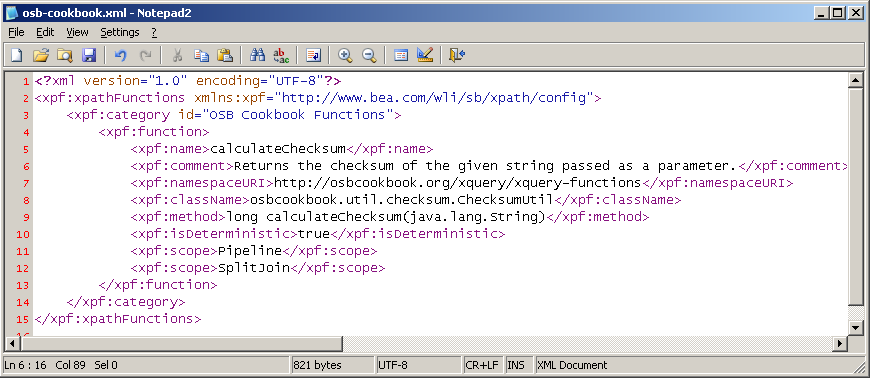
Now we have to make the JAR available to the OSB Server:
Now let's use our new XPath function. In Eclipse OEPE perform the following steps:
Now let's test the proxy service by performing the following steps in the Service Bus Console:
How it works...
We have seen how we can extend the set of XPath functions available on the OSB platform by custom XPath function. A custom XPath function is implemented by some Java code. In order to map the Java functionality to the custom XPath function, the Java code needs to be exposed as a public static method in a public Java class. The Java method should not produce side-effects, for example it should not update any databases or participate in a global transaction. Such code should be invoked by a Java Callout action.
A custom function will only appear in Eclipse OEPE if the OSB can find the Java class. Such a custom XPath function can be used both in inline XQuery expression, such as shown with the Replace and in XQuery resources, just as any other functions provided by the Oracle Service Bus.
The isDeterministic property in the configuration specifies whether the function is deterministic or non-deterministic. Deterministic functions always provide the same results where as Non-Deterministic functions return the unique results. The XQuery standard recommends that functions should be deterministic, so that the XQuery engine is able to perform optimizations.
There's more...
A custom XPath function can also be invoked in a XQuery resource, as shown in the image below.
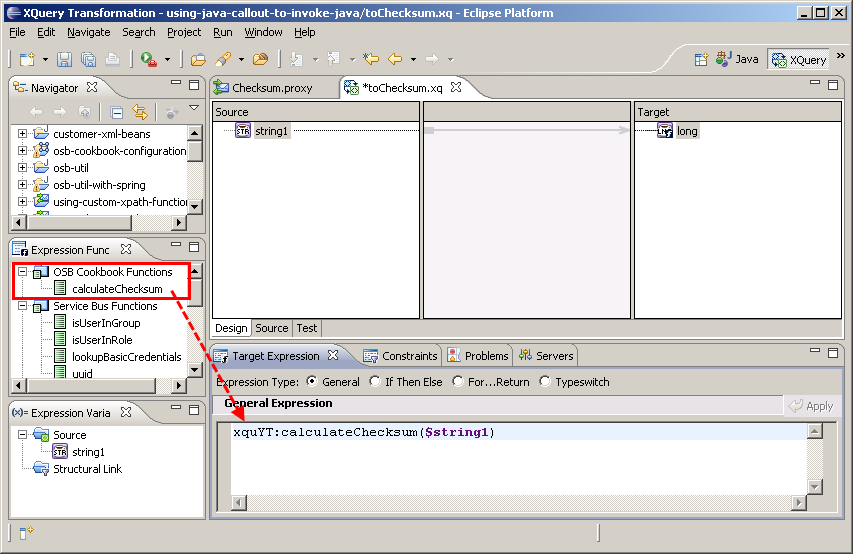
Just drag the XPath function from the Expression Functions tree into the Expression window, as you would with any other built-in XPath function.
Conclusion
The three recipes presented in this article were specifically selected by the authors from among the 80 recipes included in Oracle Service Bus 11g Development Cookbook. We hope you found these recipes interesting, and that we were able to whet your appetite for more.
About the Authors
Guido Schmutz is an Oracle ACE director specializing in Oracle Fusion Middleware and SOA.
He works for Trivadis, an Oracle Platinum Partner.
Edwin Biemond is an Oracle ACE and solution architect at Amis.
Jan van Zoggel is a principal Oracle Fusion Middleware consultant with Rubix, an Oracle Gold Partner.
Mischa Kölliker is a principal consultant with Trivadis.
Eric Elzinga is an Oracle ACE specializing in Oracle Fusion Middleware and SOA.
He works for Xenta Consultancy and Randstad / I-bridge.