Using PostgreSQL on WebLogic Server
by Deepak Vohra
05/23/2005
Abstract
PostgreSQL is a free, open source, object-relational database management system (ORDBMS). There are a number of advantages to using PostgreSQL, including low maintenance and tuning requirements, reliability, stability, extensibility, and cross-platform support. In this tutorial we will show how to install and configure PostgreSQL 8.0 for use with BEA WebLogic Server 8.1.
Overview
The PostgreSQL database has most of the features common to many commercial databases such as transactions, subselects, triggers, views, and foreign key referential integrity. PostgreSQL 8.0 has some features that are not always found in other databases including user-defined types, tablespaces, savepoints, and inheritance. Some additional advantages of PostgreSQL over other database systems are discussed in the PostgreSQL 8.0 documentation. PostgreSQL may be managed from a graphical user interface; some of the available user interfaces for the PostgreSQL database are pgAdmin III, pgAccess, RHDB Admin, and phpPgAdmin.
PostgreSQL can also be used to develop JDBC applications. This article shows how to install and configure PostgreSQL 8.0 and its JDBC driver. A simple JSP application is created to support this, and we deploy the application on WebLogic Server 8.1. This JSP application obtains a connection to the database and displays the result of a query.
Preliminary Setup
You can download PostgreSQL 8.0 from the official PostgreSQL site. This article uses the PostgreSQL Win32 Native Server, which is designed to run on Microsoft Windows 2000, Windows XP, and Windows 2003. You also need the PostgreSQL JDBC driver, which is distributed separately. Download the PostgreSQL JDBC 3 driver jar file 8.0-311 JDBC 3 from the JDBC driver download site.
Installing PostgreSQL
To install PostgreSQL, extract the postgresql-8.0.1.zip file to an installation directory. PostgreSQL provides an installer package to install on the Windows platform. Double-click on the
postgresql-8.0.msi Windows Installer Package, and in the
Installation Options section select the database server options, interfaces, and database drivers. Select the default options if you are not familiar with the other settings. If the PostgreSQL database server is to be installed as a service (so that it starts up automatically when your machine is restarted), check the "Install as a service" checkbox in the following section. Specify the service name and account information. Deselect the
Initialize database cluster checkbox and click on the Next button to complete the installation. Add the PostgreSQL
bin directory, which defaults to
C:\Program Files\PostgreSQL\8.0\bin, to the PATH variable so you can access the server and other utilities from the command line.
Creating a PostgreSQL Database
Now that we have installed the PostgreSQL 8.0 database server, we can turn to creating a database. The first task is to create a PostgreSQL database cluster with the
initdb command. As we'd like a secure solution, we recommend creating a special user dedicated to running the database. On Windows, the
runas command can be used to execute a command as a different user. Unix users can use the
sudo command. We'll start by creating a PostgreSQL user account with the
net user command:
net user postgres <password>
Now run the
initdb command to create the initial database file structure:
runas /user:postgres "initdb -D C:/PostgreSQL/var/postgresql/data"
The -D option of the
initdb command specifies the directory in which the database cluster is to be created. Executing this command initializes the data directories used by the database, and in the process a database called
template1 is created. This
template1 database is used by PostgreSQL to create additional databases (it acts as a template for new databases). Now that the relevant data directory has been created, we can start the PostgreSQL database server with the
postmaster command. Specify the -i option to enable TCP/IP connections. The -D option specifies the data directory:
runas /user:postgres "postmaster -i -D C:/PostgreSQL/var/postgresql/data"
The PostgreSQL database server will start and the
database system is ready message will be displayed if all is well. Now you can finally create a database, which can be done with the
createdb command:
runas /user:postgres "createdb PostgreDB"
This will create the demonstration database that we'll use in this article. We've named this database "PostgreDB." You can connect to the database created with the
psql command:
runas /user:postgres "psql PostgreDB"
This should start up the PostgreSQL interactive terminal, from which you can administrate the database server.
Creating a PostgreSQL Database Table
Now that we've created the
PostgreDB database, we'll look at how to create a table in that database by executing a script. Start the PostgreSQL database server with the
postmaster command and connect to the
PostgreDB database, as explained in the previous section. Create a directory, C:/PostgreSQL/usr/local/psql, and set the directory as the current directory with the
\cd command in the PostgreSQL interactive terminal.
PostgreDB=# \cd C:/PostgreSQL/usr/local/psql
Listing 1 shows a simple SQL script that creates a table called 'Catalog' together with some data. We've called this script 'CatalogTable.sql'. Copy it to the C:/PostgreSQL/usr/local/psql directory.
Listing 1. CatalogTable.sql
CREATE SCHEMA postgres;


  CREATE TABLE postgres.Catalog(CatlogId VARCHAR(25)

  PRIMARY KEY, Journal VARCHAR(25), Section VARCHAR(25),

  Edition VARCHAR(25),  Title Varchar(125), Author Varchar(25));


  INSERT INTO postgres.Catalog VALUES('catalog1', 'dev2dev',

  'WebLogic Platform 8.1',

  'Oct 2004',  'BEA WebLogic Platform 8.1 SP3 Evaluation Guide',

  'dev2dev');


  INSERT INTO postgres.Catalog VALUES('catalog2', 'dev2dev',

  'WebLogic Server',

  'Feb 2005',  'Application Architecture for Applications Built on

  BEA WebLogic Platform 8.1', 'Bob Hensle');


  INSERT INTO postgres.Catalog VALUES('catalog3', 'dev2dev',

  'WebLogic Integration',

  'March 2005',  'The BEA WebLogic Platform and Host Integration',

  'Tom Bice');
In the PostgreSQL interactive terminal run the SQL script with the
\i command:
PostgreDB=# \i CatalogTable.sql
The
postgres schema and the
catalog table will be created. Several status messages should be displayed indicating the creation of the table. You can use additional terminal commands to verify the status of the database. For example, use
\dt to list the tables in the database. Disconnect from the database with the
\q command:
PostgreDB=# \q
Configuring a PostgreSQL JDBC Connection in WebLogic Server
We now have a running PostgreSQL instance, together with a new database and database table. Let's now look at creating a JDBC connection to the database from WebLogic Server. We will configure a JDBC connection pool and a JNDI data source to access the JDBC connection pool. WebLogic Server provides an example server for testing and developing applications, which we will use in this article. You can just as easily perform the following instructions on your custom WebLogic domains and servers.
First, add the PostgreSQL database driver jar file,
postgresql-8.0-310.jdbc3.jar, to the CLASSPATH variable of the server. The CLASSPATH variable for the examples server is set in the <weblogic81>\samples\domains\examples\startExamplesServer script. <weblogic81> is the directory in which WebLogic Server 8.1 is installed. After making this change, run this script to start the WebLogic examples server. The examples server will start on port 7001, and you can access the WebLogic Server Examples page by visiting the URL //localhost:7001/index.jsp. Click on the Administration Console link and log in. The default credentials are weblogic for both the username and the password.
In the administration console select the
examples>Services>JDBC node. To configure a JDBC connection pool, right-click on the
Connection Pools node and select
Configure a new JDBCConnectionPool. In the Choose database frame displayed select
PostgreSQL as the
Database Type. Select
PostgreSQL's Driver (Type 4) as the
Database Driver. Click on the Continue button. Specify the connection properties for the JDBC connection. In the
Database Name field specify PostgreDB, the database that was created in a previous section. In the
Host Name field specify
localhost. The default port for the PostgreSQL database is 5432. In the Database User Name field specify
postgres, the PostgreSQL user account, and in the password field specify the password for the PostgreSQL user. Click on the Continue button.
In the
Test database connection frame, the PostgreSQL driver
org.postgresql.Driver is specified in the
Driver Classname field. The PostgreSQL driver is used to establish a connection with the PostgreSQL database. In the
URL field specify
jdbc:postgresql://localhost:5432/PostgreDB as the connection URL for the database. To test the JDBC connection with the database click on the
Test Driver Configuration button. In the
Create and deploy frame select the server on which the connection pool is to be deployed. If the domain has only one server, the
examplesServer, the server selection is not required. Click on the
Create and deploy button to deploy the JDBC connection pool on the server. The configured connection will be deployed to the server and a node for the connection pool will be added to the
JDBC>Connection Pools node.
Next, configure a data source in the WebLogic server. Right-click on the
examples>Services>JDBC node and select
Configure a new JDBCTxDataSource. Specify a data source name. In the
JNDI Name field specify a JNDI name for the data source, PostgreDS for example. Click on the Continue button. In the
Connect to connection pool frame select a connection pool from the list of connection pools. Select the connection pool that was configured in the previous section and click on the Continue button. In the
Target the data source frame select
examplesServer as the target server for the data source. Click on the
Create button. The configured data source will now be available on the examples server. The data source is available with the JNDI name PostgreDS, which was specified in the data source configuration. You can now use this datasource like any other JDBC datasource, as the next section will show.
Developing a JDBC Application
Let's now look at using the datasource created in the previous section. We shall develop a simple JDBC application (a JSP page, really) to connect to the PostgreSQL database, and retrieve and display table data. The JDBC connection to the database will be established in a JSP that is deployed on the WebLogic server. In the JSP import the Java classes for establishing a JDBC connection:
<%@ page import="java.sql.*,java.util.*,javax.naming.*" %>


  java.sql.Connectionjavax.naming.InitialContext
  InitialContext ctx=new InitialContext();
Obtain a
javax.sql.DataSource object with the
Context object:
javax.sql.DataSource ds=(javax.sql.DataSource)ctx.lookup("PostgreDS");
The data source with the JNDI name PostgreDS, which was configured in the previous section, is used to obtain a DataSource object. Obtain a JDBC connection from the DataSource.
Connection connection=ds.getConnection();
Create a Statement object and run a SQL query on the database.
Statement stmt=connection.createStatement();


  ResultSet resultSet=stmt.executeQuery("select * from postgres.Catalog");
The SQL query retrieves the data in the
postgres.Catalog table and returns a
ResultSet. Listing 2 shows the complete code sample, which has additional logic to display the retrieved table data.
Listing 2. Catalog.jsp
<%@ page contentType="text/html"%>


  <%@ page import="java.sql.*,java.util.*,javax.naming.*" %>

  <html>

  <head>

  <meta http-equiv="Content-Type" content="text/html">

  <title>PostgreSQL JSP Application</title>

  </head>

  <body>

  <%

  InitialContext ctx=new InitialContext();

  javax.sql.DataSource ds=(javax.sql.DataSource)ctx.lookup("PostgreDS");

  Connection connection=ds.getConnection();

  Statement stmt=connection.createStatement();

  ResultSet resultSet=stmt.executeQuery("Select * from postgres.Catalog");%>


  <table border="1" cellspacing="0">

  <tr>

  <th>CatalogId</th>

  <th>Journal</th>

  <th>Edition</th>

  <th>Section</th>

  <th>Title</th>

  <th>Author</th>

  </tr>

  <%

  while (resultSet.next())

  { %>

  <tr>

  <td><%out.println(resultSet.getString(1));%></td>

  <td><%out.println(resultSet.getString(2));%></td>

  <td><%out.println(resultSet.getString(3));%></td>

  <td><%out.println(resultSet.getString(4));%></td>

  <td><%out.println(resultSet.getString(5));%></td>

  <td><%out.println(resultSet.getString(6));%></td>

  </tr>

  <% } %>

  </table>

  </body>

  </html>
To run the JSP, copy the Catalog.jsp file to the <weblogic81>\samples\server\examples\build\mainWebApp directory. Using your browser, go to the URL
//localhost:7001/Catalog.jsp. The HTML produced from the JDBC JSP application is illustrated in Figure 1.
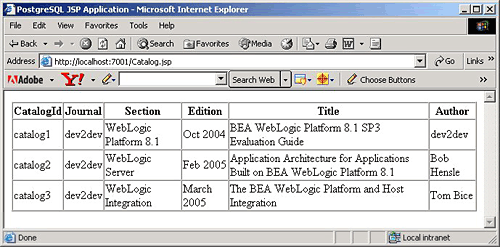
Figure 1. JSP client application
Summary
This tutorial shows how to install and configure the PostgreSQL database server. The example provided in this tutorial accessed the PostgreSQL database as a datasource, and retrieved and displayed data from a table. Although the installation and initial configuration of the database may seem a little convoluted, the result is a powerful, free database server that can be used for developing and deploying WebLogic applications.
Additional Reading
- PostgreSQL 8.0 Database - The download site for the PostgreSQL database
- PostgreSQL JDBC Driver - The download site for the PostgreSQL JDBC drivers
Deepak Vohra is a NuBean consultant and web developer. He is a Sun Certified Java 1.4 Programmer and Sun Certified Web Component Developer for J2EE.