Contents
Overview
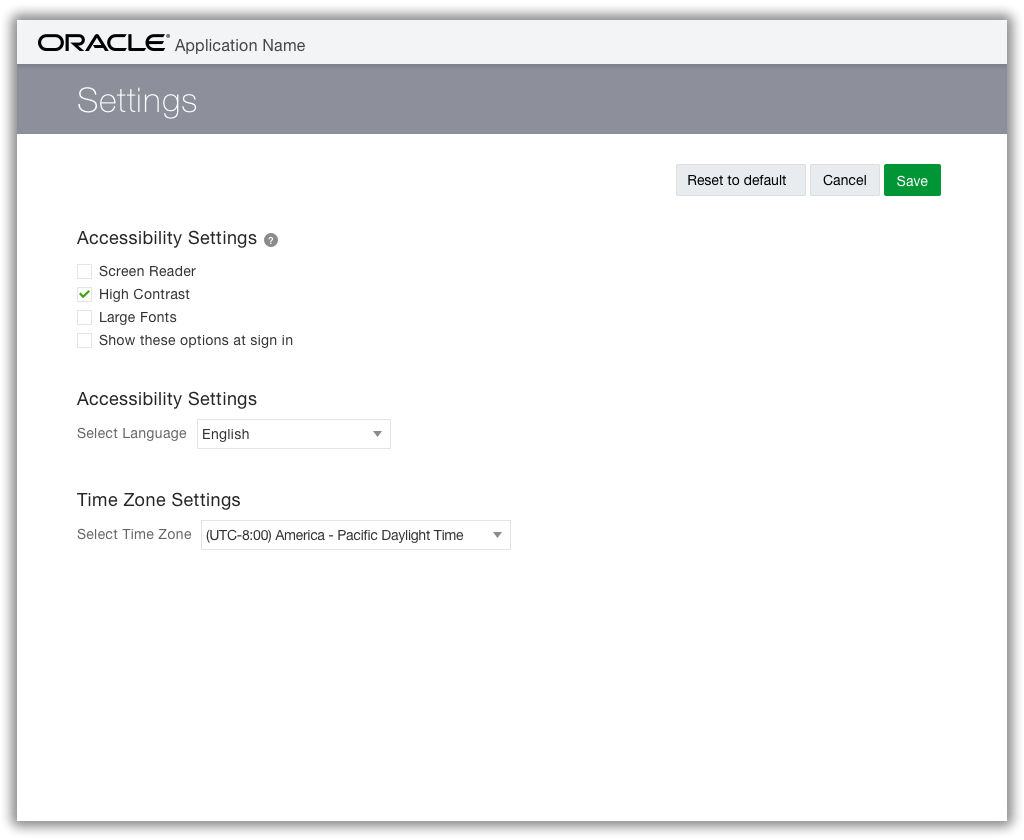
The Settings page, often referred to as a Preference page, allows the user to set optional attributes of a cloud service. For example, enabling an accessibility option such as high contrast mode is an optional attribute setting of the service.
- Setting optional attributes in the Settings page is different from a User Profile page, which allows the user to set optional attributes of the current user, such as displaying a custom avatar.
The image below is an example of a Settings page.
Setting Categories
There are two types of settings: general and suite-specific.
General settings apply to one or more suites. Any number of services to which the user has access within or across suites can share the same general settings. Examples of general settings are:
- Accessibility
- Time zone
- Language
Suite-specific settings are those that apply only to the current suite or service. Examples of this are:
- Dashboard options
- Hide/show service features
- UI feature behavior
- Enabling first-time user assistance
The Reset button is given for both general and suite-specific settings. This allows the user to revert all changes in a single action, by returning to the default setting.
There is an optional Help setting exclusively for applications and suites to return the application to a first-time user assistance experience; this suite-specific setting is apart from the Reset button.
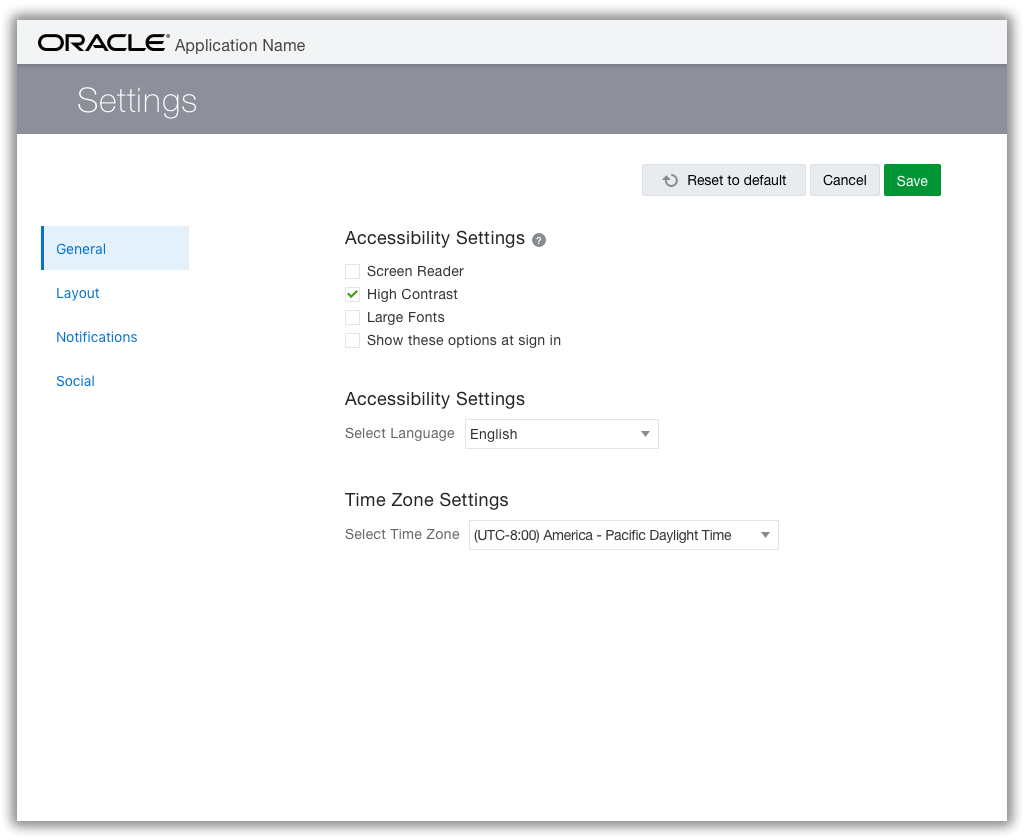
Layouts for Settings categories may vary. For example:
- All category options may be displayed on the same page separated by headers, or
- Category options may be displayed on different pages separated by navigation "tabs".
In the following example, the navigation "tabs" are presented as a link list: General, Layout, Notifications, and Social.
Access Point
Access to the Settings page is from the User Menu, using a call and return, linear navigation path. The following image illustrates the navigation flow of the Settings page.
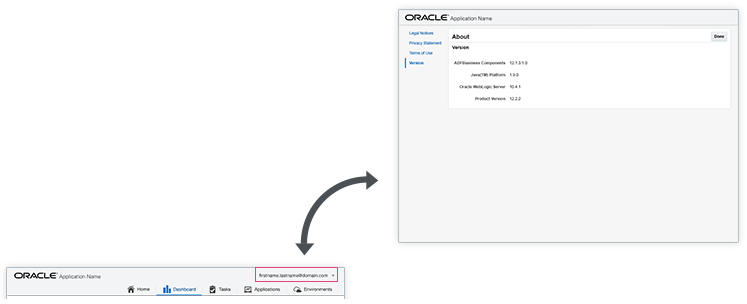
Settings are presented as a modal page, regardless of the amount of content in the page. This avoids annoyances such as a dynamically resizing dialog window, or a dialog window that the user must re-size to comfortably see its content.
The modal page presents no controls that could navigate the user away from the page other than those that are presented in the Settings page (such as a Close button). With a modal page, there is no question as to user intent. The only method for navigating away from the page is through explicit, page-level actions, such as Save, and Cancel; or a single Done button.
Interaction Model
When settings are presented across multiple "tabbed" pages, navigation is supported by an implicit save — that is, each individual setting persists without the user explicitly clicking a Save button before visiting another "tabbed"settings page.
- When the user is prepared to commit settings made across all pages, an explicit, page-level button, such as Save, is available.
In the rare case where a setting selection requires the user to re-authenticate, then the user is alerted to this. However, after the user enables such a setting, the user is allowed to defer re-authentication as long as desired.
Default Values
All settings, such as language and time zone, should have a default value that the user can change. This can include a blank default value if a null (unspecified) valued also has meaning.
- Null is not necessarily the same as the specified value of None.
- Further, a blank value (usually None) should not have any other implied value. For example, a sort control that initially displays blank should not have an implied value of ascending or descending.
- Avoid implied values as defaults. The settings UI should clearly state an explicit value as the default.
If a value is derived by the cloud service at runtime, then that value should explicitly appear. For example, the user may not have specified Spanish as a default language; however, the Settings UI may recognize a default (such as, <browser default> Spanish), as obtained from the HTTP request header, and present that value in the Settings UI.
The Settings UI should not attempt to derive default values unless the method for doing so is highly reliable. For example, using the users' language to derive locale is not sufficiently reliable; on the other hand, determining time zone from HTML5 geolocation is highly reliable.
- When a default value is derived, it is important to specify the source of that value — such as, Language: <browser default> English, or Time Zone: <current location> in the Settings UI.
When one or more setting values are mandatory and the service cannot specify a reasonable value, (for example, authentication challenge questions and answers), then the user is presented with these mandatory settings as part of an initial authentication or "on-boarding" sequence.